



Meet AI Assistant (beta) in Illustrator: Less busywork, more time to create
What if you could simply tell Illustrator what you need done?
With AI Assistant (beta), you can use natural-language prompts to review your document, tackle multi-step tasks, and handle repetitive production work while staying inside Illustrator. It can help organize layers and artboards, recolor artwork, export assets, fix spelling, set up documents for print, vectorize images, create artwork variations, and more. Check this article for more updates.
Start with what you want to accomplish
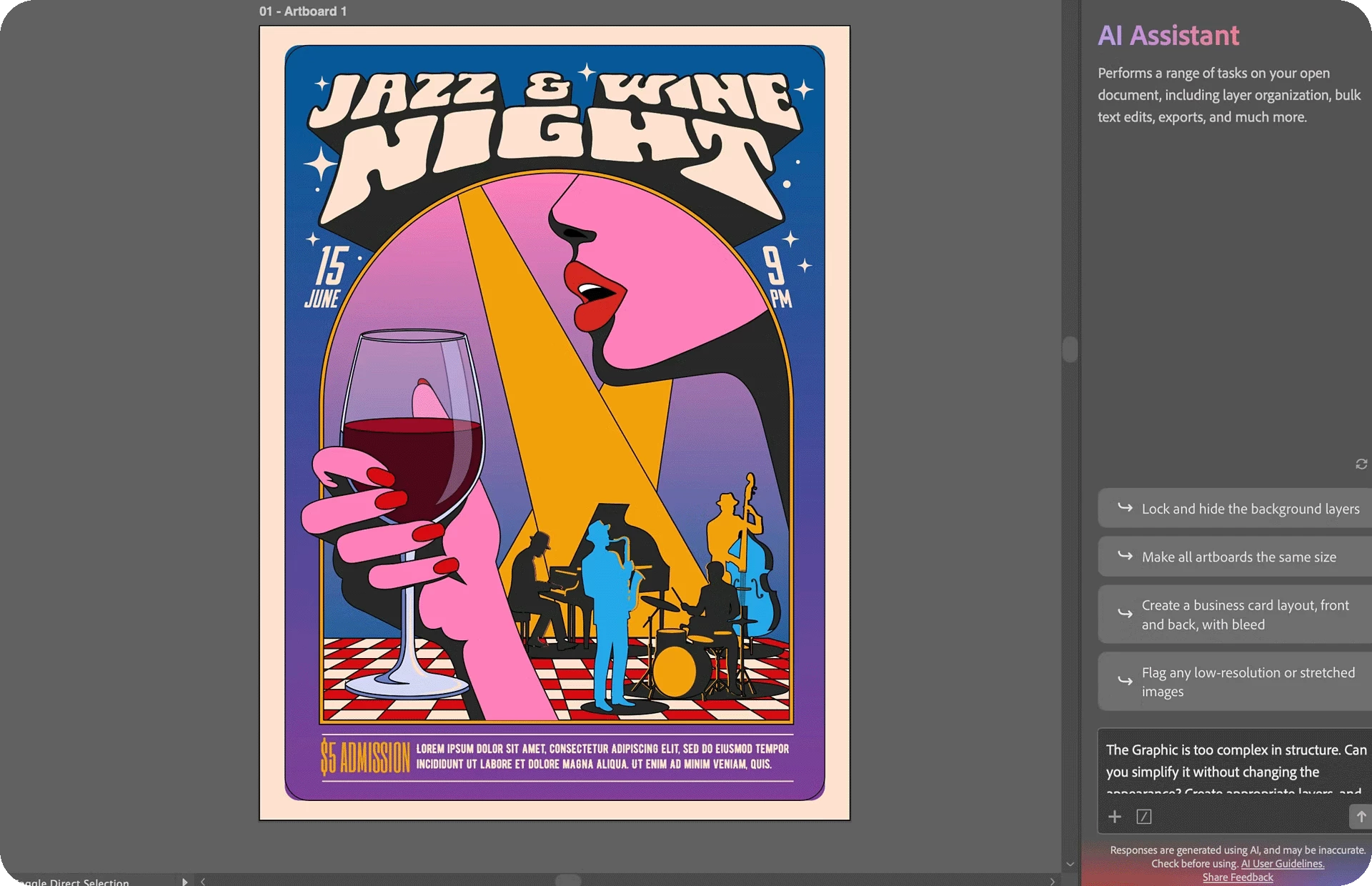
Open the AI Assistant from the Application Bar and describe your goal, or choose a workflow starter such as Recolor, Organize, Export, Setup, or Fit Text.
For more involved tasks, you can review the Assistant steps to see how it plans to approach your request and refine your instructions before continuing. Longer operations can also run while you continue working elsewhere in Illustrator, although it’s best not to edit the same objects AI Assistant is modifying.
Bring your references and data into the conversation
Need additional context? Attach supported Illustrator files, MD, XLSX, or CSV files, or paste an image or screenshot into the prompt field.
That opens up some useful workflows. You could:
- Summarize an attached file before deciding what to do with it.
- Extract swatches, brushes, graphic styles, symbols, and text styles from an Illustrator file.
- Turn spreadsheet rows into artwork variations, with one artboard per row.
- Use a creative brief or reference file to give AI Assistant more context.
Take some of the stress out of print prep
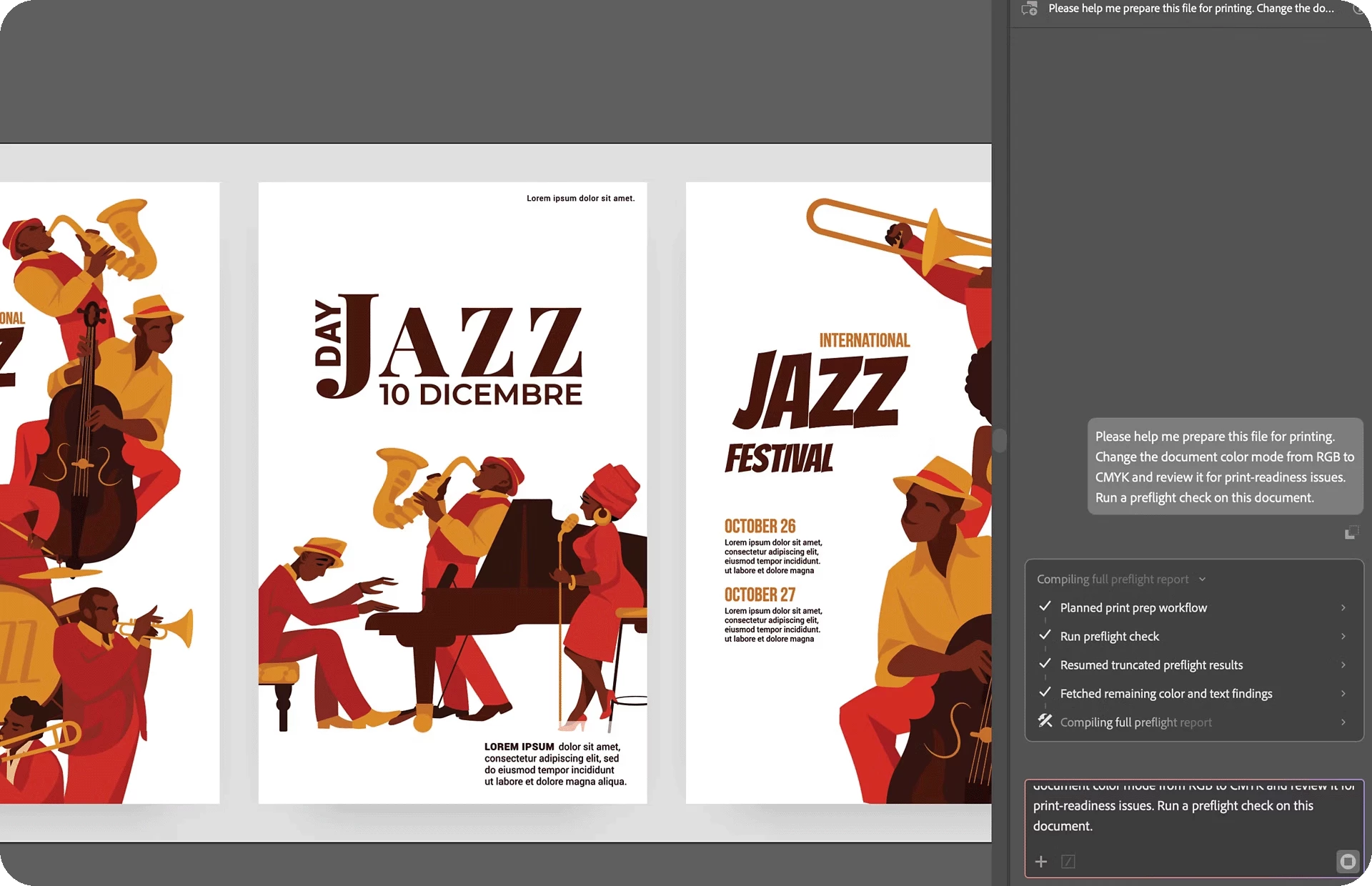
One especially practical use is preflight.
Ask AI Assistant to run a preflight check, and it can assess areas including fonts, text, images and links, color, print and bleed, layout, and accessibility. Results are organized into critical issues, warnings, and passed checks, with guidance for addressing problems. It can automatically fix many critical issues when asked and identify anything that still needs manual attention.
That means you can go from“Is this artwork actually ready for production?” to a much clearer list of what needs attention.
Turn repeatable workflows into Skills
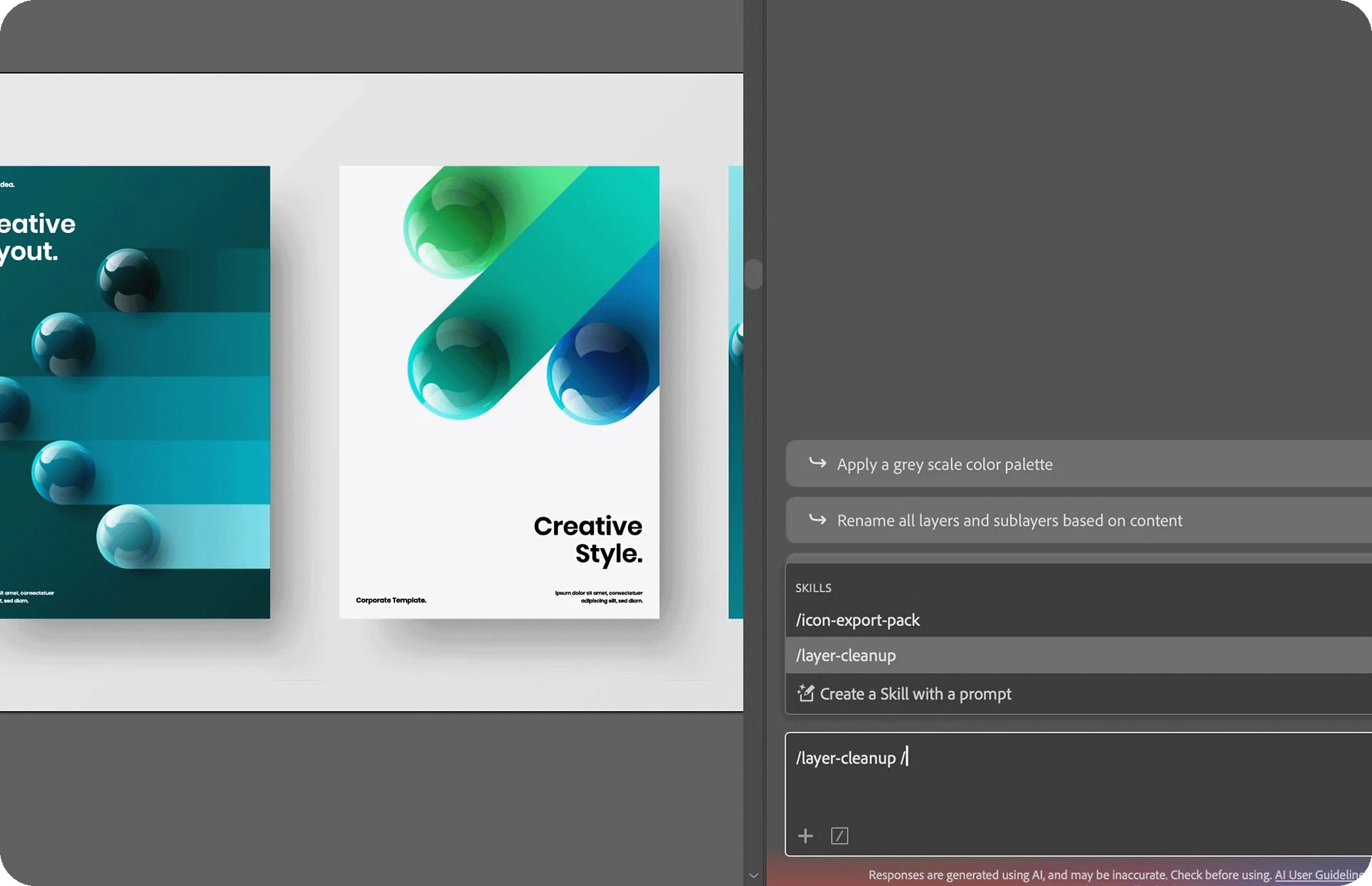
Have a prompt you use again and again? Save it as a Skill.
Skills are reusable actions for common production tasks. Type/ in the prompt field to find available Skills, or create your own from a prompt or workflow you want to repeat. After some multi-step tasks, AI Assistant may also suggest turning that workflow into a Skill.
So a workflow like preparing artwork for print doesn’t have to start from scratch every time.
And yes, it can help create, too
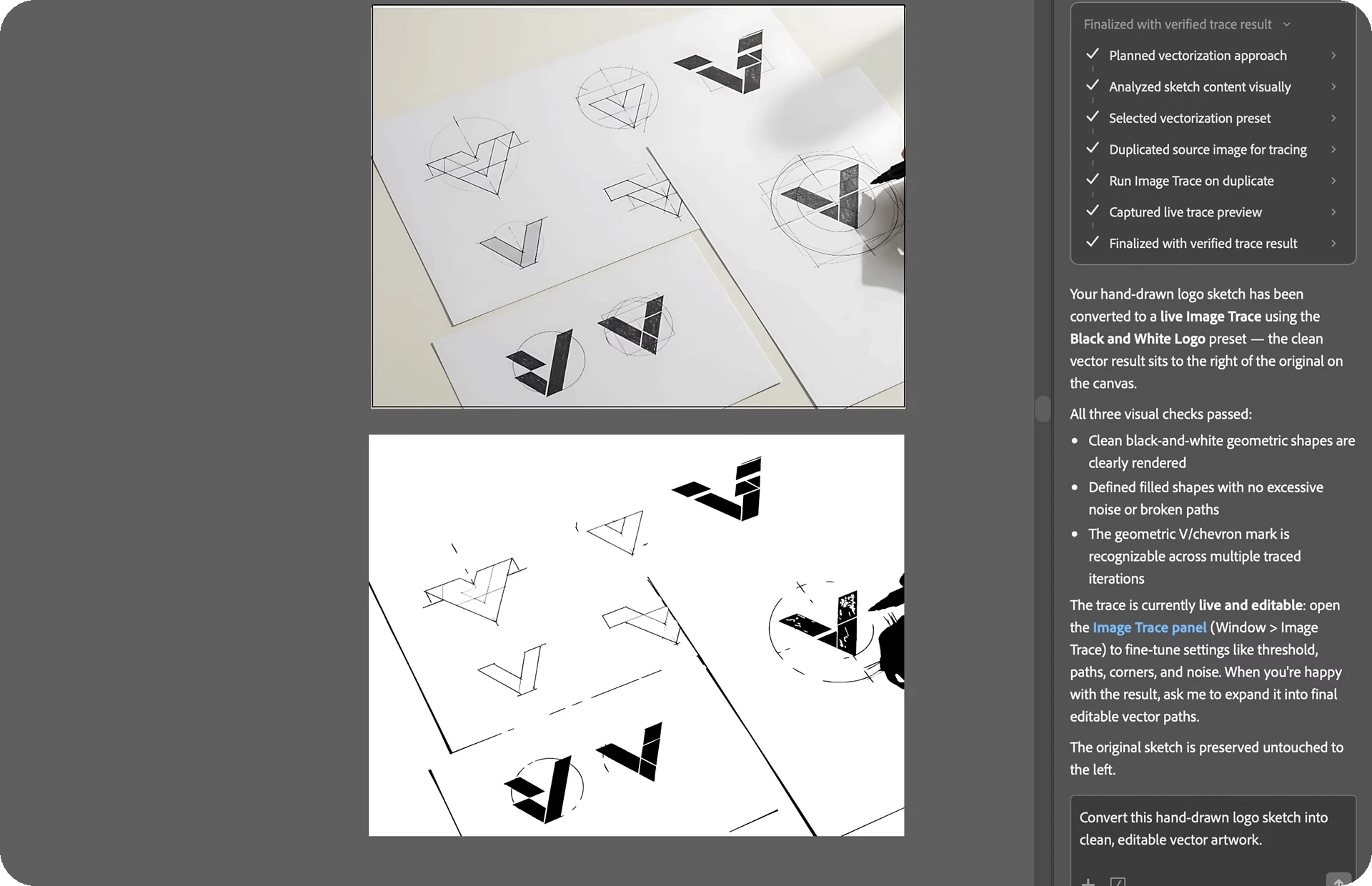
AI Assistant can also generate vector artwork from a description, recolor existing artwork, and turn an image or hand-drawn sketch into editable vectors. For generated artwork, you can describe details such as the visual style, color count, and intended use, then choose from the resulting variations.
For example, try:
“Create a flat vector illustration of a tropical bird in a modern editorial style. Use bold outlines, flat colors, and no more than six colors.”
AI Assistant currently supports up to 15 artwork generations per day; additional information about credits, limits, supported files, and known limitations is available in the Illustrator AI Assistant FAQs.
What would you ask Illustrator to do?
AI Assistant (beta) brings natural-language assistance into both the creative and production sides of Illustrator. Whether you’re cleaning up a complicated document, building dozens of variations, checking artwork before print, or turning a repeatable process into a Skill, there are plenty of workflows to explore.
Give it a try and tell us what you’re using it for. What Illustrator task would you most like to hand off to AI Assistant?
 AdChoices