




Illustrator Creative Challenge #4: Make Your Own Merch with Mockup in Illustrator
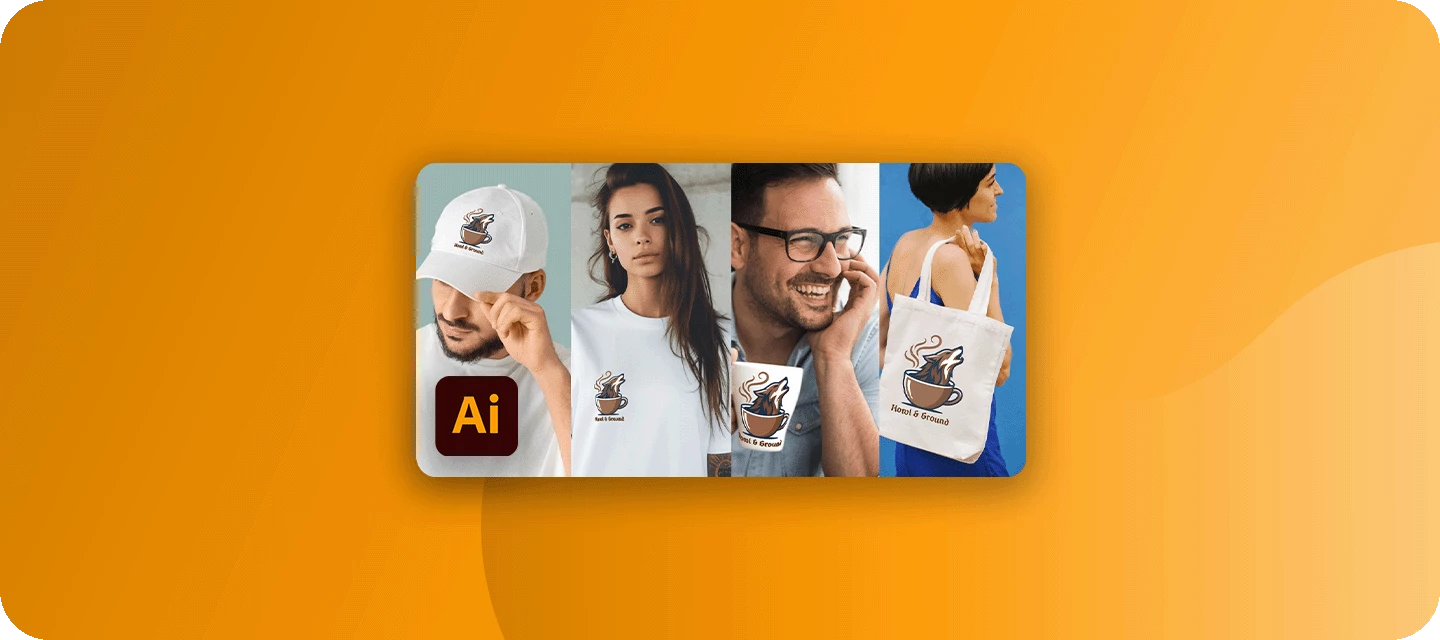
Somewhere out there is a coffee shop run by wolves, a gym for ghosts, and a surf school on Mars. This month, you're their creative director.
Welcome back to the Illustrator Creative Challenges - our monthly nudge to open Illustrator, try something new, and share it with the community. This one takes you all the way from logo design to finished merchandise: invent a brand, design its logo in Illustrator, then use the Mockup tool to wrap it onto real products - t-shirts, totes, mugs, caps, whatever fits. Last month, we lit up neon diner signs; this month, we're building a brand you can actually hold.
THE BRIEF
Dream up a brand for a business that probably shouldn't exist - the more unexpected, the better - then design its logo and put it on real products with Mockup.
Need a spark? Pick something gloriously niche:
🐺 The Unlikely Business - a coffee roaster run by wolves, a barber for Bigfoot, a gym for ghosts.
🚀 The Impossible Brand - a surf school on Mars, a time-travel agency, an asteroid-mining co.
🐉 The Fantastical Franchise - a dragon bakery, a mermaid swim school, a wizard's hardware store.
Prefer to keep it real? Your own passion project, band, or side hustle works just as well - and if you took on Challenge #3, your neon diner could open a gift shop. The point is a brand with a clear personality, brought to life on merch.
WHAT TO INCLUDE
- A logo or wordmark - keep it simple; a clean wordmark in the right font absolutely counts as a logo.
- A brand name - plus a tagline, if you're feeling it.
- A tight color palette - two or three colors, used consistently across everything.
- At least one product mockup - a tee, tote, mug, cap, tin, or sticker.
- (Optional) A small merch lineup - two or three items together, for the full shelf effect.
Don't overthink the logo. The magic here is watching a simple mark suddenly look real on a product - let Mockup do the showing-off.
HERE'S MINE
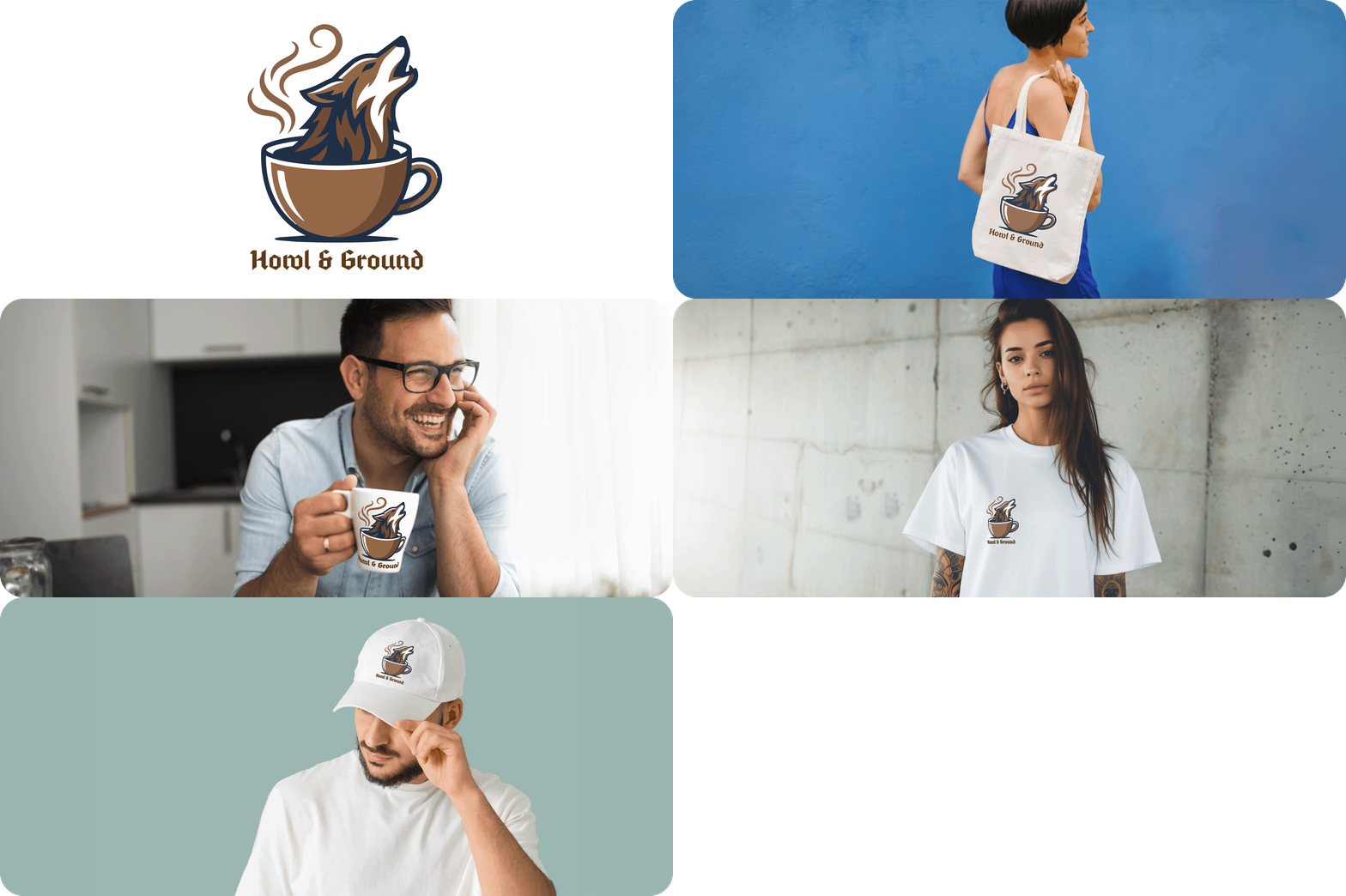
I used a 24-hour coffee roaster run by wolves - Howl & Ground. Here's the workflow:
- I built the wordmark in Fleisch Wolf, then drew a simple Wolf howling out of a coffee mug logo with the Pen and Shape tools.
- Recolor Artwork locked everything to a tight brown-black palette, so every product matched from the start.
- For the merch, I used images from Adobe Stock [1,2,3,4], selected my logo, and used Mockup - it wrapped the artwork onto the fabric's folds automatically, no manual warping.
Pro Tip: Slightly reduce the illustration's opacity for a better blend.
YOUR ILLUSTRATOR TOOLKIT
- Mockup - the star of this challenge. Select your vector logo and a product photo, and Illustrator wraps the design onto the object, following its curves and folds so it looks genuinely printed on.
- Type & Adobe Fonts - a wordmark is a logo, the right typeface does most of the heavy lifting.
- Shape & Pen tools - build a simple icon or emblem to sit alongside the name.
- Recolor Artwork - lock one consistent brand palette across the whole lineup in a couple of clicks.
- Image Trace or Concept to Vector - sketch your logo on paper or describe the idea, then turn it into an editable vector to start from.
Pro tip: A clean, simple vector wraps far more convincingly than a busy one.
HOW TO TAKE PART
Reply to this thread with:
- Your final merch - one product, or a full lineup.
- The brand behind it - the name, the (un)likely business, and a line on how you made it. Honestly, this is the best part to read, so don't skip it.
Not ready to post yet? Tell us the brand you're dreaming up - we want to hear the pitch.
WHAT'S NEXT?
Four challenges in, you've traced, glowed, and branded. Challenge #5 is taking shape - and this time, we want your call. Drop what you'd like to tackle next in the comments.
👍 Like · ⭐ Subscribe for the next one · 📣 Share with someone who'd join in
 AdChoices