




Align Objects on Path in 4 simple steps
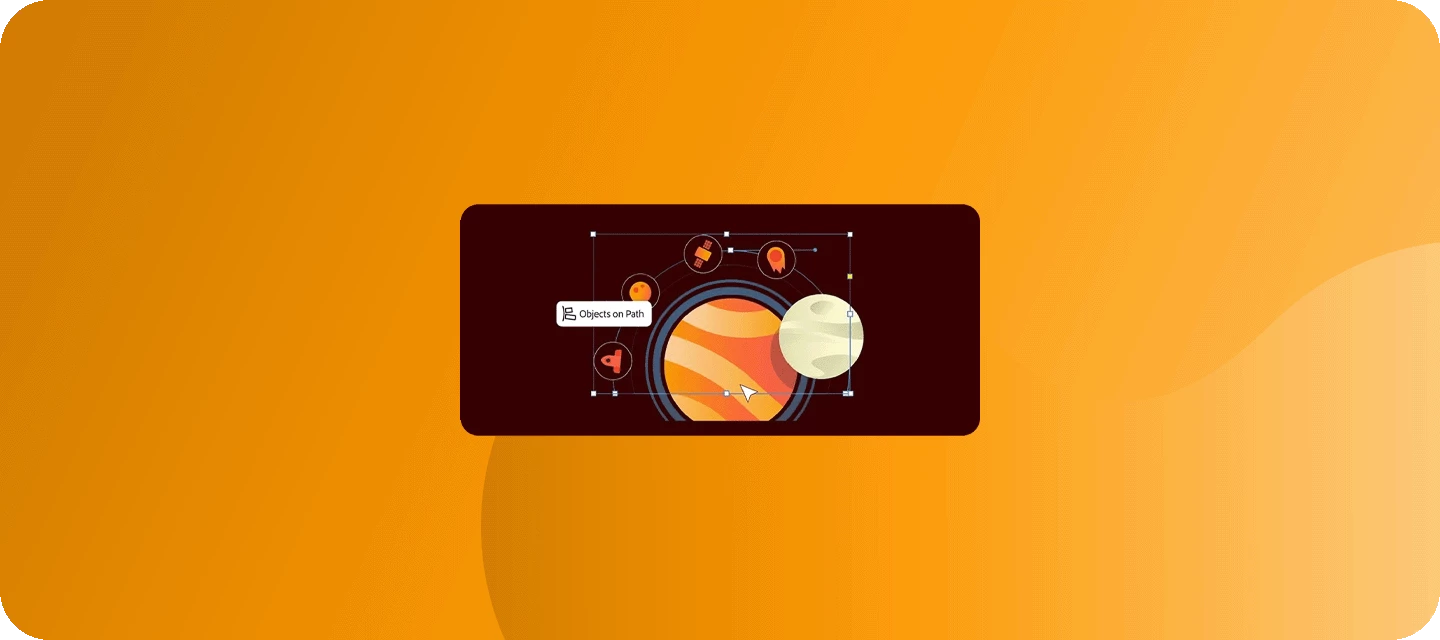
Unleash your creativity with 'Objects on Path' in Illustrator 2025 version 29.0 - easily attach, arrange, and move objects along any path, giving designers new ways to create with speed and precision.
Note: Objects on Path is only available for Illustrator version 29.0 or later. Update the app now!
Check out our tutorial for a first-hand look at it in action!
A special thanks to Saurav Agrawal (Product Manager- Adobe Illustrator) for sharing this video!
Let’s get started with Objects on Path:
Step 1: Select the objects you want to attach to a path.
Step 2: Invoke the "Objects on Path" Tool from the Tools Panel or Object Menu, the Align Panel, or the Contextual Menu
Step 3: Select the Target Path you want your objects to align with. The objects will automatically attach to the path.
Step 4: Adjust Properties.

Spacing: Adjust the space between the objects along the path.

Rotation: Rotate objects to follow the path’s curvature.

Movement: Move objects along the path.

Orientation Control: Change Point of Attachment where each object attaches to the path using 9 point widget in Properties Panel.
Objects are now arranged in visual order, based on left-to-right or top-to-bottom orientation.
Extended possibilities with this feature:
- Modify Path: After attaching objects, edit the path and watch the objects move and rearrange themselves automatically.
- Shuffle Objects: Use the shuffle widget to swap positions of objects along the path.
- Detach Objects: Detach one or more objects from the path without removing the path itself.
- Attach more objects: In the Layers panel, drag objects into the Objects on Path group to automatically attach them to the end of the path.
- Create a copy of Attached object: Also, in isolation mode, copy and paste objects into the group, and they will attach to the path automatically.
- Expand the Objects on Path group: Use Expand to convert the Objects on Path group into a regular group.
Note: The order of the objects on the path won't change if you rearrange them in the Objects on Path group in the Layers panel.
Share Your Feedback
We would love to hear how you found working with paths easier and more versatile with this new feature. For more details & FAQs about this new feature, please click here.
If you found this announcement helpful, click 👍 Like.
Use ⭐ Subscribe to stay informed about future updates.
You may also share this post with others who might benefit from these enhancements.
 AdChoices