


Snapping enhancements in Illustrator

Hey everyone!
With the latest release, Illustrator’s engineering team has rolled out exciting snapping enhancements - shaped directly by your feedback. These updates bring faster setup, clearer canvas control, and export precision you can rely on.
Explore the latest updates and enhancements in Illustrator. Update to Illustrator 30.3 using this link, or open the Creative Cloud desktop app and click Update next to Illustrator. For step-by-step guidance, check out the detailed update instructions.
Enhancements in Illustrator 30.0

Use Snap to Tangent in Illustrator to draw or adjust lines that connect smoothly and precisely to curves. This feature ensures clean geometric accuracy by making lines touch curves at exactly one point—ideal for logos, technical drawings, and designs with circular or organic shapes.
Use Snap to Perpendicular in Illustrator to align line endpoints at perfect right angles to straight paths—ensuring clean, precise geometric connections. Ideal for architectural layouts, technical drawings, and vector illustrations where accuracy is key.
Enhancements in Illustrator 29.8.1
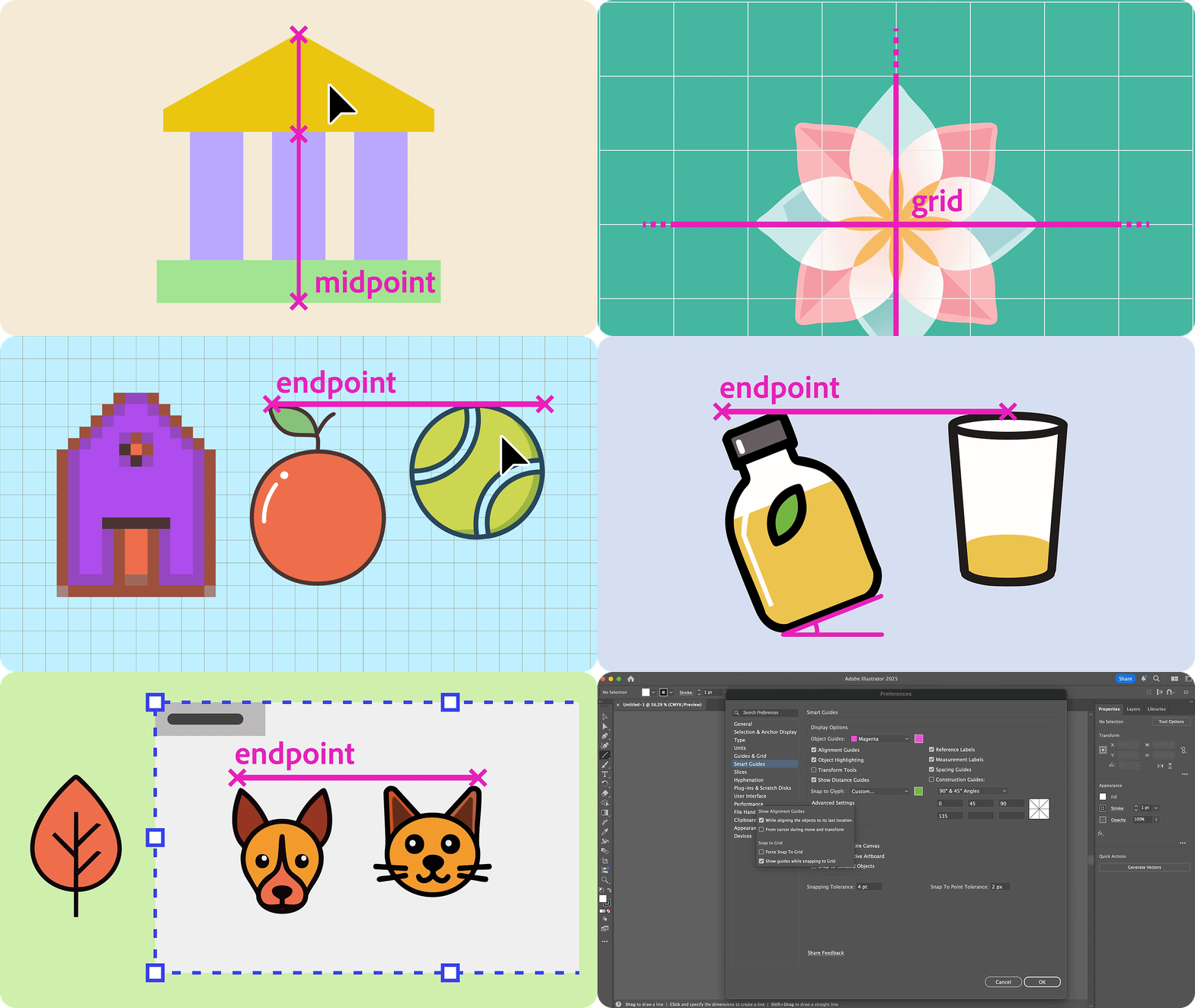
Smart Guides
Using Smart Guides, you can precisely snap to the endpoints, midpoints, and centers of any object, ensuring quicker, more consistent alignment throughout your design.
Snap to Grid
The enhanced Snap to Grid feature allows for flexible object placement within grid cells, while still enabling precise snapping to grid lines or intersections when needed. Newly added dotted guides offer clear visual feedback, making it easier than ever to achieve pixel-perfect alignment.
Snap to Pixel
Improved Snap to Pixel ensures your artwork stays perfectly aligned to the pixel grid by removing half-pixel shifts and unclear alignment hints. Guides now appear only when objects are truly pixel-aligned, helping you create sharp, accurate designs ideal for screen use.
Switch between Snap to Grid, Snap to Pixel, Snap to Point, and Smart Guides
Easily switch between Snap to Grid, Snap to Pixel, Snap to Point, and Smart Guides using the Snapping Quick Access panel located under the Control bar. Instantly adjust snapping preferences like Alignment Guides and Snap to Glyph for smoother, more precise alignment without interrupting your workflow.
Precisely align shapes
You can now precisely align shapes and paths to the endpoint, midpoint, and center of any rotated object. Improved Smart Guides automatically detect rotation angles, ensuring consistent alignment no matter the orientation.
Restrict object snapping
You can now restrict snapping to objects solely within the active artboard, and enable snapping to isolated objects directly from the Preferences panel. This helps avoid unwanted alignment with elements outside your workspace, keeping your edits precise and focused.
New advanced Smart Guides settings
Take advantage of the new advanced Smart Guides settings to tailor how objects align and snap on the canvas. You can enable forced snapping to the grid, adjust snapping tolerance, or display guides during snapping - allowing snapping to effortlessly adapt to your workflow.
Share Your Feedback
Explore this more intuitive way to work with snapping in Illustrator and let us know your thoughts in the comments. Feel free to create a new post if you have any issues related to the release or need more tips!
If you found this announcement helpful, click 👍 Like.
Use ⭐ Subscribe to stay informed about future updates.
You may also share this post with others who might benefit from these enhancements.
 AdChoices