




Text to Pattern: Create and edit detailed Vector Patterns with Text Prompts

Harness the power of Text to Pattern to effortlessly craft distinctive vector designs that enhance your artwork. Describe your desired pattern, adjust creative settings, and let Illustrator generate multiple variations for you to choose from. Once selected, edit to your own unique style and seamlessly integrate your chosen pattern into your swatch library.
With the latest version of Illustrator 2025 v29.5, you can now:
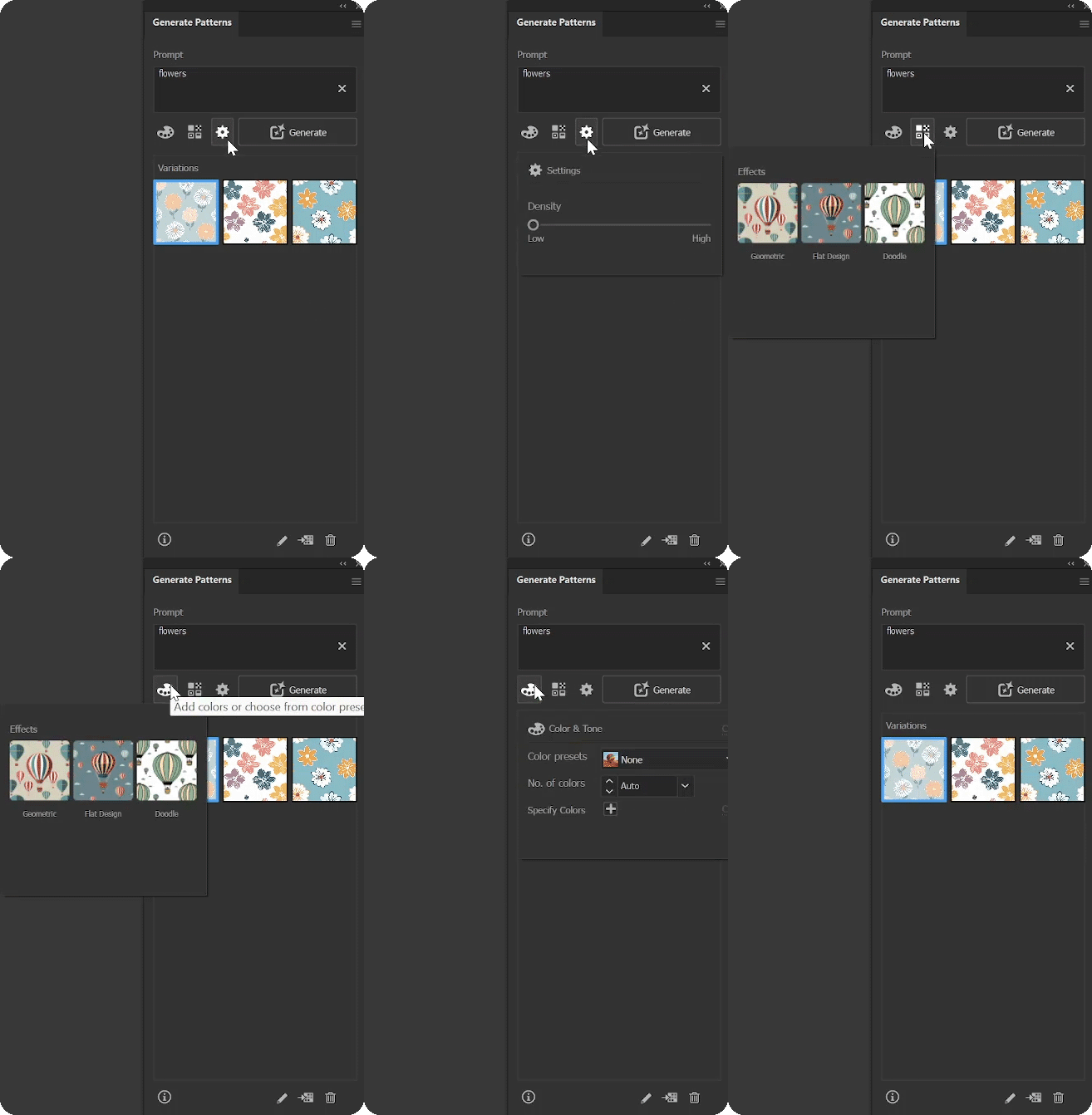
- Set the density level for creating patterns under view in all settings.
- Access Text to Pattern directly from the Swatches panel.
- Reset the color and tone settings from the options menu.
Check out our tutorial for a first-hand look at it in action!
Multiple Access Points:
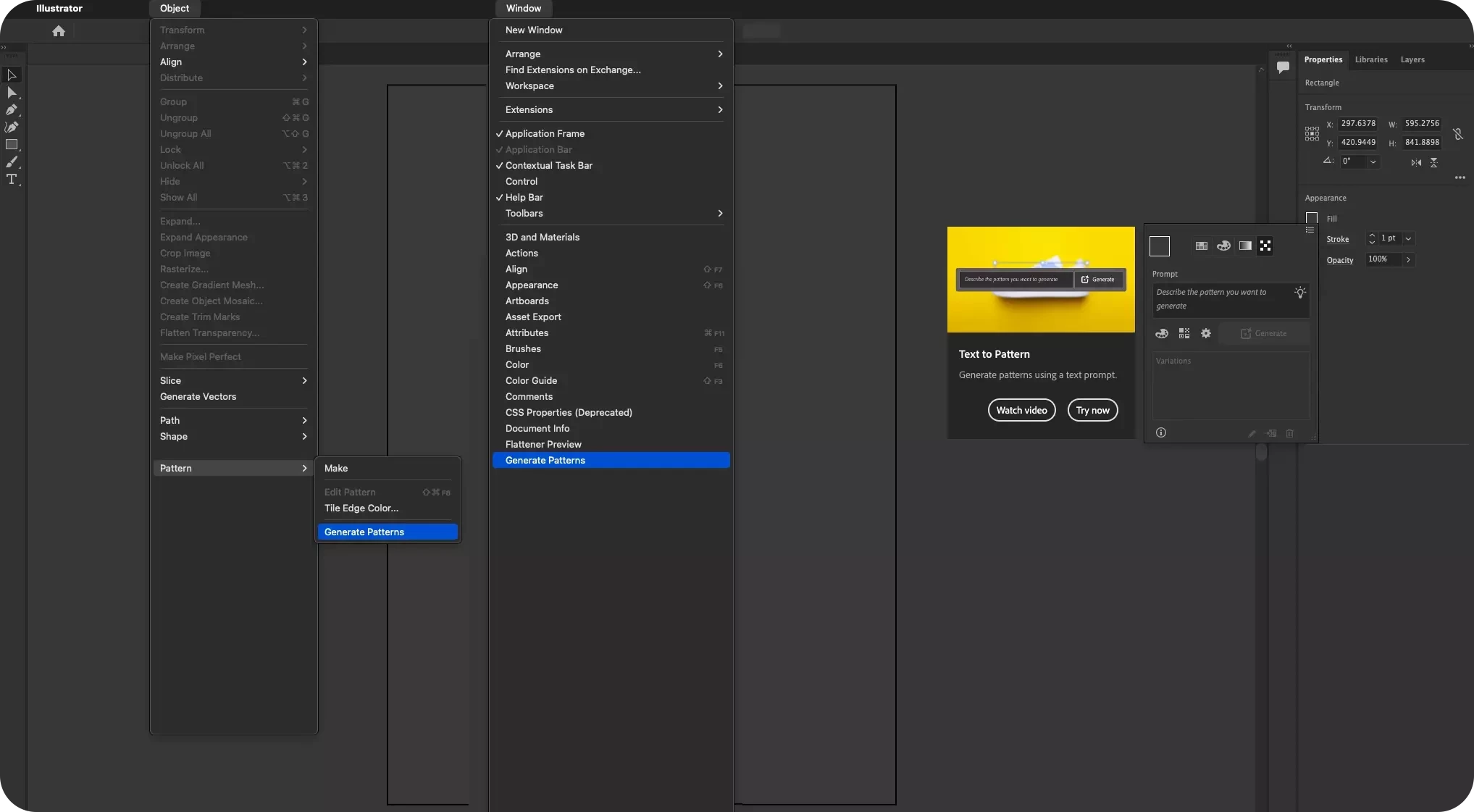
Access Text to Pattern from various locations:
- Object Menu > Pattern > Generate Patterns
- Window Menu > Generate Patterns
- Properties/ Control/ Appearance Panel > Fill > Generate Patterns
.
Craft Brand-Ready Patterns Effortlessly
Rapidly generate patterns using everyday language. These patterns can be seamlessly integrated into your brand system. With this feature, you have the flexibility to incorporate up to 12 brand colors or select a color preset that resonates with your preferences. Furthermore, you can precisely control the color palette of your pattern, limiting it to a max 30 colors.
Your brand's visual identity, simplified and perfected.
Enhance Your Creation With Effects
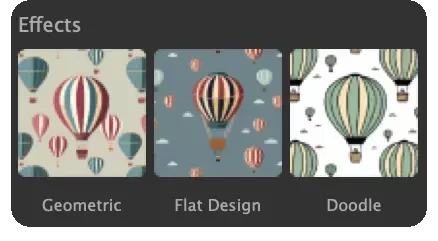
Enhance your creations by selecting and applying a Effects, such as geometric, flat design, or doodle styles.
Simply choose "Add Effects" and customize your artwork with ease.
Enhance & Customize Generated Patterns
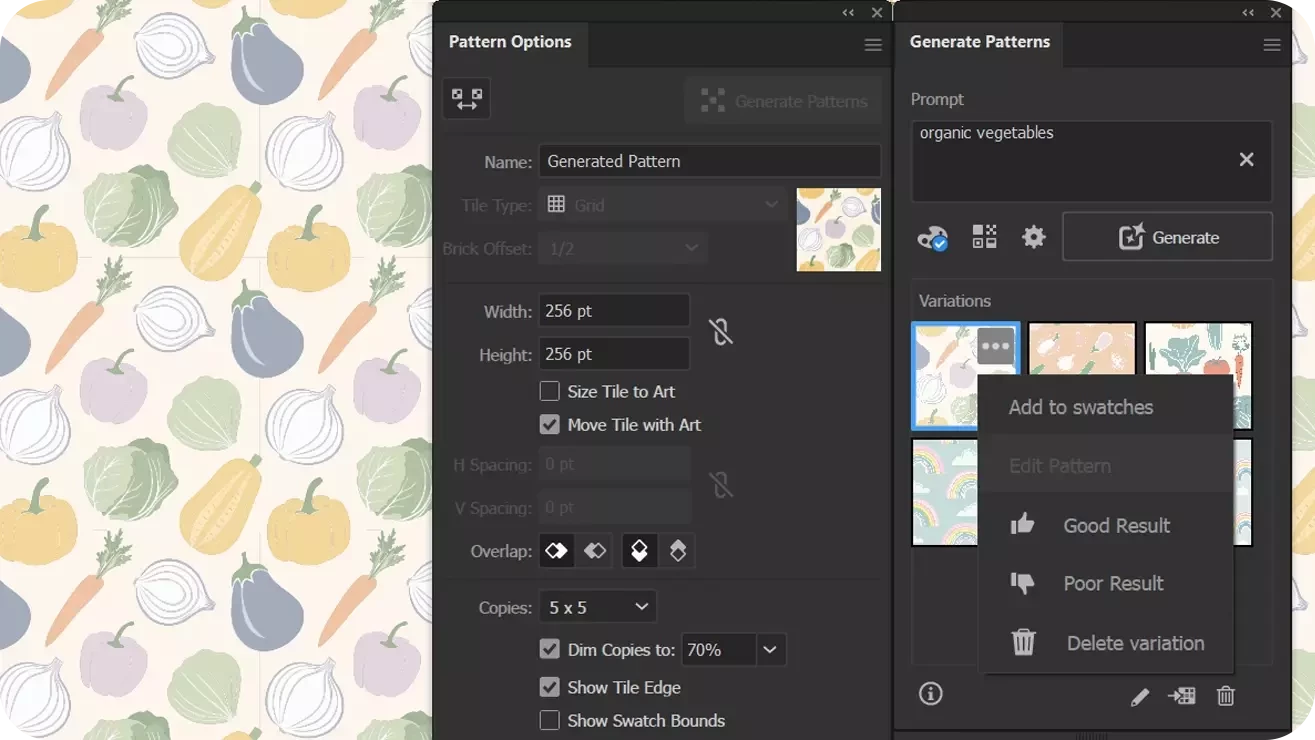
When it comes to editing generated patterns, you have two convenient options:
- Click the three dots on the generated pattern, then select "Edit Pattern" from the dropdown menu.
- Alternatively, double-click any pattern swatch in the Swatches panel (located under Window > Swatches). This will open the Pattern Options dialog, allowing you to meticulously fine-tune all settings to your liking.
Manage & Preserve Generated Patterns
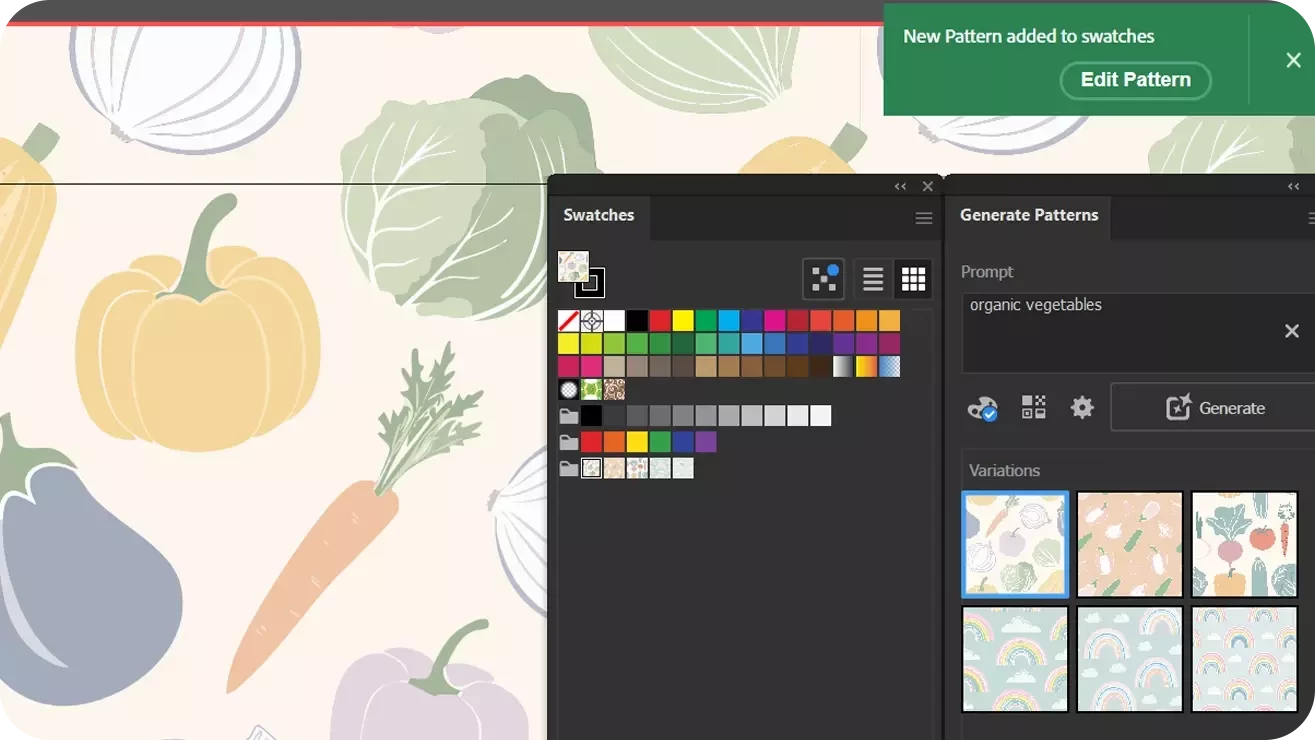
Experiment with different variations and choose the one that best fits your design goals. All previewed variations are automatically saved as pattern swatches in the Generated Patterns folder within the Swatches panel (Window > Swatches) for future use. These swatches can be used just like any other pattern swatch.
Shape the Future with Your Feedback
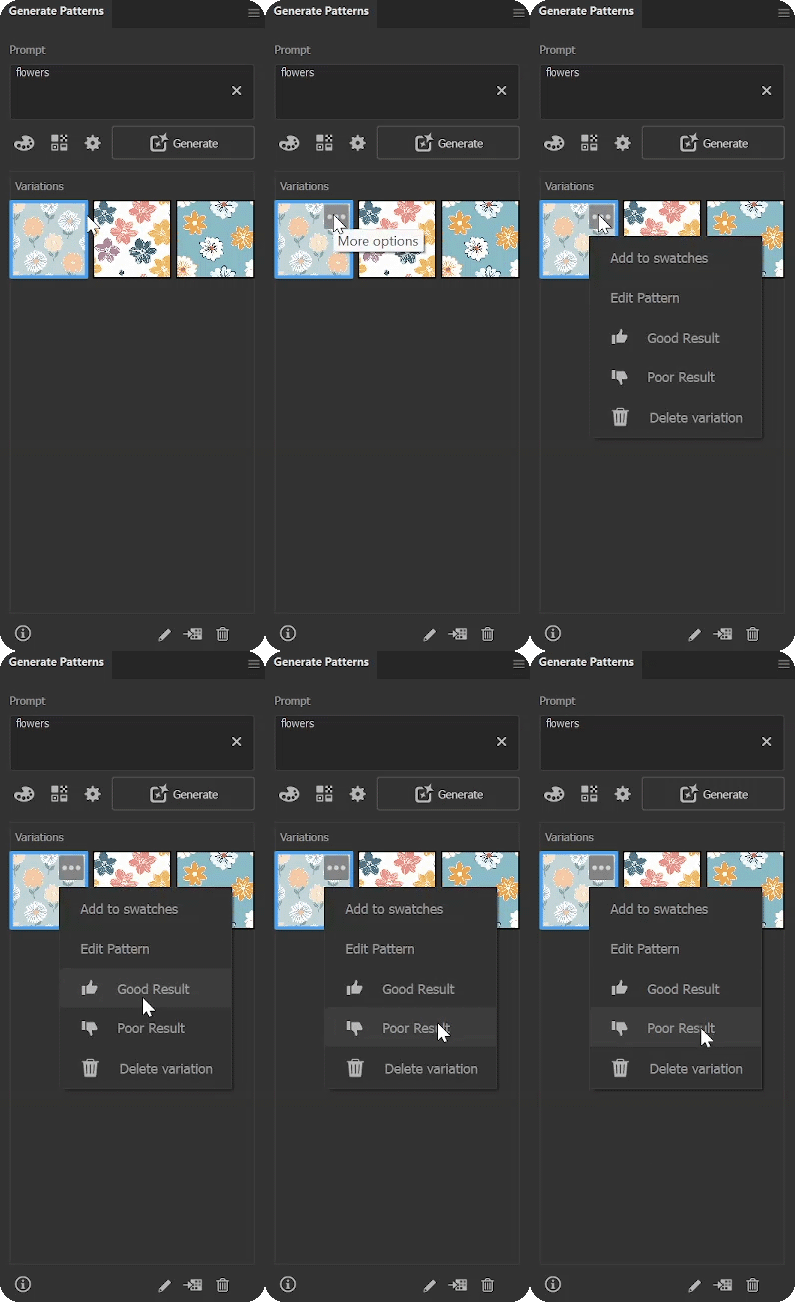
Improve, innovate, and influence!
Your opinions matter. Rate the generated variations as a "Good Result" or a "Bad Result" by clicking on the three dots within the variation's dropdown menu.
You can choose to include the text prompt and generated pattern in your feedback.
Share Your Feedback
Try out the new "Text to Pattern" feature and let us know your thoughts. For more details & FAQs about this new feature, please click here.
If you found this announcement helpful, click 👍 Like.
Use ⭐ Subscribe to stay informed about future updates.
You may also share this post with others who might benefit from these enhancements.
 AdChoices