



You Asked, We Answered: Illustrator Updates Inspired by Your Feedback

You’ve been telling us what Illustrator needs. Small workflow tweaks, big asks, all of it. We can’t ship every request at once. But we keep listening, prioritizing, and bringing your ideas into Illustrator over time. We packed Illustrator with your top requests, and more are on the way. Here’s what’s new:
Create precise blends with smoother transitions
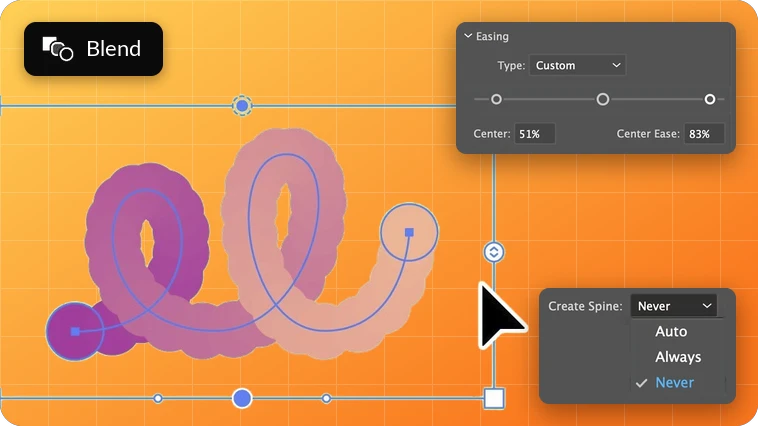
Explore additional spine options in the Blend panel, along with on-canvas easing handles for effortless editing.
Learn how to create, and fine-tune blends using the Blend panel.
Try new brushes and graphic styles
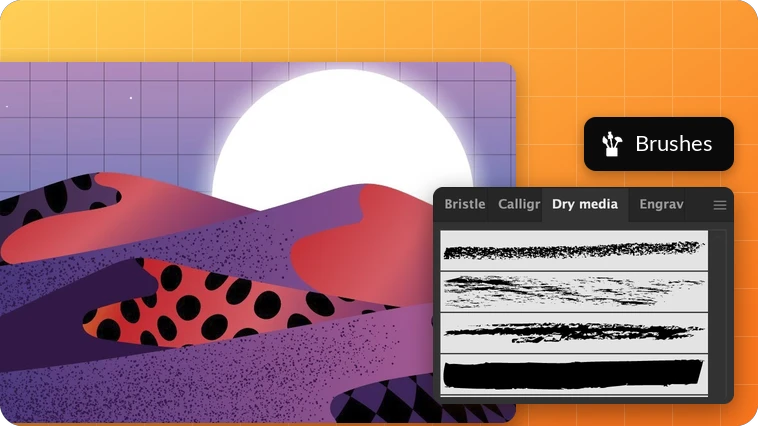
Discover new professional-grade brushes and graphic styles to enhance your artwork. Experiment with expressive strokes, textures, and visual effects to bring variety to your designs.
Learn more about different brushes in Illustrator.
Batch Relink
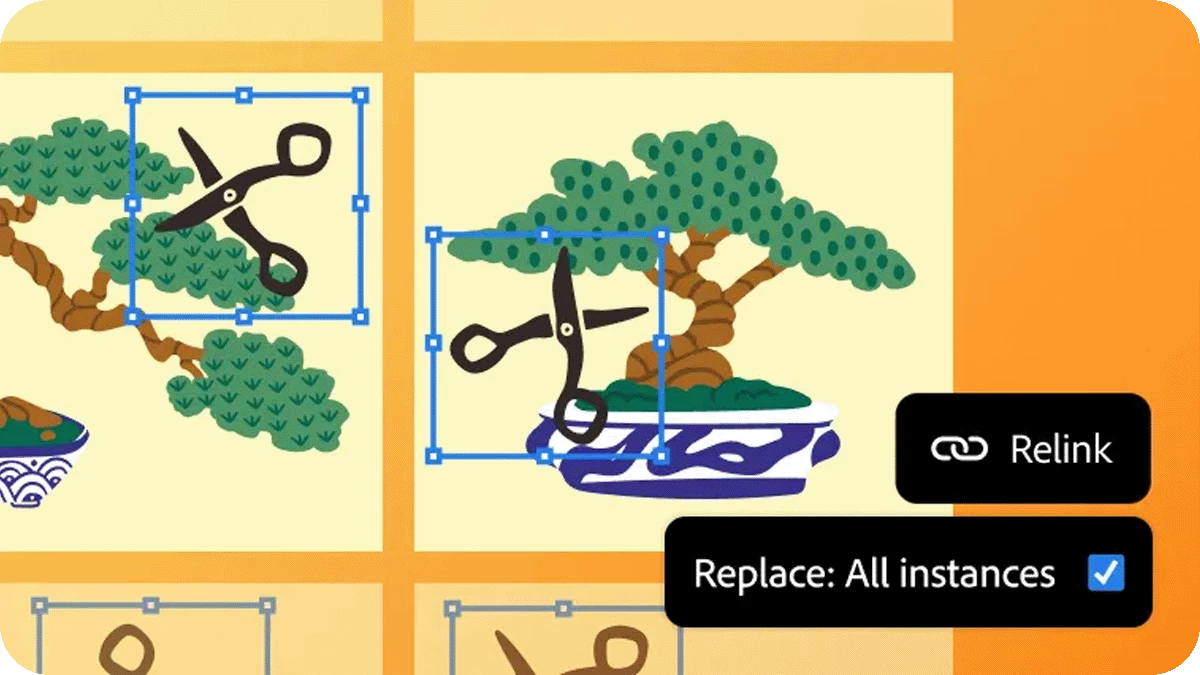
Replace a linked image once and apply the change everywhere it appears in your file, even across multiple artboards and repeated layouts. Learn how to relink, replace, or update linked files.
Align Center
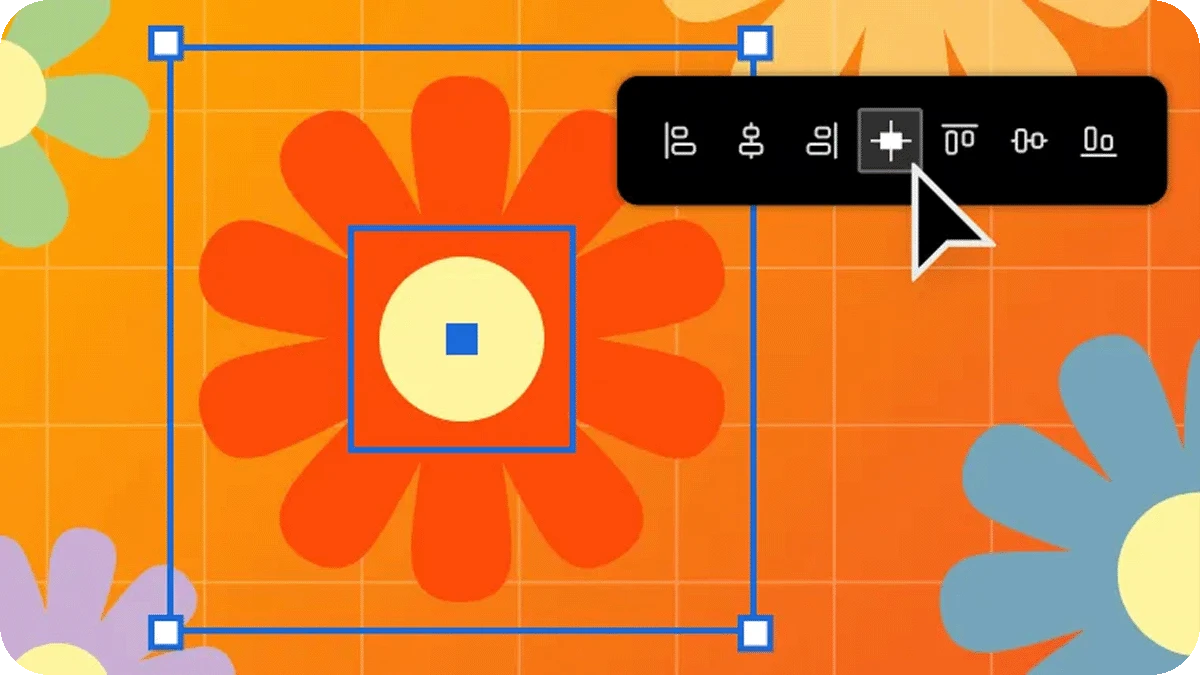
By popular demand, there’s now a faster way to center objects. The new Horizontal & Vertical Align Center button centers objects in both directions with one click. Learn how to align or distribute selected objects.
60fps live editing

See your edits instantly as you apply effects, scale, or transform objects.
-
Edits and color changes appear live
-
Performance enhancements keep everything smooth
-
Iterate faster and work with confidence
Import SVG to After Effects

Bring Illustrator vectors into After Effects with ease.
-
Create keyframes for animation
-
Bring complex artwork to life
-
Keep fidelity and layer structure
Community spotlight: gradient presets
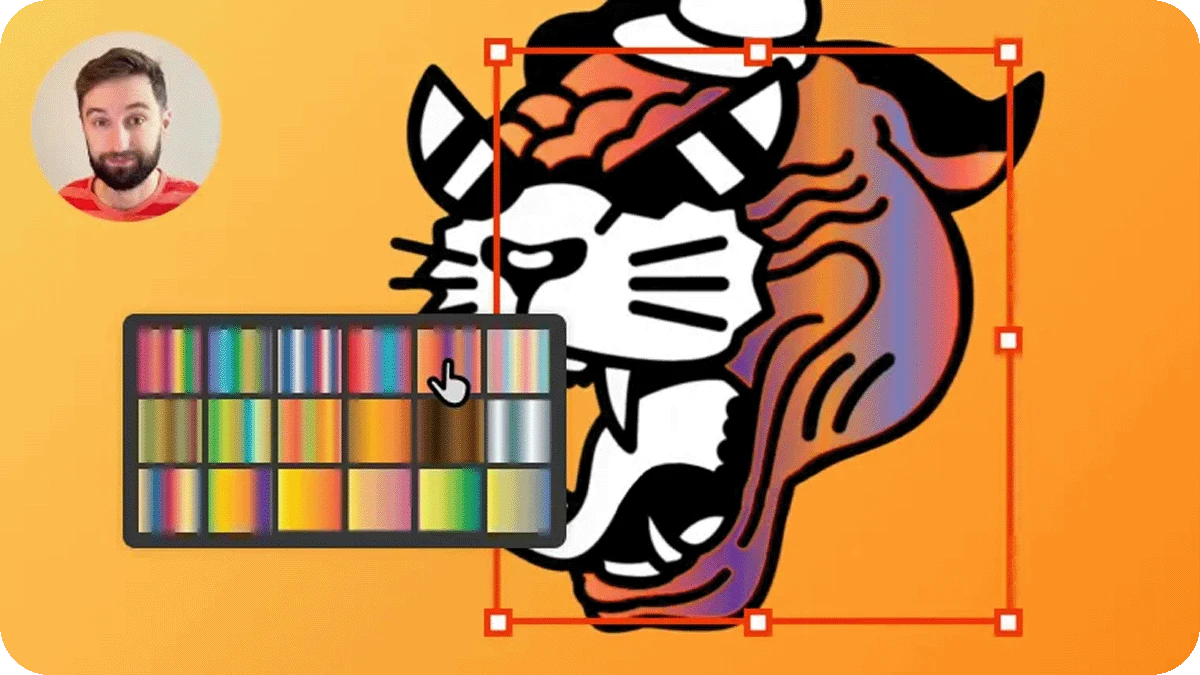
For designer Callum McHugh, gradients used to be time-consuming. Now presets in Illustrator make applying them a breeze. He also loves the new color picker and font filtering features.
Artboard management
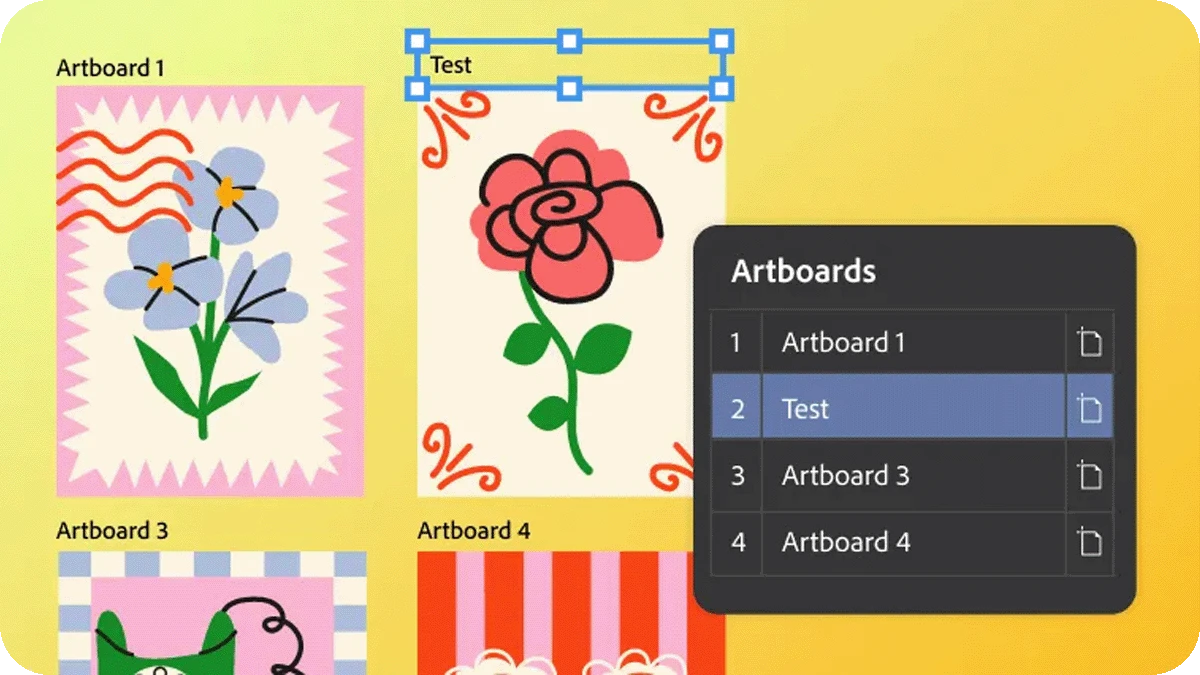
Managing multiple artboards just got easier.
-
Rename, lock, and rearrange artboards without switching tools or zooming in
-
Work faster with editable labels
-
Export only the artboards you want with selective exporting
Smarter snapping

Create precise paths without extra steps.
-
Use Snap to Tangent or Snap to Perpendicular
-
Limit snapping to a specific artboard or object to draw with more precision
Color updates

More control, less manual work.
-
Perceptual and dithering gradients for natural blends
-
New gradient presets
-
A clearer color picker
Enhanced font browser
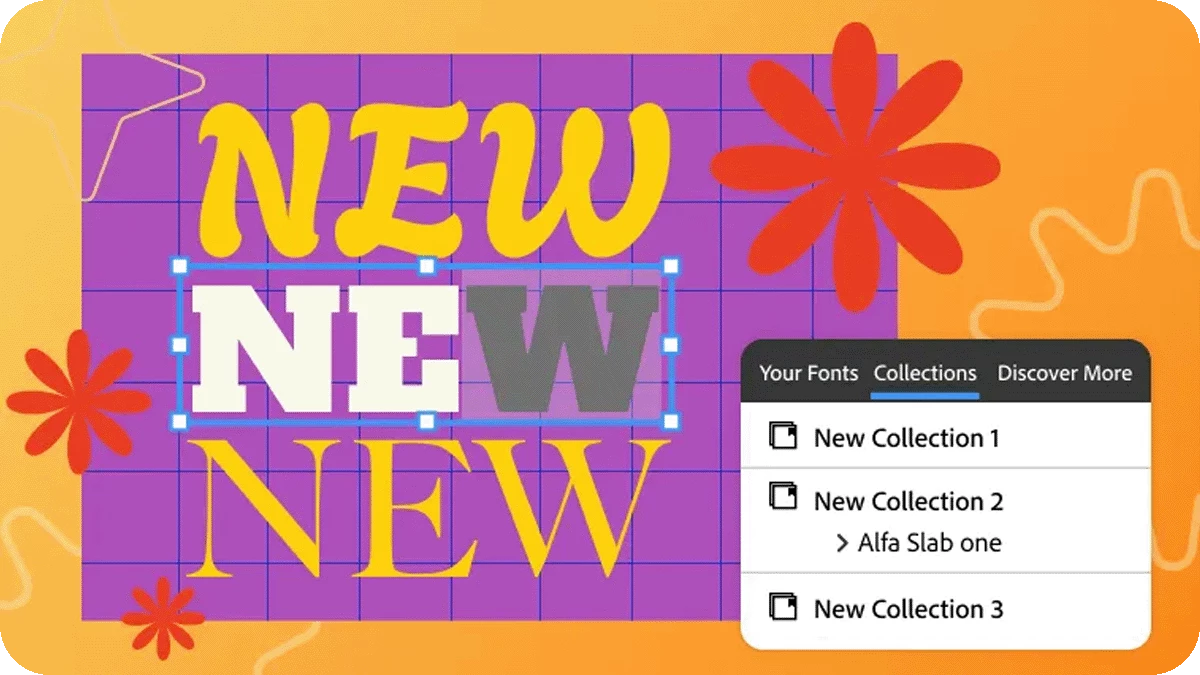
Find, apply, and organize fonts easily.
-
Cleaner sections
-
New filters to find your fonts quickly
-
Discover new fonts from the vast Adobe Fonts library
Speed improvements

Illustrator just got a whole lot quicker.
-
Launches up to 3x faster
-
Saves files up to 6x faster
-
Handles linked artwork with ease
Stay in your workflow and create faster without the waiting.
Paste on selected artboards
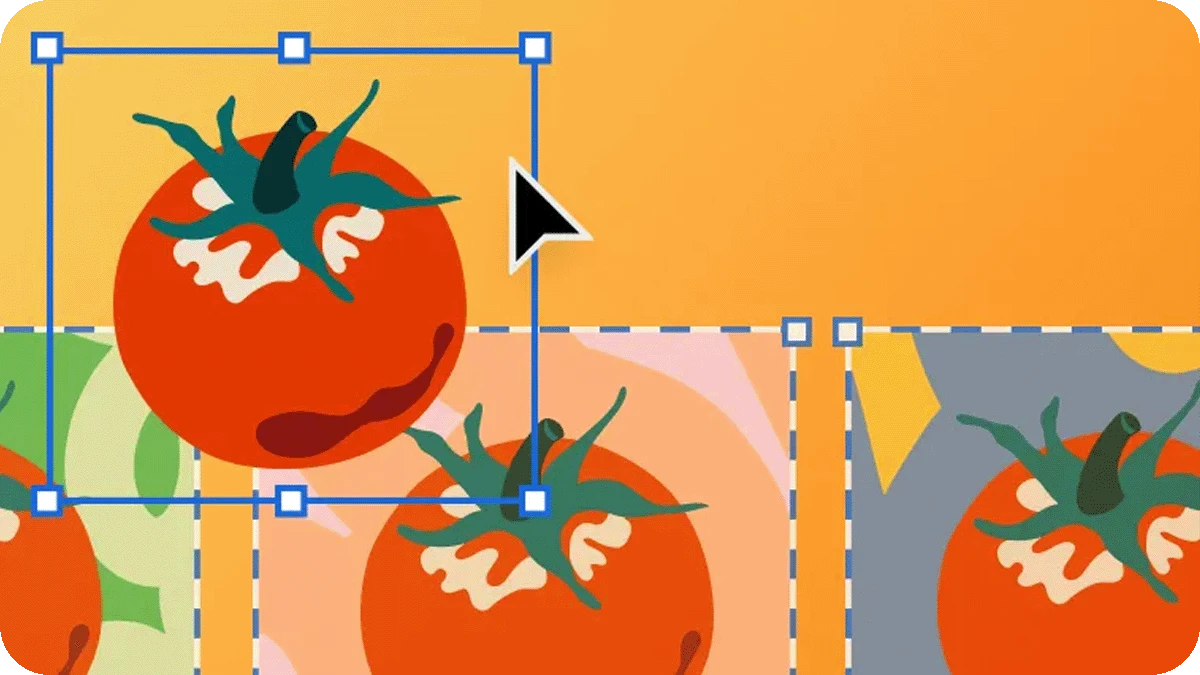
Paste the same element on several selected artboards at once, saving a ton of time. Use familiar shortcuts like Paste in Front or Paste in Back to make precise changes, several times over.
Save patterns and gradients
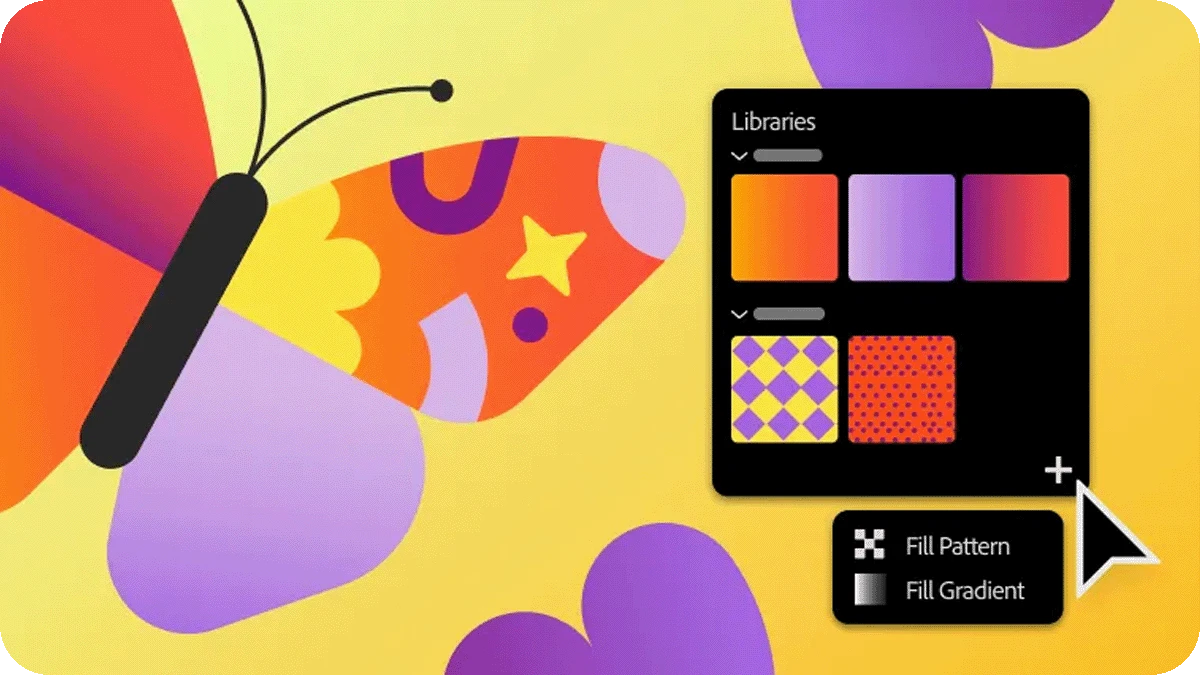
Reuse and share your favorite gradients and pattern swatches by saving them in Creative Cloud Libraries. In the Libraries panel, select Add Elements, then choose Fill/Stroke Pattern or Gradient.
Learn more
Extract color
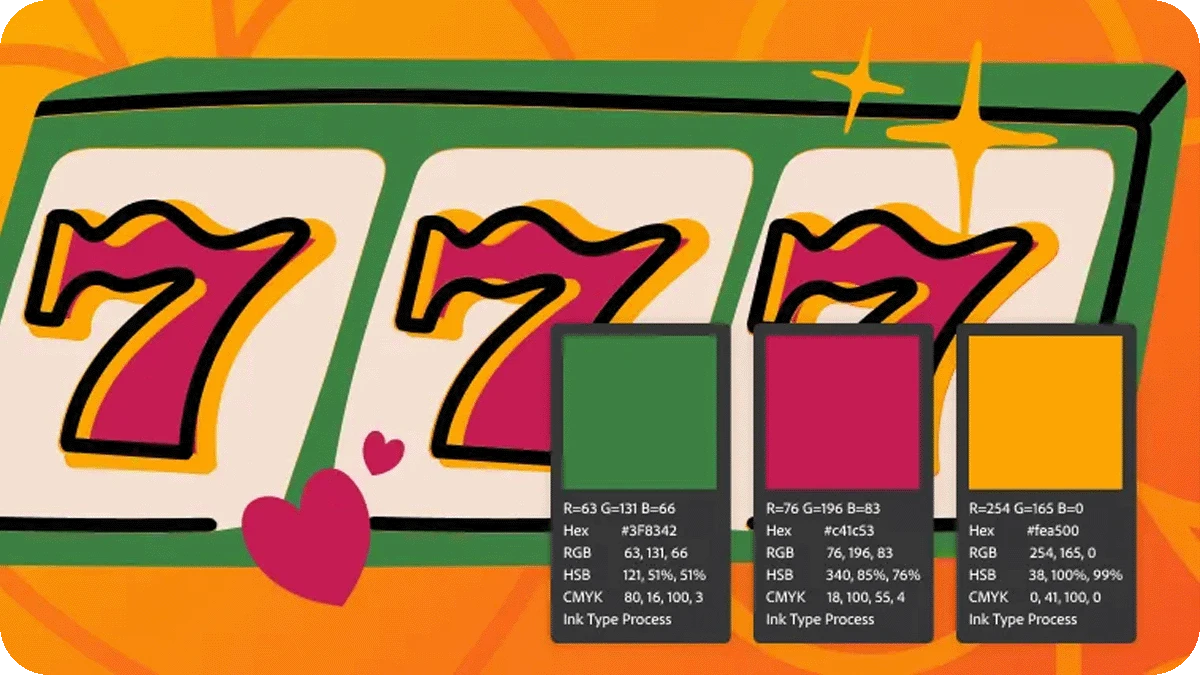
Create a color swatch palette based on the colors in a piece of artwork.
-
Display results as HEX, RGB, HSB, or CMYK
-
Share colors for brand guidelines with maximum precision
Smart file naming
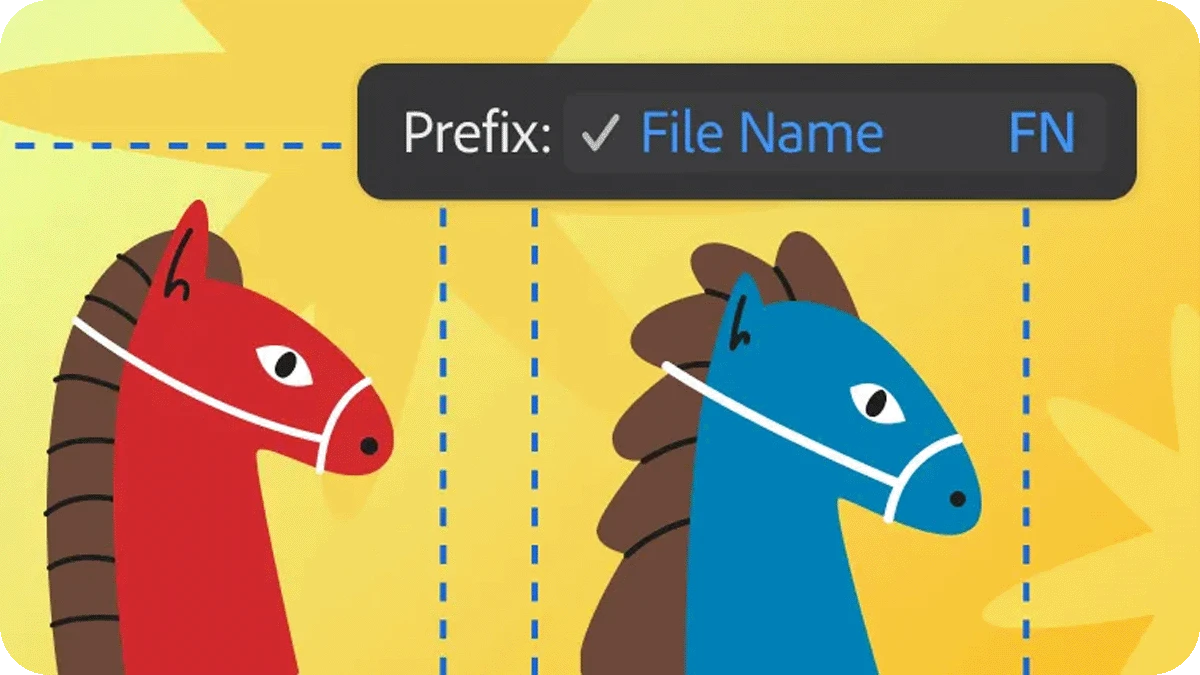
Say goodbye to tedious manual file naming. Create a prefix, choose your files, and check a box. Mass exporting multiple artboards has never been easier.
Community spotlight: Pencil tool live preview
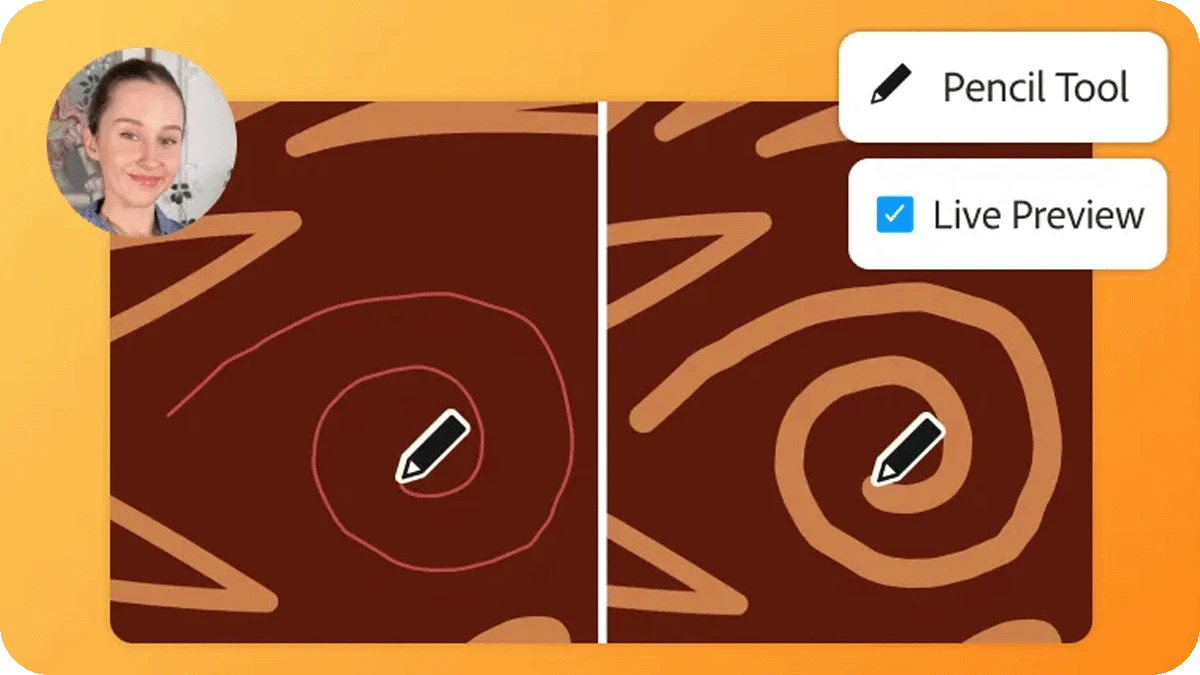
Watch Illustrator Nataszko show how the new live preview feature works in the Pencil tool.
Watch Now
If you found this announcement helpful, click 👍 Like. Use ⭐ Subscribe to stay informed about future updates. You may also share this post with others who might benefit from these improvements.
 AdChoices