



Camera Angles (Beta)
Photoshop Desktop Camera Angles (Beta)
Explore a new perspective without taking another shot.
Camera Angles can reposition a virtual camera around your subject, generating a new view from your existing image. Move closer, pull back, or try a higher or lower viewpoint to explore different compositions directly in Photoshop.
What you can do
Change your viewpoint
• Choose High angle or Low angle presets to see your subject from a different perspective.
Explore different framing
• Choose the Close-up preset to bring your subject closer, or Wide shot to show more of the surrounding scene.
Adjust your composition
• Try Centered reframe preset to center your subject or Level horizon for a level view.
How to try it in Photoshop (beta) for desktop
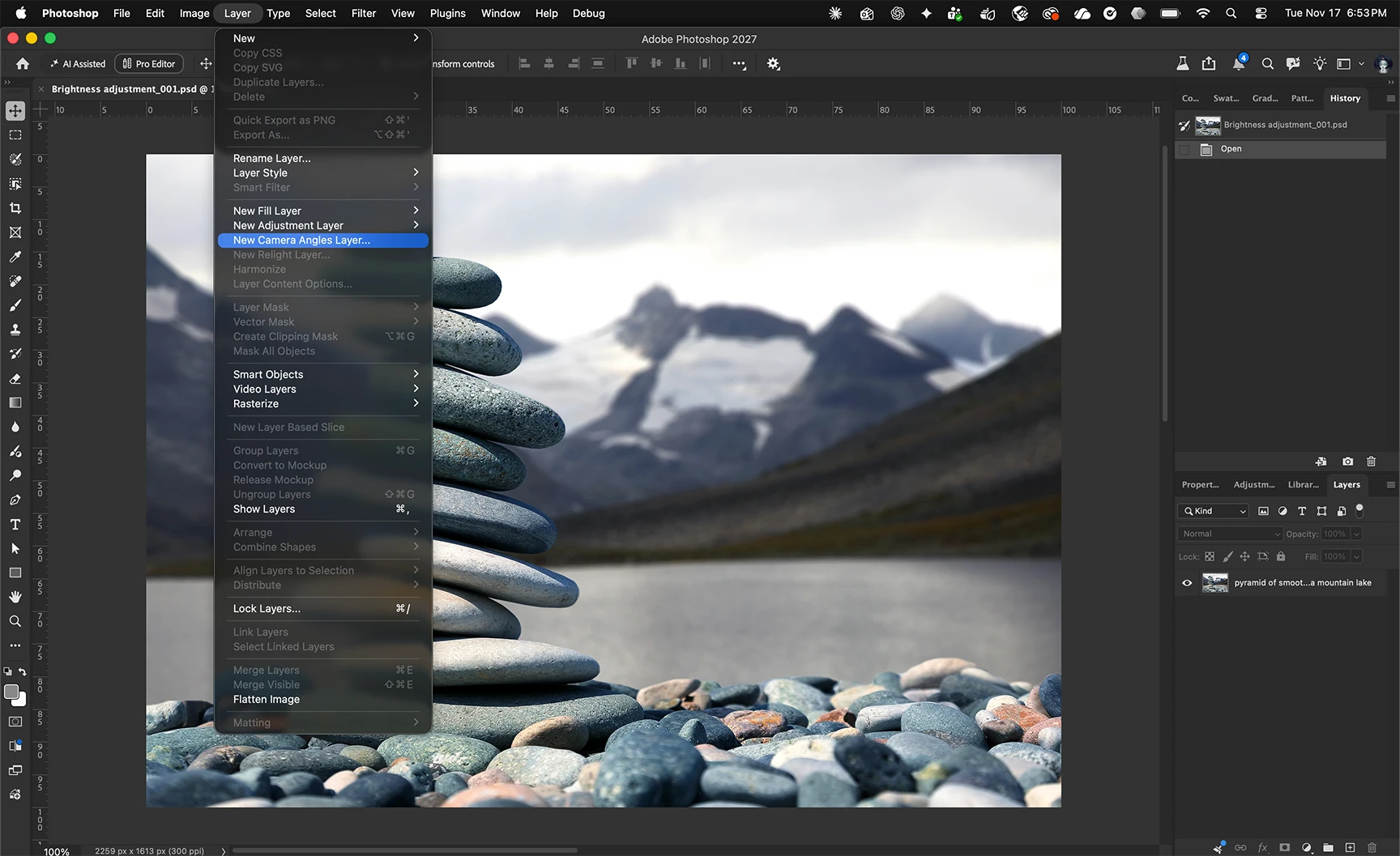
1. Open an image, then choose Layer > New Camera Angles Layer…
2. In the Camera Angles dialog, choose Level horizon, Close-up, Wide shot, Centered reframe, High angle, or Low angle.
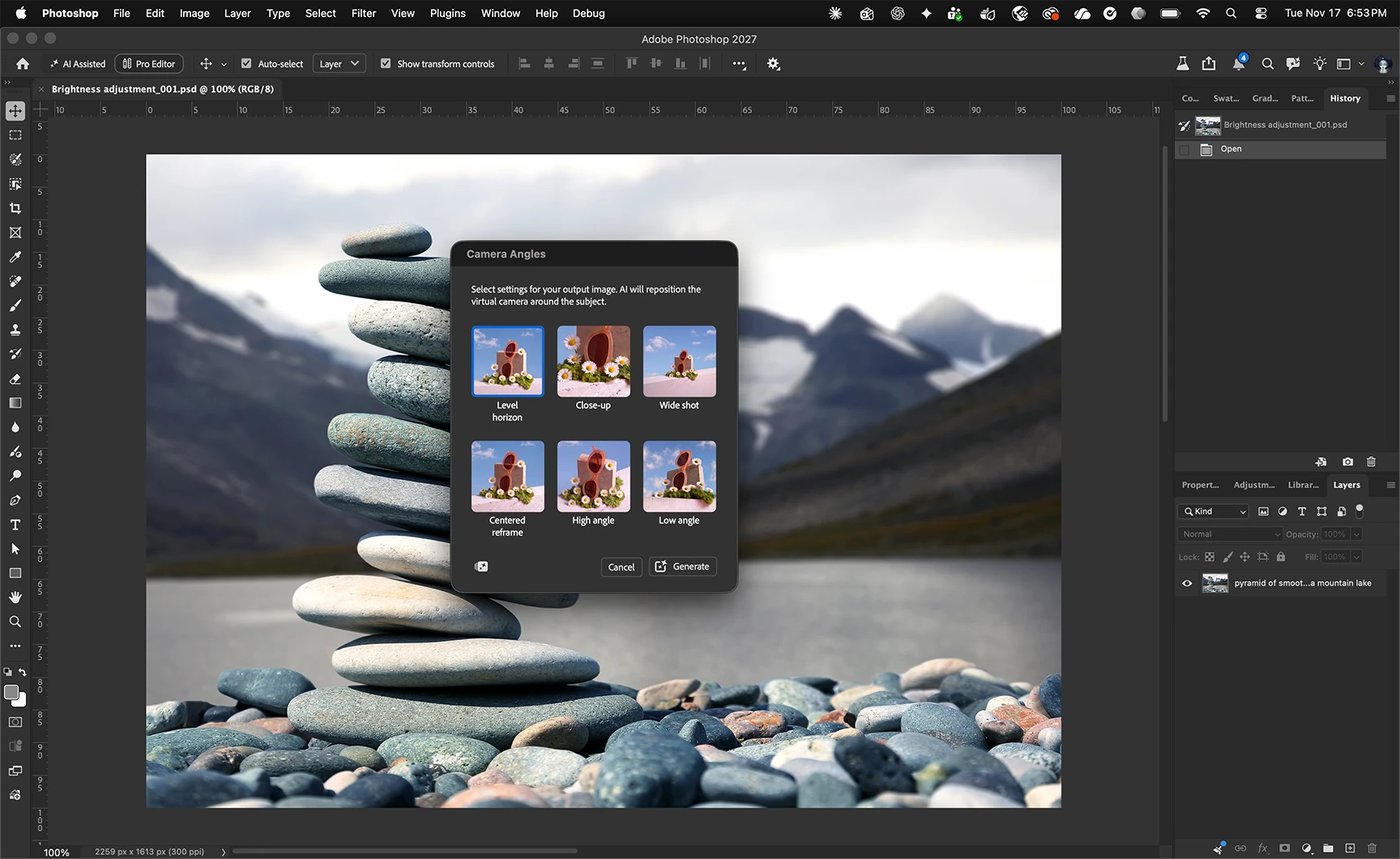
3. Click Generate. Photoshop adds the generated result as a new Camera Angles Layer, leaving your original layer in place.
4. Compare the result with your original, or try another option to explore a different view.
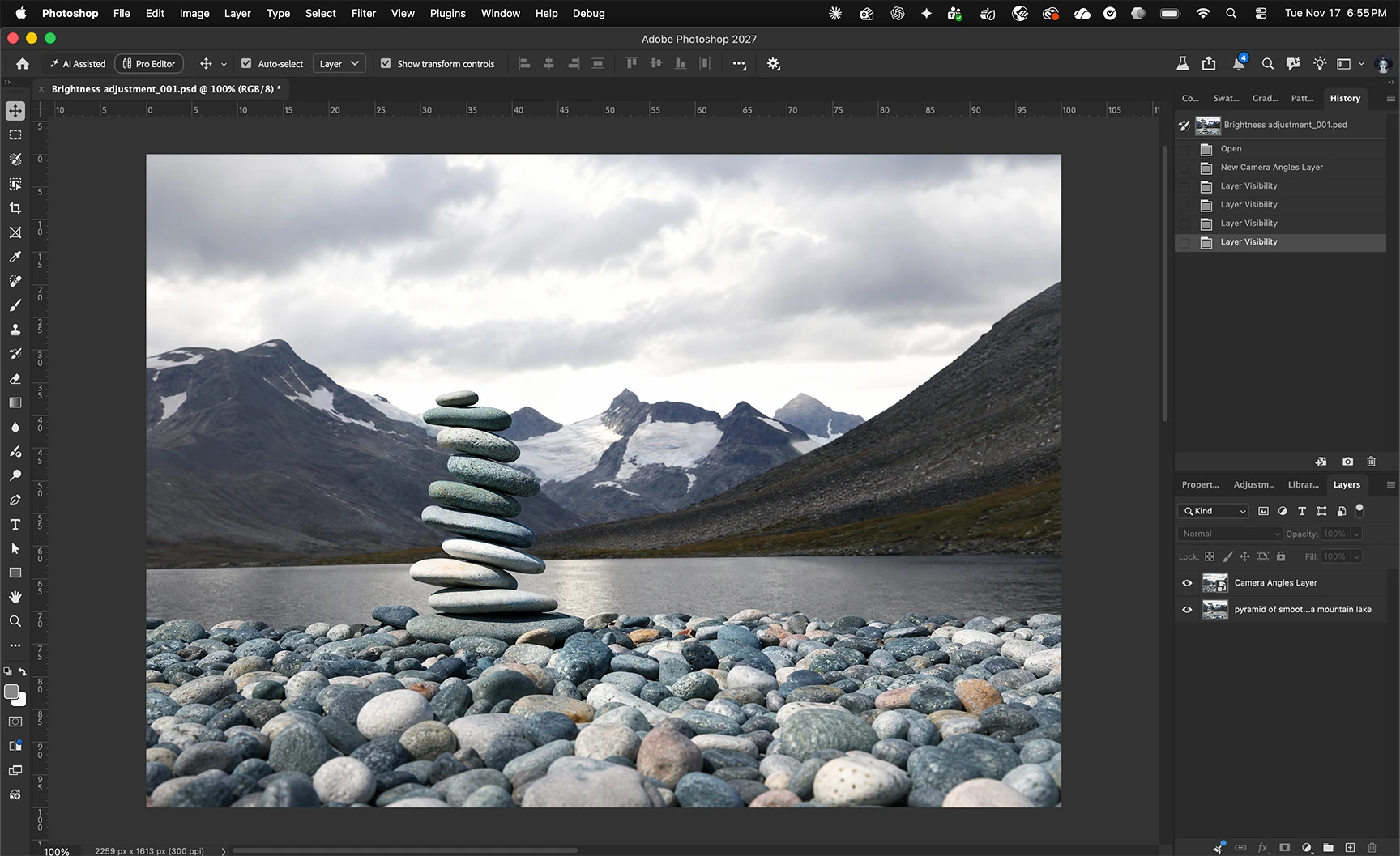
Camera Angles generates a new interpretation of your image, so review the result for changes to subject details and the surrounding scene.
Camera Angles is a generative feature. Please check the Generative Credit Usage Panel.
Share your feedback
We’d like to hear how Camera Angles fits into your workflow.
Thank you for helping us shape Camera Angles in Photoshop!
 AdChoices