



Convert to text layers (Beta)
Feature: Convert to text layers
Available in: 28.2 Photoshop Beta
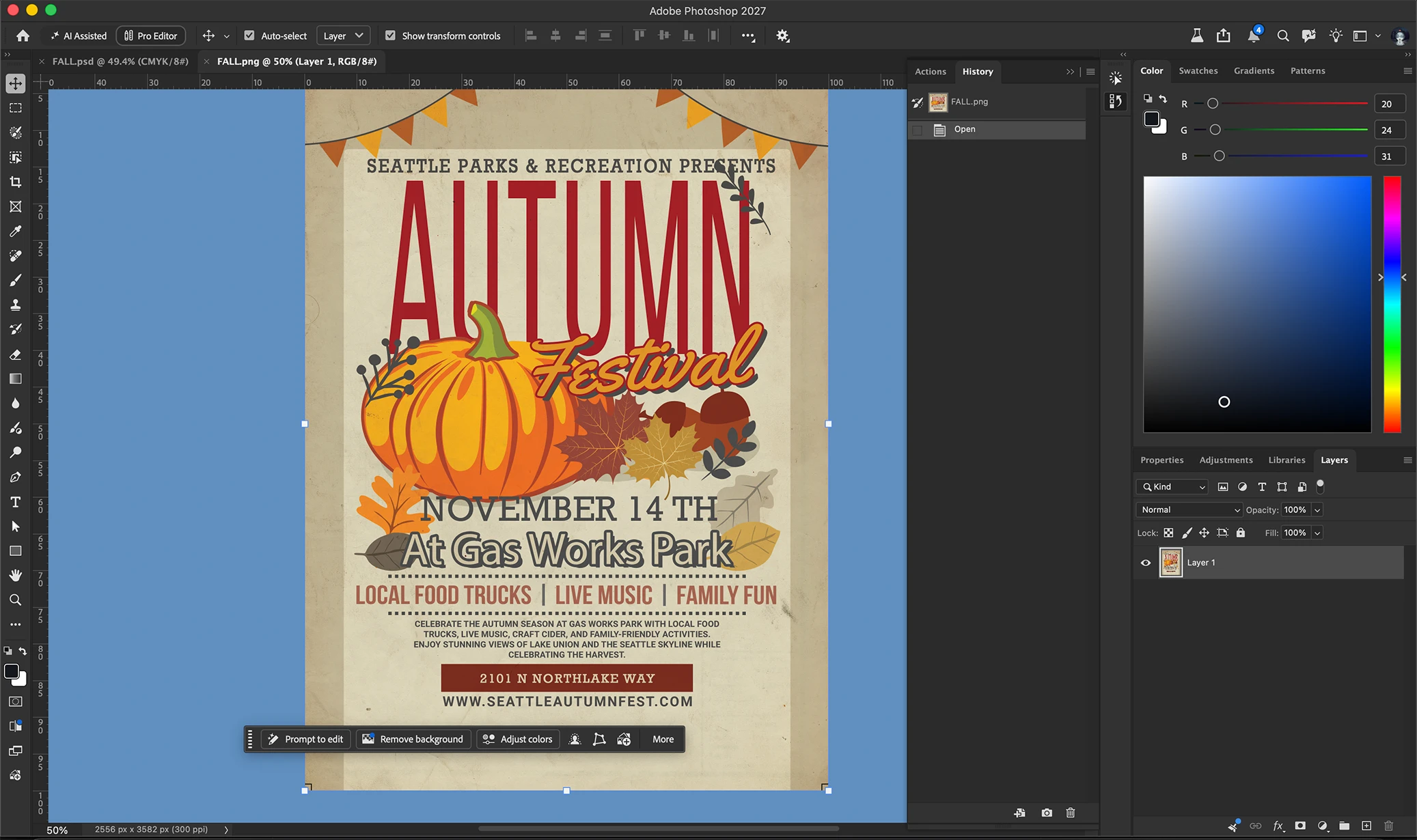
Have a flattened poster, flyer, or social graphic where the text layers are long gone? Convert to Text Layers finds the text baked into a pixel layer, rebuilds it as editable text layers that match the original style, and gives you a clean background with the text removed. Everything lands in a new group, so your original stays untouched.
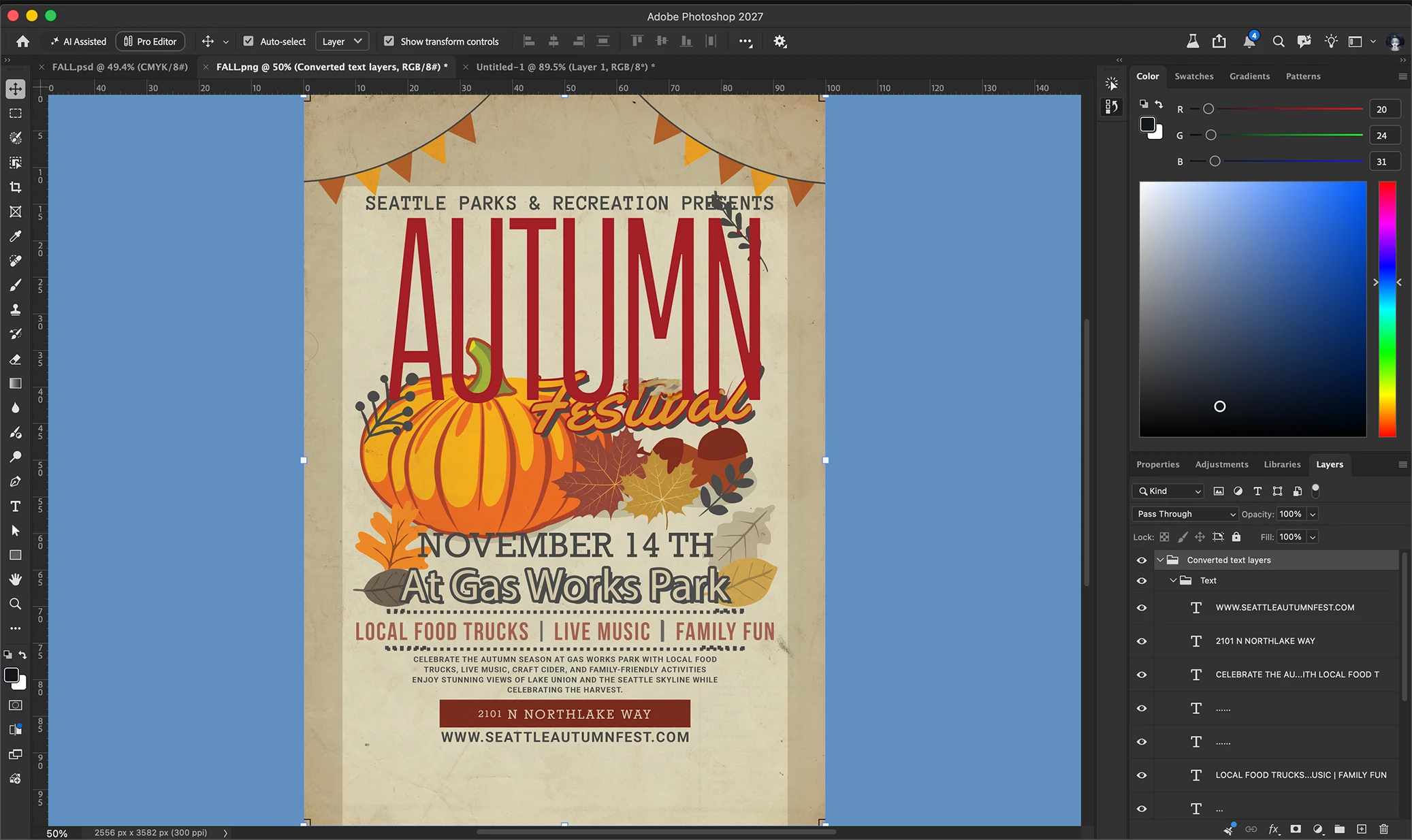
Recover editable text — select a flat pixel layer and convert it. Each line or block of text comes back as its own type layer, named after what it says ("November 14th"), with font, size, color, and position matched as closely as we can.
Get a clean background — the text is removed from a generated copy of the image, so you can move, restyle, or rewrite the text without old glyphs showing through.
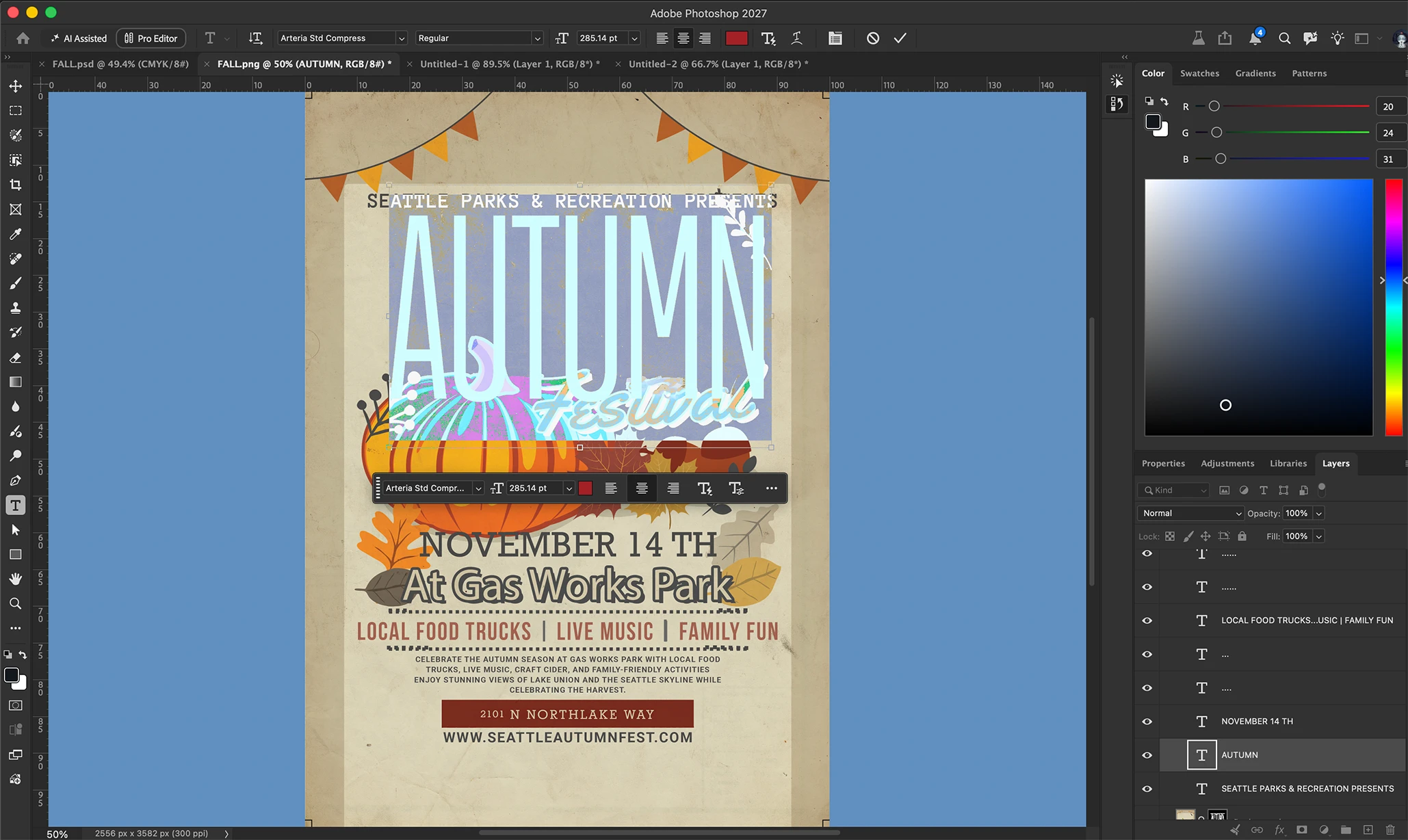
Edit like any other text layer — double-click a converted layer and retype it. Change "AUTUMN" on an poster to something else and it keeps the same style.
How to use it
- Open a flattened image and select the pixel layer that has the text in it.
- In the Contextual Task Bar, click More or from the Type Menu, then choose Convert to text layers.
- Wait for the progress bar to finish. A new group called Converted text layers appears with a type layer for each piece of text found and a Background layer at the bottom.
- Select any type layer and edit it with the Type tool or the Properties panel like normal.
- Changed your mind? One Cmd/Ctrl+Z removes the whole group
Credits: Convert to text layer does use 10 generative credits
We want to hear from you!
Thank you for trying this Photoshop beta feature.
 AdChoices