



Firefly Image 5 (Preview) in Photoshop Generative Fill
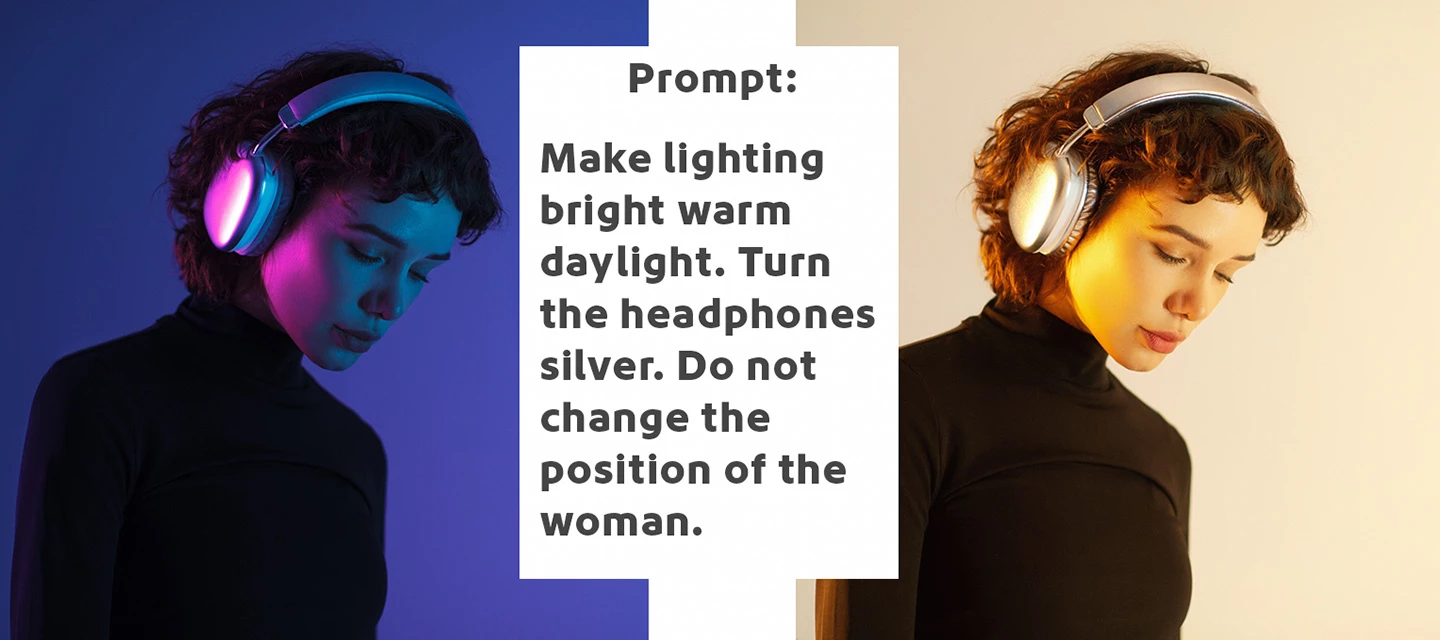
Firefly Image 5 enables a new instruction‑based editing workflow in Generative Fill and it's currently in Photoshop (Beta) for desktop
Firefly Image 5 is Adobe's most advanced image generation and editing model yet; you can edit images more intuitively and precisely with just a prompt. Simply describe your edits with natural language instructions to transform the entire image—such as changing time of day or modifying a subject’s pose - making the precise changes you want with high quality results, while keeping the rest of your pixels and the details of your original image the same.
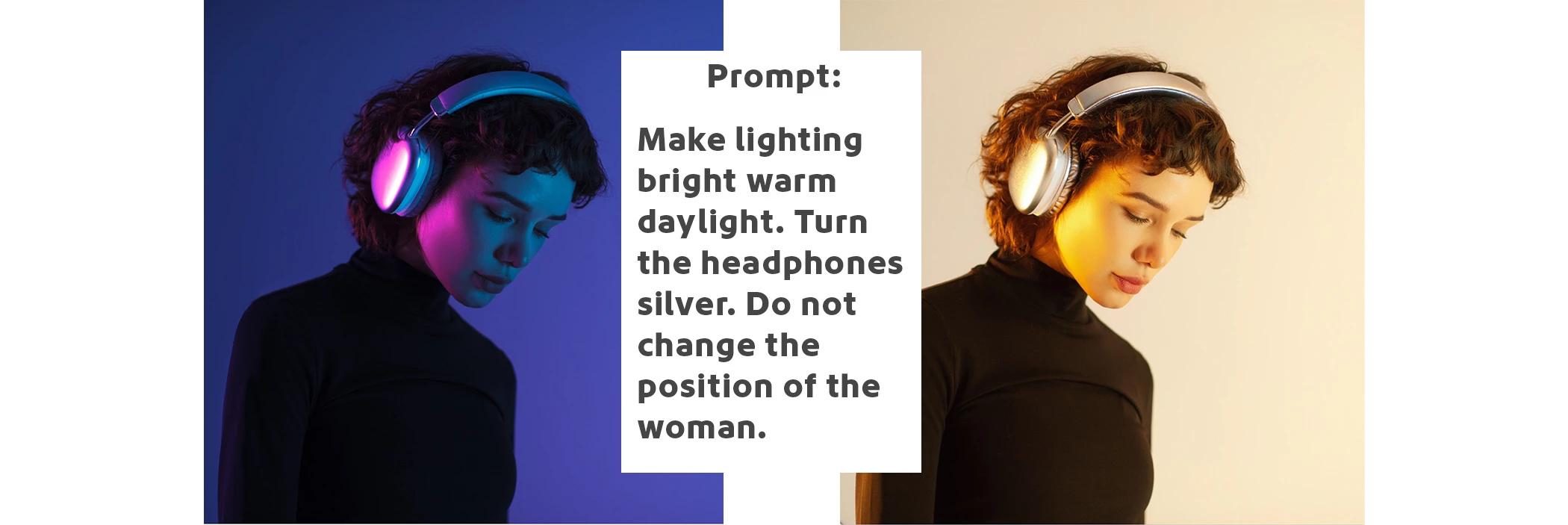
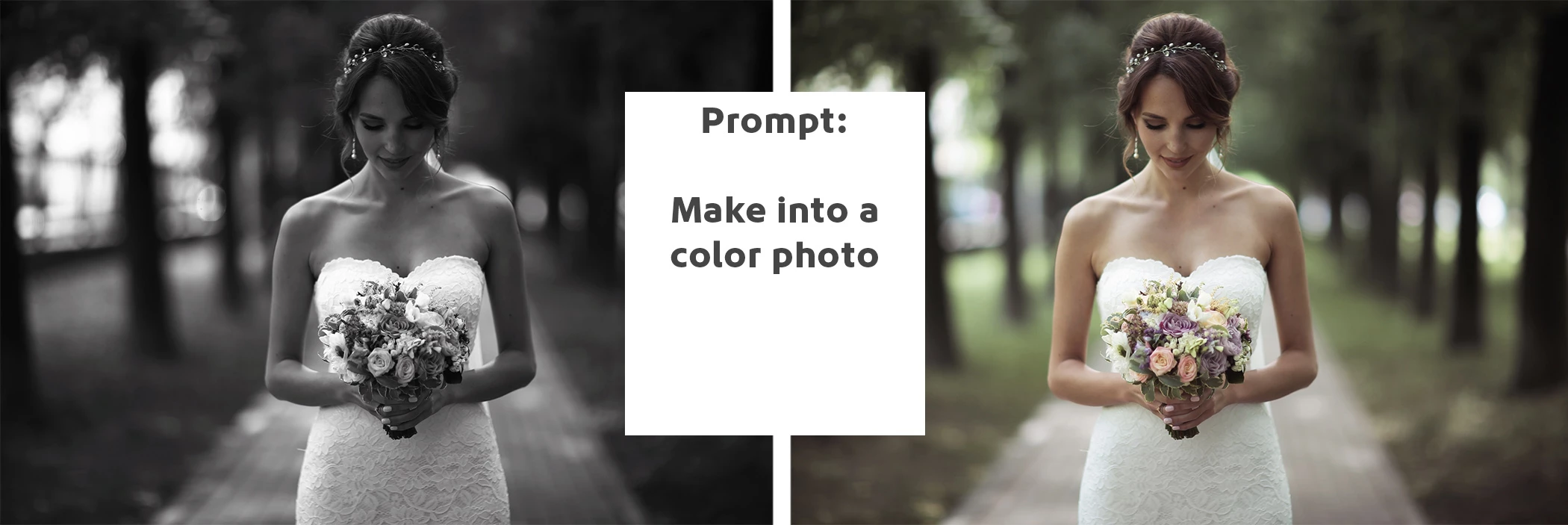

How to try it:
1. Open an image and select the entire canvas (Select > Select All…).
(While smaller selections are supported, this beta performs best when the full image is selected.)
2. Click Generative Fill in the Contextual Task Bar.
3.Choose Firefly Image 5 (Preview) from the model picker in the Contextual Task Bar.
4. Enter a clear, instructional prompt (for example: “change the time of day to sunset”).
5. Click Generate.

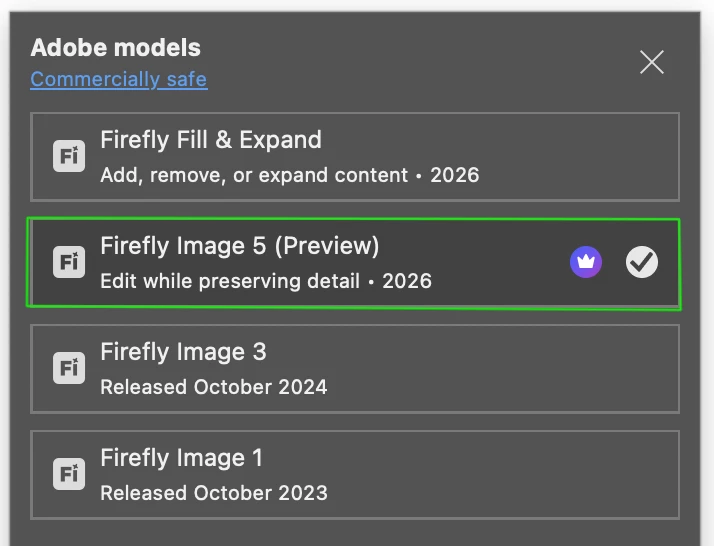
Result:
One variation is returned in the properties panel.
Note: The way to write prompts for Firefly Image 5 is very different from other Firefly models. Here are a few tips:
- Precise prompting gives better results. Use exact color, names, detailed descriptions, and clear action verbs instead of vague terms.
- Explicitly prompt what should remain unchanged to protect important elements.
- Quote the exact text you want to change: For example, Replace 'joy' with 'happy'.
- Specify camera angle, position, or framing to prevent unwanted repositioning.
- Choose specific, powerful, and clear action verbs.
Please visit the Beta Feedback panel to share your thoughts or rate the result in the Properties panel using the rating options.
Thank you.
 AdChoices