


Mockup--Now in Beta!
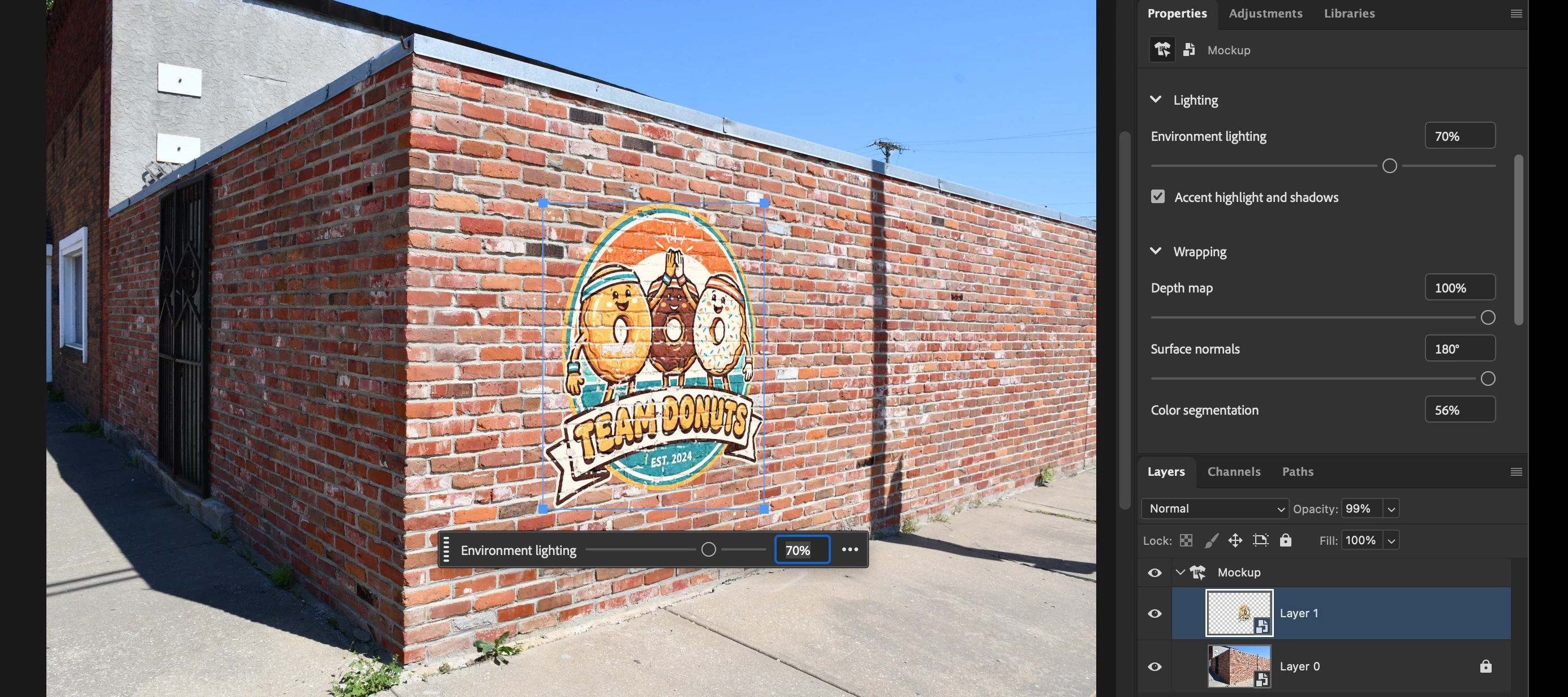
Mockup is a one-click way to create realistic, live mockups from your images.
Mockup takes a base image (of a T-shirt, a mug, a wall, etc), builds a map of the surfaces, and then wraps a decal (a logo, design--anything!) onto the surface. Once created, you can move or adjust the decal in the mockup, and even control the lighting and shadows.
How to Test Mockups!
- Update to Photoshop Beta 28.1 or later.
- Create a project with your desired decal and base image.
- Select both the decal layer and base image layer. Note the decal must be ordered above the base layer and both must be visible.
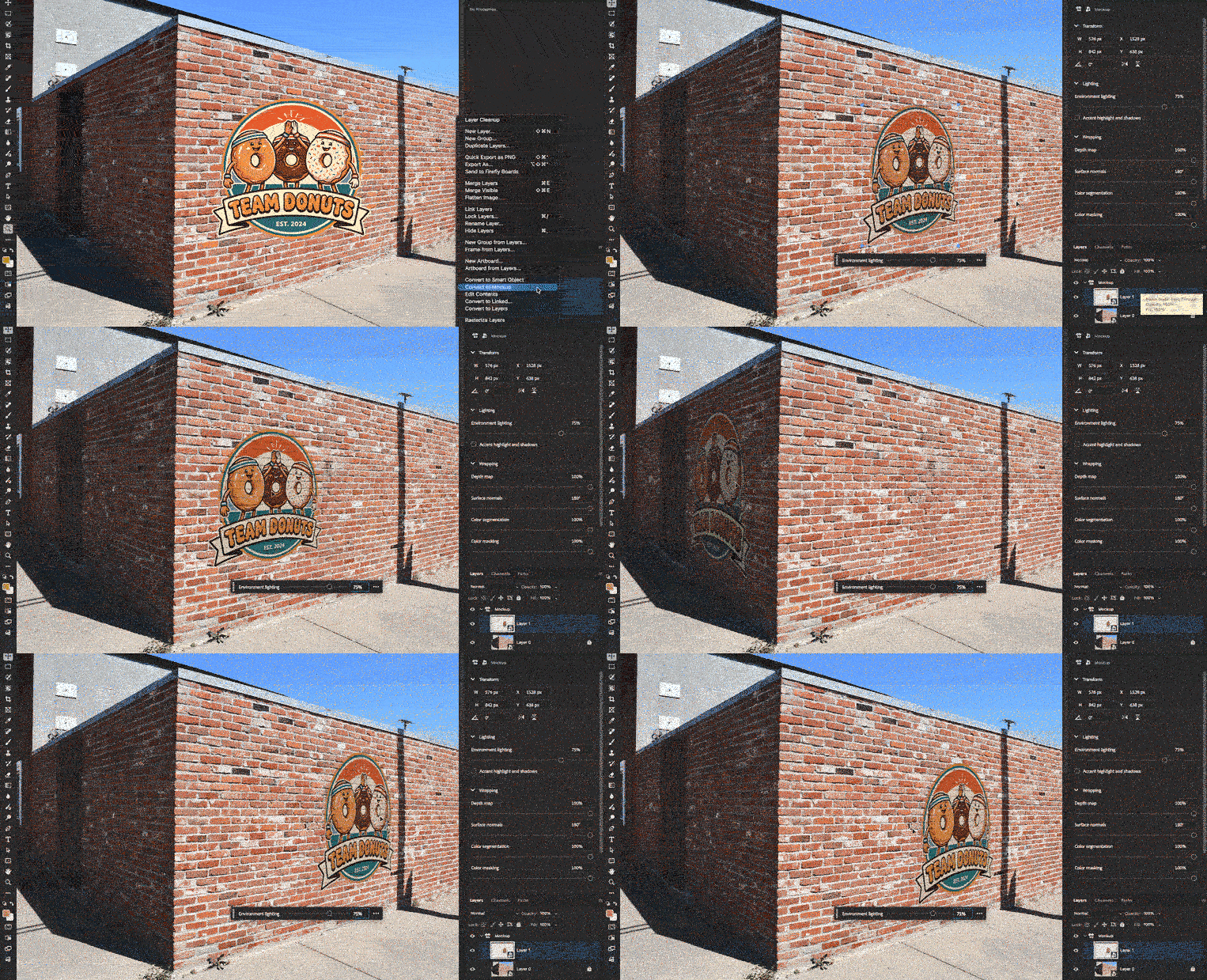
- Go to Layer > Convert to Mockup, or Right-Click and choose "Create a Mockup".
After about 20-40 seconds (based on file size, internet speed, computer processing power, etc) your mockup is ready! In the layers panel you'll see a new Mockup Folder group, and the decal and base image converted to smart objects.
Using Precision Controls
Once created, Mockup provides basic and advanced controls to adjust and tune your mockup.
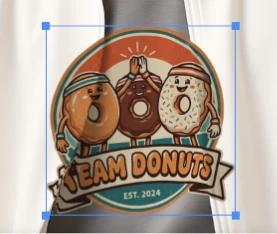
- Transform controls (move, rotate, resize, etc) on canvas and in the properties panel.
- Use Advanced controls to:
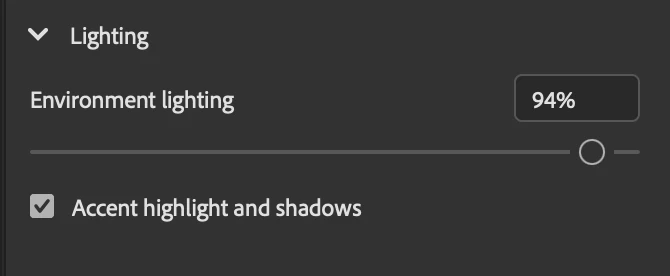
- Apply lighting to match that of the image environment.
- Adjust how the decal conforms to the object’s surface, where it extends, and which parts remain visible. These settings adjust how much variation in depth, surface direction, or color the decal can span.
- Depth map
Controls how sensitive wrapping is to changes in distance of the object's surface from a viewpoint. Higher values allow the decal to span larger depth changes with less deformation. Lower values make it conform more closely to smaller depth changes.
- Surface Normals
Controls how sensitive wrapping is to changes in the direction the surface faces. Higher values, up to 180°, allow greater differences in surface direction. Lower values make wrapping more sensitive to those differences, including subtle changes along a curve.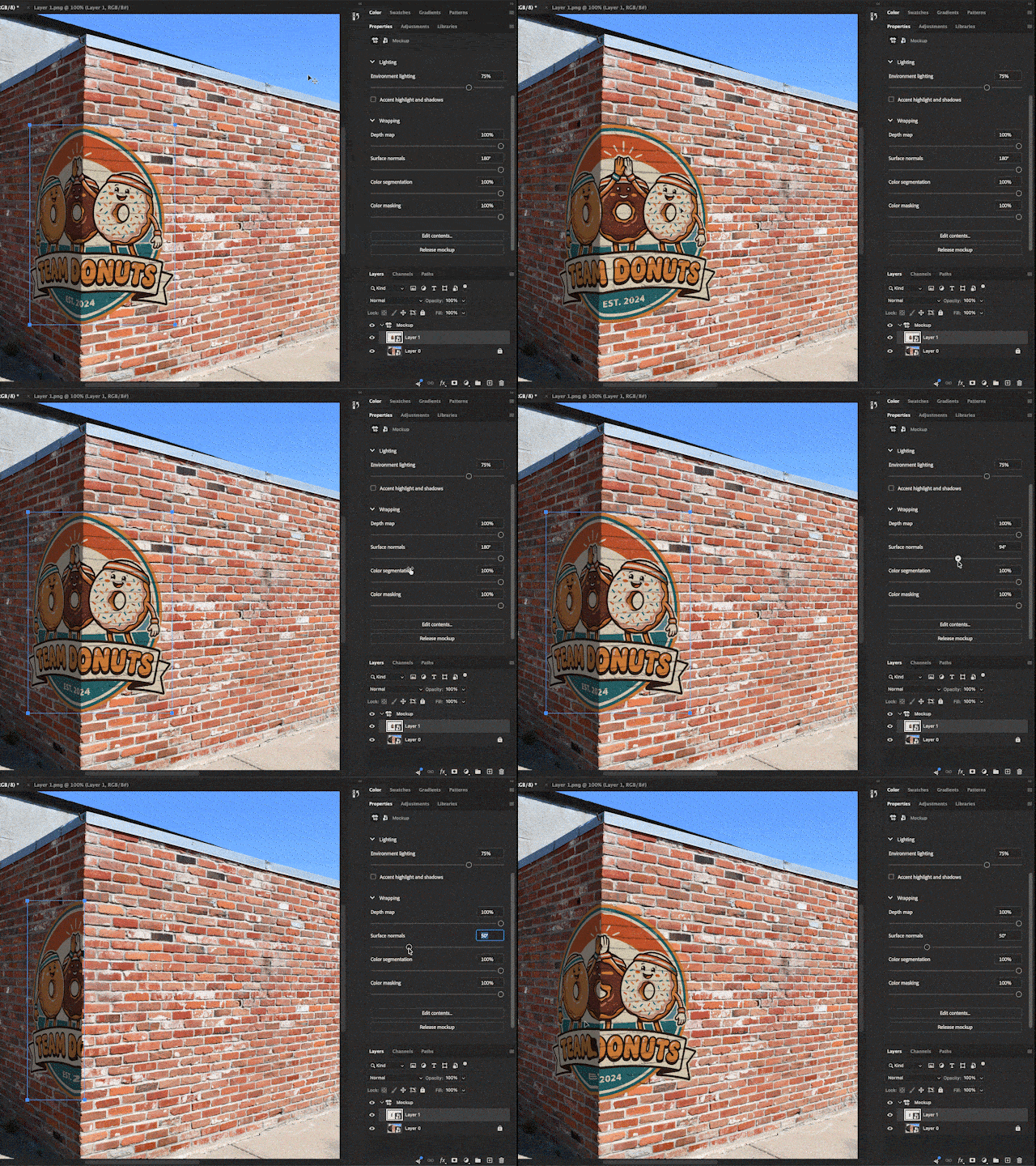
-
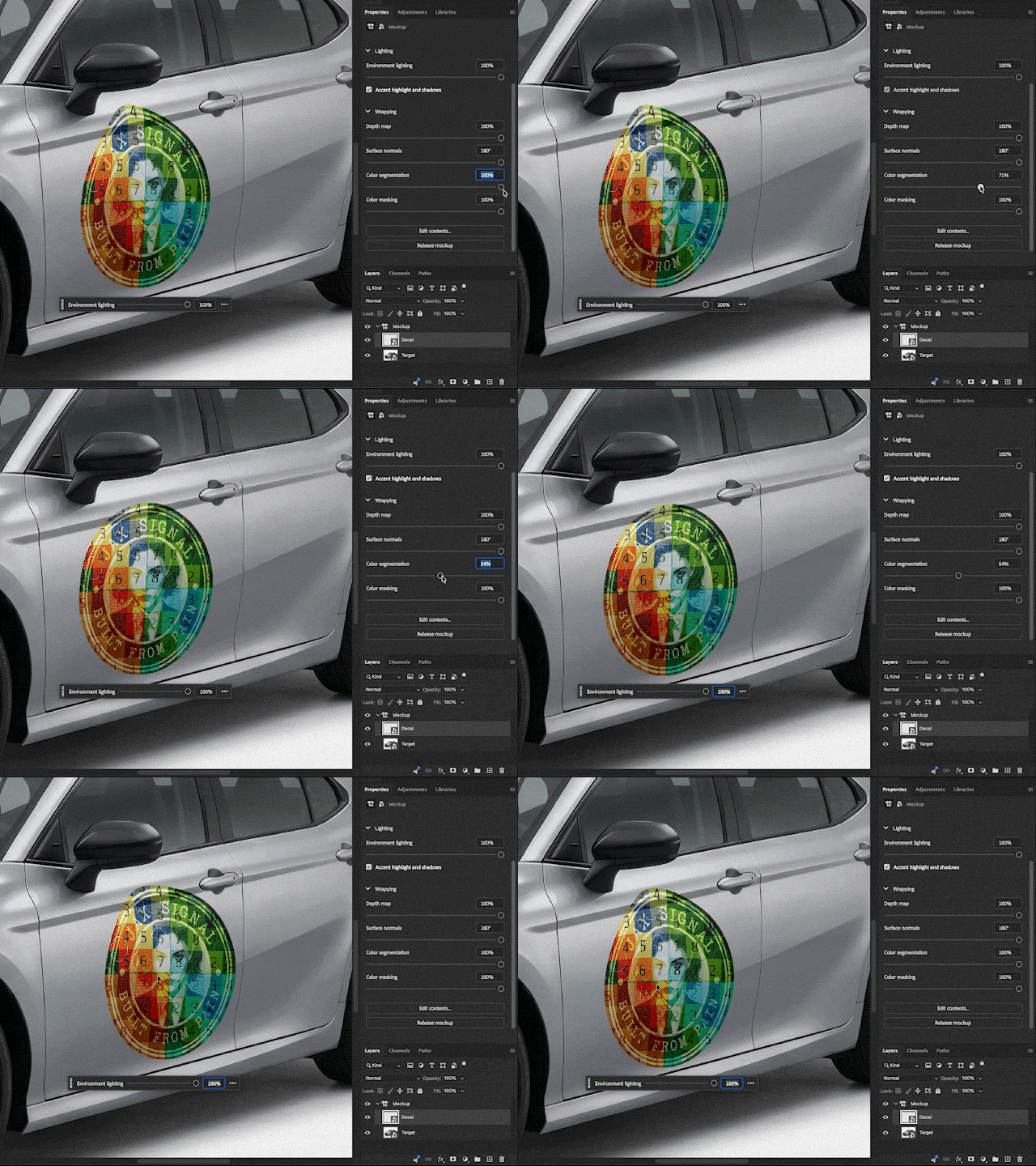
Color Segmentation
Uses color differences to guide how the decal wraps across the object. Higher values allow more color variation without affecting the wrap. Lower values make wrapping more sensitive to smaller color differences.
-
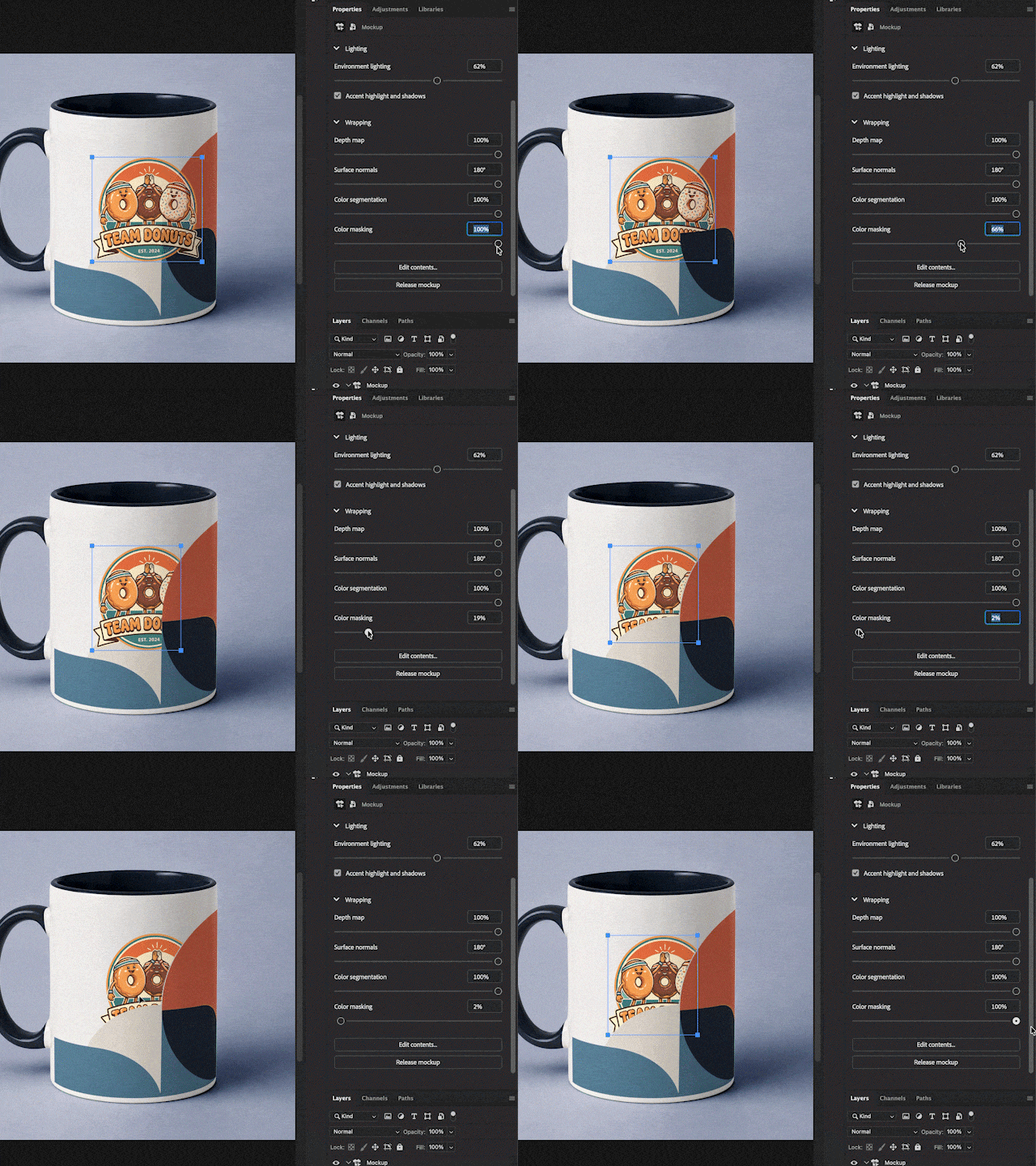
Color Masking
Uses color differences to determine which parts of the decal are visible, rather than how it deforms. Higher values allow the decal to remain visible across a wider range of colors. Lower values restrict visibility to more similar colors.
- Depth map
- Apply lighting to match that of the image environment.
How to Provide Feedback!
- Click on the Beaker Icon in the upper right of the Photoshop application.
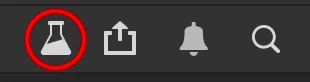
- Find "Mockup" in the left panel, select an option (YES or NO), and leave a comment!
- Or you can leave a comment in this Beta Forum post.
Known Bugs/Issues
- 8bit or 32bit, and sRGB only
- Only one mockup per project, one decal per mockup group (for now!)
- Keep the layers simple! Adjustments, clipping masks, smart filters aren't fully supported yet.
- Moving the mocked-up (mockup'd?) layers in/out of the Mockup Folder group may cause issues.
- A credits paywall may pop up upon mockup creation. Mockup does not require Generative Credits.
- Some issues with misapplied layer masks
- Artboards not yet supported
 AdChoices