



Lynn Hook
Community Manager
Product Manager (Photoshop Desktop)
June 19, 2026

Photoshop Desktop AI Assistant (Early Beta)

Describe what you want, and the AI Assistant makes multi-step edits across your whole composite.

The AI Assistant works directly inside the Photoshop desktop app. Tell it what you want done, such as swapping a background, resizing for every platform, or cleaning up your layers, and it applies the changes across the whole composite. Every change stays fully editable. As you work, it also suggests edits tailored to the image you have open, next to a prompt field where you can type your own.
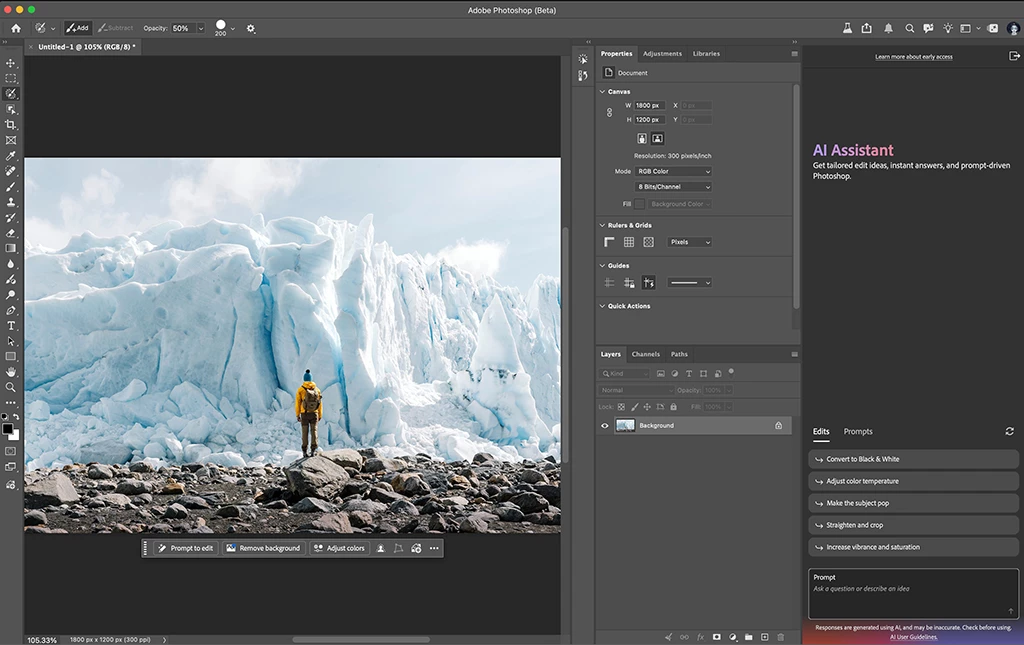
The AI Assistant panel, docked on the right, suggesting edits tailored to the open image.

What you can do

Remove & Replace Backgrounds

  • Replace a background by describing the one you want.

Smartly Resize Images and Assets

  • Export your design in any format you need for a poster, ad, or social post. Layouts and object positions adjust to fit each size.

Rename and Organize Layers

  • Clean up your layer stack: delete empty layers and give the rest clear names.

How to try it in Photoshop (beta) for desktop

  1. Click the AI Assistant icon in the top toolbar (the speech-bubble icon, between Search and the light bulb) to open the panel.

  1. Pick a suggestion from the Edits or Prompts tab, such as "Recover Highlights," "Straighten and crop," or "Remove background," or type your own in the prompt field.
  1. The assistant applies the edits across your composite. Review the result and keep prompting to refine it.

Use the thumbs up or thumbs down on any AI Assistant response to tell us what worked and what didn't. For overall feedback, use the feedback section in the Beta Panel, or comment in this forum thread.

A note on credits: Generative features the assistant can use, such as Generative Fill and Generate Image, use generative credits, the same as elsewhere in Photoshop.


We want to hear from you!
Thank you for trying this Photoshop beta feature.

    8 replies

    Participant
    October 12, 2026

    1. Main questions: two-way communication

    • Discussion before action: Can I discuss an image, compare approaches and agree on a plan before the assistant makes changes? Can I require it to wait for my explicit approval?

    • Clarifying questions: Can the assistant ask questions when my instructions are ambiguous, rather than proceed on an assumption?

    • Unsuccessful results: Can it inspect an unsuccessful edit, discuss why it did not meet my request and propose a correction?

    • Continuity: Can it retain context and refine an earlier result—for example, “Keep the lighting from this version, but restore the original facial details”—without starting over?

    • Honest limitations: Can it distinguish between advice and execution, and clearly state when it cannot perform or verify a requested operation?

    Could you provide a practical demonstration of this dialogue, including discussion before editing and correction after an unsuccessful result?

    Translate
    robertw44482386
    Inspiring
    July 1, 2026

    Where can we find this if we don’t regularly use the Application Frame?

    Translate
    Lynn Hook
    Community Manager
    Lynn HookCommunity ManagerAuthor
    Product Manager (Photoshop Desktop)
    July 20, 2026

    hi ​@robertw44482386  - The AI Assistant icon should still be visible in your application frame.  Were you able to get the feature working?  


    Translate
    robertw44482386
    Inspiring
    July 20, 2026

    I am asking is there any other place to find it (or maybe amenu item?) since I don’t ever and won’t ever use the Application frame.

    Translate
    Participant
    June 24, 2026

    Bring back Firefly Image 3 to the latest Photoshop update!

    Translate
    Lynn Hook
    Community Manager
    Lynn HookCommunity ManagerAuthor
    Product Manager (Photoshop Desktop)
    June 28, 2026

    Hi ​@Patty_W - Please do add your comments if not already to post:


    Translate