




News
Prompt to Edit, now with Markup and Dynamic Layer (Beta)
Edit your whole image by describing the change, and now direct that edit two new ways: draw or add text on the canvas to guide your generation, or use a slider to view a generated result.
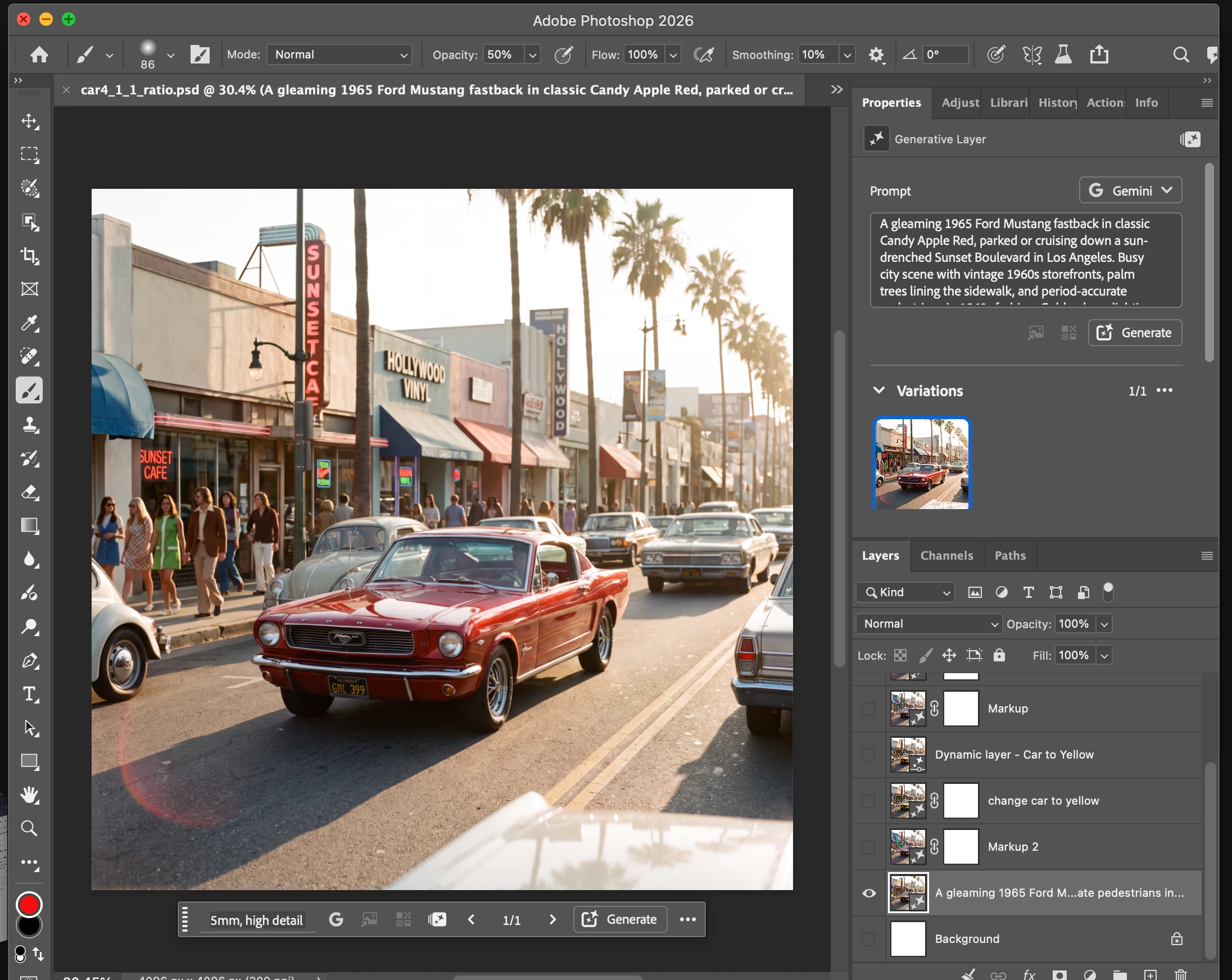
Prompt to edit is a streamlined, whole-image editing experience in Photoshop desktop. Open it from Edit > Prompt to edit or the Contextual Task Bar, type what you want changed across the canvas, pick a model, and generate. Results come back as a new layer so you can compare with the original. This build adds two features that build on it.
What's new
Markup
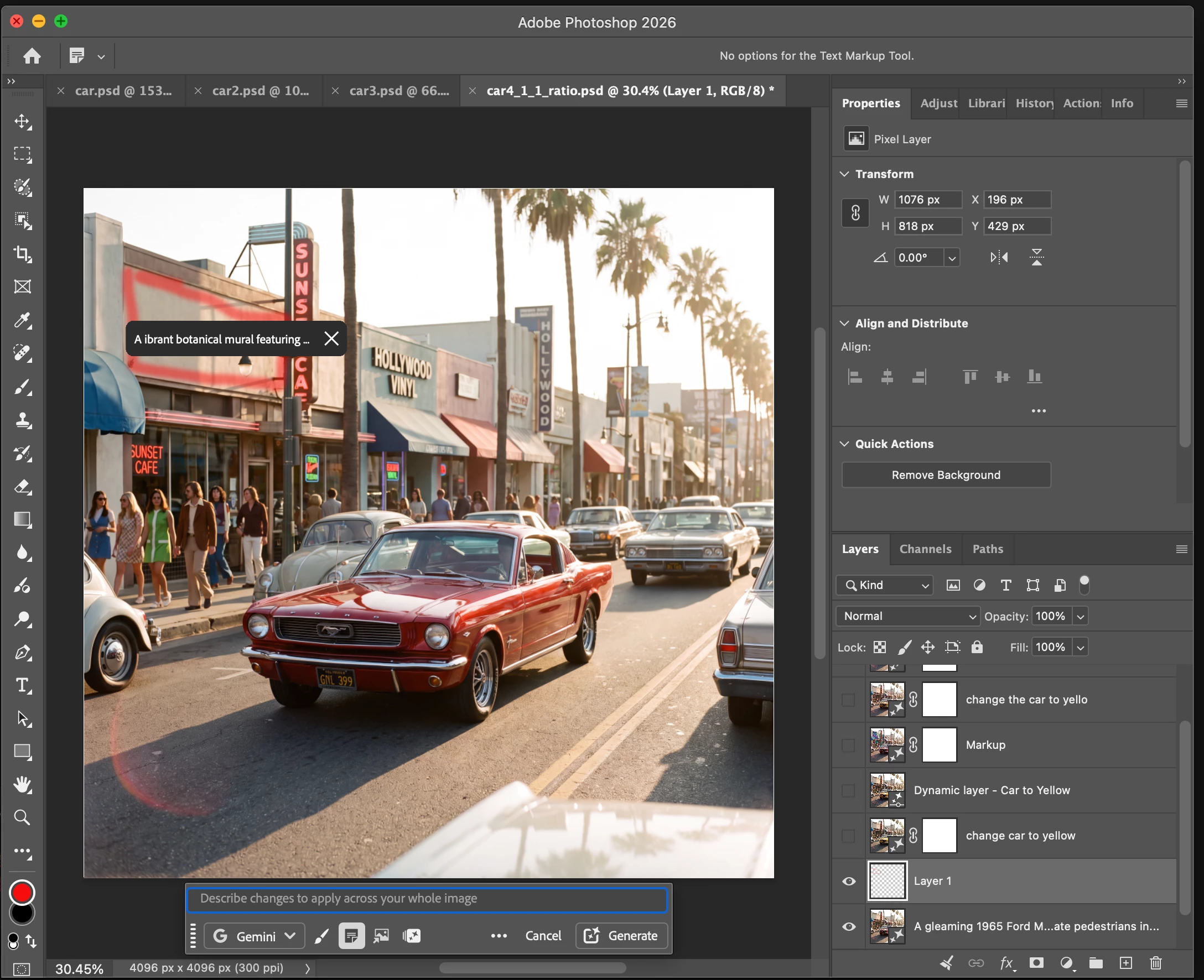
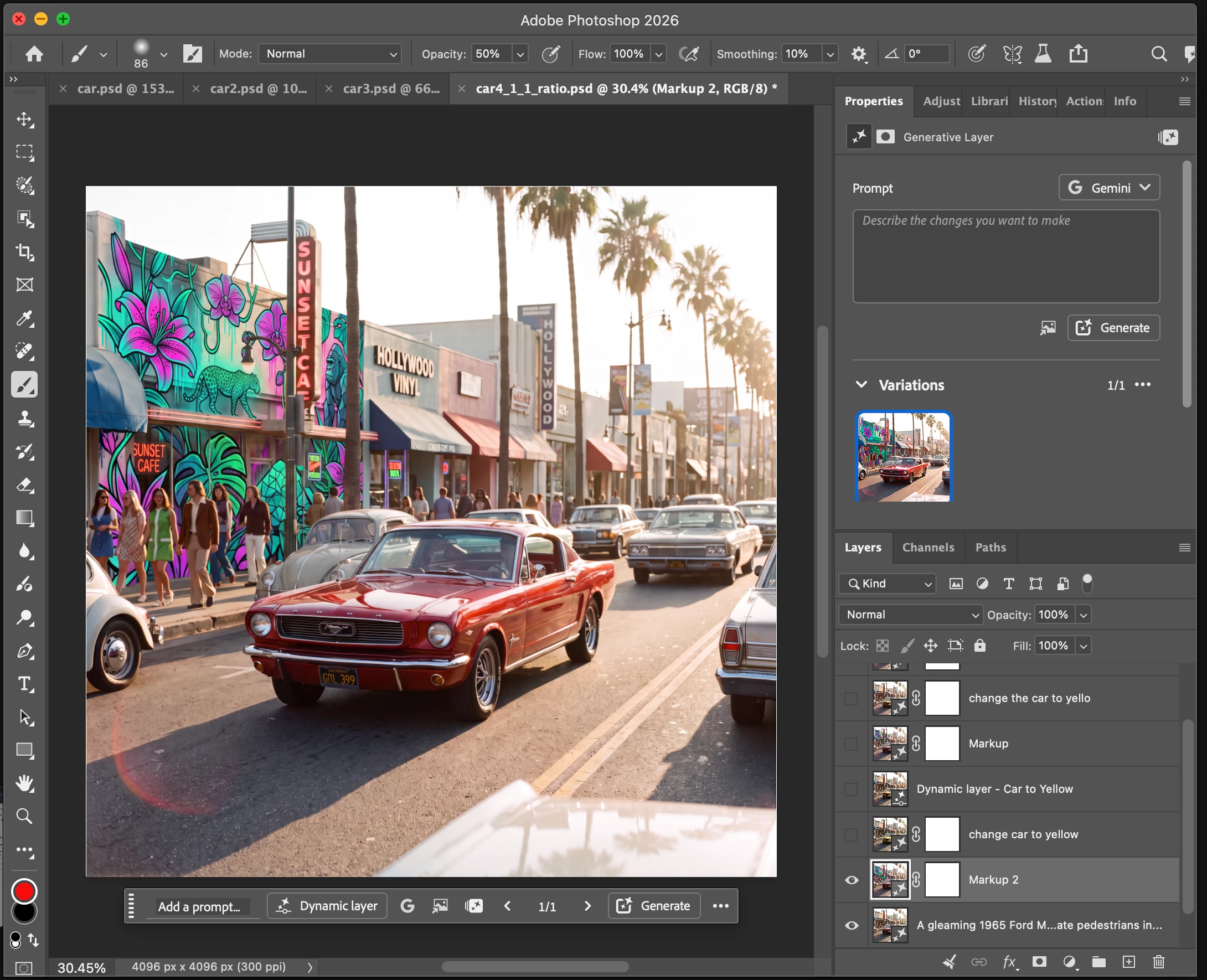
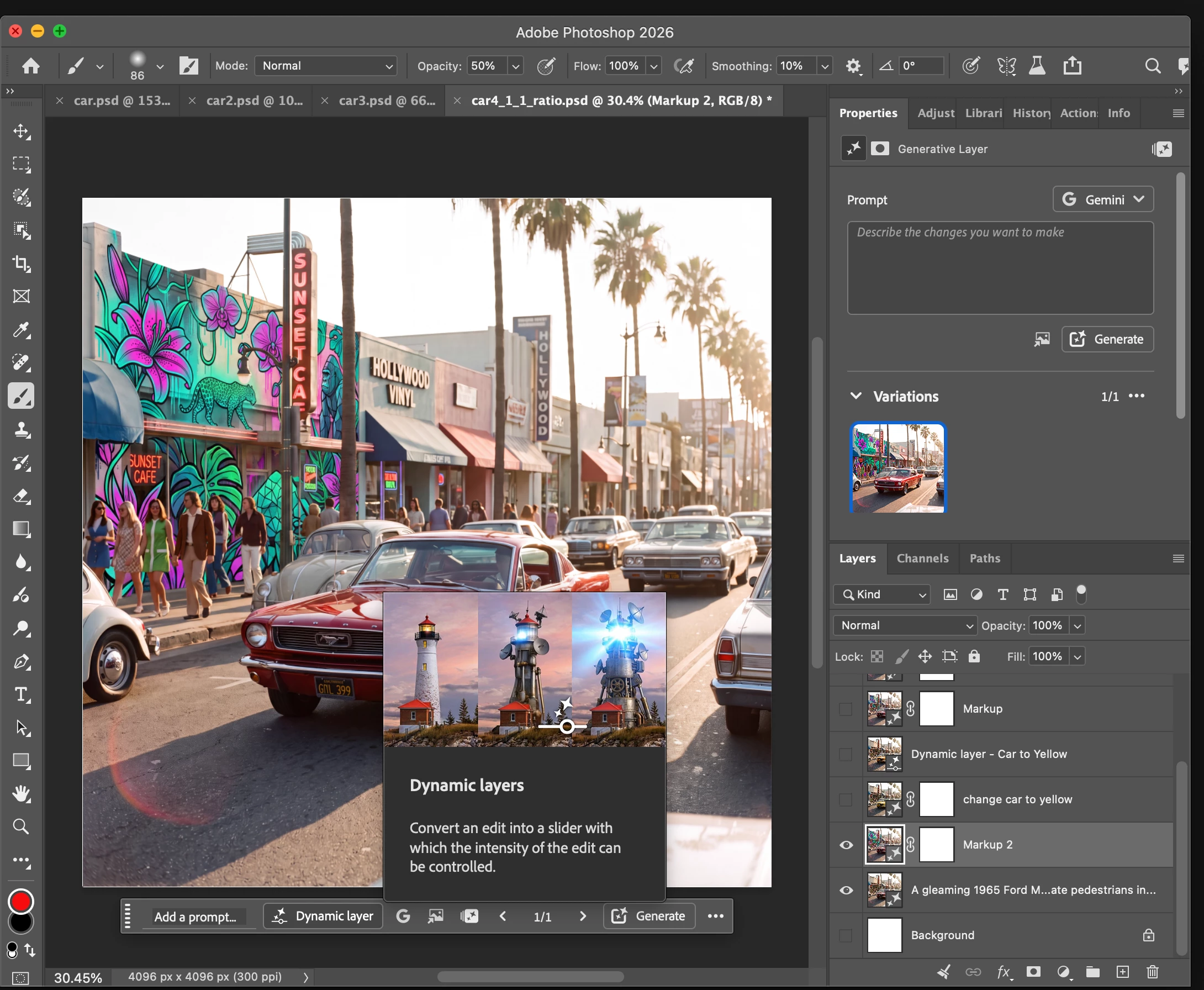
- Show the change instead of describing it. Draw directly on your image inside Prompt to Edit: select areas to recolor, add text annotations, or brush in rough shapes for size and position, then generate.
- Markup tools require a Gemini model (Nano Banana 2 or Nano Banana Pro) for this Beta release. Switch to another model and the tools disable, with a tooltip explaining why.
Dynamic Layer
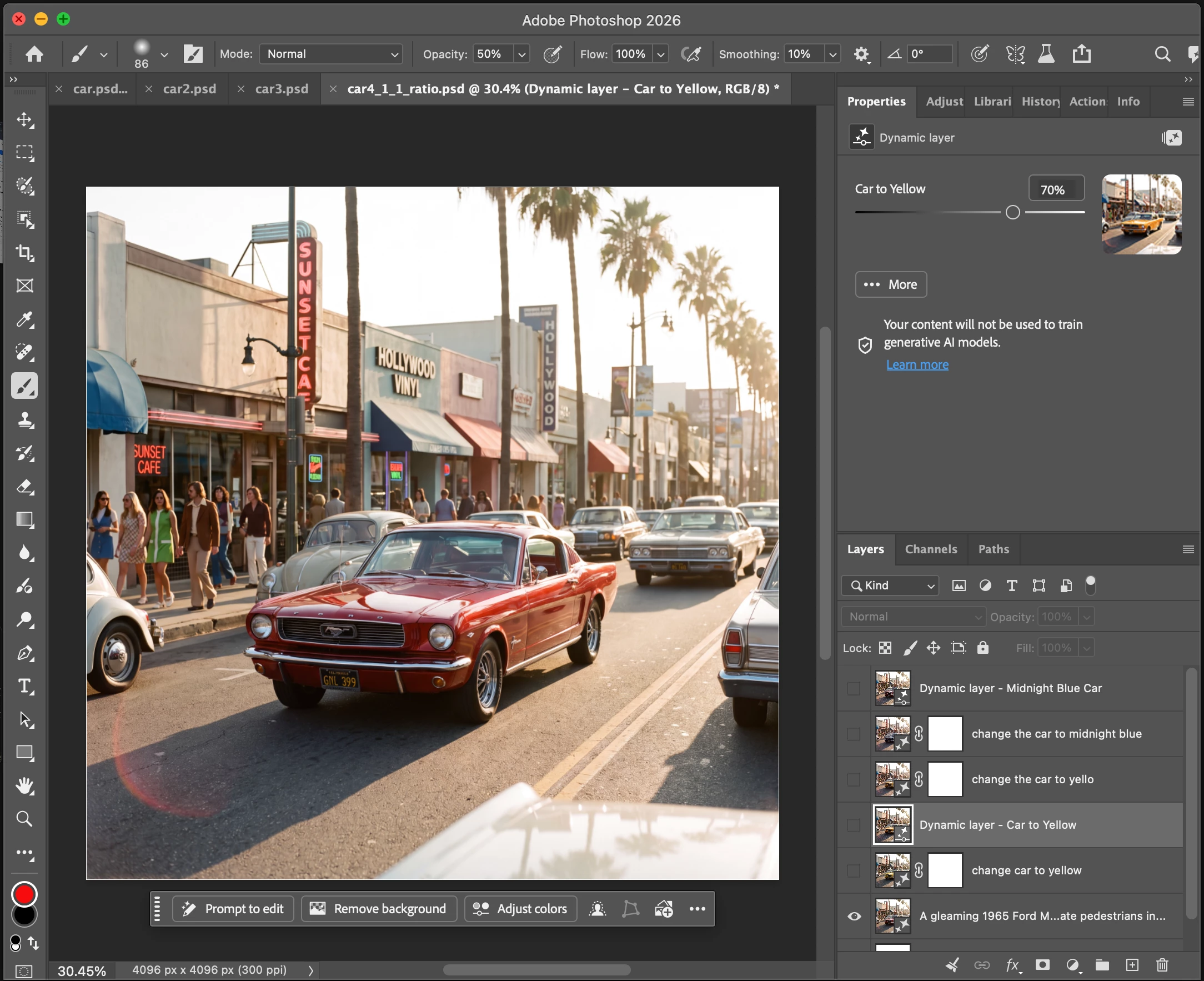
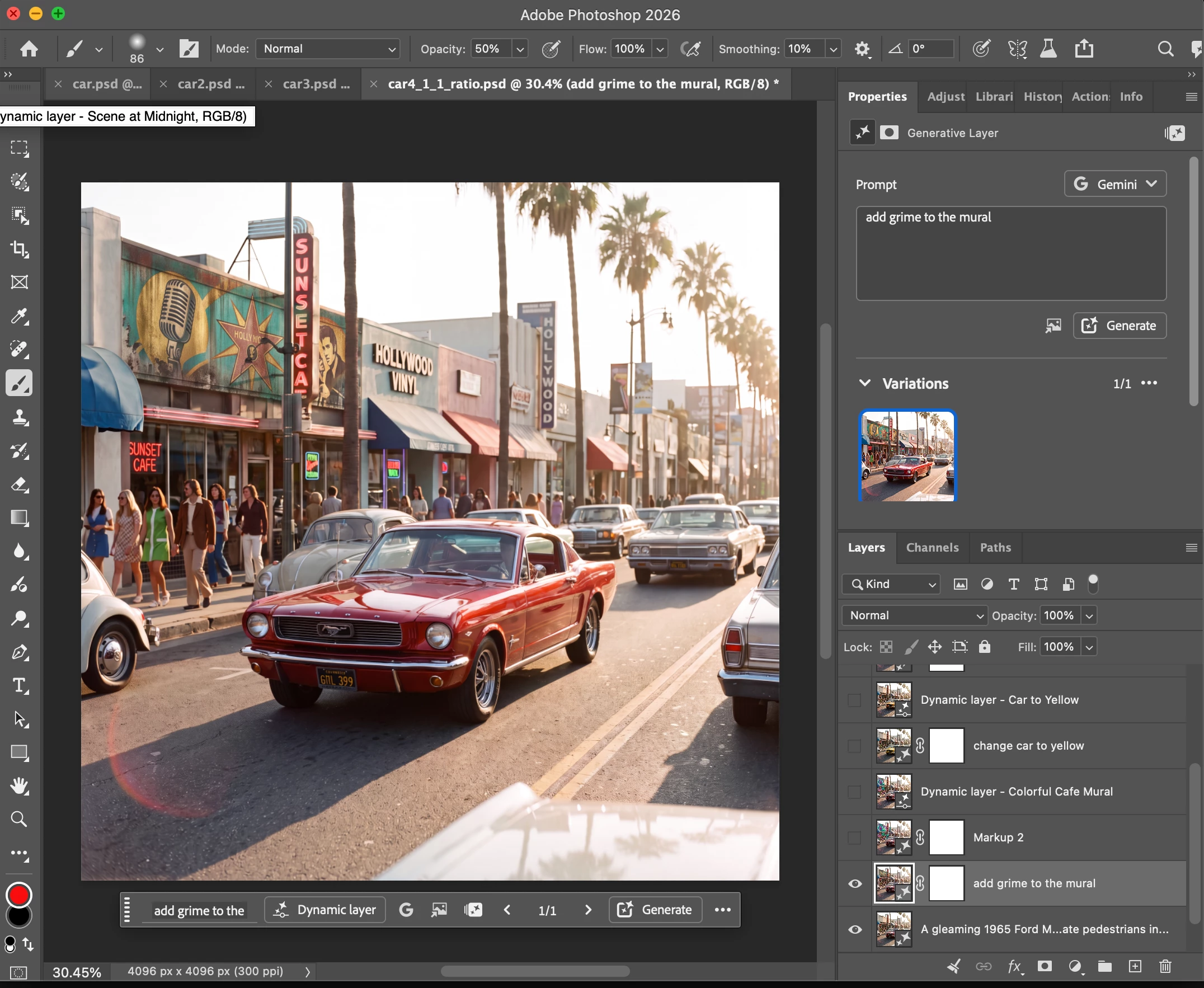
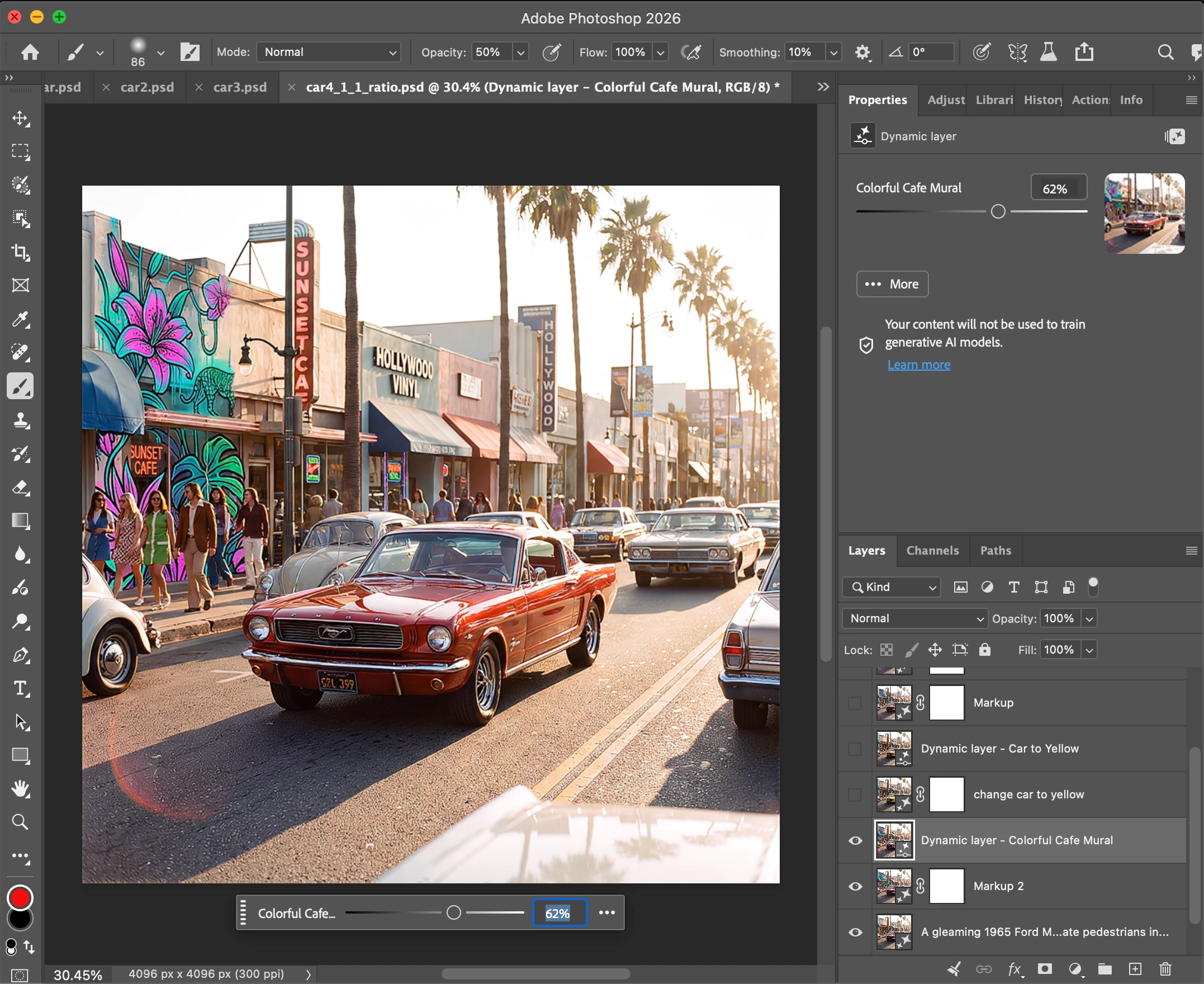
- Use a slider to interactively view a series of generated edits instead of re-prompting. Your starting image is one end of a range and your Prompt to Edit result is the other.
- Drag the slider to preview any in-between state, and keep the ones you want. No regenerating.
How to try it in Photoshop (beta) for desktop
Markup:
- Open an image and select a Pixel or Generative layer. If it is a Generative layer, select the whole image.
- On the Contextual Task Bar, click Prompt to edit.
- Pick a Gemini model in the model picker. Markup tools are Gemini-only for this Beta release.
- Use the brush or text annotation tool to mark up the canvas. In the case above, outline the partial location of the mural.
- Add a text annotation like “A vibrant botanical mural featuring cascading neon flora and bioluminescent vines winding up cracked concrete. Hidden among the oversized tropical leaves are playful, geometric animal silhouettes. Painted in a bold pop-art style with dripping spray paint textures, vibrant teal and magenta gradients, and stark black line work”
- Type any global edit you also want to make across the whole image, such as "warm up the lighting" then generate.
Dynamic Layer:
- Open an image and select a Pixel or Generative layer. If it is a Generative layer, select the whole image. This is your starting point, one end of the range of the slider.
- Click Prompt to edit and describe the change, such as "paint the car yellow." This becomes the other end of your slider.
- When the edit finishes, click Dynamic layer. Conversion takes 1 to 3 minutes.
- Drag the slider in the Properties panel or the Contextual Task Bar. Each position generates a new in-between state you can keep.
For overall feedback, use the feedback section in the Beta Panel, or comment in this forum thread.
What issues do you see that we should address?
A note on credits: Markup and Dynamic Layer are generative features and use generative credits, the same as elsewhere in Photoshop.
We want to hear from you!
Thank you for trying this Photoshop beta feature.
 AdChoices