




Reflection Removal in Photoshop (Beta)
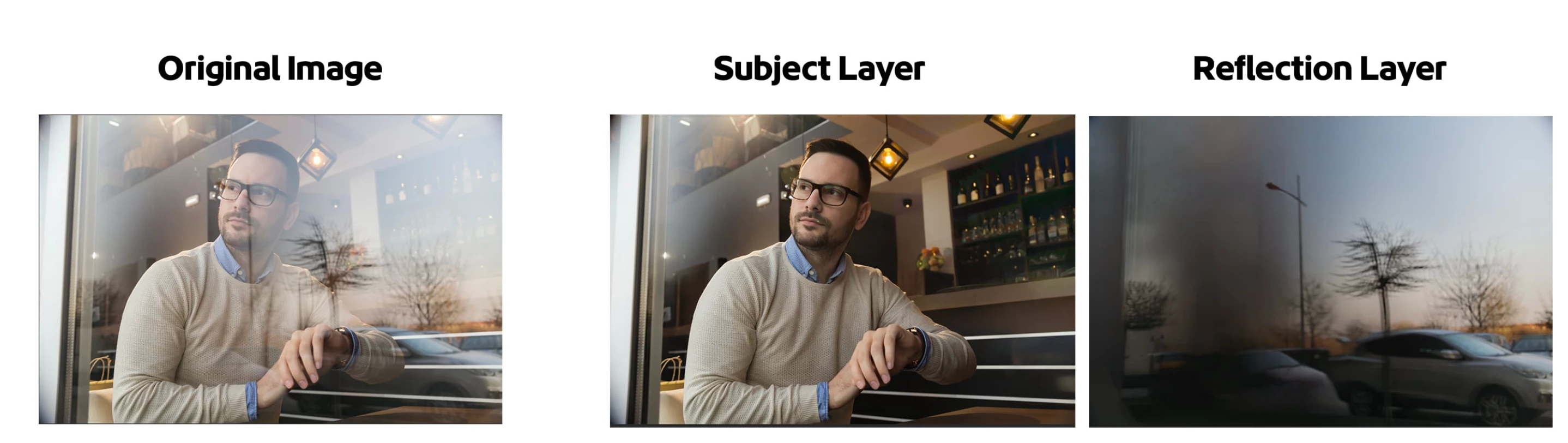
The AI-powered Reflection Removal feature lets you easily extract and remove reflections that impact the majority of your scene. The Reflections Removal command eliminates large and prominent window reflections in just a few steps, allowing your image's subject to stand out clearly.
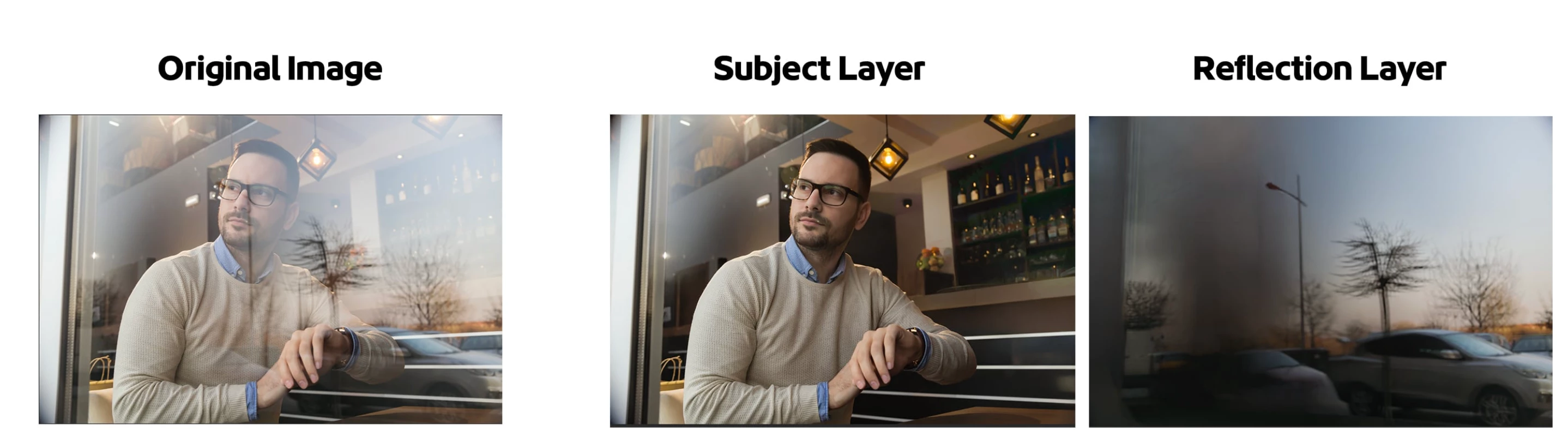
While AI-powered, it is not generative AI and does not use credits.
How to:
- Open a file with reflections that dominate the image.
- Edit > Reflections Removal…
The Reflection Removal Dialog appears - Choose the quality of the results from the pop up.
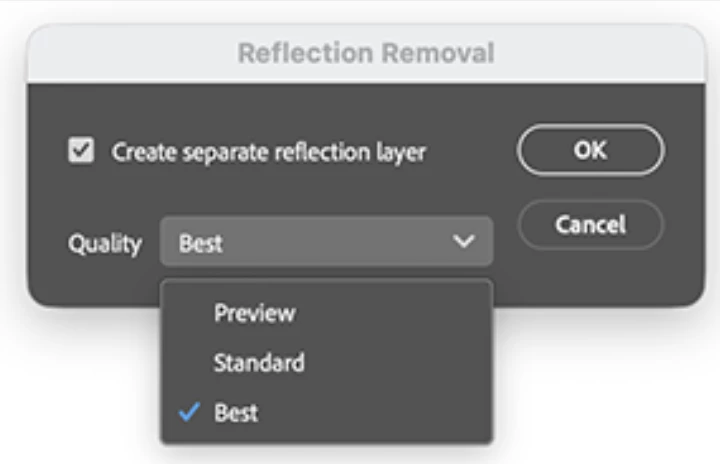
- Turning on "Create separate reflection layer" will give you both the subject "Reflection Removal" layer and a layer with the extracted reflection.
- Click [OK]
- The "Reflection Removal" layer and, if checked ON, the Reflection layer appear in the Layers panel.
- Adjust the Layer Opacity of the subject "Reflection Removal" layer to bring back subtle reflections if desired.
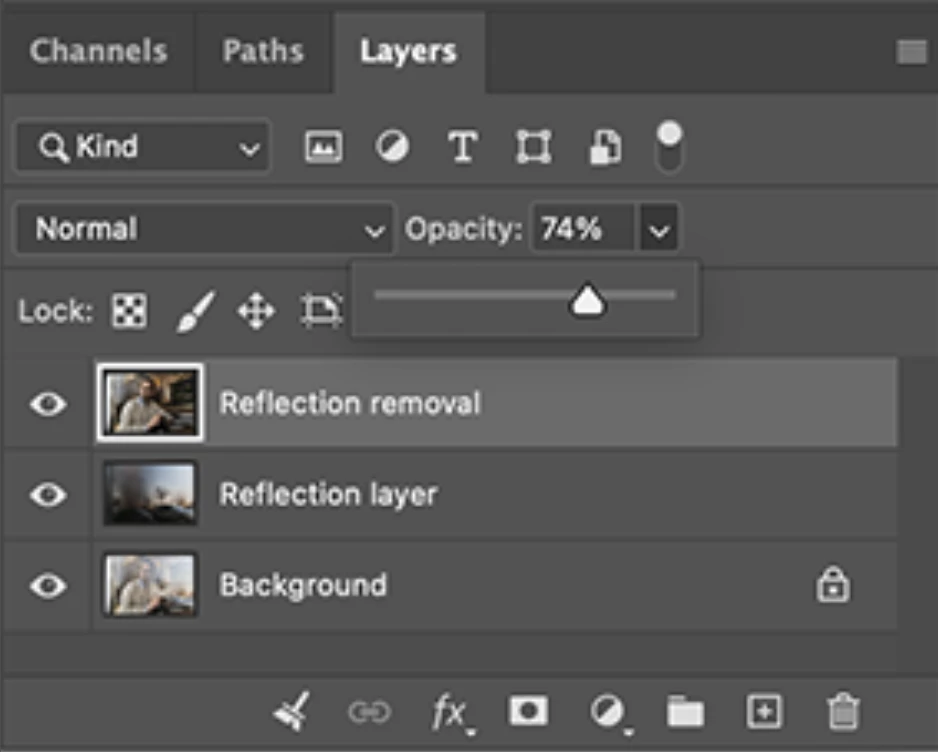
Adjust the Opacity slider in the layers panel to bring back subtle reflections for a natural look.
Quality setting info:
Preview - This is the lowest resolution, suitable for sharing on social media, and the fastest to process.
Standard - This is an intermediate resolution, ideal for viewing photos at normal screen resolution.
Best - This is the full resolution, which takes the longest to process.
Current Known Issues/Limitations:
- Is designed for full-image reflections (like a window pane), not for small-areas, such as reflections on eyeglasses.
- The result is applied to the entire document, even if there is a selection.
- No Smart Object Support. (Alternate: use Reflection Removal in Adobe Camera Raw as a Smart Filter.)
- Currently 8-bit RGB support only
Please visit the Beta Feedback panel to share your thoughts
Thank you!
 AdChoices