



Remove Ambient Effects (beta)

Eliminate distracting atmospheric and optical artifacts that aren't connected to an object; such as haze, smoke, fog, reflections, shadows, and lens flare while preserving the underlying image content.
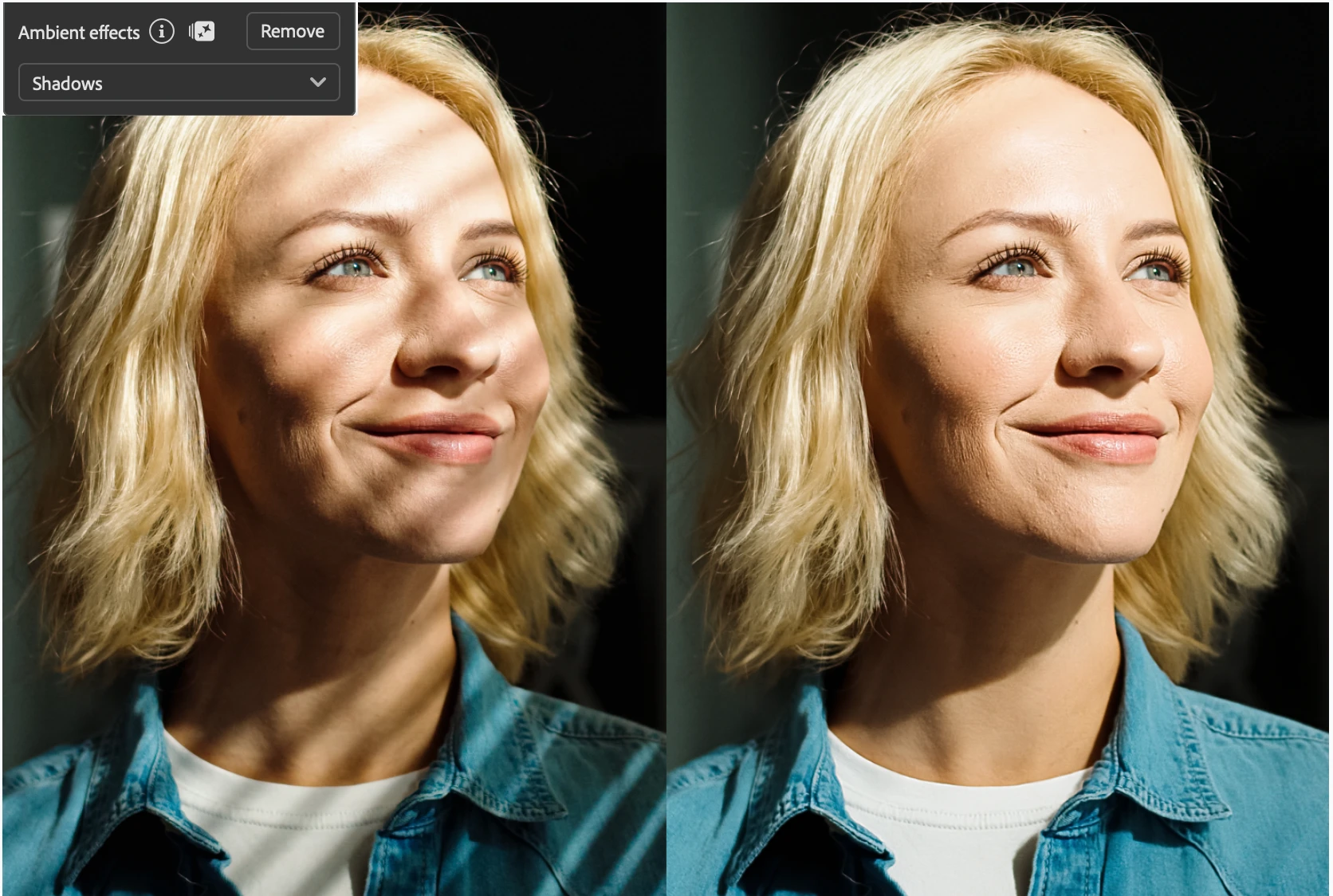
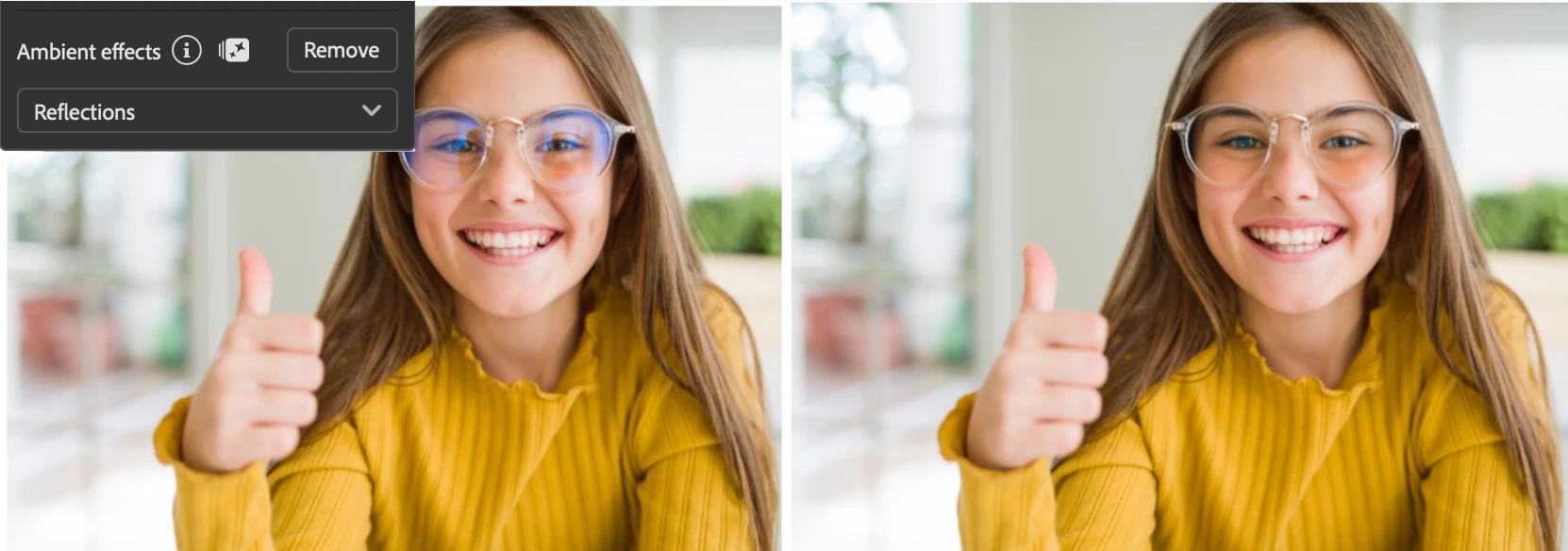
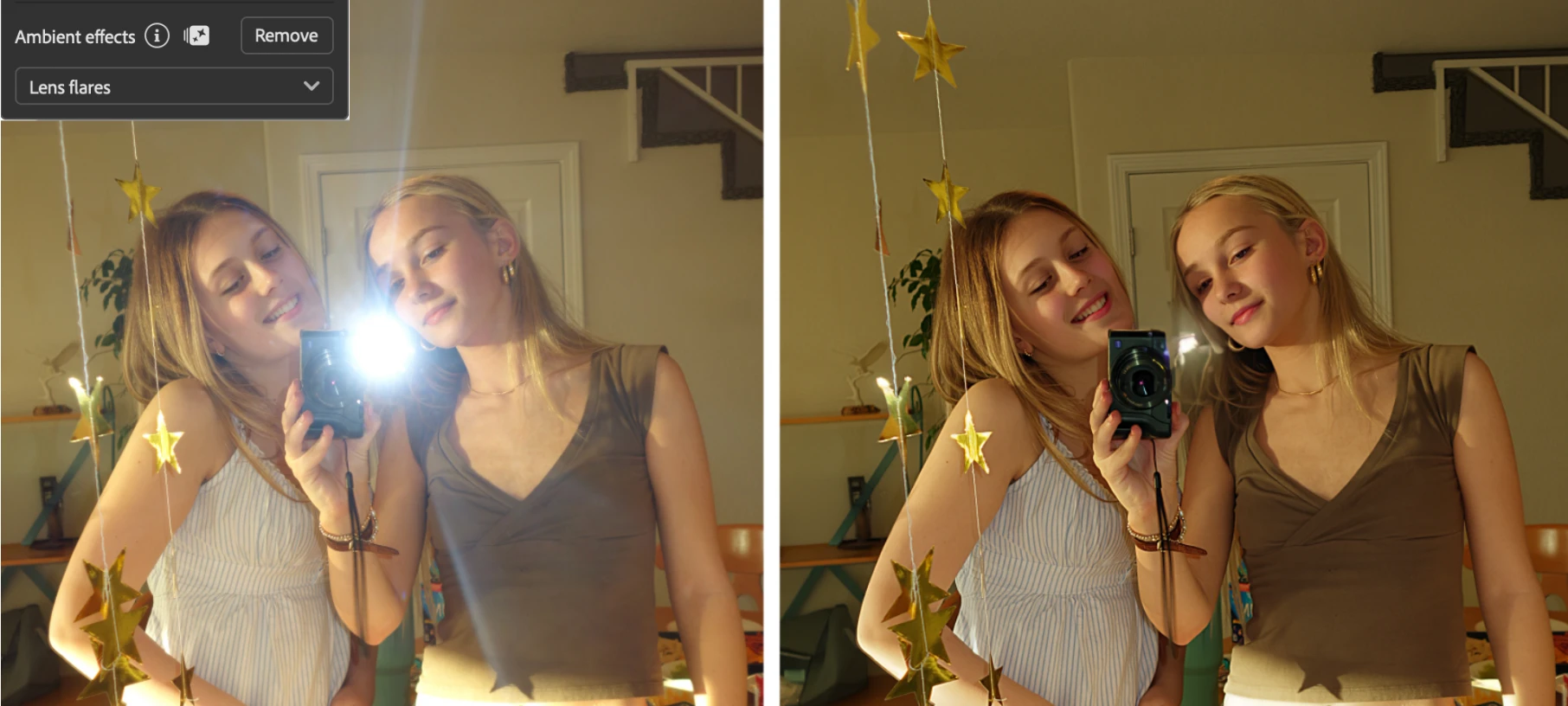
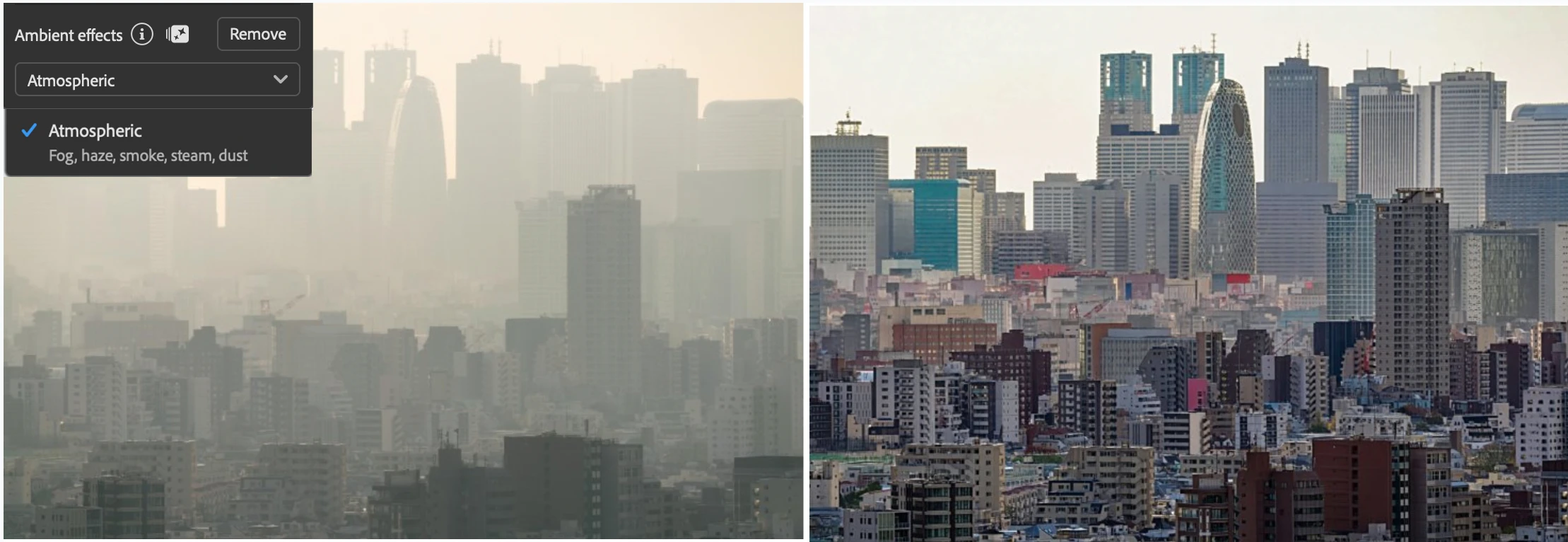
How to via Remove Tool:
1. Open an image
2. Go to the Remove Tool.
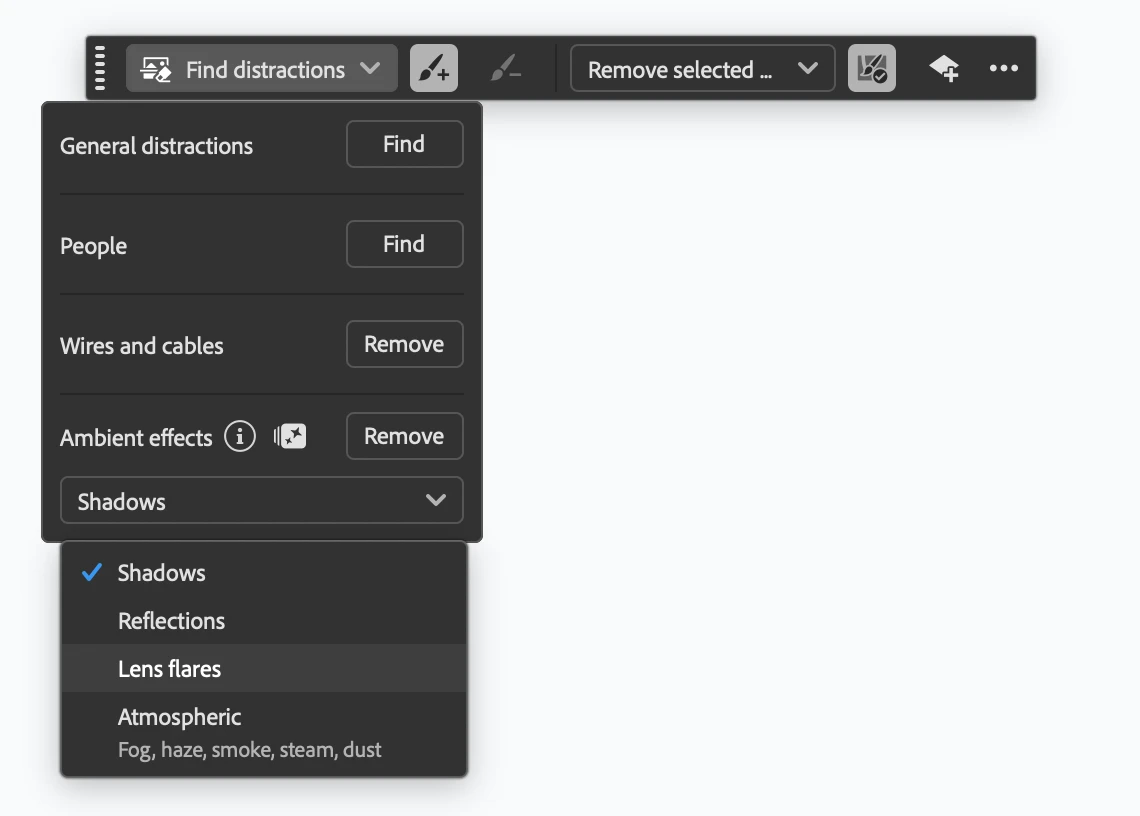
3. Click on Find Distractions in the Contextual Task Bar or Options Bar.
4. From Ambient Effects, choose Shadows, Reflections, Lens Flare, or Atmospheric.
5. Click Remove.
How to via Edit Menu:
1. Open an image.
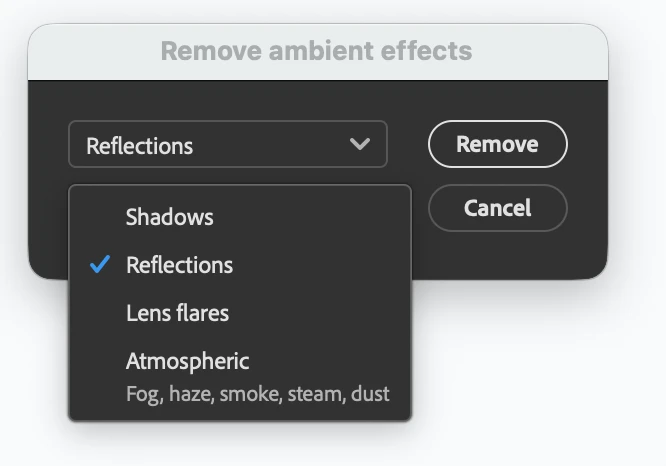
2. Choose Edit > Remove Ambient Effects...
3. Choose Shadows, Reflections, Lens Flare, or Atmospheric, then click Remove.
Results:
A generative layer titled "Remove tool edits" appears in the Layers panel.
Two variations are created in the Properties panel; one has enhanced details.
Tip: To target a specific area, make a selection before using Remove Ambient Effects. With the Remove Tool, you can also brush over an area first when Remove After Each Stroke is turned off.
The feature will be unavailable if:
• Remove Tool's Generative AI setting = Off
• Remove Tool AI Processing = Device
• Document is 32-bit
We value your feedback and would like to hear your thoughts on your results or the workflow. Here’s how:
- Reply to this forum thread.
- Use the Feature Feedback in the beta panel to tell us more.
- You can also give per-result feedback from the Remove Tool options bar. Look for the "Feedback" speech bubble icon button.
Thank you!
 AdChoices