



Remove Tool On-Device Generative AI Model (Beta)

We are excited to announce the beta launch of an on-device generative AI model for the Remove Tool!
You can now download the Generative AI model onto your personal device and work off-line and process locally - ideal when internet connections are unreliable or when cloud processing isn’t preferred. (It’s kind of a big deal!)
How to:
- Select the Remove Tool.
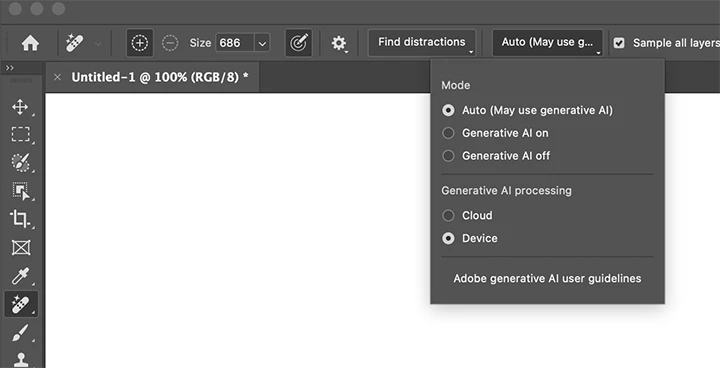
- In the Options bar, open the Mode drop‑down (Auto / GenAI On / GenAI Off).
- In the Generative AI Processing section, choose Device.
If the Device option is dimmed and unavailable, your system does not meet the minimum requirements to run the model. - When prompted, click Download to start the download (approximately 5 GB).
- Once the download completes, the on‑device model will be used automatically.
- Switch between Cloud and Device processing at any time from the Mode drop‑down.
System Requirements
This is a GPU‑intensive feature with high system requirements.
“Use Graphics Processor” and “Remove Tool: Faster” must be enabled in Photoshop Settings, and at least 10 GB of free disk space is required.
Mac: Apple Silicon M1 Max or higher (M4 Max recommended), 24 GB RAM minimum, macOS Tahoe (macOS 26) or later, and at least 10 GB of free disk space.
Windows: NVIDIA GeForce RTX 30‑series or higher with at least 14 GB VRAM (latest NVIDIA drivers recommended), or an Intel system with a discrete GPU and 12 GB VRAM. Intel systems with integrated GPU only require 32 GB system RAM. At least 10 GB of free disk space is required.
Please provide input on your experience in this forum or to the feedback section on the Beta panel.


 AdChoices