




Scratch Disk Monitoring
We are happy to introduce an update to Photoshop, scratch disk monitoring.
Photoshop uses a scratch disk—a portion of your hard drive—to store temporary files and as virtual memory when the computer's RAM is insufficient for operations. If your scratch disk runs out of space, you risk losing unsaved work. This update could help you avoid that by monitoring the available space.
What is the update?
At launch, Photoshop will verify that you have the recommended amount of scratch disk space. If you do not, a popup will alert you and allow you to:
- Switch to a larger scratch disk volume
- Delete files on your hard drive to free up additional space
- Add and designate an external hard drive as an scratch disk
- Close the popup and continue working
- Opt out of future warnings
- Click “Learn more” for additional info.
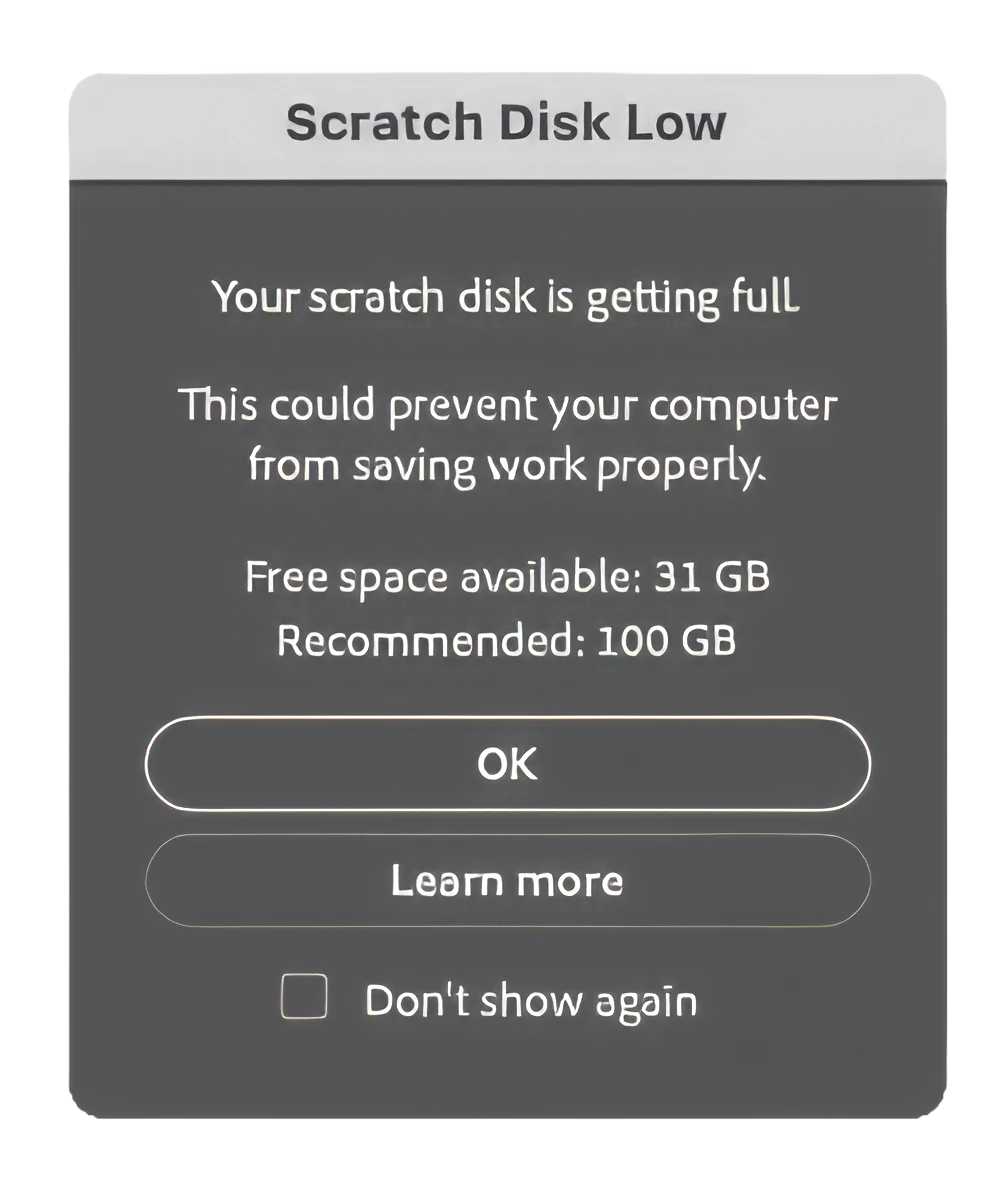
Want to set the recommended threshold for your scratch disk warning?
By default, you will get a warning if your free space is less than 45GB.
Here’s how change the threshold:
- Open Notepad (Windows) or a text editor (macOS).
- Paste the following text, replacing [number in GB] with your preferred threshold:
# Set scratch disk free space threshold
Scratch.GB.Launch [number in GB]
Example: To set the threshold to 50GB, use Scratch.GB.Launch 50 - Save the file as PSUserConfig.txt in your Photoshop settings folder:
Windows: [Installation Drive]:\Users\[User Name]\AppData\Roaming\Adobe\[Photoshop_version]\[Photoshop_version]Settings\
macOS: /Users/[User Name]/Library/Preferences/[Photoshop_version]Settings/ - Restart Photoshop to apply the new settings.
Have you experienced scratch disk errors or lost work because of them? We’d love to hear your feedback below.
- Learn more about scratch disks and how to manage them:
https://helpx.adobe.com/photoshop/using/scratch-disks-preferences.html
https://helpx.adobe.com/photoshop/desktop/troubleshoot/performance-stability-issues/troubleshoot-scratch-disk-full-errors-in-photoshop.html
 AdChoices