




Edit PDF text with AI Assistant in Acrobat — replace, reformat, highlight, and redact via chat
Hi everyone,
A lot of you have asked for a faster way to make text changes in PDFs without switching modes, hunting through menus, or manually selecting every instance. Today that's here, for individual Acrobat Pro and Studio users on desktop.
You can now edit, format, highlight, and redact PDF text by chatting with AI Assistant, and it finds what you're asking about based on its meaning or appearance, not just exact matches.
Here's what that looks like in practice. Say you have a proposal PDF and you want every client name swapped out before sending. Instead of running Find & Replace twelve times, you type: "Replace all client names with Brightfield." AI Assistant reads the document, finds every match, shows you a preview, and waits for you to accept or skip each change before applying anything. Want all the dates highlighted in yellow? Same idea: "Highlight all dates in yellow."
What you can do with Edit PDFs via chat
- Replace, rewrite, restructure, or delete text based on its meaning
- Change font style, size, color, family, spacing, and indentation
- Add, recolor, or remove highlights
- Redact sensitive information across single or multiple instances
- Find text by meaning or appearance
- Chain multiple actions in one request
- Reference sections by topic, AI Assistant finds the right pages and elements for you
What's the difference between Edit text, Format text, and Highlight text?
- Edit text — replace, rewrite, restructure, or delete the words themselves
- Format text — change font style, size, color, family, spacing, and indentation
- Highlight text — add, recolor, or remove highlights on identified text
What's available on your plan
| Tool | Reader | Standard | Pro | Studio |
| Find, Print, Share, Add Signature | ✓ | ✓ | ✓ | ✓ |
| Create, Convert, Delete, Export, Extract, Find & Replace, Rotate pages, Compress, Password protect, Scan & OCR | — | ✓ | ✓ | ✓ |
| Organize, Header, Footer, Watermark | — | — | ✓ | ✓ |
| Edit text, Format text, Highlight text, Redact text via chat | — | — | ✓ | ✓ |
| Multi-tool workflows | — | — | ✓ | ✓ |
| Content-aware prompts | — | — | ✓ | ✓ |
NOTE: All conversational actions, including text editing, formatting, highlighting, redacting, multi-tool workflows, and content-aware prompts, require an individual Acrobat Pro or Studio plan and are not yet supported on Teams or Enterprise plans. None of this consumes generative credits or counts against your AI Assistant request limit.
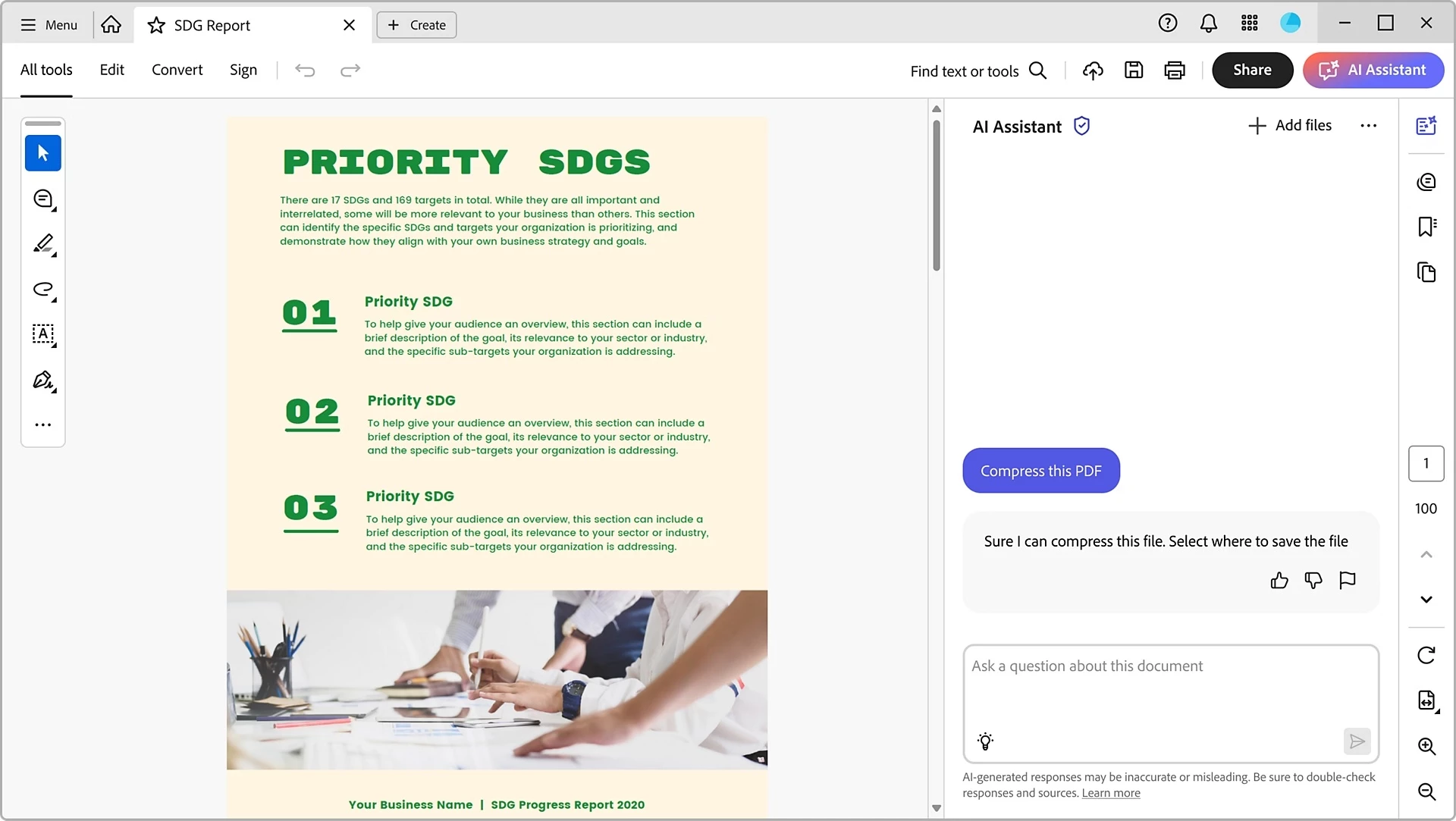
- Open your PDF in Acrobat on desktop and select AI Assistant from the top bar.
- Type your request in plain language in the chat field.
Tip: Not sure what to type first? The Prompt Library has ready-made prompts you can copy straight into the chat field.
- Select Submit.
- For text edits: review the preview, then select Accept to apply or Skip to move to the next instance.
- For multi-step requests: AI Assistant shows you its plan first — type Yes to confirm.
- Changed your mind? Select Undo on the top bar.
Steps reflect the current release of Adobe Acrobat as of August 2026.
Handy things to keep in your back pocket
Working with a scanned PDF? Run Scan & OCR first, then use chat editing — AI Assistant handles the rest.
Prompts worth trying
All prompts below require an individual Acrobat Pro or Studio plan.
| Simple | Multi-tool | Content-aware |
| "Add page numbers to the footer" | "Remove the last two pages and compress the file" | "Replace all client names with Brightfield" |
| "Compress this file" | "Compress this file and share it with johndoe@company.com" | "Add a CONFIDENTIAL watermark on pages with pricing information" |
| "Make all headings bold" | "Organize pages and add a header with the document title" | "Reorder pages so pricing appears before case studies" |
| "Rotate page 4 clockwise" | "Extract pages 1 to 5 and export as a Word document" | "Replace all product names with 'Product X' throughout the document" |
| "Add a password to this file" |
| "Convert the recommendations into bullet points" |
If something doesn't run as expected, the most common fix is adding more detail to your prompt, page numbers, section names, or a description of what the content looks like. Full troubleshooting: Edit PDFs via chat not working in Acrobat.
Learn more
- Edit PDFs via chat overview
- Edit PDFs via chat — step-by-step
- Prompt Library
- Troubleshooting: Edit PDFs via chat not working
Give it a shot on your next PDF and tell me how it goes in the comments. Not sure what to type? The Prompt Library's got you covered.
 AdChoices