




Enable Transcript API Access to Restore Acrobat AI Summaries
TL;DR
Microsoft changed a default Teams setting that can stop Acrobat's AI Assistant from generating meeting summaries. The setting "Transcript API access" is now turned off by default. While it's off, Acrobat (and any other third-party app) can't read Teams meeting transcripts through Microsoft Graph. This is a Microsoft-side change, so Adobe cannot enable it for you. Your Microsoft 365 or Teams admin needs to enable it.
How to tell if you're affected
- The AI Assistant in Acrobat for Microsoft Teams no longer generates meeting summaries after a meeting is recorded or transcribed.
- The transcript list in the Acrobat Teams Personal App is empty.
What changed
Microsoft added a new tenant-level admin control, Transcript API access, that governs whether any third-party app (not just Acrobat) can read Teams meeting transcripts through Microsoft Graph. It is off by default and must be turned on by your Microsoft 365 or Teams admin.
Who this affects
This change affects users of Acrobat for Microsoft Teams (the web connector or Teams Personal App) who use AI Assistant to summarize Teams meeting transcripts. If Microsoft Graph access is already enabled for your tenant, no action is required.
Note: AI meeting summaries require access to the AI Assistant in Acrobat. If you don't have it yet, request AI Assistant access as a Teams user or as a Teams admin.
What to do
If you're a Microsoft 365 / Teams admin:
- Go to the Microsoft Teams Admin Center (
admin.teams.microsoft.com/meetings/settings). - In the Navigation pane, select Meetings.
- Under Meetings, select Meeting settings.
- Under Transcript API access, turn the Microsoft Graph access toggle On.
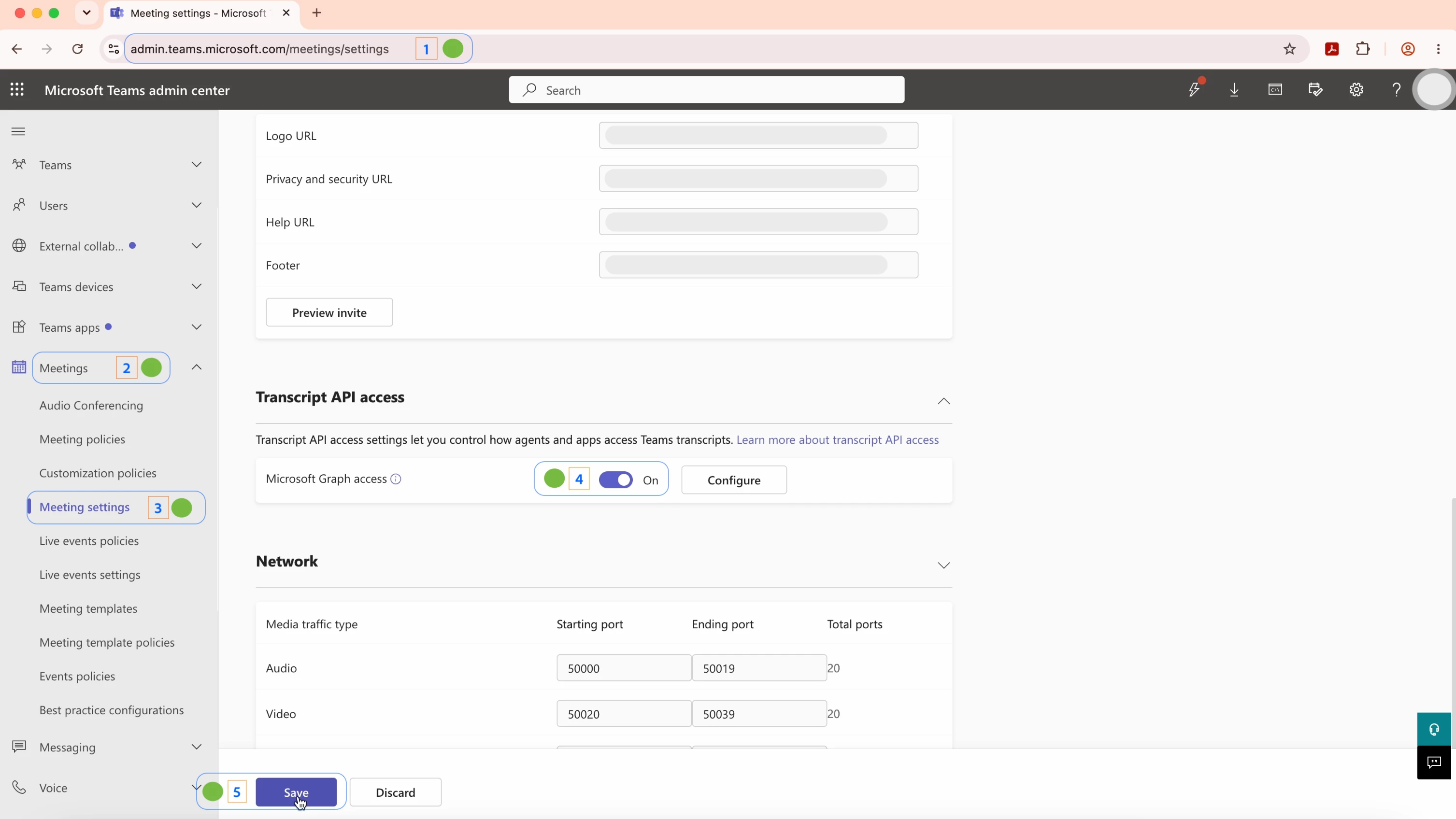
- Select Save.
That's it. No Adobe-side configuration is required once this is enabled.
Not an admin? You won't see this setting. Share this post with your Microsoft 365 or Teams admin so they can enable it.
More help
- Acrobat for Microsoft Teams: AI-powered meeting summaries and insights
- Acrobat for Microsoft Teams overview
- Summarize meeting transcripts in Acrobat
- Microsoft: Manage transcript API access for Teams meetings
Got it working? Give this post a like so other admins can find it fast, and reply below if anything's still not working.
 AdChoices