

How to Use AI for Document Creation
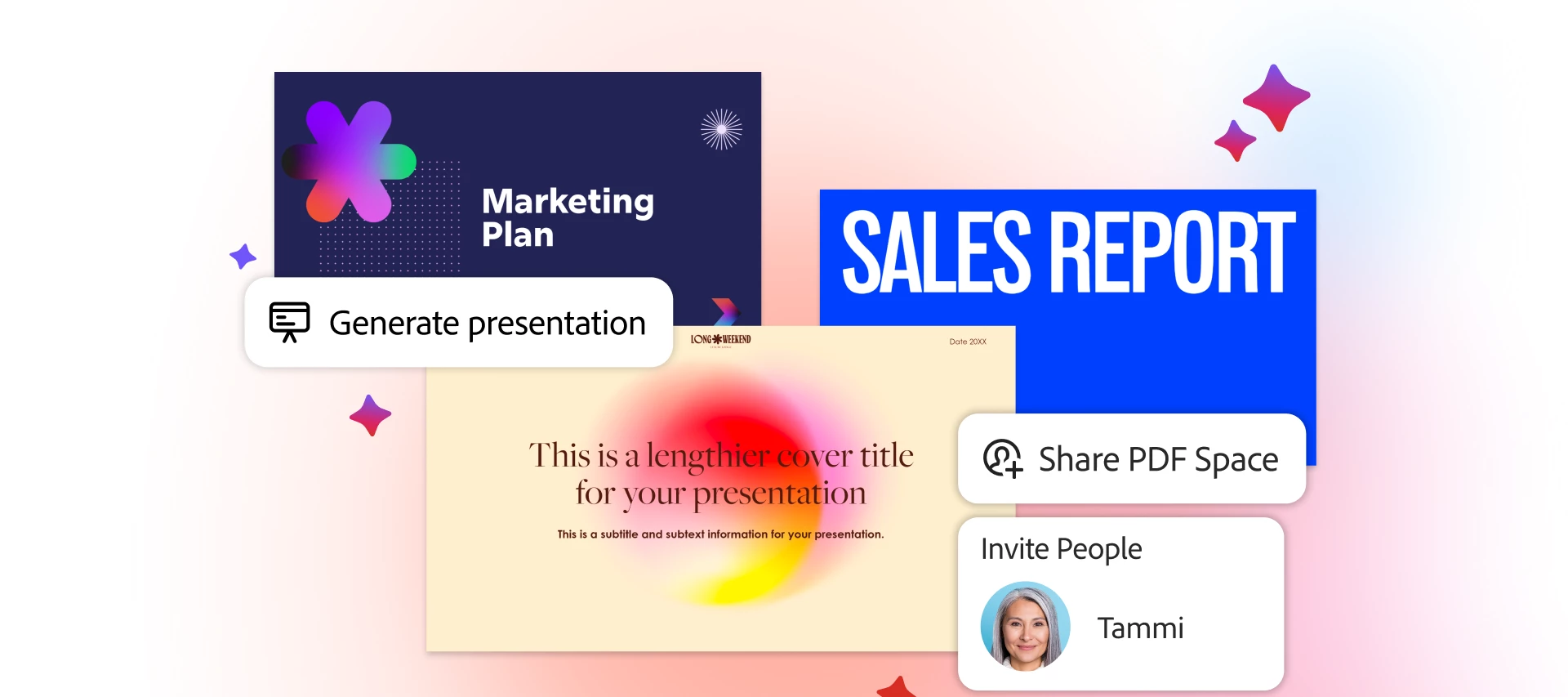
Create, design, and collaborate effortlessly in an all-in-one AI creative workspace
Every document starts with a goal: explain something clearly, persuade an audience, or share information that drives action. But this often takes much longer than it should.
While you’re drafting content, fixing layouts, and juggling multiple file types, you’re also expected to work quickly across multiple tools. You need greater productivity, cleaner and more intuitive design, and an all-in-one AI workspace for creating standout, high-quality documents.
In this guide, we share the steps to creating documents quickly and easily in Adobe Acrobat Studio, using AI to turn ideas and source files into polished, professional documents, without disrupting formatting.
Meet Acrobat Studio
Adobe invented the PDF and is trusted by millions of users at 745,000 organizations around the world. It is one of the easiest PDF to Word converters for Mac and Windows users. That’s why over 400 billion PDFs were opened or created with Acrobat just in the last year.
Acrobat tools are designed to work with your PDF files, which means you can keep the original layout, text formatting, and overall document quality intact, making this one of the best AI workspaces.
And, even more exciting: with a recent update, Acrobat Studio has integrated existing PDF tools into a completely different experience designed to enable your best work.
With Acrobat Studio, you now have the Acrobat tools you love plus AI-powered workspaces, personalized AI Assistants, and standout content creation, all in one place. This means you don’t have to choose between speed and quality. Once you know how to use AI to create a workspace, you can gather sources, generate content, refine output, and deliver professional results, all while preserving your formatting for viewers and recipients.
Adobe continues to redefine how people create and share content with its AI-powered tools. Below, we take you step-by-step through three workflows that make Acrobat Studio a productive AI platform for creating and converting PDFs – whether on desktop, web, or mobile.
How to Generate Presentations
Many of us create professional presentations regularly, and it often feels like an uphill battle.
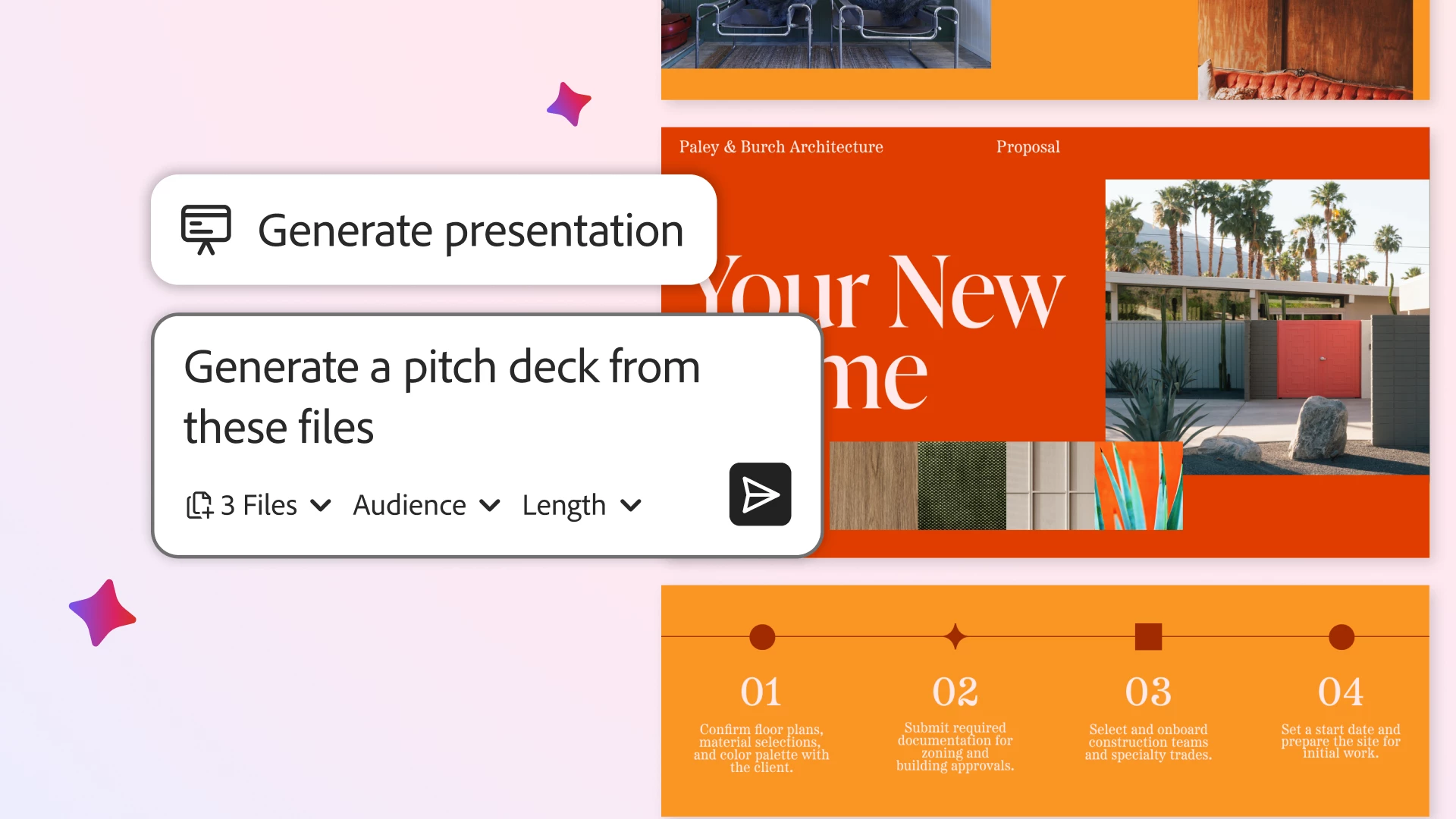
The AI-powered Generate presentation feature in Acrobat Studio is one of the best generative presentation tools, transforming ideas and document takeaways into polished, professional presentation decks in minutes, all tailored to your specific material and the unique needs of your project. Whether you’re a business professional, small business owner, or student, it helps spark ideas and uses professionally designed templates to quickly pull together draft presentations, customized for length or audience.
Generate presentation produces intelligent suggested outlines, as well as a variety of layouts powered by Adobe Express to choose from. If you want to refine your deck, you can easily re-order the proposed slides, re-write content, add or remove slides, or generate new visuals.
Sounds great, right? The best part is that it’s really easy.
How to Generate a Presentation with AI in Adobe Acrobat Studio
Here’s how to use the new Generate presentation:
- Start on the Acrobat home page. Select “Generate presentation” in the AI Assistant prompt bar. Add your project documents, which can be a range of file types – including PDF, DOC/DOCX, PPT, Excel, and web links – to get started.
If you already have a PDF Space where all your relevant files for the project are compiled, just click “Presentations” in the left sidebar. Your files associated with that PDF Space will be pulled automatically as sources for generating your presentation. From there, simply chat with the AI Assistant in the prompt bar to describe your needs.
- Enter your AI Assistant prompt. Acrobat Studio is one of the best platforms for chatting with PDFs. Examples of prompts may include:
- "Create a sales pitch presentation for a new product launch, including key features, target audience, and pricing strategy."
- “Create an onboarding presentation for all new employees, including steps for orientation and training.”
- “Create a class presentation summarizing the findings and recommendations from my research paper."
- Select a template. Choose a professionally designed template, which you can fully customize after generating your content.
- Customize the outline. Adjust the order, length, and level of detail of your presentation to adapt the deck to your specific goals.
- Let AI Assistant generate your presentation and bring your ideas to life. Watch as Acrobat transforms your inputs into a professional-grade presentation in minutes, using intelligently crafted copy and smart slide layouts.
- Refine and personalize your deck. Use intuitive editing tools, powered by Adobe Express, to adjust and add your finishing touches. Add images or videos from Adobe Stock, generate your own custom AI images, edit text, and more.
- Share or download your presentation. Acrobat Studio is one of the best AI workspaces for reviewing documents. Instantly send your deck to teammates or leadership, right from Acrobat, or download it as a PDF or PPT. Seamlessly collect feedback and collaborate on edits in real time to streamline document workflows.
Now let’s explore some real-world uses for this great new feature.
Polished, Efficient Presentations for a Variety of Uses
Preparing a business pitch? Creating a marketing strategy? Whatever your end goal, Generate presentation in Acrobat Studio helps turn your ideas and documents into effective, professional presentations. Here are some real-world uses:
- Marketing professionals: Convert audience insights, campaign performance data, or trend reports into visually engaging presentations for internal strategy meetings or external pitches. Use Adobe Express templates to make your presentations stand out.
- Sales Teams: Secure new clients by transforming research documents, client briefs, and market data into compelling pitch decks.
- Human Resources: Create polished onboarding decks, company policy updates, or compliance presentations in minutes by uploading employee handbooks or training materials. Save time and ensure consistent, professional communication across teams.
- Legal Teams: Simplify complex legal documents into easy-to-understand presentations for internal briefings or client meetings.
- Small Business Owners: Develop professional decks to pitch new products or services, complete with timelines.
- Students: Turn your class notes, homework assignments, and essays into a beautifully-designed presentation, whether for yourself or a group assignment.
No matter what kind of presentation you’re creating, with Acrobat Studio you can gather all of your source files in one place, quickly generate an initial starting point, and easily refine it – solving a familiar challenge: staring at a blank slide and not knowing where to begin.

Easy Content Creation powered by Adobe Express
Acrobat Studio makes it easy to create stunning content – from infographics and presentations to flyers and social posts – powered by Adobe Express. How? By integrating easy access to its premium tools and assets, such as professionally-designed templates, full image libraries, and Adobe Firefly capabilities like Generate image.
These tools help you bring your message to life with rich, compelling, and personalized visualizations using generative AI.
Here's how to use some of the best tools for creating professional documents and customizing ready-made templates, and fast – with design tools accessible from Acrobat:
- Choose from some of the best professional templates. Quickly get started with stand-out content – selecting from flyers, infographics, social posts, and more.
- Stylize your document. Change fonts and colors with a few clicks to personalize and refine your documents with professionally-curated design recommendations – all while protecting your document formatting.
- Customize with AI-powered images. Use the Adobe Express editor in Acrobat to generate AI images unique to your goals & preferences, then add to your documents.
- Edit images. Enhance images from within Adobe Acrobat using Adobe Express tools.
The result: faster content creation, with polished visuals and formatting you don’t need to be a design expert to create.
How to use Acrobat Studio and AI for Document Creation
Here’s how Acrobat Studio supports your professional and personal goals as you refine rough drafts and raw data into ready-to-share documents:
- Business: Creating a Quarterly Performance Update
Say you need to consolidate insights from many different document types, multiple data sources, and notes into a clear, executive-ready summary. With AI Assistant, you can generate concise summaries that highlight key trends, outcomes, and takeaways quickly, so you focus on the story and direction behind the results.
Once you have the summary, you can use the Adobe Express tools in Acrobat Studio to apply a clean template, update fonts and colors, and refine the layout in just a few clicks. Then you can share the finished update directly from Acrobat with teams and leadership.
- Professionals & Students: Creating a Resume
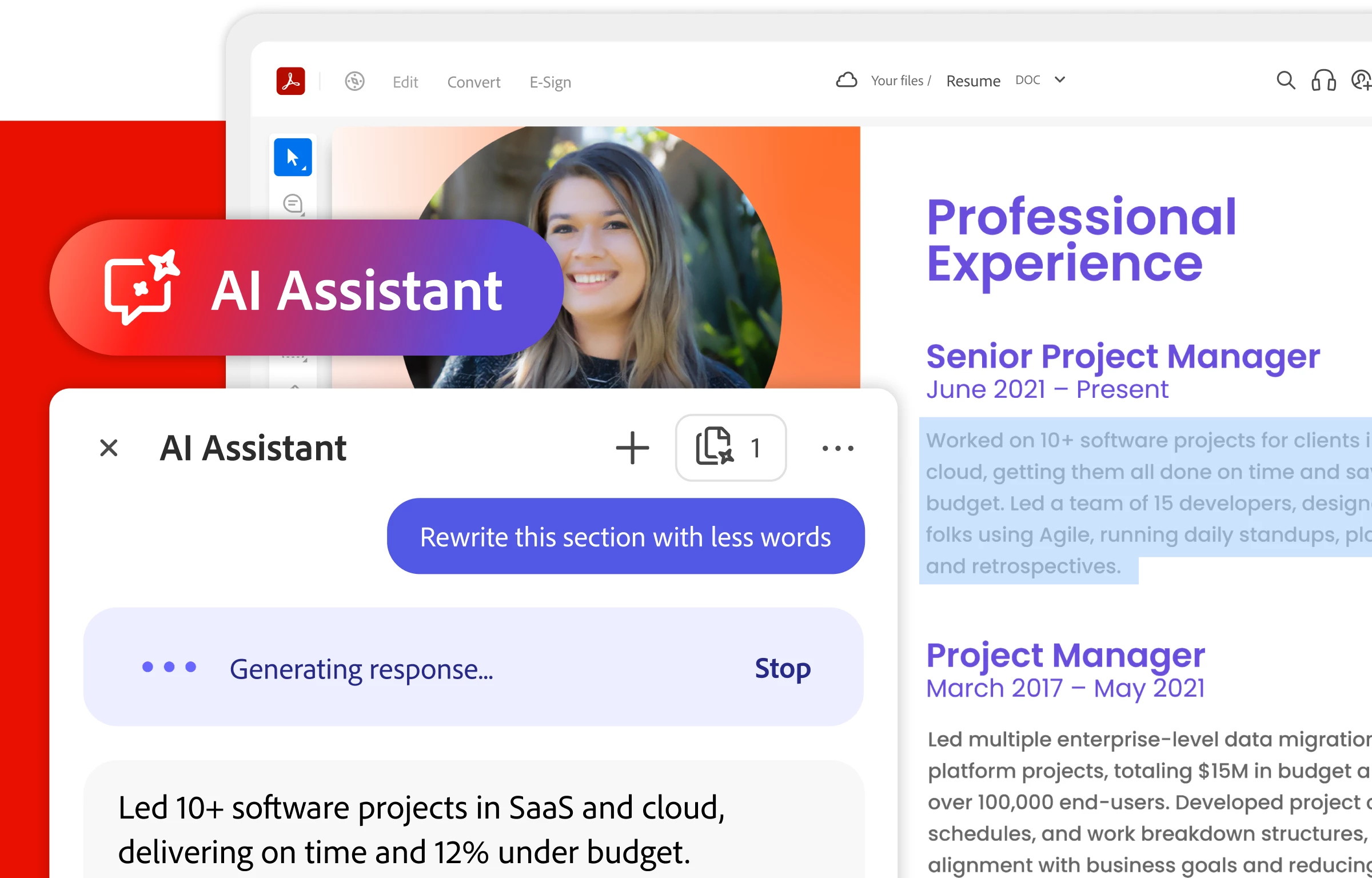
Looking for your dream role or aiming for a career change? Use AI Assistant in Acrobat Studio to refine your existing résumé content into focused, impactful bullet points that better align with a specific job description. Then, further adjust length, tone, and emphasis to fit your own style.
From there, you can use design tools powered by Adobe Express to create a stand-out visual presentation. Update fonts and colors with a few clicks, add or edit imagery, and apply professional layouts that make your résumé stand out.
No matter what you’re working toward, the goal is simple: create documents that look professional, stand out, and preserve your formatting in PDF formats that ensure your recipients view them exactly as you intended. That’s exactly what Acrobat Studio delivers – some of the best PDF creation tools in one streamlined workflow.
How to Communicate Easily and Effectively
Here are some ideas for how to use AI for document assistance with editing in Acrobat:
- Edit Resume and Career Documents: With Acrobat AI Assistant, it’s easy to refine résumé content to match the role you're applying for. You can also rephrase or shorten bullet points to make them more concise, or expand them to add impactful detail.
If you're a student with limited professional experience, these tools can be especially helpful as you look to effectively communicate the value of your existing applicable skills, as well as tailor them to the desired qualifications of the jobs you’re applying for.
You can also reformat your bullet points into a paragraph to use in cover letters, personal bios, and Social profiles, without rewriting manually or starting from scratch.
- Format Business & Academic Work: Acrobat Studio is one of the best AI platforms for summarizing documents. With AI Assistant, you can re-format class, research, or meeting notes into study points or action bullets, or even rephrase text into a more formal tone for an executive audience – keeping your work and insights intact while reducing the time it usually takes to re-write manually.
When you combine these new features with the Acrobat PDF tools you love, you get the advantage of one of the best AI-powered productivity platforms. All in one place, you have AI that helps you write and refine content, easy editing tools, and the ability to share your documents in a way that keeps format and quality as you intended.
One of the best AI creative workspaces
It’s now easier than ever to turn your ideas into polished documents. Acrobat Studio brings creation, editing, and delivery together in one of the best AI creative workspaces designed to streamline your work, build stand-out content, and share with others, all in one place.
It also brings together other powerful PDF features you love, like tools to merge, compress, e-Sign, and convert PDFs to and from different file types while preserving design and quality.
Try Adobe Acrobat Studio for free and experience a smarter, faster way to create, refine, and deliver professional documents.


 AdChoices