



Unable to print by PDF page size – latest update – Fix
Unable to print by PDF page size after updating Acrobat DC or Acrobat Reader DC to the latest version
On Windows only
Important Update:
We no longer need to use the below-mentioned workaround. This issue has been fixed with the optional update released on Feb 15, 2021: 20.001.20138 Reference URL
Note: If you already have used the below-mentioned workaround, please update your app to the latest version and enable the Protected Mode. It is highly recommended.
******************Below mentioned workaround is no longer required***************
While printing a PDF from Acrobat DC or Acrobat Reader DC, even though the Choose paper source by PDF page size option is selected in the Print dialog box, the document gets printed with the default page size.
Workaround:
Note: This is a temporary workaround. Adobe is working to fix the issue. We recommend enabling the Protected Mode after you have printed your documents for the security advantages it provides by sandboxing application processes.
- Disable the Protected Mode in Acrobat DC or Acrobat Reader DC
- In Acrobat DC or Acrobat Reader DC, go to Edit > Preferences.
- From the Categories on the left, select Security (Enhanced).
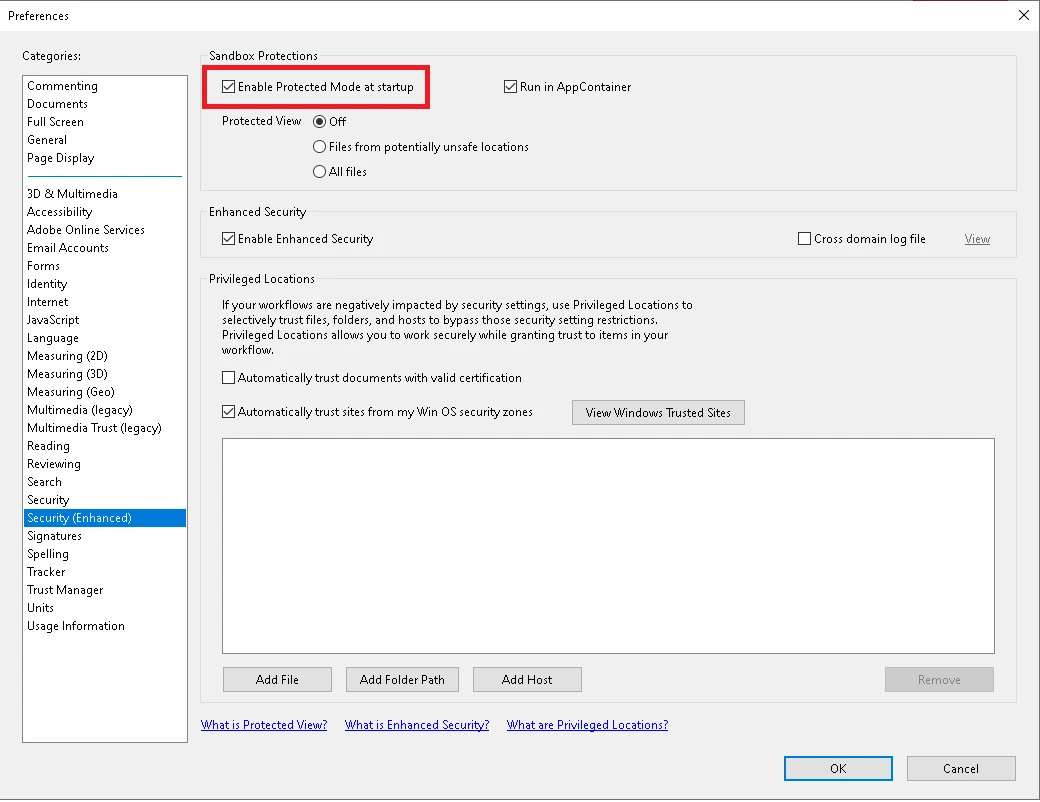
- Uncheck the option Enable Protected Mode at Startup, and then click OK.
- Quit Acrobat DC or Acrobat Reader DC.
- Relaunch Acrobat DC or Acrobat Reader DC. The Choose paper source by PDF page size option in the Print dialog should work as expected.
You may also Read this Help document: https://helpx.adobe.com/acrobat/kb/unable-to-print-using-choose-paper-source-by-pdf-size.html
 AdChoices