




Work Faster with Adobe Acrobat: How to Use AI for PDF Tasks
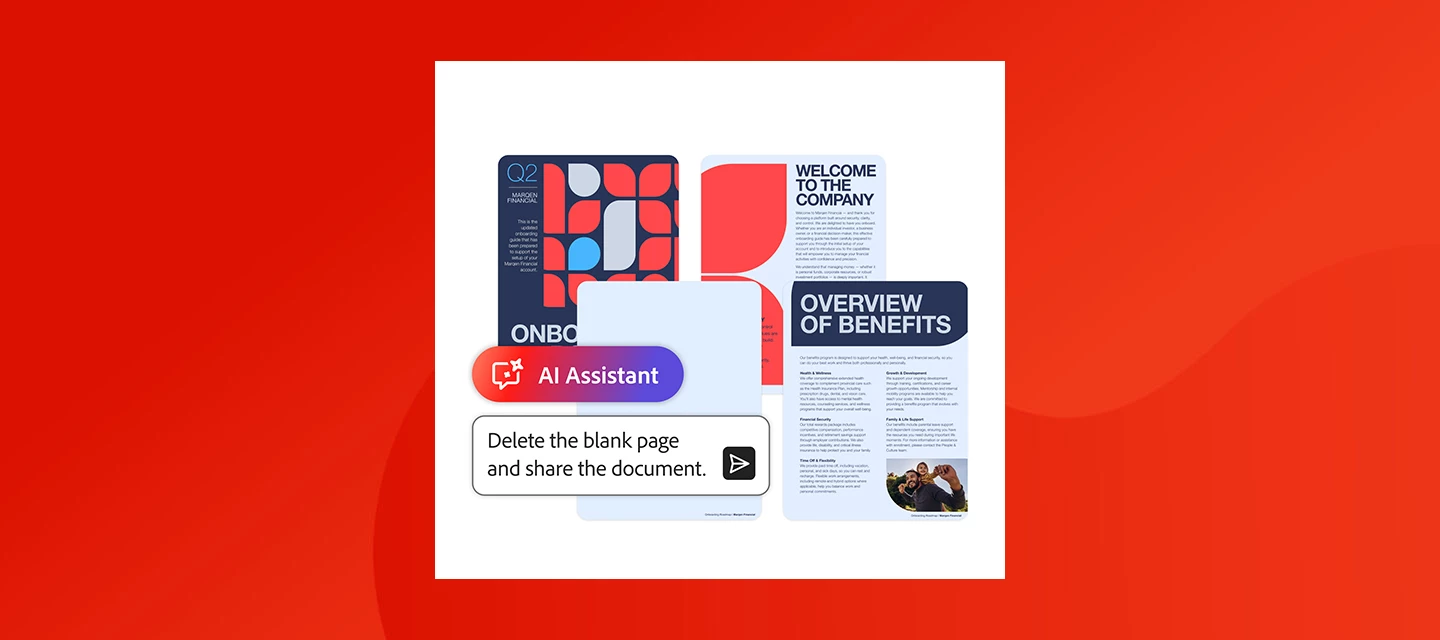
Leave the tools and menus behind and let AI handle the busywork.
TL; DR (~2 min read): Adobe Acrobat's AI Assistant lets you complete PDF tasks, convert, sign, organize, extract, compress, print, find-and-replace, and more, just by describing what you need, with no menu navigation. It even chains multiple steps in one request and confirms before making changes. Works across business, legal, HR, and student workflows, and integrates with Microsoft 365 and Dropbox.
PDFs are a reliable way to share and manage important information, but completing everyday tasks can still require multiple steps. Actions like signing a document or organizing pages are straightforward, yet they can slow you down when you’re handling a large number of files.
A simpler way to work is now available. With Adobe Acrobat, AI Assistant lets you complete PDF tasks such as converting, organizing, or signing documents by just telling it what you need done. This makes Acrobat one of the best AI tools for everyday PDF tasks.
In this guide, we’ll walk through how to use the AI Assistant to handle common PDF tasks more efficiently.
Turn Everyday PDF Tasks into Simple Requests
Adobe Acrobat AI Assistant sits on top of the trusted PDF tools you already use, letting you complete simple tasks or multi-step workflows using natural language requests. Need to delete a page or compress a file? Just ask.
That simplicity is built on trust. With over 400 billion PDFs opened or created each year, Adobe has set the standard for secure and dependable document workflows. Now, with AI Assistant, it’s even faster and more intuitive, helping you move from intent to action without second-guessing the results.
Whatever you need to get done, convert a PDF, organize multiple files, or extract pages, simply describe what you want to do, and AI handles the rest. It can also streamline more complex tasks, such as how to sign a PDF or how to password-protect a PDF with AI, making it easier to complete work quickly and accurately.
By helping you use AI to complete PDF tasks without breaking your workflow, Acrobat is one of the best AI tools for everyday PDF tasks.
How to Complete Everyday PDF Tasks with AI
Whether you’re editing, organizing, or sharing documents, you can use AI in Acrobat to get it done quickly and efficiently. Here are some common PDF tasks you can do faster with AI:
- Convert: Just type, “Convert this PDF to Word” or “Turn this Word doc into a PDF.” AI Assistant completes the conversion directly or takes you there in one step, so you don’t waste any time figuring out how to convert a PDF with AI.
- Sign: Type “Sign this document” to apply your signature or request one from others. There’s no need to navigate any menus; with AI, you can sign a PDF faster and keep the process moving.
- Organize: Move a page or pages to the desired location, to improve the storyline. Type something like “Swap the order of the last two pages,” and AI does the work for you.
- Rotate or delete pages: Use natural language such as “Delete the blank pages” or “Rotate pages 3 to 5.” You can refer to page numbers or content, and AI handles how to delete pages from a PDF or rotate them, then confirms with you before making the changes.
- Extract: Need to find or isolate specific content? You can say things like, “Extract pages with the financial summary.” Instead of searching manually, AI will identify and pull the specific sections, streamlining how to extract pages from a PDF.
- Compress: Don’t know how to compress a PDF? Tell Acrobat, “Compress this file so I can email it,” and AI will reduce the file size instantly.
- Print: Need to print a PDF? Type in “Print pages with the signature block,” or “Add watermark on all pages with financial tables,” and AI will locate and send the relevant pages to print in an instant.
- Find and Replace: Say you’re updating a report from Q3 with Q4 numbers. There’s no need to scour the file for instances of “Q3.” Simply say, “Replace all instances of ‘Q3’ with ‘Q4’,” and AI will update the document in seconds.
- Perform multi-step commands: You can even combine multiple tasks in one request, such as “Password protect, sign, and print.” AI will execute the workflow from end to end, showing the power of using an AI Assistant to complete PDF tasks in a single step.
- Update: Before making changes, AI clarifies and confirms your request, so you stay in control and can act with confidence, even when you’re moving quickly.
Together, these features make Acrobat one of the best AI tools for completing common PDF tasks, reducing the time and effort you spend working with your files.
Next, we’ll show you how these capabilities translate into real-world workflows across teams and everyday document tasks.
💬 Was this helpful?
If these tips made PDF work easier, we'd love to hear it! Hit Like and jump into the thread to share which feature you're most excited to try.
Community Resources:
 AdChoices