


Participant
February 9, 2023

Designer 2D preview white value is different than graph white value.

  • February 9, 2023
  • 4 replies
  • 509 views

Hello Forum,

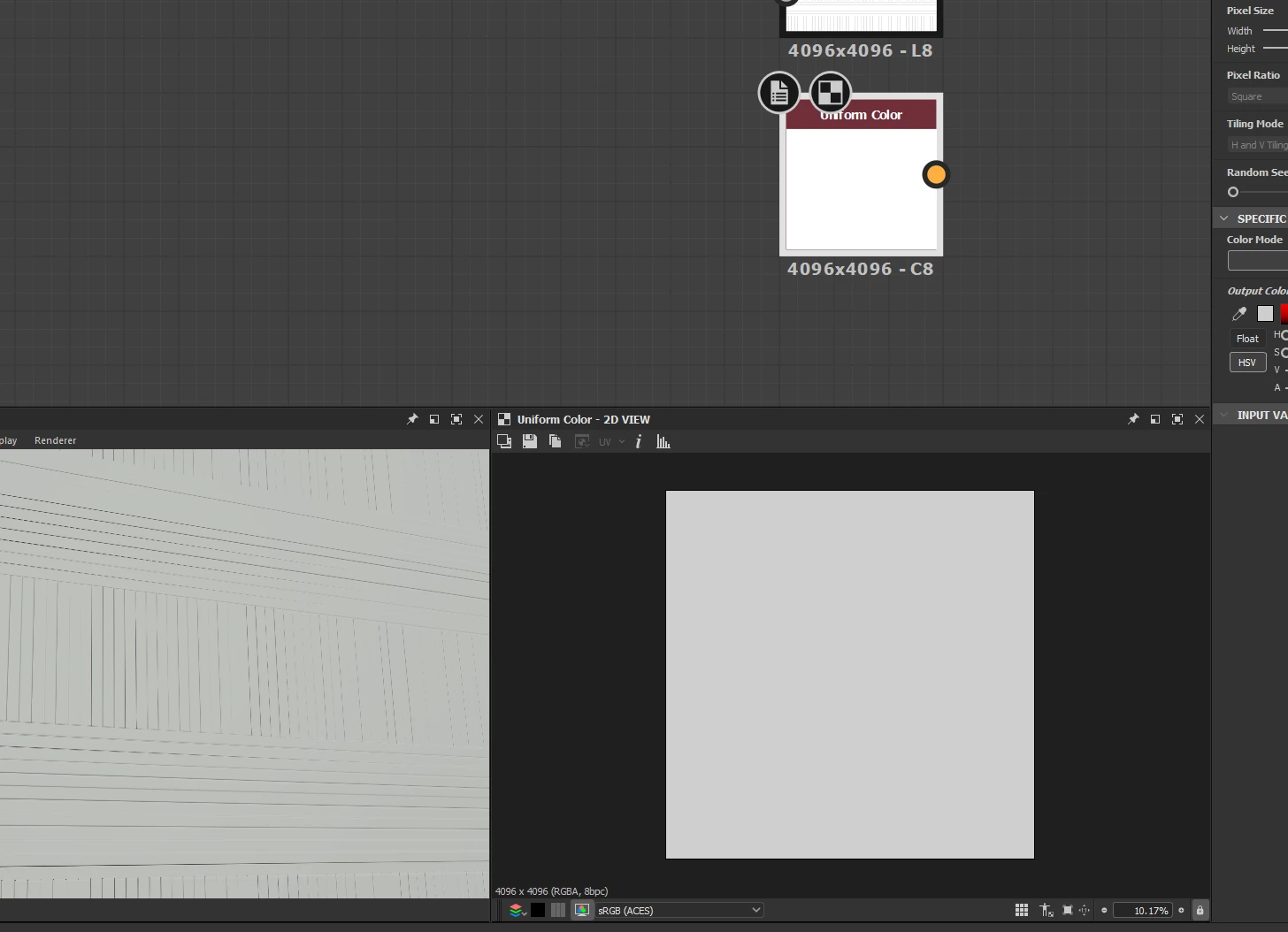
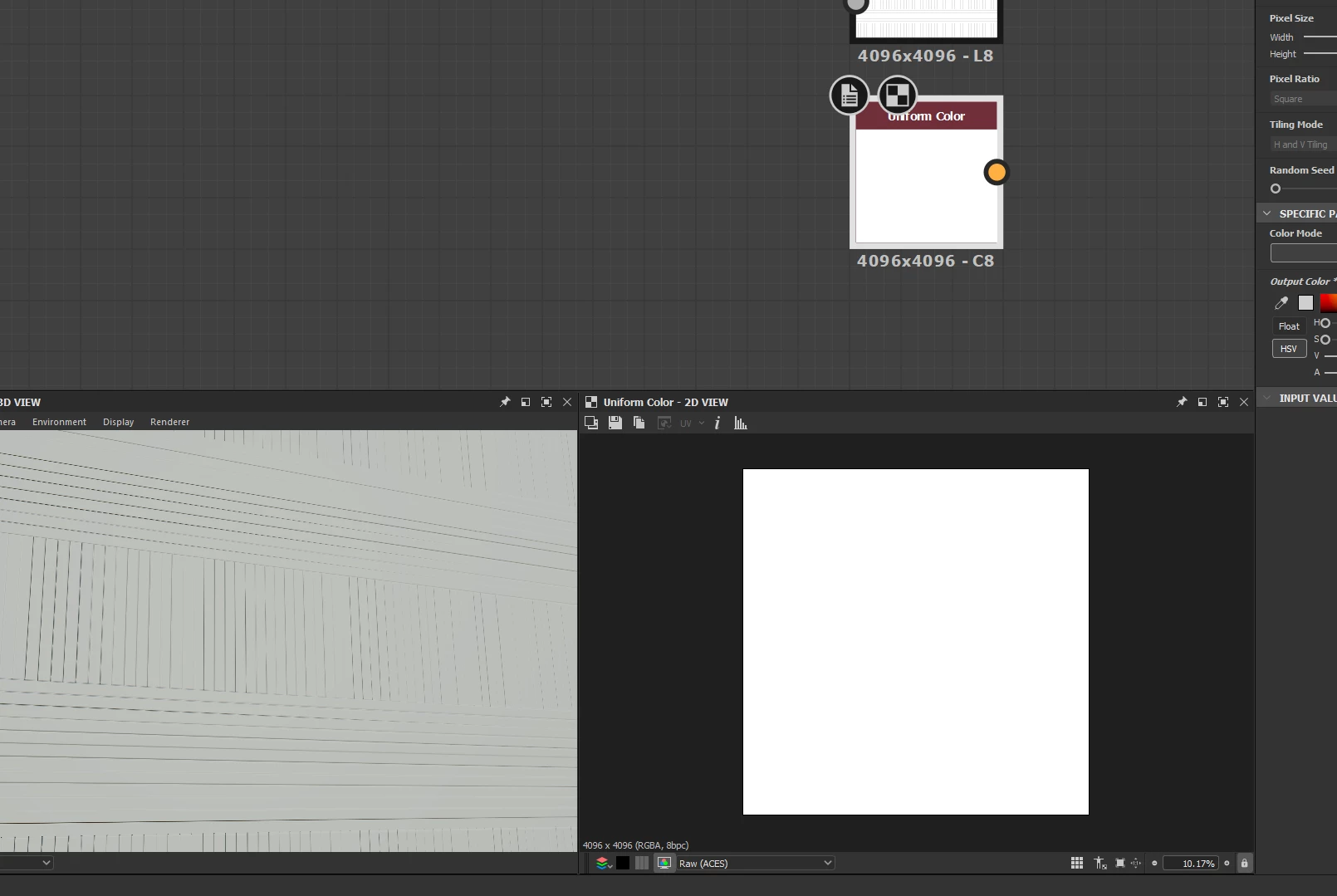
As i was working i noticed that the 2D preview of my texture wasn't as white as i would expect it to be. It looked closer to mid gray than what i'd expect pure white to look like. I'm working in aces and when i switch my 2D preview to RAW, the whites become the whites i'd expect to see but that's obviously not a good sollution for working since when i start adding any colour to my texture, working in RAW will scew the final results in my renderer.
I've attached images of what i see below.
I was wondering if there's any way around this or if that's just how it's supposed to work ? If so how can i ever use pure white as a colour IF i wanted to?
I get the monitor can't display full aces and there are LUTS involved.
4 replies

Participant
March 2, 2023

I appreciate your insight on this topic, @Luca Giarrizzo . 
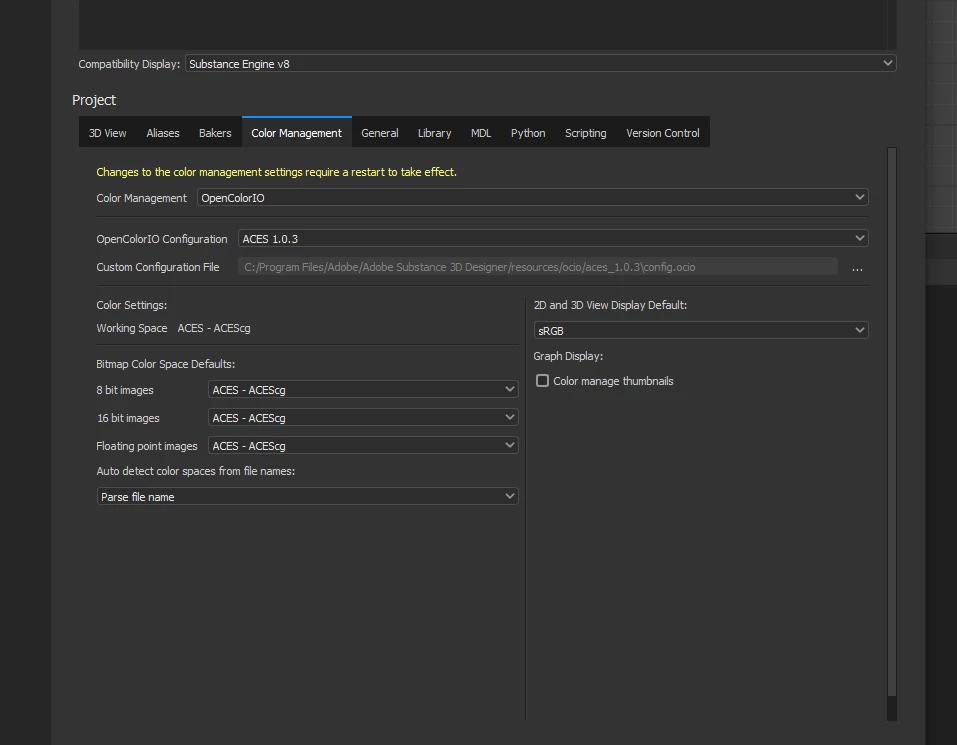
My enire issue is that by using icio in designer to wor in aces, that automatically limits how white my whites are in my 2d preview window as you mentioned in one of your replies.  *see attached images*
But on the other hand, if i want to display the full white range (as it looks when i preview it in raw in my 2D viewport) that messes up my colour preview nodes and skews the results. Which is obviously not desirable. *see attached images*

Is there  combination of settings that will allow me to see the full range of my whites/blacks in the designer 2D preview window without that affecting what i see in the 3D preview window or my thumbnails in my graph, while also having it match when exporting to another software (like painter) and working in aces there as well?

I realize all these issues will go away if i didnt work in aces, but as it  so happens i have to.


*correct* white range in designer 2D preview window
Not full range in 2D preview window.


*correct* colours in designer 2D preview window.

*incorrect colours*

Painter correct colours preview after aces export/import from designer. Maps only, no sbsar.

Luca Giarrizzo
Community Manager
Community Manager
February 10, 2023

Indeed, this is the expected result for a luminance value of 1.0.


To go beyond the [0;1] range, set the 'Output format' parameter of the Uniform color node to '16-bit HDR' or '32-bit HDR' (I.e., floating-point precision), then manually enter a value above 1.0 for the node's 'Output color' parameter.


Regarding node thumbnails specifically, they are not color-managed unless the option to color-manage them is enabled in the current project's Color management settings.


For your reference, you may find our documentation for color management in Designer here.


Best regards.

Luca Giarrizzo | Quality Engineer - Substance 3D Designer | Adobe
Participant
February 9, 2023

so what i'm seeing there is completely normal ? If that's the case what if i ever wanted to view a whiter white than what the preview is showing me ? If i wante to see the same level of white as the node thumbnail for example.

Luca Giarrizzo
Community Manager
Community Manager
February 9, 2023

Hello,


This is a feature of ACES. A luminance value of 1.0 is not pure white (ACES maxes out/clips white at 16), and this difference makes sense in the context of HDR displays: a white sheet of paper does not emit the same energy as the sun, for instance, and HDR displays would convey that difference.


Best regards.

Luca Giarrizzo | Quality Engineer - Substance 3D Designer | Adobe