
Participant
Nov 10, 2026 4:28 PM UTC
Investigating

P: CR 19.0 & PS 28.0: Automatically fills gaps/transparent section with pixels/stripes

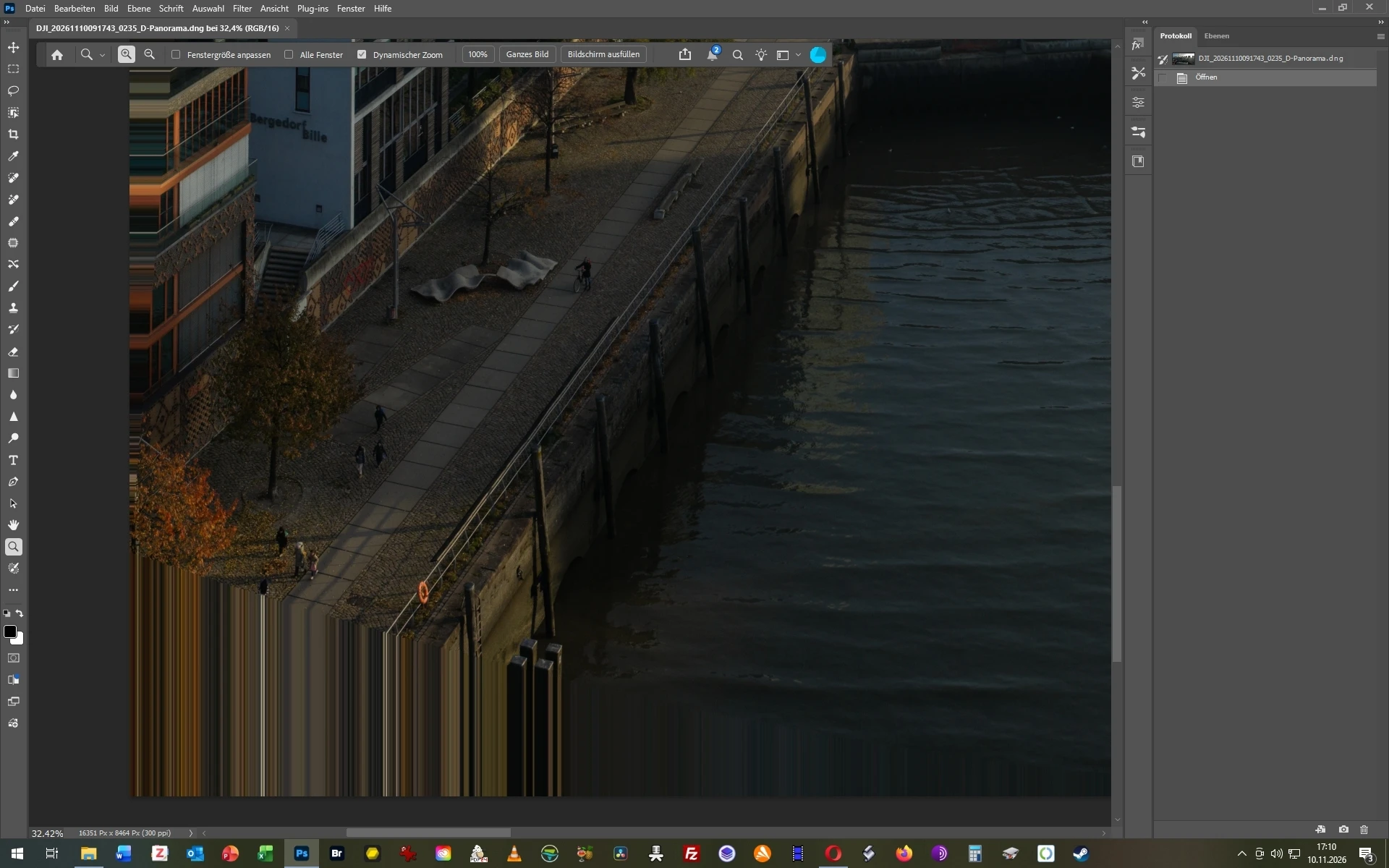
When I stich several images for a panorama in ACR, there is often a gap at the edges of the photos which is in ACR correctly displayed as a checker pattern. However, when I open these panoramas from ACR into PS it automatically fills these gaps with weird and unwanted stripes/pixels. This has begun to happen today. How can I turn that off again? 


    Pinned Reply By Sameer K

    We’ve logged this for the team to review. 

    Thanks!
    Sameer K

    26 replies

    johnrellis
    Legend
    Nov 20, 2026 4:50 PM UTC
    Participating Frequently
    Nov 20, 2026 2:17 PM UTC

    import a TIFF image from ptgui with alpha saved as normal (associated)

    observe in lightroom classic that the alpha checkerboard is correctly shown

    export to smart object in photoshop

    in photoshop the image has no alpha information, the checkerboard has been replaced by edge pixel clamping

    this is a regression introduced in lightroom classic 16.0

    Translate
    Participant
    Nov 19, 2026 2:20 PM UTC

    Lesson is learned: never update too soon (disable automatic updates for at least a month)

    Translate
    Participant
    Nov 19, 2026 1:16 PM UTC

    Just found out that there’s a workaround:


    • Edit with external editor (set as Photoshop 2026/2027). No pixels/stripes appear.


    While waiting for a fix, hope it’s helpful!

    Translate
    Participant
    Nov 19, 2026 12:59 PM UTC

    When I edit an image (RAW) in Photoshop using “Edit with”, Lightroom send to Photoshop an image with filled areas of stretched pixel if those areas are empty in the original image.

    Practical exemple:

    After transforming a RAW image, by selecting zoom i.e. 99%, edit it in PS (no matter if is set to TIFF or PSD). The image will contain trash similar stretched pixel instead of empty areas as usually does in previous versions of LR.

    Below an example.

    Image transformed in LR
    Image as appears in PS straight away after “Edit with”


    No issues when I export the same image without editing it in PS. JPEG contains the white area as usual.


    LrC 16.0.1

    PS 28.0.0
    MacOS Sequoia 15.8.3

    Translate
    Participant
    Nov 19, 2026 12:29 PM UTC

    Dear Adobe Team,

    I would like to report that the known issue with colored horizontal stripes appearing in transparent image areas is still present in Lightroom Classic 16.0.1.

    The problem started immediately after updating to Lightroom Classic 16.0.

    When I apply perspective corrections in Lightroom Classic, the transparent areas are displayed correctly. However, when I open the image in Photoshop, these areas are automatically filled with distorted horizontal pixel stripes.

    I have already tried the following:

    • Disabling GPU acceleration in Photoshop and Camera Raw.

    • Changing various graphics and performance settings.

    • Testing different TIFF and PSD settings.

    • Completely uninstalling and reinstalling Lightroom Classic and Photoshop.

    • Updating Lightroom Classic to version 16.0.1.

    Unfortunately, none of these steps has resolved the problem.

    My system:

    • Windows 11 Pro

    • Intel Core Ultra 9 285K

    • 128 GB RAM

    • NVIDIA GeForce RTX 5080 (16 GB)

    • Lightroom Classic 16.0.1

    • Adobe Camera Raw 19.0 (previously confirmed)

    I understand that downgrading Camera Raw to version 18.7 may provide a workaround, but this could cause compatibility issues with newer features. I would therefore prefer an official fix.

    For now, I am using Lightroom Desktop and its generative features as an alternative workflow.

    Could Adobe please confirm when a permanent fix can be expected?

    Adobe Support Case: ADB-47976849-L0D3

    Thank you for your assistanc

    Translate
    Participant
    Nov 18, 2026 7:21 PM UTC

    I am experiencing a bug when sending photos with transparent borders from Lightroom Classic to Photoshop using Photo > Edit In > Edit in Adobe Photoshop.

    In Lightroom Classic, I apply a Transform adjustment with Constrain Crop unchecked, and the transparent checkerboard borders display properly. As soon as the file opens in Photoshop, those transparent areas are automatically filled with stretched, striped edge pixels instead of staying transparent.

    This issue still occurs even after downgrading Lightroom Classic to 15.6 and while using Photoshop 2024, which confirms the bug is caused by the shared Adobe Camera Raw 19.0 plug-in.

    System Details:

    • Operating System: [Windows 10/11 or macOS version]
    • Lightroom Classic: 15.6
    • Photoshop: 2024 (v25.x)
    • Adobe Camera Raw: 19.0

    Steps to Reproduce:

    1. In Lightroom Classic, apply a Transform adjustment (e.g., Vertical or Level) with Constrain Crop unchecked so transparent checkerboard edges are visible.
    2. Select Photo > Edit In > Edit in Adobe Photoshop.
    3. Notice that the transparent borders are filled with stretched horizontal/vertical pixel stripes when the file opens in Photoshop.

    Translate
    Community Expert
    Nov 18, 2026 2:32 PM UTC

    ​@rogerk36577488 This is a known issue. See here:


    Translate
    My System: Intel i7-8700K - 64GB RAM - NVidia Geforce RTX 3060 - Windows 11 Pro 26H2 -- LR-Classic 16 - Photoshop 28 - Nik Collection 9 - PureRAW 6 - Topaz Photo AI
    Participant
    Nov 18, 2026 10:47 AM UTC

    When I edit a photo in Lightroom Classic v16.0 for perspective (and other corrective steps), and then uncheck “Constrain Crop” to expand the canvas so as not to lose part of my subject, when I go to “Edit In” Photoshop v28.0 or Photoshop Beta v28.2 to infill those white edges as in the past with generative fill, Photoshop is now auto-filling those white areas upon import. The new infill is vertically striated and unuseable, and not reversable or easily fixed.

    Translate
    lizziet5
    Participant
    Nov 16, 2026 12:21 AM UTC

    I'm experiencing exactly the same problem on a Mac.

    • macOS Tahoe 26.7.1

    • Lightroom Classic 16.0

    • Photoshop 28.0

    • Camera Raw 19.0.0.2794

    When I use Lightroom Classic → Edit In → Open as Smart Object in Photoshop, transparent areas of PNG scrapbook elements are replaced by coloured horizontal and vertical stripes.

    The original PNG opens perfectly in Photoshop using File → Open, with transparency intact.

    Using the ordinary Edit In → Adobe Photoshop command also works correctly. The problem only occurs when opening as a Smart Object.

    Disabling GPU acceleration in both applications makes no difference.

    Please investigate this transparency-handling issue.

    Translate