
Participant
Nov 10, 2026 4:28 PM UTC
Investigating

P: CR 19.0 & PS 28.0: Automatically fills gaps/transparent section with pixels/stripes

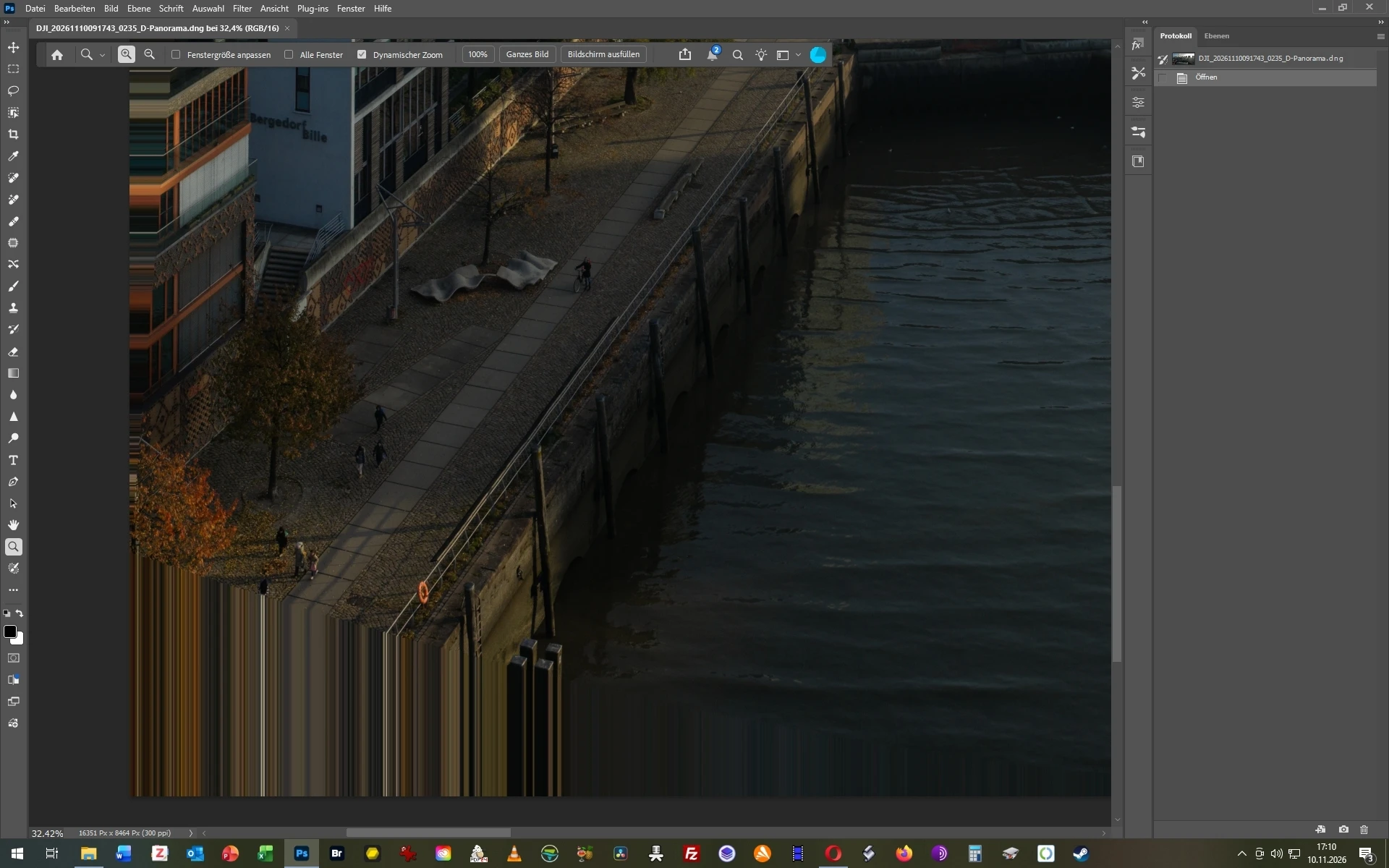
When I stich several images for a panorama in ACR, there is often a gap at the edges of the photos which is in ACR correctly displayed as a checker pattern. However, when I open these panoramas from ACR into PS it automatically fills these gaps with weird and unwanted stripes/pixels. This has begun to happen today. How can I turn that off again? 


    Pinned Reply By Sameer K

    We’ve logged this for the team to review. 

    Thanks!
    Sameer K

    26 replies

    Community Expert
    Nov 15, 2026 2:51 PM UTC

    ​@Paolo0101 This is a known bug. See here:


    Translate
    My System: Intel i7-8700K - 64GB RAM - NVidia Geforce RTX 3060 - Windows 11 Pro 26H2 -- LR-Classic 16 - Photoshop 28 - Nik Collection 9 - PureRAW 6 - Topaz Photo AI
    CORCTON34033231
    Community Expert
    Community Expert
    Nov 15, 2026 6:08 AM UTC

    Hi Paolo — this isn't a setting you've missed: it's a known issue in the current versions. When Lightroom Classic 16.0 sends a photo with transparent areas (for example after a Transform/Upright correction made without Constrain Crop) to Photoshop 28.0, Camera Raw 19.0 fills the empty areas with a striped pattern instead of leaving them transparent. Adobe has logged the issue and the bug report is marked as 'Investigating': https://community.adobe.com/bug-reports-562/p-cr-19-0-ps-28-0-automatically-fills-gaps-transparent-section-with-pixels-stripes-1655160


    So there is no switch in Photoshop to turn this automatic fill off. Until it's fixed, the way to avoid it is to turn on 'Constrain Crop' in Lightroom's Transform panel before choosing Edit in Photoshop — that way no transparent areas are created in the first place — and then use Generative Expand in Photoshop if you want to extend the canvas and fill it yourself, one area at a time.


    I'd suggest following the bug report thread for updates.

    Translate
    Participant
    Nov 15, 2026 3:31 AM UTC

    In the latest version of photoshop (28.0) when i transfer the photo from Lightroom empty parts of the canvas (e.g. from correcting converging verticals) are automatically filled (with poor results), which is not what I want. I want to export the image in photoshop with empty parts of the canvas and fill them one by one with generative fill, where i can pick one out of three options and eventually re-generate, i don't want photoshop to do it automatically , still haven't found how


    Translate
    Participating Frequently
    Nov 14, 2026 9:34 PM UTC

    Exact same issue for me here. How do these sort of glaring bugs ever pass UAT!?

    Translate
    Community Expert
    Nov 14, 2026 9:01 AM UTC

    This is a known issue:


    Translate
    My System: Intel i7-8700K - 64GB RAM - NVidia Geforce RTX 3060 - Windows 11 Pro 26H2 -- LR-Classic 16 - Photoshop 28 - Nik Collection 9 - PureRAW 6 - Topaz Photo AI
    juliehuli
    Participant
    Nov 14, 2026 1:07 AM UTC

    In lightroom I use transform to correct perspective on raw file. I usually use guided. I then open in photoshop via  the edit in command. The blank edges are now automatically filled (and very poorly). There is only one layer and no clear way to stop this happening. I really do not want this to happen. 

    Translate
    Jeff Arola
    Community Expert
    Community Expert
    Nov 13, 2026 8:53 PM UTC

    In the meantime, it seems that Camera Raw 19.0 includes an Alpha channel in the images that have transparency, so after you open your panorama created in Camera Raw 19.0 into Photoshop go to the Channels panel, load the Alpha 1 channel as a selection, then in the Layers panel click the Add a mask icon and you should get your transparency back.


    camera raw 19.0 panorama with transparency


    After opening the pano in Photoshop load the Alpha 1 channel as a selection


    with the selection active add a layer mask and you should get back the transparency


    Translate
    Community Expert
    Nov 14, 2026 10:43 AM UTC

    ​@Jeff Arola  This workaround doesn’t work if you do get transparency areas during perspective corrections. There’s no Alpha channel.

    Translate
    My System: Intel i7-8700K - 64GB RAM - NVidia Geforce RTX 3060 - Windows 11 Pro 26H2 -- LR-Classic 16 - Photoshop 28 - Nik Collection 9 - PureRAW 6 - Topaz Photo AI
    Kelpfish
    Participating Frequently
    Nov 13, 2026 12:38 PM UTC

    Make the fix quick please. There is no RAW rollback feature in my Creative Cloud, the ACR tile is ghosted.  I am stuck on my workflow because of this bug.  Thank you.

    Translate
    Participant
    Nov 13, 2026 9:49 AM UTC

    Any image that has transparency (from using Guided Transformations or Photo Merge) has an issue while transferring to Photoshop whereby the transparent areas are filled in with what appears to be a generative ai pixel stretch. The image is also flattened to a locked Background layer.

    If you were to open it as a Smart Object in Photoshop via the Edit in option, it appears to be the flattened object. However if you double click that Smart Object layer to open it in Camera Raw in Photoshop, you see in the preview window it still has transparency, however upon exit of Camera Raw, it defaults to the aforementioned state with the pixel stretched areas.

    After a number of hours with an Ai Agent attempting to discover if there was some checkbox or toggle to default or amend to resolve this. The only longwinded workaround I have found to work so far is to export it to my desktop as a zip compressed tif and then open it separately in Photoshop whereby it preserves the transparency.

    This issue wasn’t there in handoff between the previous versions of both programs - Lightroom Classic (15.6) and Photoshop (27.11).

    I have tested this on both an 2020 Intel iMac 5K and 2024 Mac Mini M4Pro, both running the latest version of MacOS Tahoe (26.7.3) both with the same results.

    I attach screenshots of an image I’ve used Guided Transformations upon to force create an easily noticeable sequence to visually aid my descriptions above. One in Lightroom before Handoff, one the resulting image in Photoshop and the third, the preview window in Camera Raw within Photoshop as a Smart Object.


    Translate
    johnrellis
    Legend
    Nov 13, 2026 4:19 AM UTC

    I see the same thing with LR 16.0 / PS 27.11.1 / Mac OS 26.6.2.

    Translate