

dj_paige
Legend
November 25, 2025

P: AI Denoise followed by Distraction Removal: Reflections doesn't remove reflections

  • November 25, 2025
  • 9 replies
  • 333 views

Lightroom Classic 15.0.1, Windows 25H2 26200.7171, Nvidia GeForce RTX 3060 (32.0.15.7602)


I took a photo of a bunch of fish swimming around behind a glass window. I wanted to use both reflection removal and AI Denoise. According to this page, I perform the AI Denoise first.


Here is the photo I used: https://www.dropbox.com/scl/fi/2zqjndbvb4i2mcwqqrgku/PMC_3135.NEF?rlkey=gq1w1mwdiu86oab9avto3wj9i&st=bi4tyj72&dl=0


Here is a screen capture of the unedited version of this photo, you can see reflections as well as noise
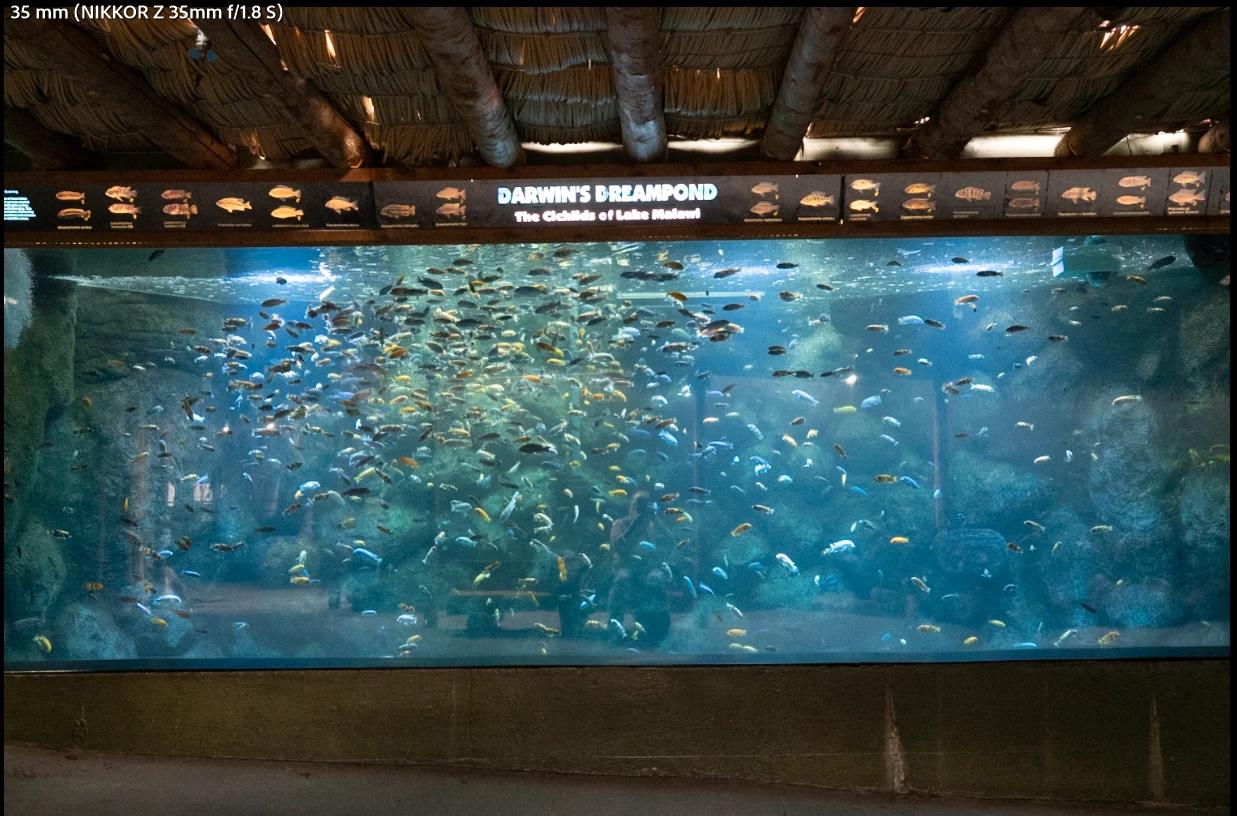


Here are the steps I followed:


1. AI Denoise, slider at 50, works as expected, noise is reduced. 

2. Distraction Removal: Reflection, slider at 100. Reflection is not removed. Here is a screen capture after both steps, the noise reduction remains effective, but the reflection is not removed.
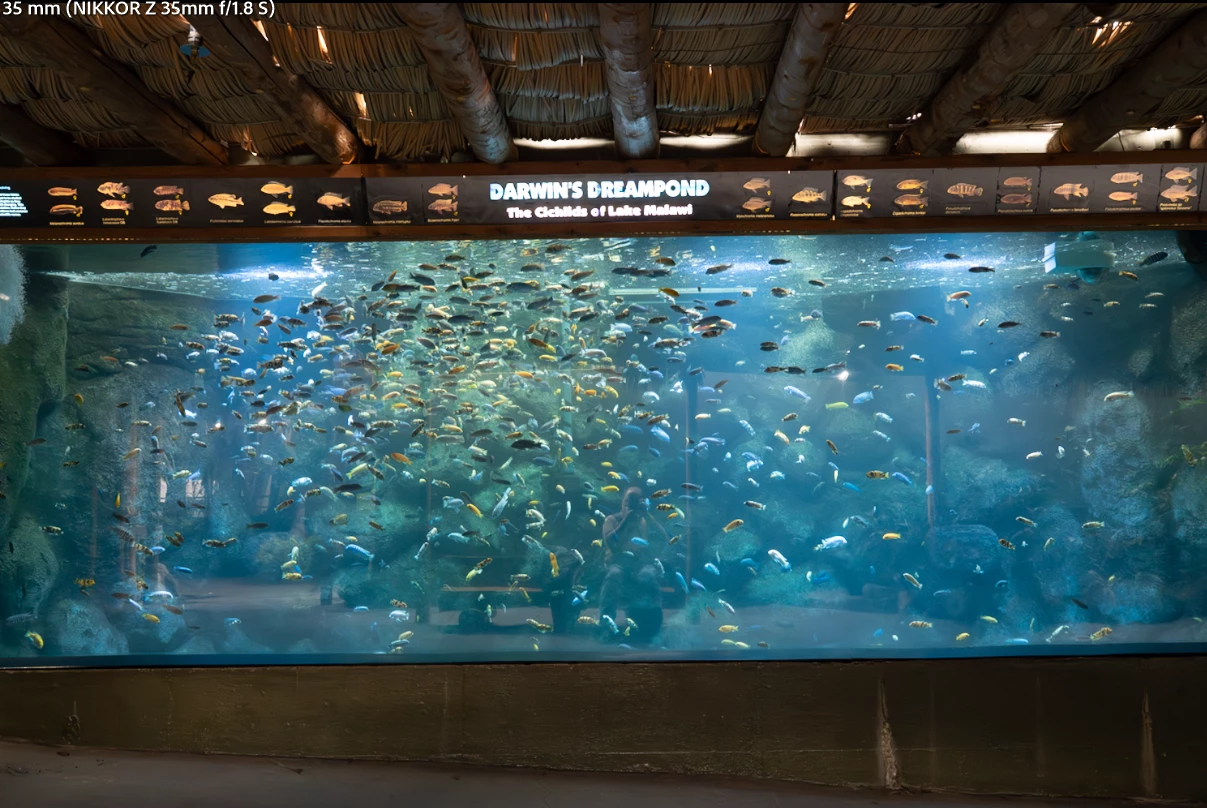


Also, please note that if I perform the steps in the opposite order (Remove Reflections first, the reflections are removed) but when I then add on the AI Denoise, the reflections return.


9 replies

johnrellis
Legend
July 3, 2026

[View this post in your web browser. It contains formatting and images that don't appear in email.]


@Sameer K, ​@Rikk Flohr_Photography, please merge with the existing bug report:


dj_paige
dj_paigeAuthor
Legend
February 5, 2026

This was already reported to Adobe as a bug, they confirmed it, and so they are investigating. However, in this new forum, I cannot find the link.

ThomasH_on_the_web
Inspiring
February 5, 2026

Thanks, yes, I assumed that someone might have reported this as well and I also failed to find the thread.  

Update to the “hanging” symptom: The reflection removal has finished after all, not sure when. I left the room and when I saw LR running several hours later, I saw a de-noised image with reflections removed. 

JohanElzenga
Community Expert
Community Expert
February 5, 2026

Do you see a yellow ‘wheel’ icon in the upper right corner of the develop module? That indicates that AI settings need to be updated, so (shift-)click on it. Seeing something like this is not unusual. If you denoise an image, then the original pixels are used. That invalidates any previous AI edits you’ve already made. Simply updating these edits solves the problem.

-- Johan W. Elzenga
Community Expert
February 5, 2026

If you’re using Lightroom’s AI function to an image you’ve to follow a specific order when processing the data.


The best order of Develop operations to avoid unexpected results and achieve the best output is as follows: 

  1. Denoise, Raw Details, Super Resolution
  2. Reflections Removal 
  3. Distracting People Removal
  4. Generative Expand (Currently available only in Adobe Camera Raw as Tech Preview)
  5. Generative Remove, Content-Aware Remove, Heal, and Clone
  6. Lens Blur
  7. Lens Profile 
  8. Crop and Transform
  9. Adaptive Profiles
  10. Global Adjustments
  11. Masking


Take also a look Julieanne Kosts video here: The Recommended Order for AI Edits in Lightroom Classic


My System: Intel i7-8700K - 64GB RAM - NVidia Geforce RTX 3060 - Windows 11 Pro 25H2 -- LR-Classic 15 - Photoshop 27 - Nik Collection 9 - PureRAW 6 - Topaz Photo AI
ThomasH_on_the_web
Inspiring
February 5, 2026

Thanks for the pointer to Julieanne’s video. They are really a valuable learning tool, especially for casual users. Of course to maintain a specific order of potential 11 operations is not realistic. Adobe should work on making the order invariant, if its possible. 

JohanElzenga
Community Expert
Community Expert
February 5, 2026

The order is invariant, except perhaps for step 1. If you use a different order for the next steps, then you may have to update your AI settings several times, but in the end there should not be a difference.

-- Johan W. Elzenga
ThomasH_on_the_web
Inspiring
February 5, 2026

Reflection removal in so many cases works wonder, astonishing. However I noticed that sometimes when using denoise after the reflection removal, the reflection removal will be undone. Here is an example, a snapshot from Egyptian museum. 
Image 1, original.
Image 2, reflection vanished.
Image 3, de-noised, reflections are back. 

And when I try to make it the other way around (1st de-noise, than reflection removal) the process hangs and never terminates.


No reflections.


Denoised, reflections are back.


dj_paige
dj_paigeAuthor
Legend
December 2, 2025

Here's another one. There is a reflection of a sign behind me (it's brown) about 1/3 of the way into the photo from the left, in front of the fish's head. After noise removal, I can't remove this reflection.


https://www.dropbox.com/scl/fi/lhun1sr0nsrx6gk47uhof/PMC_3226.NEF?rlkey=p75gdrphubtsnmzqhhmwu2bv5&st=l51ylh8l&dl=0

Rikk Flohr_Photography
Community Manager
December 2, 2025

Yes. I will attach them to the bug. 

Rikk Flohr: Adobe Photography Org
Inspiring
July 3, 2026

Rikk, I reported another big bug in reflection removal - for both Lightroom and Photoshop - months ago. For many files, if you just run reflection removal on a RAW file, it works perfectly. But if denoise is run first, then reflection removal is run, the results are frequently less than optimal, and sometimes an utter failure. Something about the way denoise changes the image seems to trip up the reflection removal AI. Perhaps I should enter another bug, as this issue hasn’t been addressed in all this time, and it’s a huge one for me, since I regularly shoot in low light and wind up with a lot of noise and reflections (museums, mostly). I don’t know of any way to run denoise, even with a third party app, after reflection removal has been applied.

dj_paige
dj_paigeAuthor
Legend
December 2, 2025

@Rikk Flohr: Photography 

I have found a few other files which have this behavior in LrC 15.0.1. If you think it will be helpful, I will put them on DropBox.

Rikk Flohr_Photography
Community Manager
November 25, 2025

I am able to replicate this @dj_paige  but only with your file (thanks). I've logged a ticket for the Camera Raw team to investigate. 

Rikk Flohr: Adobe Photography Org