

Participating Frequently
April 17, 2026

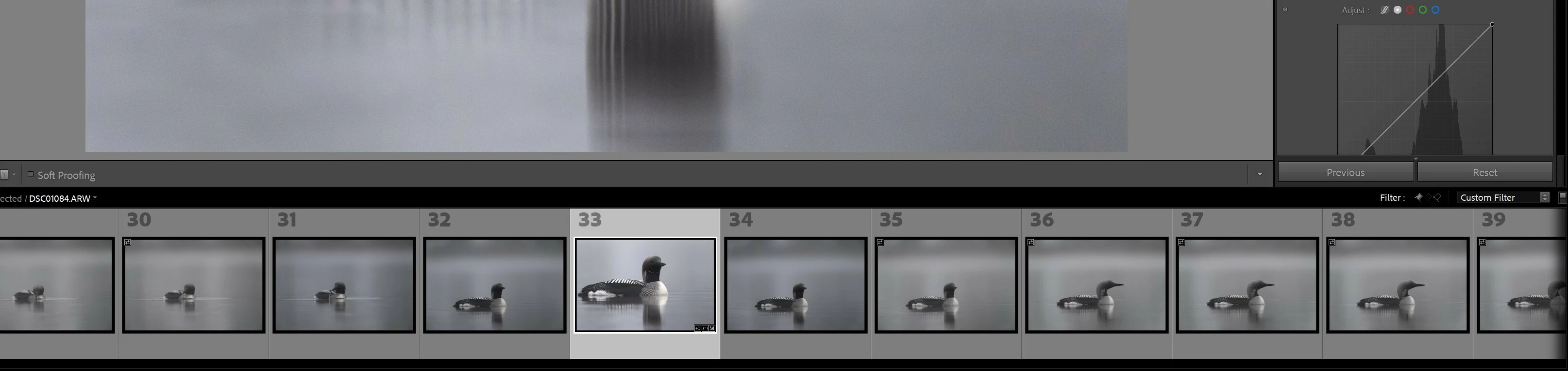
P: Black border in Filmstrip after installing 15.3

  • April 17, 2026
  • 17 replies
  • 679 views

black and white outline on my pictures in lightroom classic after update  v15.3 ->  Filmstrip
 

    17 replies

    Bob Somrak
    Legend
    April 18, 2026

    @Rob_Cullen 

    You have a White Border because the image is Flagged.  Unflag it and it will turn Black.  

    M4 Pro Mac Mini. 48GB
    Rob_Cullen
    Community Expert
    Community Expert
    April 18, 2026

    Correct  ​@Bob Somrak   but it is the intensity (or thickness) of the black border that intrigues me. The black borders of the OP look much heavier than what I see.  Maybe a Mac vs PC difference, or screen resolution/dimensions? All answers given are correct so I don’t need an update. Regards.

    The OPs: 

    Mine: 


    Regards. My System: Windows-11, Lightroom-Classic 15.3, Photoshop 27.5, ACR 18.3, Lightroom 9.3, Lr-iOS 10.4.0, Bridge 16.0.3 .
    Rob_Cullen
    Community Expert
    Community Expert
    April 18, 2026

    Being curious I checked my LrC UI - The white border exaggerated around a selected image is normal and has always been- but the BLACK border - I don’t know.

    I see a difference between the view of ​@C.R.Clausen and my view of the filmstrip. I do not see the black borders on un-selected images (except for a very fine one on my selected image).


    Screenclip from OP
    Filmstrip view in my system


    Regards. My System: Windows-11, Lightroom-Classic 15.3, Photoshop 27.5, ACR 18.3, Lightroom 9.3, Lr-iOS 10.4.0, Bridge 16.0.3 .
    Participating Frequently
    April 19, 2026

    Hi, here you can see what I mean on my Windows PC. There is a clear difference between the lines in the two clips I’ve uploaded. The strange thing is that it always starts with thin lines, and after about 3–5 minutes they turn into thick, more noticeable lines. I find this very distracting while working. I’m quite certain this is a bug introduced in the latest update.

    Bob Somrak
    Legend
    April 19, 2026

    @C.R.Clausen 

    The White Border changes size depending on whether the photo is flagged or not.

    Photo Flagged = Thick.   Unflagged = Thin,

    Turn on display of Flags in the Thumbnail temporarily to see which images are actually flagged.  On a slower machine it sometimes takes several minutes of the flags to appear or there is or was a bug to cause them to randomly not show.  

    I think nothing has changed in the border but it not an issue for me.

    M4 Pro Mac Mini. 48GB
    Bob Somrak
    Legend
    April 18, 2026

    Here is a clip from a Youtube video made 8 years ago and a link to the video.  It has not changed.


    M4 Pro Mac Mini. 48GB
    dj_paige
    Legend
    April 18, 2026

    agreeing with ​@AxelMatt 

    I think that white border is supposed to be there. When you select a photo, the white border appears. If you select another photo, the white border moves. If you de-select that photo with the white border (Edit->Select None), the white border is gone.


    So in my opinion, this is not a bug. This is the correct behavior of the software. And I’m pretty sure this has been the way LrC has worked for years now.

    Participating Frequently
    April 18, 2026

    l’ve never had this before, so it’s completely new to me. I’ve been using Lightroom Classic for over 5 years, and it’s not normal to see lines like this in white or black. It must be a bug introduced in version 15.3, as it wasn’t there before and Adobe hasn’t mentioned anything about it being a new feature.

    dj_paige
    Legend
    April 18, 2026

    And yet ​@AxelMatt  said he tried LrC 14.5.1 and it happens there as well. Not a bug, and not new in 15.3

    Participant
    April 18, 2026

    It appears after applying ai settings and updating them. When you close and restart lr after, it disasapers. So i believe it is a bug.

    AxelMatt
    Community Expert
    Community Expert
    April 18, 2026

    I think this is a normal behavior. I already see this on my machine and I checked a older version (14.5.1) and there’s the same.

    My System: Intel i7-8700K - 64GB RAM - NVidia Geforce RTX 3060 - Windows 11 Pro 25H2 -- LR-Classic 15 - Photoshop 27 - Nik Collection 8 - PureRAW 6 - Topaz Photo AI
    Participating Frequently
    April 18, 2026

    Hey AxelMatt

    Okay, that seems really strange that it suddenly appears now when I’ve never enabled it and have never experienced it before over the past many years!

    But if you know how to get rid of it, I’d really appreciate it if you could explain how to remove it, because I find it very frustrating to look at. Using Edit → Select None (Ctrl + D) doesn’t fix it. 🤞

    Participant
    April 18, 2026

    I’m having the same issue, did you managed to sort it out and how?

    Participating Frequently
    April 19, 2026

    no not yet 😦
