
P: Compare after soft proofing shows only edited version
I think I found a bug in LrC when soft proofing.
Typically when you edit a picture and then hit the compare button, you are shown on the left the original picture and on the right the edited picture, like on the top part of the following screenshot.
But if you do soft proofing this comparison is broken, as you can see in the bottom part of the following screenshot, where I am being presented left and right with the same edited photo.
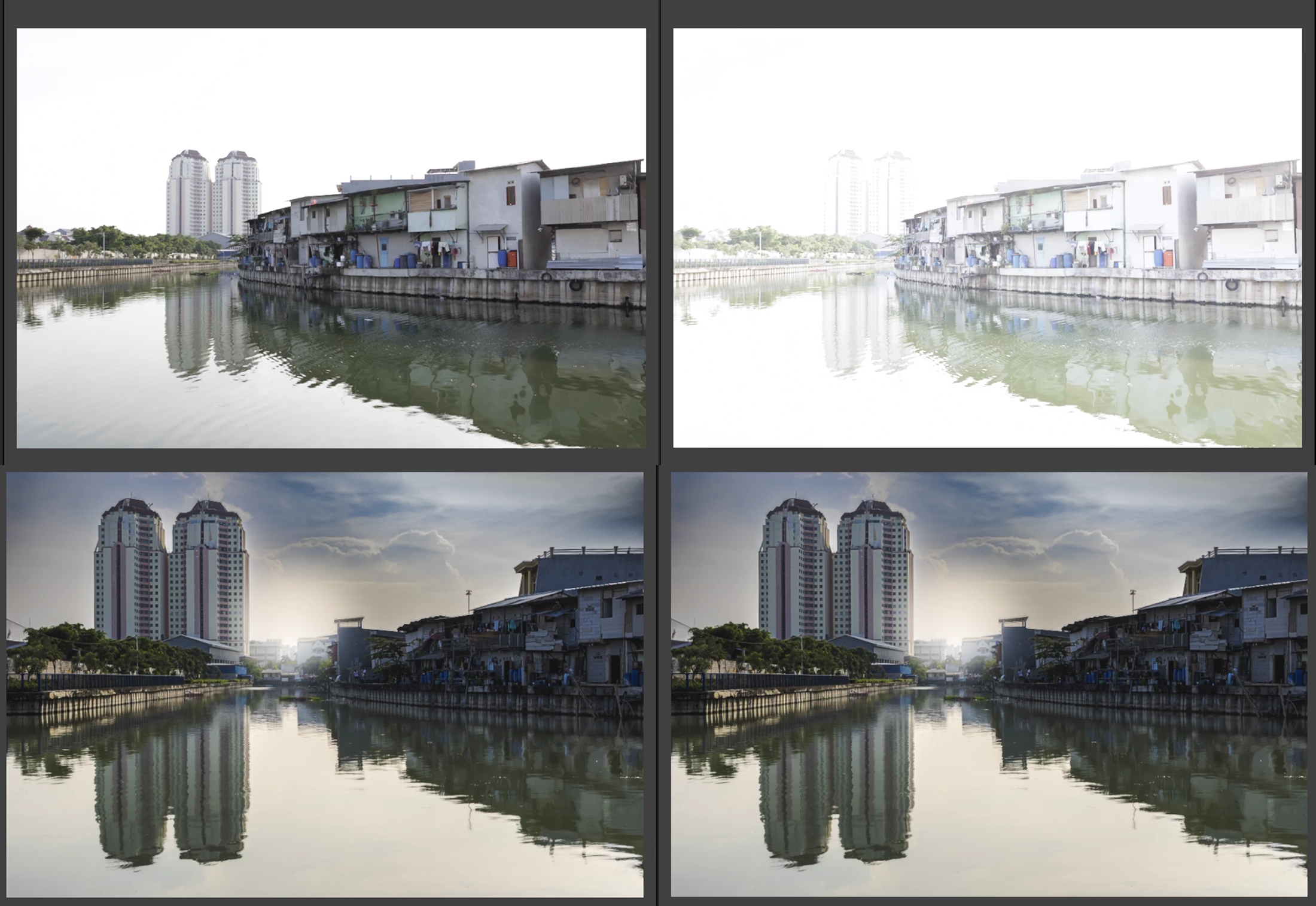
Steps to reproduce:
1- Click on soft proof
2- Click on create proof copy
3- Click on compare button Before/After Button (Compare is a Library Feature)
4- Click on single photo to show only edited picture
5- Remove proof copy (only from LrC)
6- Click on compare > l Before/After Button (Compare is a Library Feature)
Result:
Left edited phot and right edited photo
Expected:
Left is unedited/Right is edited
Reproduction was done on version 14.5.1
Mod Comments in Bold


 AdChoices