C.Cella
Inspiring
November 19, 2017

P: Large numbers of brush strokes leads to slowdowns and can cause an image's edits to reset.

  • November 19, 2017
  • 31 replies
  • 9077 views

In Lightroom it is impossible to edit a photo as much as we want or need, using Masking regardless of the hardware you have.


EXPLANATION 

Let's say you want to edit a photo with Masking to your heart's content OR because you need to change many aspect of the photo.

Logic tells you "we have Masking so obviously it's possible to do masking safely and as much as I want"

Reality is that in Lightroom Classic there is an "upper limit" of local edits that we can have on a photo: once we reach that "upper limit" the photo will be be reset.

So in Lr it's not possible to sue Masking as much as we want/need.


Usually if you have lots, lots of edits on an image other editing software struggle and get progressively slower and slower (if one has powerful hardware generally slowdowns don't happen or appear later) but in LR a photo can reach a point where it's no longer editable and it will be reset NO MATTER THE HARDWARE YOU HAVE.


All Masking tools (gradients, spot removal, brush, Ai, et...) contribute to reaching this "upper limit" of local edits BUT Brush is the tool that contributes the most because each strokes is made of countless of dab points that are heavy to process.

Here I have attached a preset for everyone to use.
Apply it on one of your photos that already has Masks and your photo will be reset. (Please be sure to undo, or use another another history step or Snapshot to revert back to your safely edited photo)

This "Reset Bug" is a huge problem/limitation AND as long as it exists we users will never, ever be able to use Masking as much as needed/wanted in Lr.

For the record this issue is not present in Adobe Camera Raw or other non Adobe softwares: it is totally unique to Lr.

As far as I have tested we can have "infinite" number of local edits in ACR...logically with many, many mask ACR becomes progressively slower but there is no photo reset.


Best Practice When Working in ACR and LrC using Masking


If you are doing Masking in ACR and import the photo in LrC (or import settings form disk if the photo is in the LrC catalog) then the photo will either be slower to edit OR be reset in LrC.


If a photo is resetting in LrC then you must go one step back beore the reset after that you can finish editing it in ACR but unfortunately you can't safely open/import that photo in LrC again as the edits will be unusable by LrC


Keep a Virtual Copy in LrC before you edit in ACR or import form ACR.

That Virtual Copy will be always usable in LrC.


Best Practice with Brush Tool


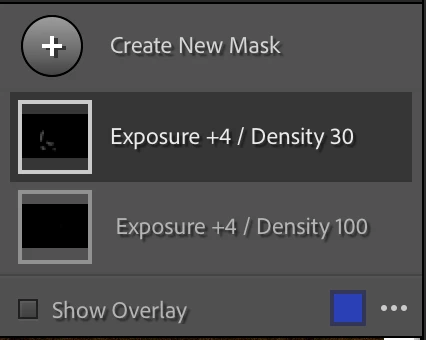
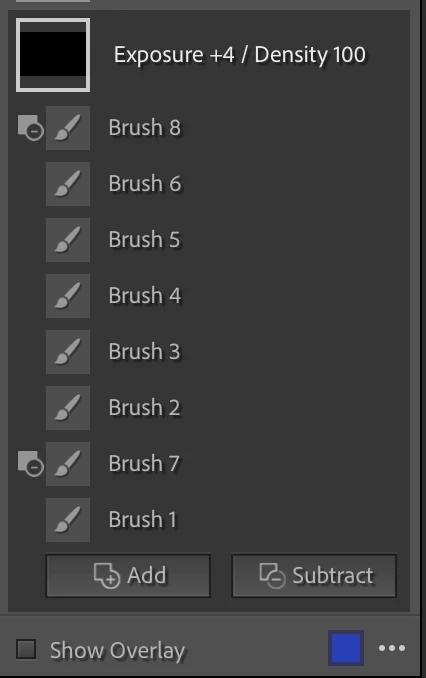
  1. Create a new Brush Mask for every single stroke you do. This way you can delete the stroke(s) that you don't like, redo them better and go back to an editable photo when the reset happens.
  2. I recommend to ONLY use Subtract as and never user Erase Brush that adds dab point but are not visible in the overlay. Subtractions are always visible in the overlay and can be deleted.
  3. If you are working with Brush Density I recommend to ALWAYS keep the same Brush Density in the same Correction and ideally write it in the Correction's name. On the same correction a new brush with different Density will overwrite the previous stokes adding more dab points above the ones created but in the overlay it looks like you did fewer. It you find a that a brush at the current density is not giving you what you want then: create a new correction > use the same settings AND use Brush with a different Density in that correction.

I personally work with very low flow and keep always Density at 100 for all my corrections. When is see that a brush is not enough or too much and is not giving me the result I want I: delete it > create a different Correction with  higher/lower different settings and brush there but the Density is always at 100.


P.S.
I was the first to discover and report this back in 2017 in this thread. (The username is different but it's me)
I bring it back as a full fledged Bug Report upon request of the Adobe team so please moderators do not merge this with existing Bug reports as this needs to be traceable as a standalone.


31 replies

C.Cella
C.CellaAuthor
Inspiring
October 26, 2025

@joyco_68 It is NOT a brush stroke limit

All Maksing edits contribute including Gradients, Ai masks, Manual Remove and potentially the new Distraction Removal or Ai Profile.


Brush strokes (dabs) contribute the most but any user can reach the "upper limits" with other edits.

I have several photos that reset and all have a different number of edits and dabs.


So it is not like hitting 200k dabs will cause a reset.

It's more about hitting a certain load.


Denoise and especially Super Res aslo cause slowdowns and have nothing to do with dabs...they are simply heavy to process.


The bug as far as I know had been fixed for LrD (which is also using the same language of LrC) and doens't manifest in ACR.

You can continue and finish editing in LrD Local but as soon as you read metadata in LrC all will reset 


@Rikk Flohr: Photography you should probably update the thread name to "Heavy Edits cause slodowns and lead to reset".


Participant
October 25, 2025

Thank you.  It does seem that LrC is hitting a brush stroke limit.  I hope at some point in the future, this issue will be fixed. 

C.Cella
C.CellaAuthor
Inspiring
October 24, 2025

@joyco_68 

The issue not only stems form the never fixed/lifted "upper limit" of the "edits table" but also form the totally dysfunctional UI that doens't allow allow to see the brush(es) aggregate. 

It's a bit if Photoshop had layers' Groups but per desing once created the user can't open them to see what's inside.
That's how LrC does brushes.

Save your masking edits as a Develop preset and attach it here.
I can with my own code set you to a point where you will be able to do something to counter the bug.
.


Participant
October 22, 2025

I'm encountering a issue in LRC 14.5.1 where if I'm working on a detailed mask that requires numerous subtractions or additions (for example, fine-tuning the landscape masking for vegetation and architecture) where at some point it will not allow any further adjustments and reverts the file back to an unedited RAW file.  If I go to the history panel in the Develop module, I can step back one step before the image reverted to RAW and it will bring back all the edits.  I cannot, however, adjust the mask further without the same thing happening.


This happens using LrC 14.5.1 and macOS Sequoia 15.6.1.  I'm working on a 2024 mac mini, with an Apple M4 Pro Chip.


Steps taken before this unexpected behaviour happens:

  1.  I open the .DNG file in the develop module
  2.  I set the lens corrections
  3.  Use transform if necessary and crop the image
  4.  Make basic adjustments
  5.  Make color adjustments
  6.  Use Denoise in the Detail panel
  7.  Apply healing and remove where necessary (spot removal, etc.)
  8.  Open masking panel, select Landscape masking
  9.  Choose the appropriate masks (in this particular case "sky," "architecture," "vegetation," "water")
  10.  Use subtract brush and add brush to fine-tune each mask
  11.  Select each mask and make adjustments (such as detail, effects...)
  12.  Create new mask "brush" - this was to select a fountain that wasn't included in any of the other masks.  About 95% through masking the fountain (and before any adjustments were made) the image just flips to an unedited RAW file.  It happens when I finish a brush stoke and it just blinks to the unedited version
  13.  I can "revert" to the unfinished edited version by going back a step or two in the history panel but further editing causes the photo to revert again.


The expected result is that I can use complex masking on a landscape photo to apply adjustments to the various elements.  The actual result is that if the masking is extensive and requires fine-tuning LrC just refuses to apply the edits and reverts the file to an unedited RAW file.


Participant
October 22, 2025

I wanted to add that this has happened two times in the past month (2 separate images).

C.Cella
C.CellaAuthor
Inspiring
August 8, 2024

@AutoMatters & More


To minimise masking performance problems in LrC use Ai selections as much as you can.


Use Circular Gradients as well.


Use Objects tool in rectangular selection mode instead of brush mode.


Brush is the best tool for precision but alas is the one tool that LrC can't handle.


If you need to finish working you image then do this:


1. Create a Virtual Copy


2. Open the "orginal image" in Adobe Camera Raw finish editing there.

3. Export a finalized file with the edits baked in it and import it in LrC.


The edits tou have done in ACR might not be available in LrC as they might exceed the "Edits Limit" but since you have the Virtual Copy you will have something.


.


Known Participant
August 8, 2024

C. Cella,

This evening I was trying to perform a lot of small selections and edits  to a single Canon RAW image in Lightroom Classic (13.4 Release, Camera Raw 16.4) — for example, individually selecting the common backgrond between spokes on two bicycle wheels so that I could make the background darker and defocus it. Sometime the spokes got selected too, so I then tried to select the individual spokes and subtract the darkening and defocusing from them. That proved to be too much editing. My iMac Pro kept getting slower and slower, to the point where it basically stopped editing the photo. This happens from time to time. I thought it was a memory issue with my computer (it is five years old), so I shot down my computer and then restarted it. That did not help. I still could not finish editing my photo. It may be due to my aging computer but, from what you've have observed, it also sounds like it is due to an issue with Lightroom Classic's ability to do a whole bunch of small, repetitive edits to a single photo. At least now I know not to do that again. Thanks.

Jan

C.Cella
C.CellaAuthor
Inspiring
May 3, 2024

I have now created a "Extract  Brush Sub-Masks" script.


This script extracts Brush masks within another Brush mask also converts them properly upon extraction to keep the good logic and order/sorting.


This allows to manage the brushes more efficiently.


After 7 years no efforts have been made to resolve this situation so I had to look myself into it possible solutions.

.


C.Cella
C.CellaAuthor
Inspiring
December 25, 2023

@Redauser LrCC has a Local Mode in which you can browse files and edit them...access it on the upper left corner.


It's a file browser just as Bridge but with more seamless direct editing.


LrCC has no Snapshots so you might want to use ACR if you use Snaps during your workflow.


Editing wise all the 3 apps are the same, they all use the Camera Raw engine.


 LrCC and ACR have no edits limit NOR  have poor performance with masking like LrC.


GoldingD
Legend
December 25, 2023

The thread in this post has gotten a bit long, so I may have missed the following (if it was already brought up)

This via a completely different post having little to do with the subject at hand, otherr than, perhaps tunning out of space.


Inquiry: How large do you allow your Camera RAW CACHE to get?

The default 5 GB? As in way way too small

or something more on the lines of 20 GB?? Probably the proper bare bones minimum (I would go for more like 70 GB)


AND


Has the Camera RAW CACHE been filled up, at the max you selected?


Perhaps purging the CACHE will help????


Participant
December 25, 2023

Hi thanks for your answer! How do you edit a local file with LrCC? I thought it worked only for cloud files 😕😕

I feel a little dumb right now 🙂

I will test it asap!