


Inspiring
August 7, 2026

P: Lightroom Classic repeatedly detects metadata conflicts and writes XMP changes when no edits were made

  • August 7, 2026
  • 6 replies
  • 90 views

Yes, this exact question has been raised many times in the past and those posts have all been closed as “answered” without any resolution.  This is still an issue.

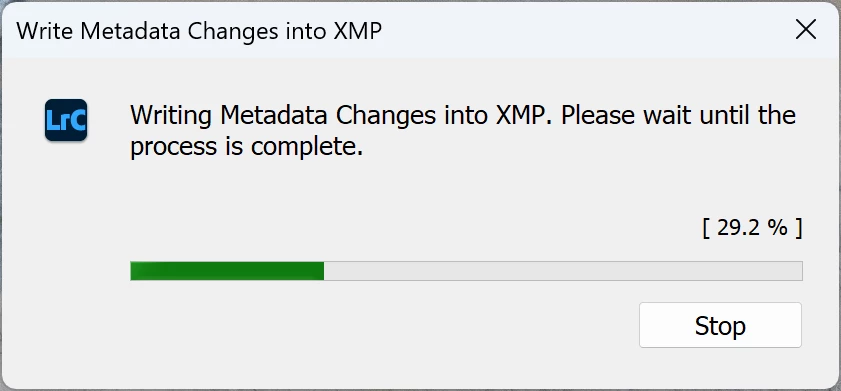
I open LrC, import and make edits.  LrC sits idle with computer running for at least an hour.  Try to close LrC and it spends several minutes  "Writing Metadata Changes into XMP" before the app exits.  What is LrC doing while idle after the last edit was made that it now needs to do when I’m trying to shut down the computer?  This is unacceptably poor performance but vaguely understandable as edits were in fact made.  Why are the XMP writes not happening during idle time rather than forced immediately at exit?

The same delay occurs without making edits.  Open LrC, make no edits and immediately try to open another catalog.  LrC shows the "Writing Metadata Changes into XMP" message for several minutes before finally restarting with the other catalog.  This is after LrC spent several minutes  "Writing Metadata Changes into XMP" prior to the previous exit.  What metadata changes is LrC writing?  I made no edits.  I added no files.  All I did was open the app.  If there were still metadata changes unwritten from the previous session, what was LrC doing for several minutes before the previous session exited?
 

    6 replies

    jbincoAuthor
    Inspiring
    August 15, 2026

    I have reviewed several files which the smart collection filter identified as  ‘Metadata Status > is > conflict detected’.  I resolved the conflict by allowing LrC to overwrite the xmp.  When I diff the before vs after content of the xmp, I see some oddities.

    All show before values of 

    photoshop:SidecarForExtension="arw"

    and after values of 

    photoshop:SidecarForExtension="ARW"

    Is LrC case sensitive and detecting the lower and upper case “ARW” values as a conflict?  The lowercase “arw” was written by LrC 18.1.  No third party or external edits occurred.

    Anshul_Saini
    Community Manager
    Community Manager
    August 18, 2026

    Thank you for investigating this further, ​@jbinco. The arw -> ARW difference you’ve identified is interesting, but I’d like to collect a couple of things before I take this to the product team so they can examine the actual metadata rather than just the screenshot.

    Could you please share:

    • The XMP file before resolving the metadata conflict.
    • The corresponding XMP file after allowing Lightroom Classic to overwrite the metadata, if you still have both versions available.
    • Your current System Info from Help > System Info > Copy. Please paste the contents here.

    If you’d rather not attach the XMP files publicly, you can upload them to Google Drive, Dropbox, WeTransfer, or a similar service and send me the link via DM.

    Once I have those, I’ll consolidate the findings and share them with the Lightroom Classic product team.

    Thanks again for doing such detailed testing.

    Best,
    Anshul Saini

    jbincoAuthor
    Inspiring
    August 18, 2026

    I overwrote all my xmp files to resolve the conflicts.  But I am able to reproduce the metadata conflict error by editing any existing xmp file and changing the case of the SidecarForExtension element.  If I edit a brand new xmp file and change 

    photoshop:SidecarForExtension="ARW"

    to 

    photoshop:SidecarForExtension="arw"

    LrC shows the image now has a conflict and it appears in my “Metadata changed on disk” smart collection.

    if I edit the xmp content again changing it back to 

    photoshop:SidecarForExtension="ARW"

    the conflict alert disappears from LrC and the smart collection count decreases by one.


    Anshul_Saini
    Community Manager
    Community Manager
    August 7, 2026

    Hi ​@jbinco,


    Thank you for the detailed write-up. I understand the frustration, especially when the behavior occurs even without making any edits during a session. I want to help narrow down what's happening in your specific case.
     

    Some context on what you may be seeing. In Lightroom Classic, the metadata status can internally mark images as "Has been changed" under certain conditions, even when the user hasn't made explicit edits. This can stem from internal metadata reconciliation (e.g., minor schema updates between LrC versions, GPS precision changes, or face detection data syncing), which then queues XMP writes on exit.


    Troubleshooting steps to try:

    • Before closing LrC, create a Smart Collection with the rule Metadata Status > is > Has been changed. This will show you exactly how many images LrC believes need XMP updates. Look at what they have in common: file format (DNG, RAW, TIFF?), whether they have face data, GPS info, or were recently imported/migrated from another catalog.


    • Since the XMP writing itself is taking several minutes, that points to either a very large queue of files or slow I/O. If your catalog references files on a network drive (NAS), an external USB drive, or a cloud-synced folder, that significantly increases write time. Try temporarily moving a subset of flagged files to a local SSD and see if the exit delay drops.

    • I know this sounds counterintuitive, but if you enable "Automatically write changes into XMP" under Catalog Settings > Metadata, LrC will write XMP incrementally during your session rather than batching at exit. This won't fix the issue of why images are being flagged, but it would eliminate the exit delay and let you observe in real time when/how quickly images are marked as changed (via the Smart Collection above).

    • If you recently upgraded LrC, some internal metadata fields may have been updated schema-wise (e.g., new process version compatibility flags), which marks everything "dirty." A one-time CMD/CTRL+A > Metadata > Save Metadata to Files during idle time (with the app on a local catalog/local files) would flush that queue on your terms rather than at exit.

    • Under Identity Plate (top-left), you can see if background tasks are active. Face indexing and reverse geocoding both silently modify metadata. Pause these if you suspect they're contributing.


    To help me investigate further, a few questions:

    • How large is your catalog (approximately how many images)?

    • What file formats do the majority of your images use (DNG, proprietary RAW, TIFF, JPEG)?

    • Where are your image files stored: local internal drive, external drive, NAS, or a cloud-synced folder?

    • Did this behavior start after a specific LrC version upgrade, or has it always been present with this catalog?

    • Do you use face detection or map/GPS features in Lightroom Classic?

    • If you create the Smart Collection described above, approximately how many images show as "Has been changed" after simply opening the catalog without making edits?


    The answers will help determine whether this is a one-time migration queue, an I/O bottleneck, or the metadata status affecting certain file types.


    I appreciate your patience. I want to make sure we get to the root cause.


    Best,

    Anshul Saini

    jbincoAuthor
    Inspiring
    August 11, 2026

    Thank you for suggesting the smart collection to identify metadata changes.  While nothing was identified with the ‘Metadata Status > is > Has been changed’ filter, I expanded on your idea and may have identified the culprits.

    I created smart collections for each of the 4 metadata statuses and found high numbers of images under the other 3 statuses.  

    The counts shown for ‘is > changed on disk’, ‘is > conflict detected’ and ‘is not > up to date’ do not correspond to recent imports or batch edits.  The bulk of the images seem to be dated ~ 1 year ago and I have not knowingly touched them recently.  This method provided a great starting point which I didn’t have before.  I’ll need to investigate further to pin down the root cause.