

The red-x Reject badges persist on thumbnails in the filmstrip even when all the Select and Reject checkboxes in Assisted Culling are unchecked. To reproduce on LR 15.4.1 / Mac OS 26.4.1:
1. Download and open the attached catalog.
2. In the Assisted Culling panel, uncheck all the checkboxes. Observe that the red-x badges still appear on the filmstrip thumbnails:
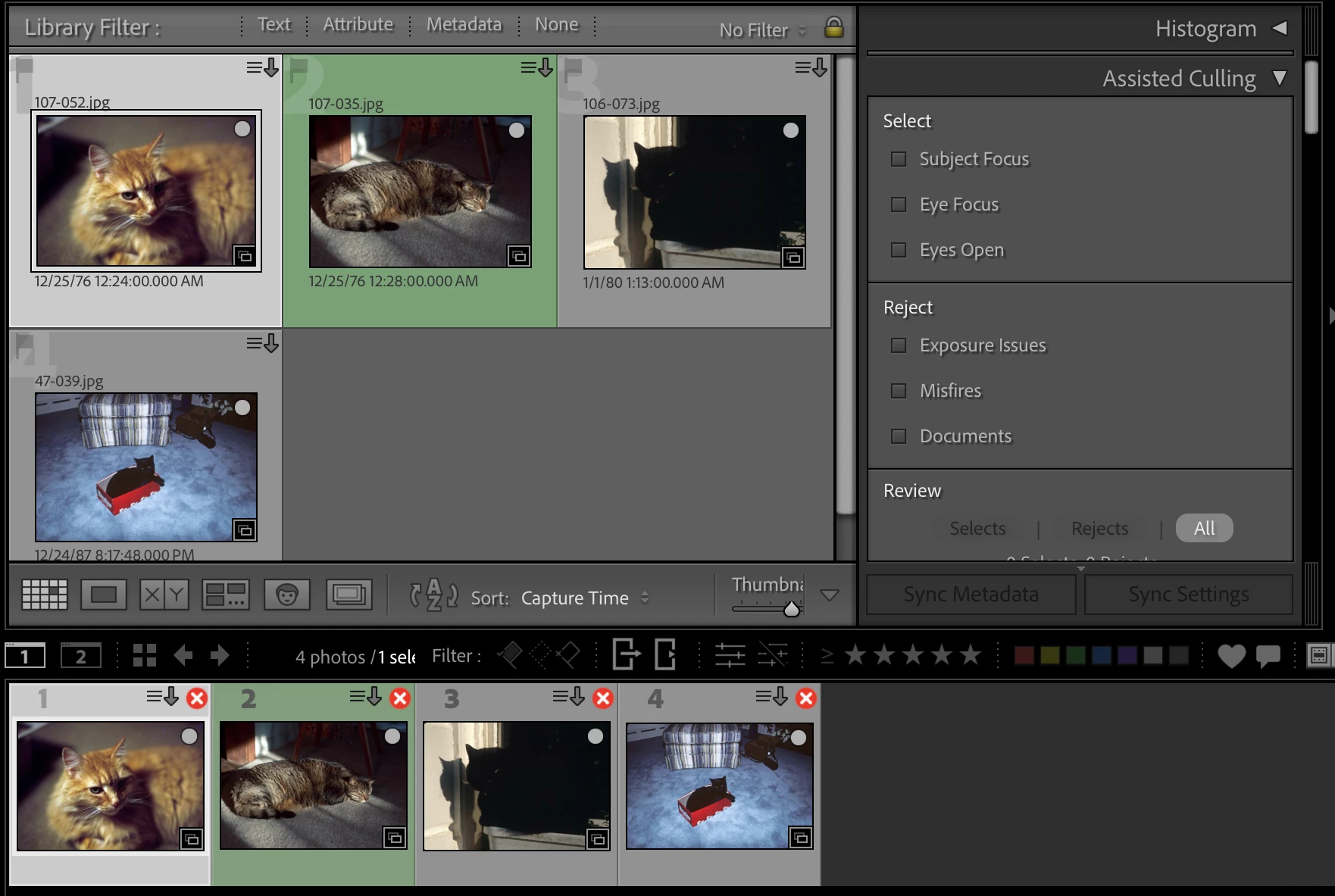
I haven’t discovered any way to make them disappear, including by deleting the Helper.lrdata file.
A new update for the Adobe Photography products has been released. The August release (x.5) contains an update regarding this issue. If you do not see the update in your Creative Cloud Application, you can refresh it by pressing [Ctrl/Cmd]+[Alt/Opt]+[ R ]. Note: It may take up to 24 hours for your update to be available in your Creative Cloud app.
Collapsing the Assisted Culling panel does NOT remove the red glyph with the white X in the corner of many issues. It doesn’t show up in the library module but it show up in the film strip at the bottom of the screen. It is really annoying. I have Assisted Culling turned off in the Catalog Settings and the Assisted Culling panel turned off in the side panel. Mac OS Tahoe 26.5.2
Unfortunately, Assisted Culling doesn't seem to be the root cause in my case, as I have it completely disabled. The behavior also differs from a standard rejection marker. While your example shows the red X correctly placed in the main Library Grid, my grid is entirely clean; the error glyph is exclusively overlaying every single thumbnail down in the Filmstrip.
However, your note prompted a test. When I actively turned Assisted Culling on by selecting “Subject Focus,” both the Filmstrip and Library Grid suddenly behaved exactly as expected. This strongly points to a UI rendering error that triggers specifically when Assisted Culling is deactivated.
I've attached a screenshot below so you can see the clean grid sitting directly above the flagged filmstrip.