



Matrix_mdt
Known Participant
October 30, 2022

P: (Mac) Memory Leak when syncing files with the cloud

  • October 30, 2022
  • 21 replies
  • 9350 views

Hallo zusammen,

seit der Version 12 (auch 12.01) scheint Lightroom den Programmspeicher immer weiter zu füllen, bis dieser überläuft.


Dabei arbeite ich nicht mal in Lightroom, sondern Lightroom läuft im Hintergrund und lädt lediglich die in der Cloud liegenden Fotos runter.
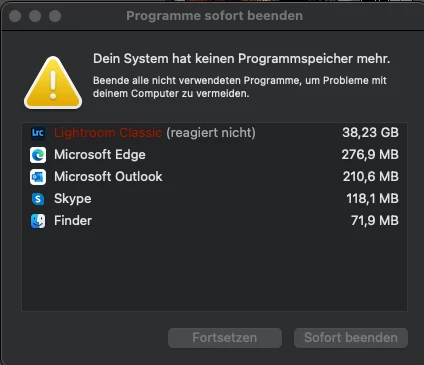
 

Technische Daten:


Lightroom: V12.01

Computer: MacBook Pro

Chip: Apple M1

RAM: 16GB

macOS: Ventura (13.0)

This topic has been closed for replies.

21 replies

Participant
June 12, 2023

Hi @DdeGannes, thanks for taking time to follow up.


I have more than 90 GB available on my MacBook Air, so no issue of free SSD space here I believe.


I was about to give more details about why I do think I was impacted by a memory leak bug, but the bug has mysteriously disappeared!

And I've done nothing in particular! I've just rebooted my Mac, as I was about to do some additional tests/monitoring, but the syncing has no issue this time. All my 100K photo library in now synced. Very weird.


Anyway, so far, so good.


For info, my typical LRC's memory consumption is around 4 to 5 GB with macOS Activity Monitor. But when I noticed the syncing issue, LRC's memory consumption have gone to 25 GB, and then macOS asks me to kill some apps.


Thanks

DdeGannes
Community Expert
Community Expert
June 11, 2023

@Amaury Descours , 
From the info you have provided your system has the minimum requirements for LrC to function. 
For one the recommended RAM is 16GB.

Your SSD disk 256GB will struggle if you have your Lightroom Catalog and the Previews on that disk.

You should aim to have 20% free disk space available at all times i.e. 50GB for efficient operating.

Better to have your original image files and the LrC Catalog files on an external SSD disk.


Regards, Denis: iMac 27” mid-2015, macOS 11.7.10 Big Sur; 2TB SSD, 24 GB Ram, GPU 2 GB; LrC 12.5,; Lr 6.5, PS 24.7,; ACR 15.5,; (also Laptop Win 11, ver 24H2, LrC 15.0.1, PS 27.0; ) Camera Oly OM-D E-M1.
Participant
June 11, 2023

Hello, I'm still experiencing massive memory leak with LRC 12.3 when syncing my +100K photos from Creative Cloud.

When Lightroom Classic consumes 25 GB of memory, my MacBook is very sluggish and a macOS popup asks me to kill apps to save memory.


My config:

  • Lightroom 12.3
  • Apple MacBook Air M2 8GB RAM / 256GB SSD
  • macOS Ventura 13.4

Happy to give more details or running some diags/tests if needed.


Thank you.

Inspiring
April 30, 2023

I recently switched from an intel based iMac to new Mac Silicon chips, and have been experiencing an issue where Lightroom eventually crashes Mac OS application memory. As far as I can tell, this occurs when syncing thru a large batch of digital assets from my iPhone after I have been away for a couple weeks shooting, and particularly when the sync involves large 4K/60fps video.

1/ I had been using a 2017 vintage iMac 27" w/ 32 GB of memory for years, and never experienced this issue

2/ I upgraded to a new M1 iMac w/16 GB and started experiencing this issue. The application memory would crash out ~40 GB (16 GB physical + swap + cache etc). I figured the memory was insufficient, and did a return on the M1 iMac because LR is my main use case

3/ I am now running on Mac mini M2 Pro // 32 GB ram // macOS Ventura 13.3.1 LR Classic + CC desktop app have both been updated. I am still getting the same application memory crash as on the M1 iMac when syncing a large batch of assets including heavy video, except it is now crashing at ~90 GB // per attached screenshot

This is disappointing to me because I did not experience this isssue on my old intel iMac that was more than half a decade old, despite syncing similar large batches of assets quite regularly. So I'm guessing this must be a glitch with LR's adaptation to the Silicon architecture. Look forward to seeing this issue addressed. Thank you in advance.

Andrew S Klug // ASK
TheDigitalDog
Inspiring
April 30, 2023

Try logging into another Mac user account (you should make a new one); still crashing? 
Try starting up in Safe mode (hold down Shift Key when booting*), still crashing? 
You might want to try running a free utility like Onyx: still crashing? 
https://www.titanium-software.fr/en/onyx.html
Also view:
https://www.macworld.com/article/352902/onyx-review-macos.html
https://www.macworld.com/article/224955/how-to-reset-a-macs-nvram-pram-and-smc.html
From Adobe:
https://helpx.adobe.com/photoshop/kb/basic-troubleshooting.html

* How to start your M1/M2 Mac in Safe Mode
On your Mac, choose Apple menu () > Shut Down.
After your Mac shuts down, wait 10 seconds.
Press and hold the power button until the startup disks and Options appear.
Press and hold the Shift key, then click Continue in Safe Mode.

Try fixing permissions by running Disk Utility (Disk First Aid) or, again, using Onyx.

Also see: https://helpx.adobe.com/x-productkb/global/troubleshoot-unexpected-behavior-user-account.html

Author “Color Management for Photographers" & "Photoshop CC Color Management/pluralsight"
Participant
April 19, 2023

Yes! Thank you Victoria! Thanks to your email yesterday, I learned that this was a bug. I had Adobe support in my machine twice and neither of them knew that. They did a bunch of crap and it didn't fix it. 
But now, I am so excited! My LR catalog is syncing, I’m seeing LR mobile pics coming thru, and it’s not locking up! Woohoo!

Victoria Bampton LR Queen
Community Expert
Community Expert
April 19, 2023

@LISACTV22 please check you're updated to 12.3 that was released yesterday. Help menu > System Info will tell you the installed version number.

Victoria - The Lightroom Queen
Participant
April 18, 2023

I am currently having this issue also. Sync with LR Classic and LR Mobile and LR Cloud is horrendously slow. Also, LR Classic keeps hanging up with application memory issues, when it is the only program running. I have a new laptop and updated LR app. LR mobile is updated to LR cloud, but it is taking forever to upload to LR classic, because it keeps locking up. 

Known Participant
April 18, 2023

Indeed, I can confirm it fixes the issue! 😉

Rikk Flohr_Photography
Community Manager
Community Manager
April 18, 2023

Greetings all,


Updates for Adobe Photography products have been released.  The April 2023 updates contain a fix for this issue. 

If you do not see the update in your Creative Cloud Application, you can refresh it by hitting [Ctrl/Cmd]+[Alt/Opt]+[ R ].

Note: It may take up to 24 hours for your update to be available in your Creative Cloud app.


Thank you for your patience.

Rikk Flohr: Adobe Photography Org
Known Participant
April 17, 2023

Yes, so much so.