

P: Phantom Pins on Map Module
- Description of Issue
I believe that at times, Lightroom Classic 15.5 produces phantom pins on the map, that is, pins that appear to be locations of photos, but either the count of images is wrong, or the pin itself doesn’t work (when you hover over the pin, nothing happens), or both. I understand that a major malfunction of the Map module was fixed in 15.5, but this seems like a different problem.
- Lightroom Classic Version Number (Help>System Info…)
Lightroom Classic 15.5
- OS Version Number
Windows 11 25H2 (26200.9168)
- Camera Model (sometimes necessary)
Nikon Z6 II
- Step-by-step Reproduction Instructions (in precise terms, please)
Step 1: Select a lot of images and display the map (in my case, all photos in New York State). Zoom in. Notice the cluster of pins right in the center of this screen capture (I have drawn a red box around them).
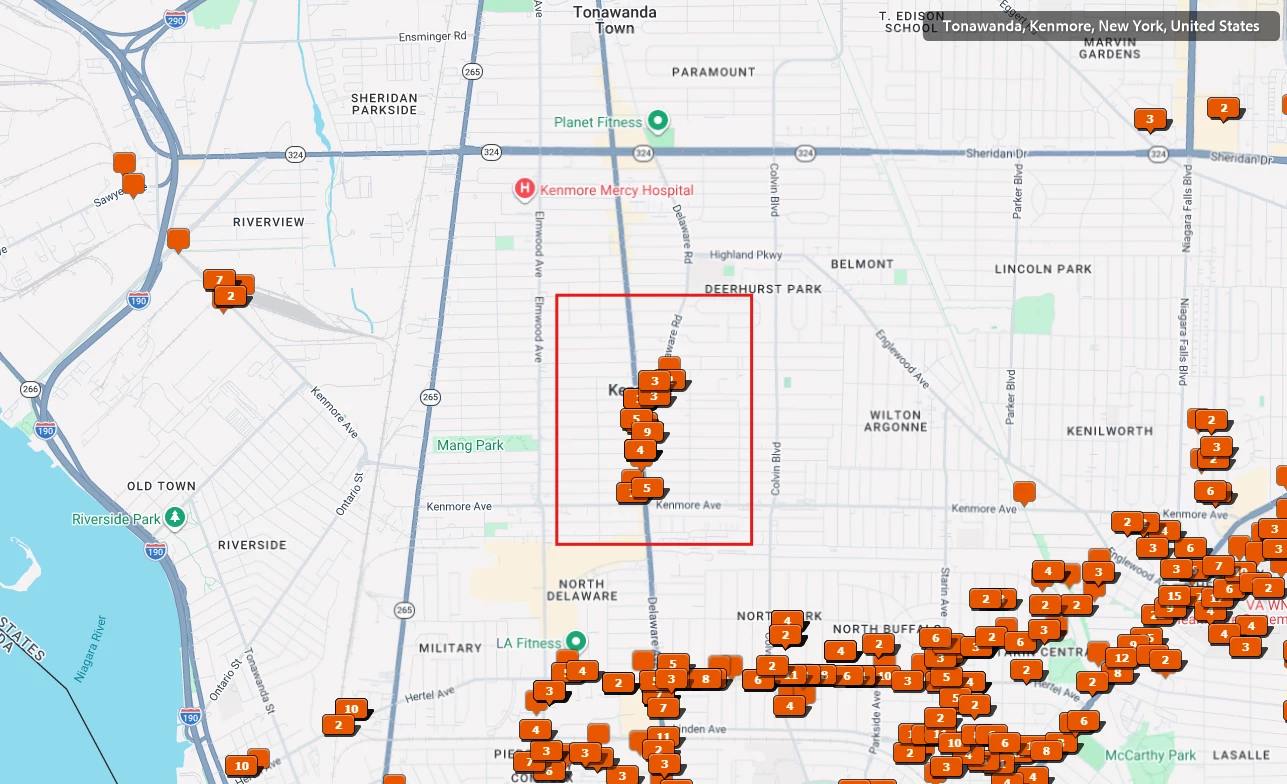
Step 2: press the plus sign to zoom in more. Let’s focus on the bottom of this cluster of pins. Notice the area indicated by the arrow, there are three pins, one with 6 photos, one with 5 photos, and one sticking out below the other two, that’s 12 images in this area. However, I know this is wrong, there are not 12 images in this area (more on this later)
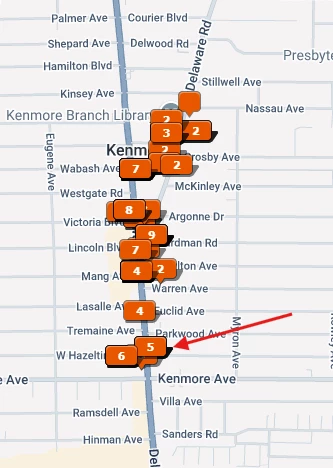
I can’t really show this via screen capture, but it you hover your mouse over the pin with 6 images, it is active and a dialog box appears where I can see thumbnails of the images and scroll through the 6 images. The pin with 5 image is not active, hovering my mouse does nothing. The pin sticking out of the bottom is also not active. Further, if I click on the pin with 6, it turns yellow indicating I have selected these images. Clicking on the other two pins in this area does not turn the pin yellow and does not select any image.
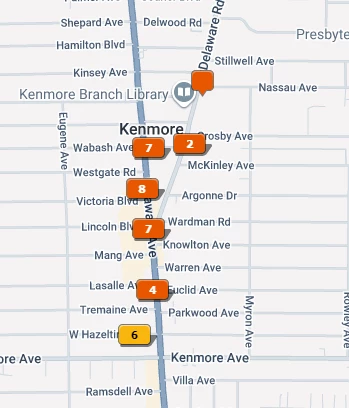
Step 3: Click on the pin which says 6. See what happens in the screen capture. The pin with a 5 and the other pin sticking out of the bottom disappear. I believe this is correct, there are only these six images in this area.
Step 4: Zoom in again by pressing the + key. The phantom pins return! I believe this is incorrect and now the pin with 5 and the pin with no number are active, the pin with the 6 is no longer active. Again there appear to be 12 images selected but this is incorrect.
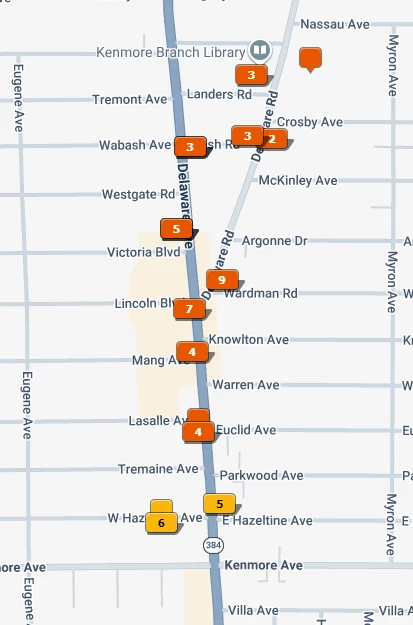
Step 5: Click on an area with no pins (like the intersection of Myron Ave and E Hazeltine Ave) to deselect the images. Phantom pins disappear, now there appear to be 6 images, 5 in one pin and one in another pin (I believe this is correct)
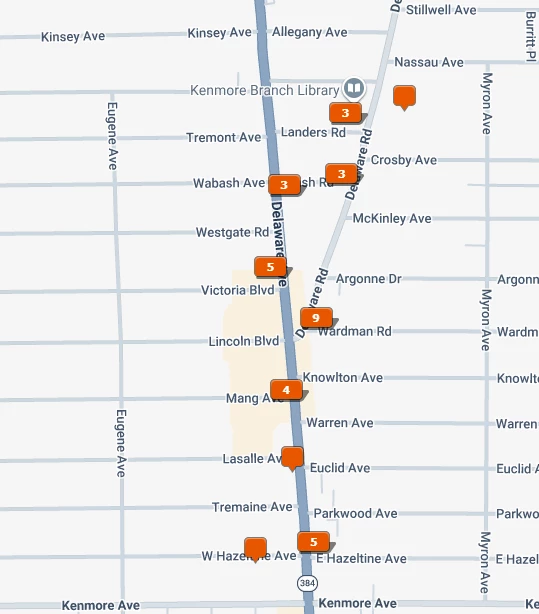
- The Expected Result
Map should be displayed with no phantom pins, and all counts shown are correct. All pins should be active and display a pop-up when you hover the mouse, and if you click on any pin, this should select the images represented by that pin.
- The Actual Result
Map is shown with phantom pins that do not represent actual images, these pins should not be there, and these phantom pins are not active. Clicking on a phantom pin does not select images. Also, there are active pins with correct counts, where hovering or click has the expected behavior.


 AdChoices