
max1979l
Inspiring
November 22, 2019

P: Post processing disappearing from Export window when checking presets

  • November 22, 2019
  • 10 replies
  • 703 views

Is this a normal behavior or a bug?

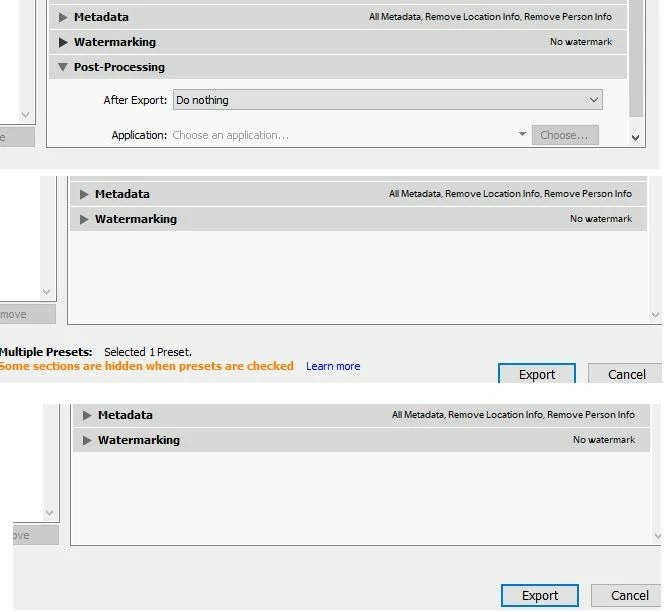
Select "Export...", the export window opens, post processing is there under watermarking (top image).

Check a preset (click on the checkbox next to a preset), post processing disappears (image in the middle). 

Uncheck the preset, post processing doesn't come back (bottom image).

To get post processing back you need to click cancel, and open the export window again.
This topic has been closed for replies.

10 replies

max1979l
max1979lAuthor
Inspiring
February 11, 2020
Yes, it's fixed, now it works as expected, thank you!
Rikk Flohr_Photography
Community Manager
February 11, 2020
Updates to Lightroom Classic, Camera Raw, and the Lightroom Ecosystem were released yesterday and contain a fix for this issue.  Please install the appropriate update and see if it solves this problem. You can read more about the updates here.

Thank you for your patience. 
Rikk Flohr: Adobe Photography Org
Smit K
Community Manager
Community Manager
December 5, 2019
Thanks for reporting this. We have logged a bug for this. 
Smit | Lightroom Team
Legend
November 25, 2019
This is an obvious bug. The Post-Processing panel should vanish when presets are checked! It should just be disabled like the other panels when multiple presets are checked. All panels should be enabled when no presets are checked. I also agree that if one preset is checked, then all panels should be enabled.
johnrellis
Legend
November 24, 2019
Sigh, it doesn't work in general for me either (Mac or Windows).  I was initially testing with a preset that had a missing post-processing plugin:


and with that preset, the Post-Processing section comes back after unchecking and clicking the name. But it doesn't happen in general with presets that don't have such errors.
max1979l
max1979lAuthor
Inspiring
November 23, 2019
Unchecking and clicking on the preset name doesn't make the hidden section reappear, at least for me (Win10).
johnrellis
Legend
November 23, 2019
A simpler workaround is to uncheck the preset and then click on its name (not the checkbox). 

This is a bad UI design -- please vote on this feature request to change it:
https://feedback.photoshop.com/photoshop_family/topics/lightroom-export-window-sections-shouldnt-grey-out-with-one-preset-checked
Inspiring
November 22, 2019
By closing again the dialogue of exportation then to open it again, this option is again active. proved on macOS. For me, this resembles a neglect if they abolish coaches every, it seems to me that option should be rekindled without having close again the dialogue of Exportation.

Yves Crausaz, Suisse, retraité actif dans le monde de la photo et des arts graphiques.
max1979l
max1979lAuthor
Inspiring
November 22, 2019
I'm not sure that that's the expected behavior (it is not from a customer point of view), after unchecking the preset.
The warning message says that "some sections are hidden when presets are checked". Which means that when I do uncheck the preset, the section should come back indeed the warning disappears, as I would expect.
Since the section doesn't come back, I assume it has been forgotten, while implementing the feature, to program the function that unhides the section..


Adobe Employee
November 22, 2019
Hi,

This is the expected behaviour when you select Preset. This behaviour changed after introducing multi-batch Export Feature. https://helpx.adobe.com/lightroom-classic/help/exporting-photos-basic-workflow.html#multi-batch-export. Same warning is shown at the below dialog and provided with a help link. 

-Kanheiya