
Inspiring
April 10, 2017

P: Print Module Issue - Stretched Images On Export When Using "Photo Border" Setting
  • April 10, 2017
  • 6 replies
  • 458 views


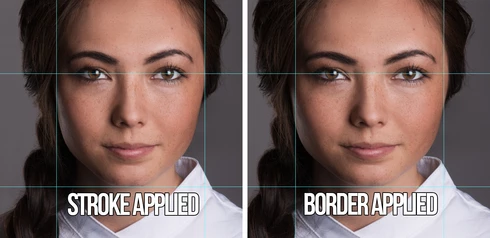
When exporting from the print module - either via a printer or print to file - using the "Photo Border" setting results in Lightroom stretching images, distorting the final product. Using "Inner Stroke" does not exhibit the same issue and functions as a workaround. In the attached example I've included two screenshots. The file in this example is an image that was printed to a jpeg from Lightroom. On the left I used "Inner Stroke" during export, on the right I used "Photo Border." The guides seen were added in Photoshop for illustrative purposes. As you can see, the eye and chin guide are relatively unaffected. The side guides have not moved but the face has expanded far beyond the guides. 

I'm running Lightroom CC 2015.9 on macOS Sierra.

This topic has been closed for replies.

6 replies

Legend
November 10, 2017
This issue is fixed in Lightroom Classic (7.0 or later)
Inspiring
April 16, 2017
Thanks, Rikk! Appreciate the help! 
Rikk Flohr_Photography
Community Manager
April 14, 2017
Dennis, 

I am able to duplicate this with your settings and will file a bug on it. 

Thanks for your help.
Rikk Flohr: Adobe Photography Org
Inspiring
April 14, 2017
Hi, Rikk! Realized I didn't reply directly to you, I replied below. Were you able to recreate using these settings? 
Inspiring
April 12, 2017
Hi, Rikk! Thanks for the questions. For Layout Style it will do this with either Picture Package or Custom Package. Oddly enough, the Single Image / Contact Sheet has the hybrid setting of "Stroke Border" and isn't split by Border/Stroke. Here are my settings all the way down the options:

Zoom to Fill: Enabled (doesn't do it if it's disabled, but I don't plan on printing a 3x7 without it enabled, haha!)Rotate to Fit: Enabled (Changing setting doesn't change issue)

Ruler Units: Inches
Grid Snap: Cells
All guides but Dimensions enabled.

All settings under "Page" disabled
Print to JPEG File
Draft Mode off
Print Resolution 300PPI
Print Sharpening Enabled
JPEG Quality 100
Custom Dimensions disabled
Color Management sRGB and Perceptual. 

So far changing "Zoom" has been the only setting change that has fixed the problem, but isn't a workaround unless I crop all images prior to bringing into the print panel, but that doesn't work for multiple sizes. 
Rikk Flohr_Photography
Community Manager
April 11, 2017
While I can see the distortion in your example, I have been unable to reproduce it in my tests. Can you provide more information

Layout Style?
Image Settings panel settings? 
Rikk Flohr: Adobe Photography Org