



johnrellis
Legend
October 25, 2022

P: Save Metadata To File doesn't clear GPS EXIF fields for DNGs

  • October 25, 2022
  • 17 replies
  • 2498 views

After you clear the GPS field of a DNG via the Metadata panel, Metadata > Save Metadata To File doesn't clear the GPS coordinates in the file's EXIF.  To reproduce:


1. Import this DNG and observe in the Metadata panel that it has GPS coordinates:
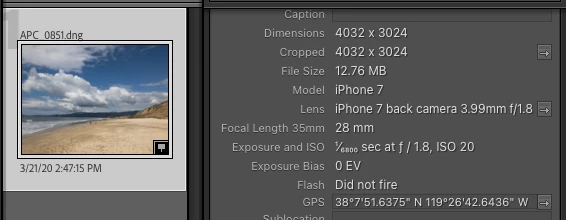
 

2. In the Metadata panel, clear the GPS coordinates.


3. Do Metadata > Save Metadata To File.


4. Use Exiftool to observe that the file still has GPS coordinates:


$ exiftool -a -G -gps:all APC_0851.dng
[EXIF]          GPS Version ID                  : 2.2.0.0
[EXIF]          GPS Latitude Ref                : North
[EXIF]          GPS Latitude                    : 38 deg 7' 51.64"
[EXIF]          GPS Longitude Ref               : West
[EXIF]          GPS Longitude                   : 119 deg 26' 42.64"
[EXIF]          GPS Dilution Of Precision       : 6.000906208
[EXIF]          GPS Speed Ref                   : km/h
[EXIF]          GPS Speed                       : 1.770554817
[EXIF]          GPS Track Ref                   : True North
[EXIF]          GPS Track                       : 344.3322663
[EXIF]          GPS Img Direction Ref           : True North
[EXIF]          GPS Img Direction               : 260.815979
[EXIF]          GPS Horizontal Positioning Error: 6.000906208 m


I observe the same misbehavior with other random DNGs I tried.  The bug doesn't appear to affect JPEGs or XMP sidecars.


Tested on LR 12.0 / Mac OS 12.6.

This topic has been closed for replies.

17 replies

Jim Wilde
Community Expert
Community Expert
October 27, 2022

@DdeGannes 


What we are dealing with is:

1. A DNG file, it probably doesn't matter how it was created. In my case I create DNG files in LrC from my CR3 raw captures.

2. The DNG has GPS coordinates associated with it, again it doesn't matter if the GPS data was included at the point of capture or was added in LrC's Map module.

3. Metadata was then saved to XMP in LrC. As you probably know LrC stores the metadata in XMP sidecar files (in the case of proprietary Raw files) or directly into the XMP section of the file header for all other file types. So in this case the metadata, including GPS data, was stored in the DNG file header.

4. The OP then wanted to export the DNG, but did not want the GPS data included in the exported file. To do this, they erased the GPS coordinates from the Metadata panel, then saved metadata back to the file, which should have cleared the existing GPS data from the file header, then exported.

5. The apparent bug is that when saving the changed metadata, which now has a blank GPS data field, the existing GPS data field was not overwritten with the new blank field. 

6. In my testing, the same problem occurs with the Title field as well.

DdeGannes
Community Expert
Community Expert
October 27, 2022

I am a bit confused with this issue and exactly what we are dealing with.

In an earlier post I asked what file type? Is it a DNG file created by the Camera and contains the GPS coordinates?

So, is it an original RAW file converted at import into LrC?

How does this fit into the Adobe Lightroom concept of not altering the original file?

Will the coordinates be deleted from the original capture and not be recoverable?

The author of the post indicating he was exporting i.e. creating a new file and did not wish the GPS data to be included.

PS.

I have done some further testing, which answered most of the questions in my post.

Downloaded the image file from the link in the Author's initial post (I somehow missed the link) imported into LrC 12 and in the Library module > metadata > removed the GPS data, then proceeded to export as DNG. The export dialog did not allow a resize of the image or the removal of any metadata including " Remove Location info".

I am using LrC Classic with default options so I do not have "Automatically write to xmp" selected.

LrC is functioning as expected and does not alter the Original file.

If the GPS data is being removed with another application I fail to see why Reading Metadata from the file should alter the Original imported file.

Export as a tiff, psd or jpg.


Regards, Denis: iMac 27” mid-2015, macOS 11.7.10 Big Sur; 2TB SSD, 24 GB Ram, GPU 2 GB; LrC 12.5,; Lr 6.5, PS 24.7,; ACR 15.5,; (also Laptop Win 11, ver 24H2, LrC 15.0.1, PS 27.0; ) Camera Oly OM-D E-M1.
Jim Wilde
Community Expert
Community Expert
October 27, 2022

John, in your testing did you look at any other metadata fields as well as GPS? It seems from my testing that the Title field is also not cleared if saving an empty field to metadata. It would be useful to have confirmation.

Rikk Flohr_Photography
Community Manager
Community Manager
October 27, 2022

Setting status - adding bug number 

Rikk Flohr: Adobe Photography Org
johnrellis
Legend
October 27, 2022

Adobe will verify they can reproduce it (which in this case should be straightforward), then enter it into their internal tracking system.  Then they'll prioritize it with all the other bugs to fix.  LR releases about every eight weeks, so mid-December is when we might expect to see LR 12.1, but it wouldn't surprise me if the fix for this came in 12.2 or later (or never) -- I don't have any inside information.

Participating Frequently
October 27, 2022

Thank you for posting this bug! So now we wait until the Adobe Engineers fix and issue an update?

Participating Frequently
October 25, 2022

I woud like to remove the GPS data from some DNG files and then export a lower res DNG file. In Lightroom, I am able to delete the GPS information, and that information is gone when I look at the filre in Lightroom again after some time. However, when I view the same file in Photoshop (or Preview on my Mac), or if I export the file as a DNG (or other file format), the GPS information is still there. Yesterday I discovered that upon changing the EXIF in Lightroom, a message appears in the EXIF saying the file information has changed and I have the option of saving the changes. I'm not sure if I would need to save the changes to each file individually. Nevertheless, clicking on saving the changes has no apparent effect--- the GPS data is still there when viewing the file in Preview in Mac or in Photoshop. 

Any ideas on what's going on or how to actually remove the GPS data? 

dj_paige
Legend
October 25, 2022

Changes made in LrC do not impact the GPS (and other metadata) values embedded in the actual DNG file. You have to choose the command File->Save Metadata to Files, or turn on the option to automatically write changes to XMP, and then the metadata in the DNG file will change.

Participating Frequently
October 25, 2022

Thank you for the response. I verified that automatically write changes to XMP was checked, and I also manually went to Photo >> Save Metadata to File and saved to the changes. However, neither of those resulted in the deleted GPS fields saving to the file. In all cases, when I open the file in question, the GPS information is still present. I also exported the file as a DNG and had the same results.