AndyFranck
Participating Frequently
March 2, 2021

P: Spot Removal Brush Render Glitch When Converted to Compressed DNG

  • March 2, 2021
  • 28 replies
  • 2612 views

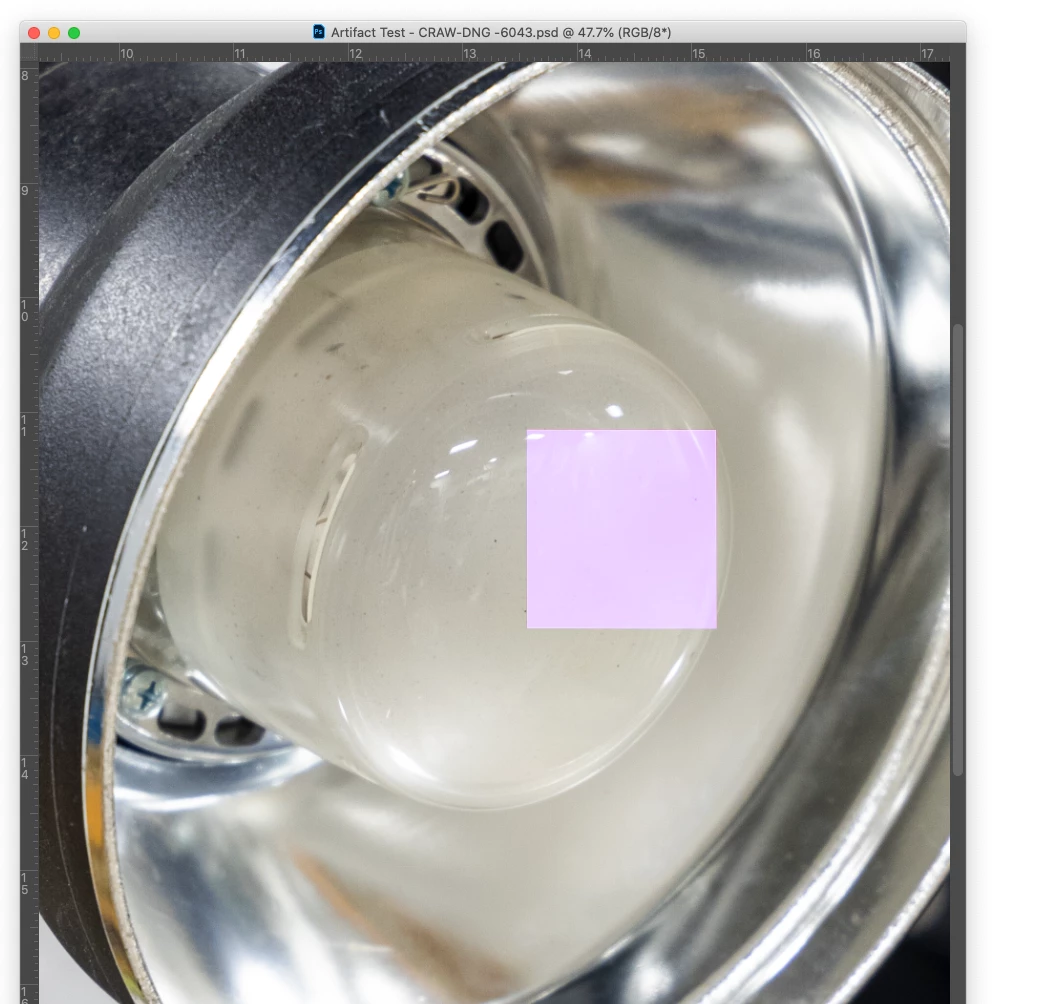
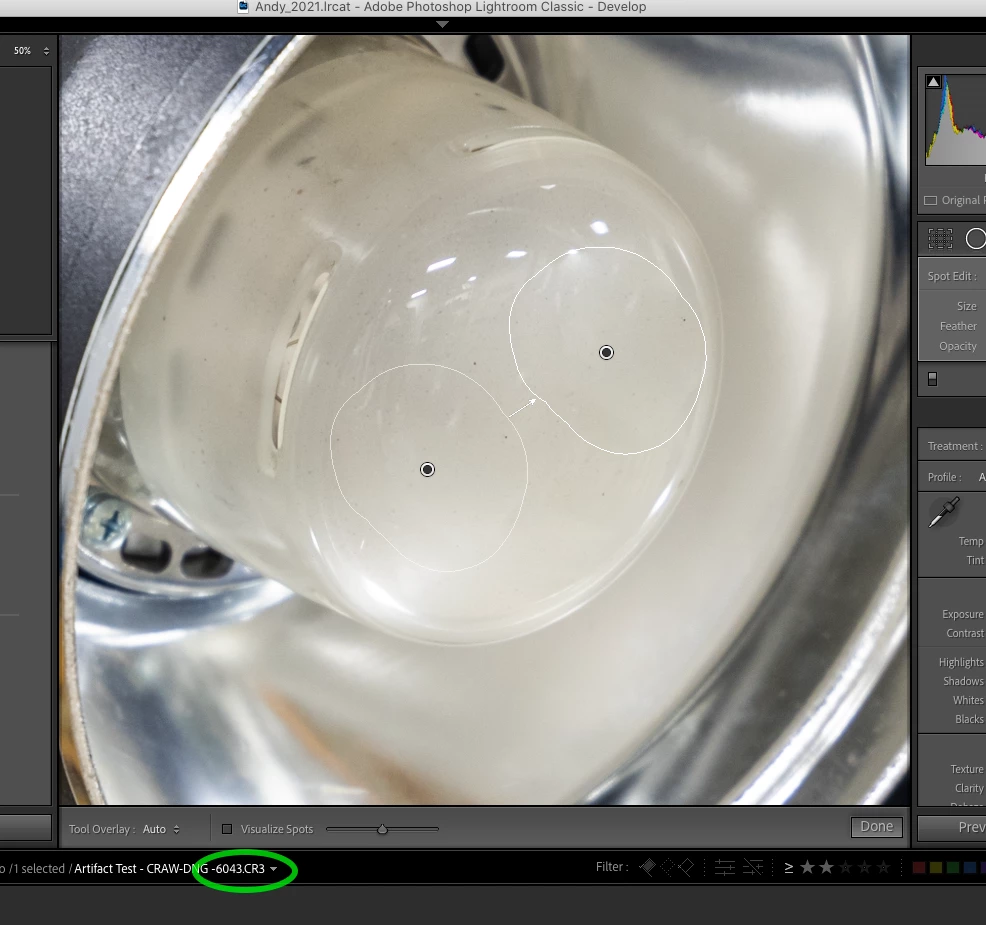
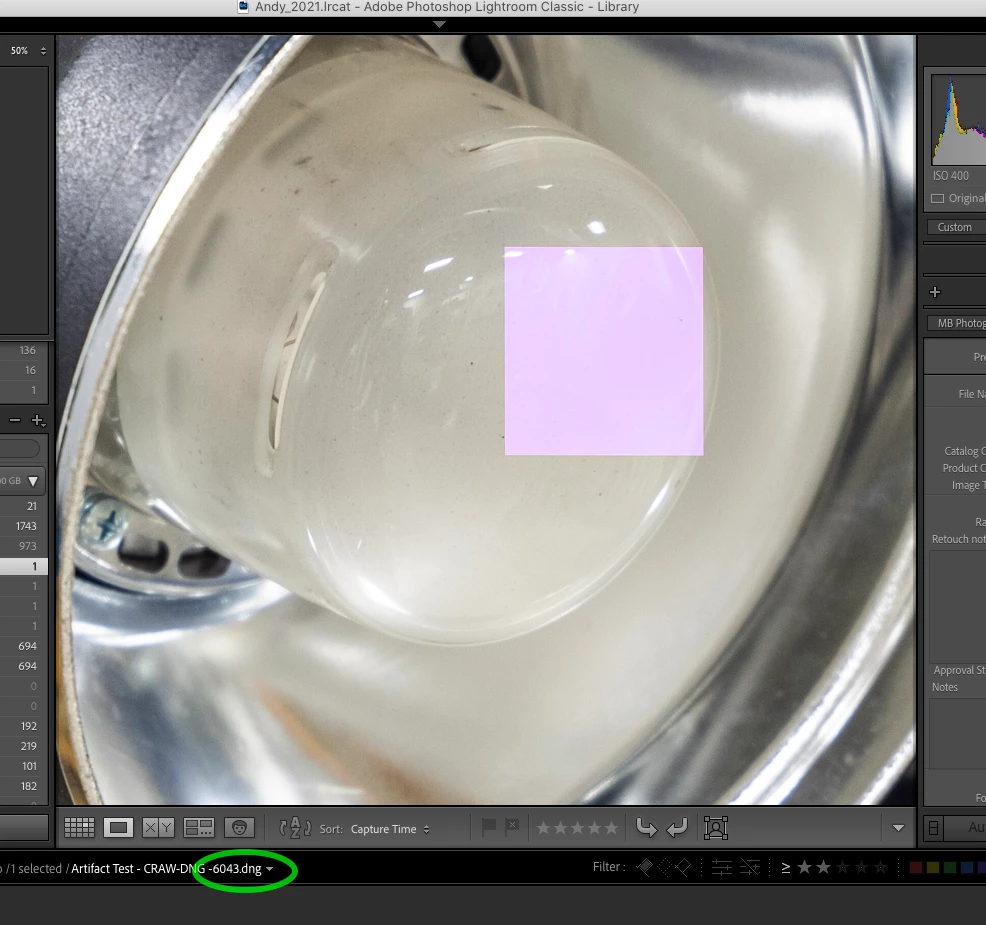
I am consistently finding all spot removal adjustments rendered as pink block artifacts after converting to compressed DNG. I am using LR Classic 10.1.1 on a 2017 15 inch MacBook Pro running macOS Catalina 10.15.7. I've seen the problem with a Canon R5 (raw and c-raw), Canon 5DmkIII, and Fuji X-T3 (RAF). The artifacts don't immediately appear - only when rendering 1:1 - so they are easy to overlook. I can remove the artifacts by modifying each spot removal adjustment in some way (often I'll just select an adjustment and nudge the feather slider up and down by one so the adjustment isn't affected). Also, there doesn't seem to be a problem when adding spot removal adjustments to images after they are converted to compressed DNG. Not sure how long this problem has been around - I've just discovered it when testing compressed DNG as a possible way to manage file sizes from the R5. Here are screenshots showing the original raw, compressed DNG, and exported PSD...


This topic has been closed for replies.

28 replies

Bob Somrak
Legend
March 2, 2021

I can duplicate the pink square issue with your recipe .  I see it in Library Loupe and the thumbnail in Grid and on the filmstrip in ALL the modules.  

Canon 5dMk3.  MacOS 10.15.7

Photo of blue sky for sensor test.

M4 Pro Mac Mini. 48GB
AndyFranck
Participating Frequently
March 2, 2021

Sure, no problem.

1. Select any raw image.

2. Add at least one spot removal adjustment.

3. Convert the file to  DNG (using the Library -> Convert Photo to DNG... menu item in the Library module) with the "Use Lossy Compression" option selected.

4. If the artifact doesn't immediately appear, view image at 100%, making sure to wait for the preview to fully render.

Hope this helps. I've been able to reproduce this on three computers using images from multiple cameras.

Rikk Flohr_Photography
Community Manager
March 2, 2021

Can you walk me through, step by step, how to create the issue on an image which currently doesn't exhibit the problem?

  1.  
  2.  
  3.  
  4.  
  5.  
  6.  
  7.  
Rikk Flohr: Adobe Photography Org
AndyFranck
Participating Frequently
March 2, 2021

Sorry for the rapid-fire responses. I may have been too quick to reply the last time. With further poking around, turning the GPU acceleration off does not seem to reliably correct the artifact. Not sure what I did before, but I have another file where the artifact persists regardless of GPU setting. 

Thanks for your attention on this.

AndyFranck
Participating Frequently
March 2, 2021

I turned off GPU acceleration and at first the artifact remained even when I navigated to other photos and back (also switching between library and develop modules). After quitting and relaunching LR I initially saw the artifact but it went away when I switched from Library to Develop - and the artifact no longer renders in an exported PSD.

However... (there's always a 'however', right?) with the GPU sill off I went back to a copy of my original CR3, added a spot removal, and converted to compressed DNG. The artifact is in this new file.

Rikk Flohr_Photography
Community Manager
March 2, 2021

That is curious. Do you see the artifact in Lightroom Classic with the GPU disabled?

Rikk Flohr: Adobe Photography Org
AndyFranck
Participating Frequently
March 2, 2021

Interestingly, no. I just opened the same DNG in Photoshop via Camera Raw and do not see the artifact... it only renders in LR.

Rikk Flohr_Photography
Community Manager
March 2, 2021

Do you see the same rendering artifacts in Adobe Camera Raw?

Rikk Flohr: Adobe Photography Org