

johnrellis
Brainiac
January 4, 2017

P: Synchronize Folder incorrectly shows photos as missing

  • January 4, 2017
  • 15 replies
  • 6778 views

Synchronize Folder sometimes shows photos as missing when they're not. To reproduce in LR 13.0.1:


1. Download and unzip this catalog folder:

https://www.dropbox.com/s/rzpzmsn1cpc3xlg/sync-bug.2023.10.27.zip?dl=0 


2. Open the catalog in LR.


3. Uncheck the option Preferences > General > Treat JPEG Files Next To Raw Files As Separate Photos.


4. In the Folders panel, right-click "pics" and do Synchronize Folder.


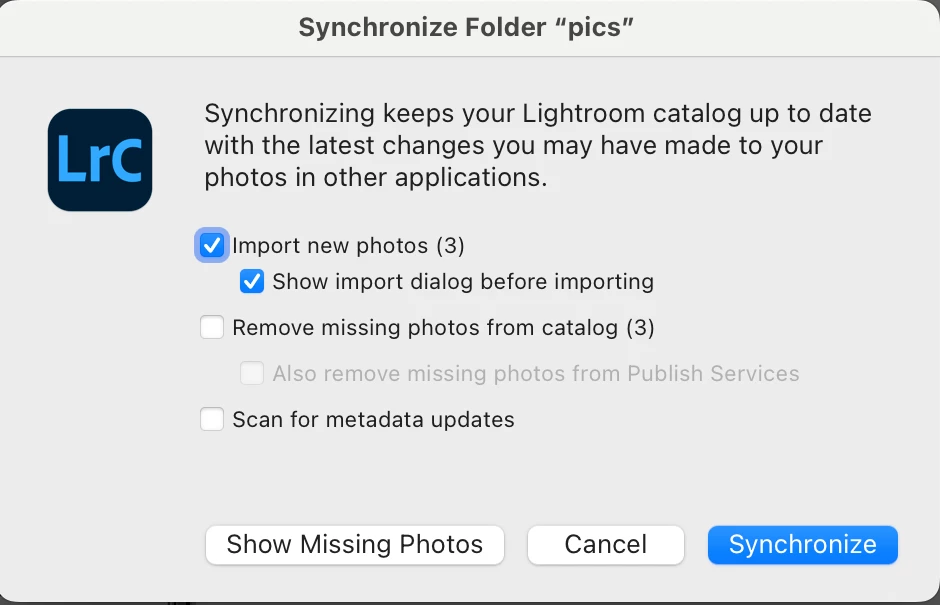
5. Observe that the three photos in the catalog are reported as missing:
 

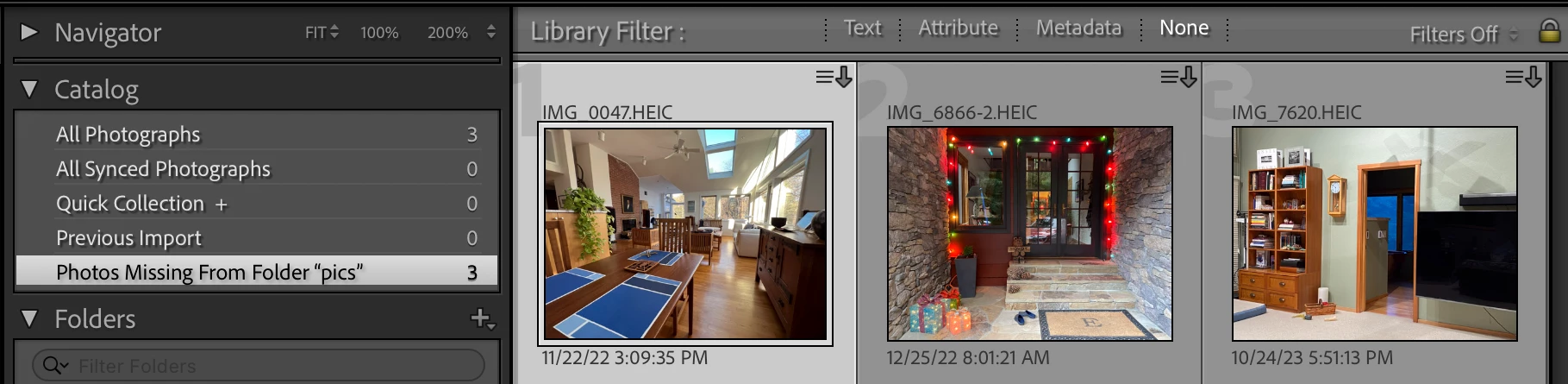
6. Click Show Missing Photos and observe that the special collection Photos Missing From Folder "pics" contains the three photos, and they are not marked as missing:
 

7. Right-click "pics" and do Synchronize Folder again, this time checking Show Import Dialog Before Importing, unchecking Remove Missing Photos From Catalog, and clicking Synchronize.


8. Observe that the three JPEGs in the folder are shown for import. Click Import, and they will be correctly imported and the HEICs will not be removed from the catalog.

--------------------------------------


There have been reports about Synchronize Folder incorrectly showing files as missing since at least LR 6.0.1. There was a bug report in the old feedback forum that didn't copied over -- my email archives show it received at least 19 votes:
 

15 replies

The Art of Retouching
Inspiring
August 15, 2024

Mine still says "Import new photos (632)". I still need to import to another folder, then drag/drop actual new images into this folder. As I've already taken extreme measures, one day I'll go over the top and figure it out.

johnrellis
Brainiac
August 14, 2024

The bug recipe now works correctly in my LR 13.5.

Rikk Flohr_Photography
Community Manager
Community Manager
August 14, 2024

Greetings all, 


Updates for the Adobe Photography Products are released.  The August 2024 updates contain an update for this issue. 

If you do not see the update in your Creative Cloud Application, you can refresh it by hitting [Ctrl/Cmd]+[Alt/Opt]+[ R ].

Note: It may take up to 24 hours for your update to be available in your Creative Cloud app.


Thank you for being so patient.

Rikk Flohr: Adobe Photography Org
The Art of Retouching
Inspiring
August 5, 2024

This is the second time I have come across this recently, two screenshots attached. I've found that if I synchronize a folder, I am getting almost the same amount missing, as are found. I already tried to fix manually (move images to another folder, then find missing, etc), but the issue persists. Definately a bug, at least on Windows 11.


[moved from bugs to discussions according to the community rules - Mod.]

Ian Lyons
Community Expert
August 5, 2024

Have you tried resetting the preference file as it may be corrupt, thus causing the issue you're seeing?

New Participant
June 2, 2024

Just want to add my experience.  Just started using Creative Cloud and am current with Lightroom Classic (13.3 Release).  Old LR desktop version worked as expected (designed).  And I relied upon it to keep my catalog current with changes to my photo folders on disk.  Imagine my annoyance when I "updated" only to get a loss in functionality.  LR Classic sync has never worked as expected for me.


This happens with every folder.  Example: I have a folder of 516 files (TIF and JPG).  It is updated often with new files.  When I sync, it tells me that all 516 files are missing (they are not missing!).  I leave "Remove missing photos" checked and synchronize.  It removes all photos from the LR catalog, and then asks me to import them anew.  PROBLEMS: 1) Does not work as designed! I have relied on LR sync to add only new photos to the catalog, and to remove from the catalog only those photos that are missing.  2) Because all photos are removed from the catalog in this process (because LR thinks they are missing), all of those photos are removed from any collection they were in! BAM, lost the use of my collections, since they are not accurate anymore and require rebuilding.  3) With the import, photos are returned to the catalog, but with LR attributes that had been changed prior to the sync, e.g., flagged, so attributes are lost or reset.


This is (was) is a basic function of LR - a simple way to make sure catalogs are up to date with images.  Not anymore.


Thanks for the workaround, but please fix this annoying bug.  The software should work as designed.


Steve 

johnrellis
Brainiac
May 8, 2024

Unfortunately, Adobe rarely indicates when a bug might be fixed. This bug has been extant since at least LR 6, so it's reasonable to conclude it might never be fixed.


The workaround is straightforward: Keep the option Synchronize Folder > Remove Missing Photos unchecked, don't use Synchronize Folder > Show Missing Photos, and use Library > Find All Missing Photos instead.

quicky2000
Participating Frequently
May 8, 2024

I'm still facing this issue. Is there any progress regarding this? For me this topic is open for a few years now. Only a small no. of images are impacted, but the presist since a long time. It even survived a catalog-recreation and the move from Windows to Mac.


Thanks for an update on the status of the bug.


Best regards,


Oliver

kristianf58755272
New Participant
February 22, 2024

I have the same issue and also can reproduce it starting from version 13.0 or higher. Version 12.5.1 or lower are fine. It messed up my whole catalog file. The Import function have the same issue as the folder synchronization function. 


Until when can we expect a solution? Currently version 13 is not usable for me, went back to 12.5.1. 

cf123
New Participant
February 20, 2024

Is there any update on this?  Seeing similar issues when I right click a folder and click syncronize folder it shows a number of missing photos from the catlog.  If I go to Library and select find all missing photos for the same directory it does not find anything.  If I go back to some of my early folders from like 2007 / 2008 when I first started using Lightroom I see a number of "missing files" under syncronize folder but as I get closer to 2024 the only ones I see missing are ones I have "exported" out of lightroom to a jpg from one of my raw files.  I export to different directories and purge those exports every so often.  It seems like LR is still tracking those somehow even though the exports were going to a directory completely outside of my images directory.  Any help would be appreciated.  Thanks


Rikk Flohr_Photography
Community Manager
Community Manager
October 28, 2023

Thanks for the reproduction steps. I've opened a ticket for investigation. 

Rikk Flohr: Adobe Photography Org