

StuartMarlow
Participant
April 15, 2026

After using Rotate Object, most of my object vanished

  • April 15, 2026
  • 2 replies
  • 16 views

Starting with a cut out of a fence post:
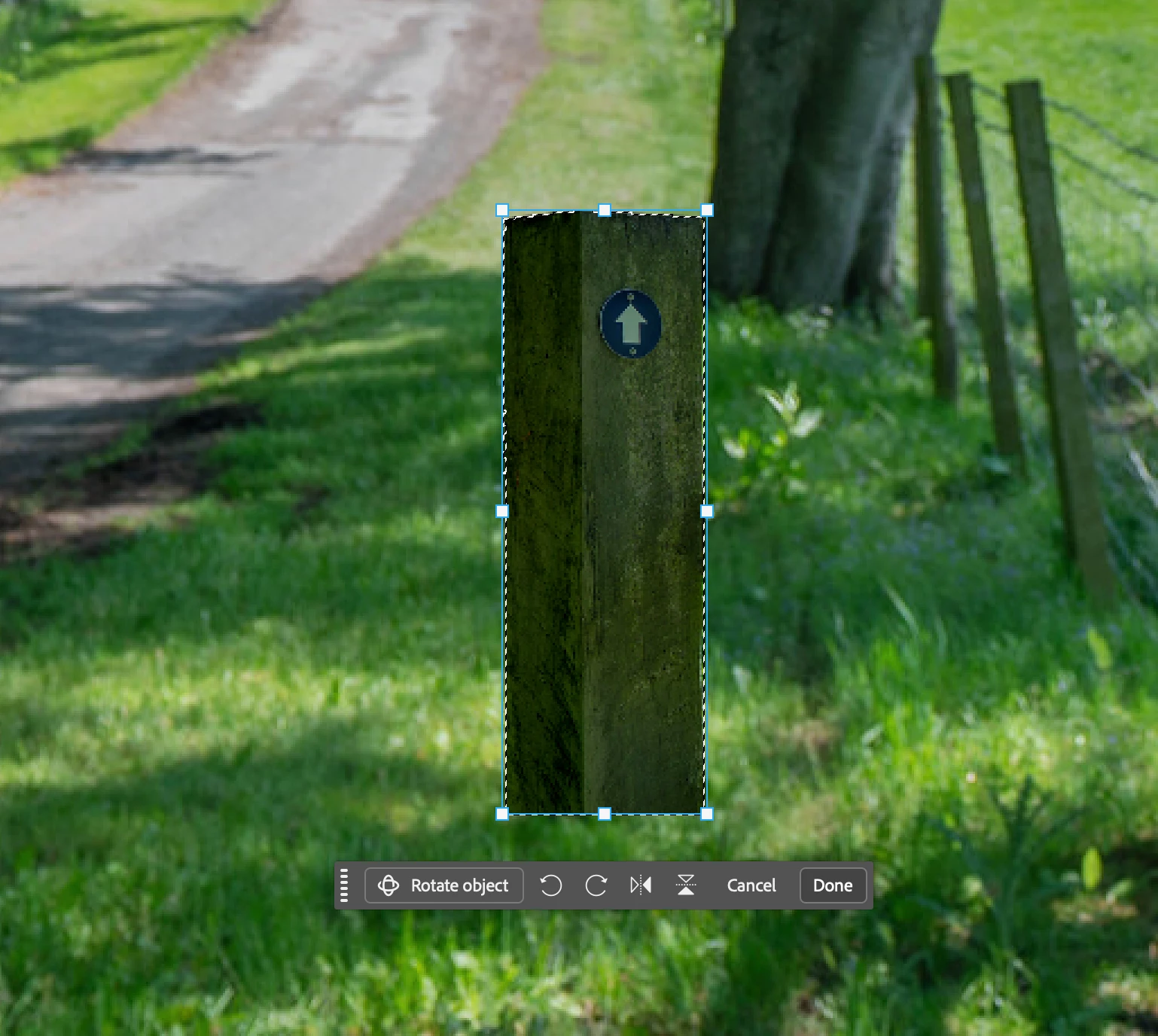


I used the Rotate Object feature to rotate it around the Y axis so that it faced the correct way and was tilted correctly.

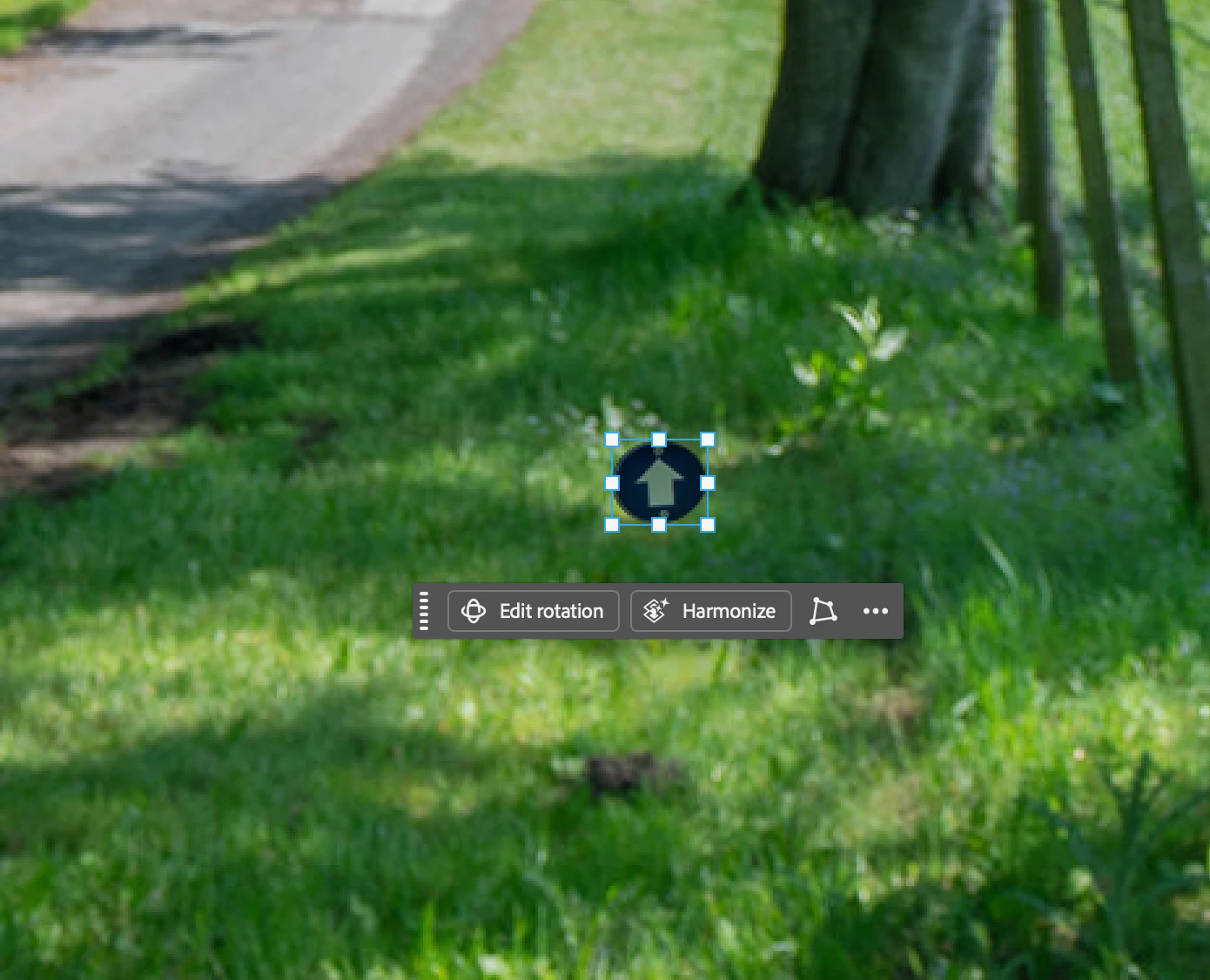
The first time I applied the transform by clicking Done, it look ok, but I then used the Edit rotation option to make some minor adjustments, and after it finished rendering, I was left with just the sign from the post:


    2 replies

    CShubert
    Community Manager
    Community Manager
    April 16, 2026

    @StuartMarlow followed your steps with the supplied file and did not have the issue you see, it worked as expected.

     Please:

    1. Update to the latest Ps Beta
    2. Share your sysinfo - Launch Ps Beta, top menu bar go to Help/System information and copy and paste it all here.

    Thanks,

    Cory - Photoshop Product Manager

    CShubert
    Community Manager
    Community Manager
    April 15, 2026

    Hi ​@StuartMarlow have you seen the same issue with other images or just this one? Can you repeat this issue each time with certain steps?

    Make sure you have the latest Beta: Adobe Photoshop Version: 27.6.0 20260412.m.3501 2f62d66  arm64 (beta, PublicBeta)

    and feel free to record a video of the workflow so we can try to repeat what you are seeing.


    Thanks,

    Cory - Photoshop Product Manager

    StuartMarlow
    Participant
    April 16, 2026

    I can repeat this every time with this image, but I haven’t tried with other images; I’ll give that a go.

    I also just noticed that if I reduce the size of this image, I couldn’t repeat the issue. I’ve zipped the original version to attach it to this message so you should be able to repeat it with that.

    Steps to repeat:

    1. On the layer ‘Post’, CMD+click the layer to select the pixels *
    2. CMD+T to transform selection
    3. Click Rotate Object on the context toolbar
    4. You should still see the entire wooden post, now as an interactive 3D object 
    5. Rotate it slightly around the Y axis using the blue handle at the bottom of the transform box
    6. Click Done on the context toolbar
    7. The wooden post disappears, leaving only the circular sign

    * If you don’t select the pixels, and just hit CMD+T > Rotate Object there’s a different issue: The wooden post disappears as soon as it enters the 3D editing mode. 

    I’m on version 27.6.0, can’t see any further build references or build numbers.

    CShubert
    Community Manager
    Community Manager
    April 16, 2026

    Thank you ​@StuartMarlow for the file and updated workflow. We will try to recreate as well.


    There is a new Ps Beta so update to it and see if the issue might have been resolved.
    Adobe Photoshop Version: 27.7.0 20260415.m.3506 55a492a  arm64 (beta, PublicBeta)


    Thanks,

    Cory - Photoshop Product Manager