
Jym SDX 118
Known Participant
June 26, 2023

P: Camera RAW Geometry filter fails in Photoshop Beta 24.7.0

  • June 26, 2023
  • 7 replies
  • 1138 views

Photoshop Beta 24.7.0 is buggy when you invoke Raw Camera Filter and Geometry.

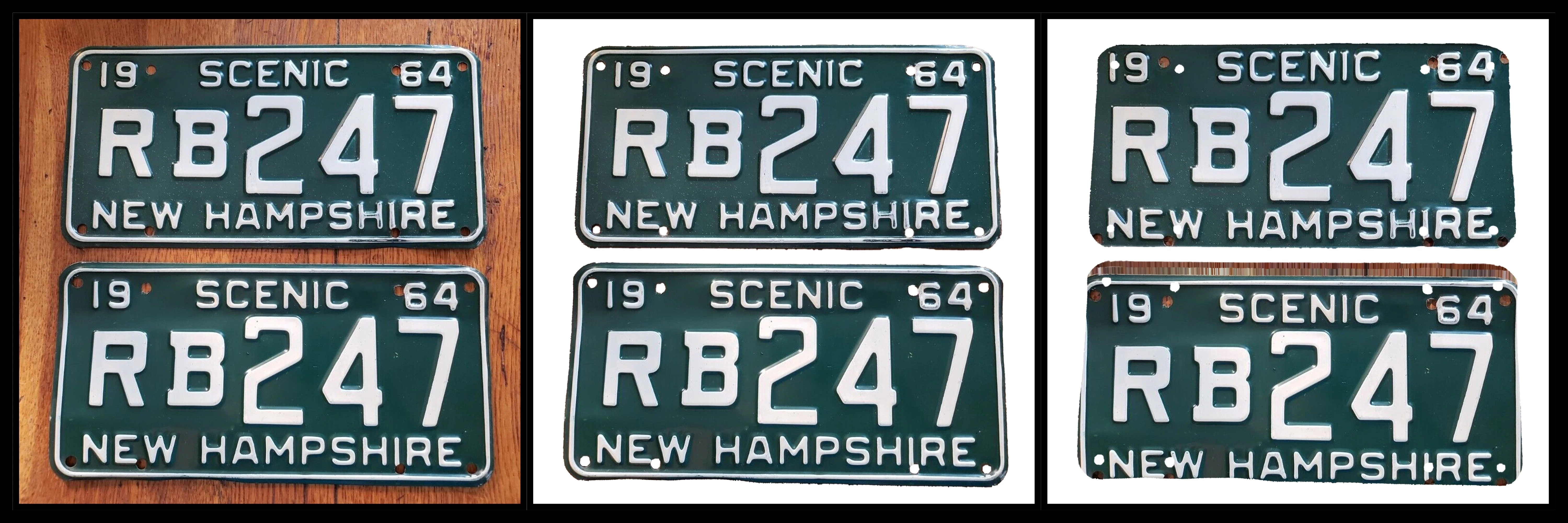
1) The original image,

2) subject selected, background cleared for use with Camera Raw filter,

3) the final result after Geometry was applied to straighten image. It wasn’t straightened at all, the edges were cropped, and some of the original image was added in the middle. 
This topic has been closed for replies.

7 replies

Jym SDX 118
Known Participant
June 30, 2023

Done, thanks.

CShubert
Community Manager
Community Manager
June 28, 2023

Thank you @Jym SDX 118 will have the team look into this. Please send the original file for them to use in testing.


CShubert
Community Manager
Community Manager
June 28, 2023

Hi @Jym SDX 118 feel free to send to shubert@adobe.com


Jym SDX 118
Known Participant
June 27, 2023

I've been using Beta almost exclusively. Testing in Photoshop 24.6.0 now...

OK, got the same result. How would you like to get the file? Lemmeno.


Jym


CShubert
Community Manager
Community Manager
June 27, 2023

@Jym SDX 118 does this happen in Ps or only with Ps beta? Could you share the file with us to see if we can reproduce this issue?


It may help if we could see your Photoshop System Info. Launch Photoshop, and select Help >System Info...and copy/paste the text in a reply.  


Jym SDX 118
Known Participant
June 27, 2023

Precisely followed the directions to reset Camera Raw prefs. Restarted Beta and tried Geometry again, got the same results. I even deleted the source layer with the background, and Camera Raw still referenced the data to stick into this result. Looks like reverting is the way to go because I need the feature.


Thanks, 

Jym

CShubert
Community Manager
Community Manager
June 27, 2023

Hi @Jym SDX 118 


Try resetting the Camera Raw preferences:
Hold down the Command key and select Photoshop > Preferences > Camera Raw (macOS*) or hold down the Ctrl key and select Edit > Preferences > Camera Raw (Windows).
Click Yes in the dialog that asks "Delete the Camera Raw Preferences?"
See also:
https://helpx.adobe.com/camera-raw/using/camera-raw-settings.html