


Blumer8
Participating Frequently
October 31, 2024

Changing the setting "View>proof colors" is changing the color of my printed pieces.

  • October 31, 2024
  • 14 replies
  • 1029 views

Hi All,


I am running the latest version of PhotoShop (26.0.0) on a Mac running OS 14.7, and printing to my Canon ImageProGraf 4000.

I have noticed that when toggling the "View_Proof Colors" on and off it changes the way my prints look!
I have always understood that this setting would never effect my actual prints, it is supposed to only effect the on screen color and simulate the intended output result.

Has anyone expierenced this behavior? 

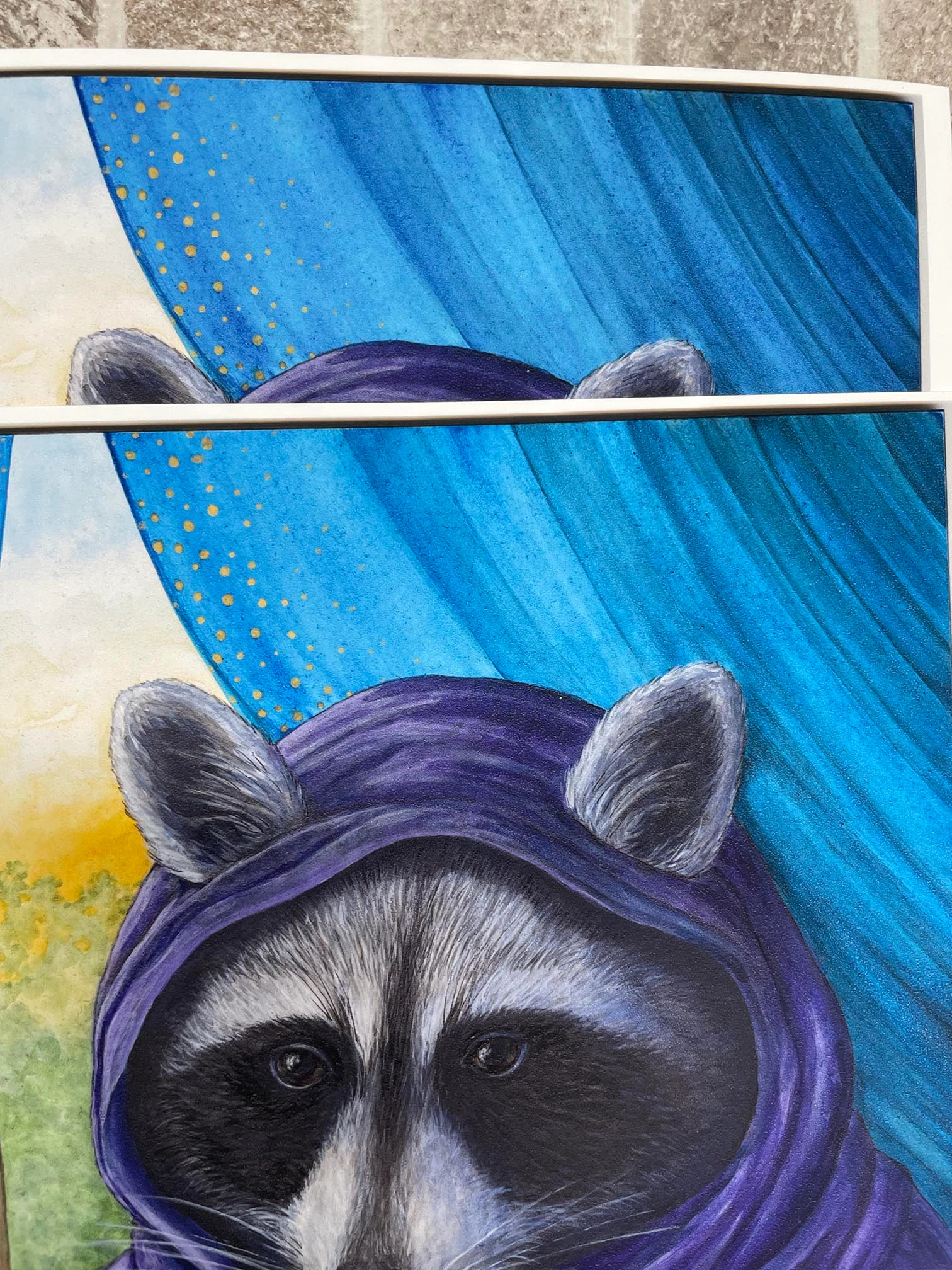
I will try to attch an image showing the difference. The top image is a print with the view proof setting on, and in the bottom print it is off.
It will be hard to see the difference in the image but if you look closely you can see that the bottom image has less magenta in the deeper blues, and the cyan is more vibrant.
Can anyone help me figure out why this may be happening?
Thanks.
14 replies

Blumer8
Blumer8Author
Participating Frequently
November 3, 2024

Ok, I've double checked and I am using "normal printing" in the print dialog.


I've even tried the test using a different ICC profile (one that is installed with the Canon print driver), and printed a version with the "View>Proof Colors" on & off, and the color still changes.


I am unable to paste the text from the "Help>System Info" report because it gives me an error saying it "found an invalid HTML code", so I thought I would attach an .rtf file but can't find any way to attach it?

Blumer8
Blumer8Author
Participating Frequently
November 1, 2024

Thank you for the info and your help!
I will double check my print settings, and upload the info you've requested once I get back over to my studio. 
(Unfortunately, I don't have the space here for my studio.)


NB, colourmanagement
Community Expert
Community Expert
November 1, 2024

@Blumer8 Just on the off chance I'll ask

- Photoshop CAN make a printed proof (which would alter print appearance) based on the "View/Proof settings" options - IF you set the print dialog's color management section to hard proofing,

see screenshot below 


For normal printing, the color management section should be set to Normal Printing (see below)


If you're not using the upper setting but selecting Normal Printing here and stillseeing that change, then MAYBE the bug is that Photoshop is making a proof when you didn't ask it to. 


I hope this helps
neil barstow, colourmanagement net - adobe forum volunteer - co-author: 'getting colour right'
google "neil barstow colourmanagement" for lots of free articles on colour management
Help others by clicking "Correct Answer" if the question is answered.
Found the answer elsewhere? Share it here. "Upvote" is for useful posts.


D Fosse
Community Expert
Community Expert
October 31, 2024

Yes, you're right. That should absolutely not happen. Proof is for display only.


The only explanation I can think of is the profiles you're using. Or possibly a very obscure bug in the color management engine. I have never heard of this before.


Theoretically, proofing is a double conversion, thus limiting the gamut to the proof profile. But as far as I know, it's executed with proof tables built into the profiles. Don't ask me about details, though.

Blumer8
Blumer8Author
Participating Frequently
November 1, 2024

Thanks for the reply!

I've made sure that the only variable is the proof setting, and the color is definitekly different.

I believe that there is a bug in the color engine, whether it is on the Adobe side or the Canon side I can't tell.

The problem is that it is changing my color and it is critical for my work.

D Fosse
Community Expert
Community Expert
November 1, 2024

Are any of your profiles v4? That supposedly doesn't always work well together with v2.


Copy the full Help > System Info from Photoshop and post this under Bugs. Include details of your printer, what print profiles you're using, and also your monitor profile for good measure.


The posted image shows the difference clearly.