

MacOS - Minimizing the app creates two Dock icons, one from the app and one from the tutorial button glow effect
Issue summary: Pressing the yellow minimize button incorrectly minimizes the app into 2 Dock icons, one for the main app window (as it should) and one that is just the glowing circle outline effect for the “Explore starter tutorials in Photoshop” button. This is presumably due to the glowing circle effect being rendered as a separate window instead of another element of the application.

As an extra note, this means that re-opening the minimized window causes the glowing circle effect to pop in suddenly instead of smoothly with the rest of the window.
Product and version: Photoshop desktop version 27.6.0
Operating system: macOS Tahoe 26.3.1(a)
Steps to reproduce:
- Open any file or create a new file
- Press yellow “Minimize” button
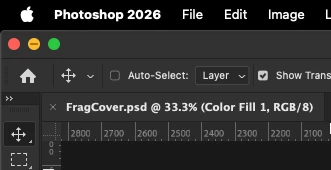
Minimize - Look at the MacOS Dock
- (Extra) Reopen window while looking where the glow effect should be.
Expected result: There should be 1 Photoshop window minimized to the Dock. When reopened, the glowing circle should expand as a part of the Photoshop window.
Actual result: There are 2 icons minimized to the Dock, one of the Photoshop window and one of the glowing circle.
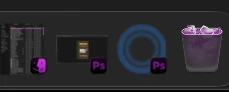
(Extra) When re-opened, the glowing circle icon is not visible for a short moment then suddenly pops into its place.
 AdChoices