


Participating Frequently
June 6, 2019

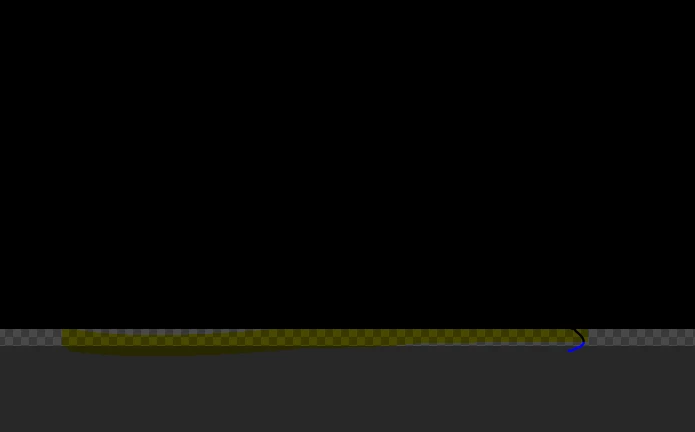
P: Half-transparent gap/line added on the bottom of an image when resizing
  • June 6, 2019
  • 7 replies
  • 5930 views

sorry in advance for the poor quality image.

When I resize an image with the black-colored pixels on the bottom, it creates a half-transparent, gray-colored line. It doesn't matter if I make the image bigger or smaller, it makes that empty gap. It's a glitch that has been there since photoshop CC 2017. 
People I know have been manually filling the gap or covering it. Has anyone experienced a similar issue?

7 replies

Participant
March 5, 2024

As somebody who has been working professionally with Photoshop since 2004, I've only recently encountered this issue in the last two or so years. I am quite confident that this is a new "bug".


That being said, it is technically mathematically correct with certain resampling methods. I'd assume that in older versions of Photoshop, there was a fix that prevented this in the backend, which was subsequently removed in newer versions since 2020.

Participant
October 27, 2023

I hate it SO MUCH. 


On some of my patterns, I have to apply the image more than once. And you'll have to do it again after you resize if you're trying to tile the squares.

MJMarek
Known Participant
October 27, 2023

Ugh, this workaround is not fixing the issue on my patterns. 😞

Absolute nightmare.

Participant
October 24, 2023

THANK YOU. This is the only thing that's worked for me. It only happens sometimes, but it ruins my whole... everything haha. I'm a pattern designer, so I absolutely can't have any dang transparent borders. 


DOIN' GREAT, ADOBE!

Participant
September 6, 2023

Here's a real-world scenaro that's annoying for me. If I have a Photoshop file that has a mask on it and it's placed in InDesign, the background is gone/transparent as intended. If I resize the Photoshop file for any reason, a faint border is now present in InDesign around my image frame and quite hard to see unless you zoom in a decent amount. So now I either have to bring in the edges of the frame in InDesign, or go into the Photoshop file and add black to the mask on the outside one pixel. If I don't do one of those two things, a faint black outline box will print.

Participant
April 18, 2023

Hey bro its now few years over. How you guys still not fixed this bug? 

Legend
May 17, 2022

I don't think this is a new behavior. It's a subpixel of interpolation from the transparent pixels off the edges of the floating layer. A background layer won't have this behavior.


CS6: https://shared-assets.adobe.com/link/92567b9b-b982-4758-4022-f89d03e8655c

CC 2015.5: https://shared-assets.adobe.com/link/b4e99102-e9c2-4ea5-6bef-5632ce41aeb1

CC 2022: https://shared-assets.adobe.com/link/b5c4ae1a-7545-4ba2-4032-6aa710054f62


I'll see if this is something we can improve in the future.


TomHu
Inspiring
June 6, 2019

When I resize a photo, Photoshop is putting a single-pixel semi-transparent border around the entire resized image. In the original image the color goes all the way to the edge of the image and there are no transparent pixels anywhere in the image to begin with. See the enlarged screen capture below, the red arrows point to the top and left border added by Photoshop after sizing it down.

PLEASE FIX THIS, it's a really annoying bug, thanks.

davescm
Community Expert
Community Expert
June 6, 2019

Hi

We do not work for Adobe, we are just Photoshop users here.

You can report bugs at the link below where they will be seen by developers.https://feedback.photoshop.com/photoshop_family

Photoshop Family Customer Community

although it has been reported previously : Photoshop: Why does resizing a document without a background layer causes transparent pixels on edges? | Photoshop Famil…

In the meantime you can work around the issue by adding a background layer (locked). Add a new layer , use Shift +Ctrl+Alt+E to merge a copy of all visible onto it. Move it to the bottom of your layerstack and use Layer > New Background from Layer. Then resize.

Dave