


Inspiring
May 11, 2012

P: PDF import show edge artifacts on tiled PDF images (bug in PDF creation)

  • May 11, 2012
  • 262 replies
  • 4156 views

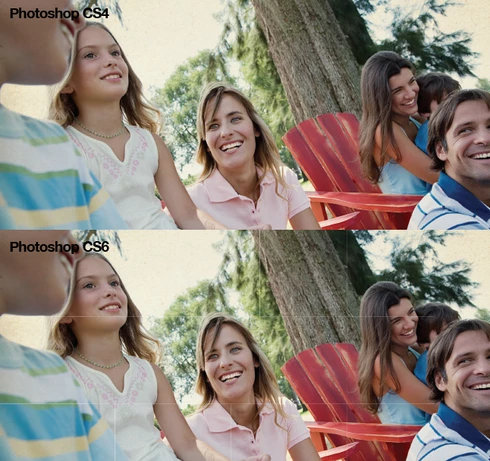
When importing a PDF with images, Photoshop CS6 adds faint outlines to the PDF image segments in the file. Prior versions of Photoshop render the PDF correctly. See the attached image for an example.
This topic has been closed for replies.

262 replies

Inspiring
March 30, 2020
i use Photoshop cc 2020 problem still exists,
now in mac new os update, old softwares are not supported anymore, please fix this issue asap
Participating Frequently
October 15, 2019
There must be an option to rasterize X3-PDFs in the old way in current Photoshop Versions!
You can't keep CS5.5 on your computer just in case you get anything else than X4.. Can you even buy that software? It's ridiculous!
The problem is around for 7 years now, we have Photoshop CC 2019 and still no fix
Inspiring
June 21, 2018
This still appears to be ongoing (CC 2018). We frequently get issues opening PDF's with random artefacts and hairlines appearing. In CS4 they are absolutely fine.

This is frustrating as we have upgraded our studio to CC but have to keep a copy of CS4 as the 'latest and greatest' version of Photoshop isn't as good.
Inspiring
January 13, 2017
this bug is even in CC 2017 
Inspiring
January 13, 2017
this bug is even in CC 2017 
Inspiring
December 21, 2016
Hello, the problem is getting worse.
These fine white lines do not only appear when using transparency or shadows or something like that.
Just place several areas with the same color in InDesign next to another. No transparency used, just plain areas filled with any color.
Now export the document as PDF-X4 and import in Photoshop as smart object. Now you will see the lines between these areas. This is an absolutely no-go...
Stephen Marsh
Community Expert
Community Expert
November 22, 2016
This is counter intuitive... Try layering the imported image over itself 6 times (this value could be resolution dependent) at 100% opacity normal blend mode (or apply image 100% opacity normal blend mode 6 times), easy enough to do in an action/batch. I can’t explain why this fixes the issue as it should not fix the image, however it did in my tests (after 6 applications a difference blend test revealed no differences).
Inspiring
October 9, 2015
OK PEEPS. Here is the easiest workaround!
From Acrobat Pro.
Open your acrobat document.
CLICK - Export PDF
CLICk - More Formats
CHOOSE - Encapsulated Postscript
CLICK the settings button next to the word ENCAPSULATED POSTSCRIPT
CHoose General - PAGE RANGE - choose all - click Ok
CLICK EXPORT
CLICK DESKTOP
CLICK SAVE

Then drag them into photoshop.. VOILA!
Participant
September 8, 2015
In german language edition it is not called Antialiasing but "Glätten". I turned it off and the fine white lines disappeared! So, problem definitely solved. Thank you Chris for your patience!
Inspiring
September 7, 2015
For that, you'd have to ask the folks in the InDesign forum.

Acrobat pretty much isn't using any antialiasing.
And the lines disappear if you print at exactly the resolution of the original image.

No, the antialiasing did not change in Photoshop CC 2015.
And Photoshop does give you the option of not antialiasing your rasterized PDF.