


Inspiring
May 11, 2012

P: PDF import show edge artifacts on tiled PDF images (bug in PDF creation)

  • May 11, 2012
  • 262 replies
  • 4156 views

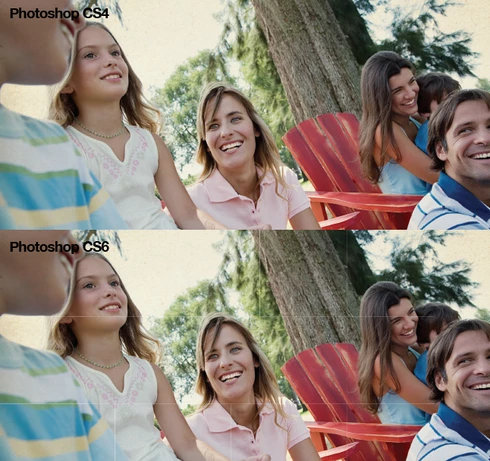
When importing a PDF with images, Photoshop CS6 adds faint outlines to the PDF image segments in the file. Prior versions of Photoshop render the PDF correctly. See the attached image for an example.
This topic has been closed for replies.

262 replies

Inspiring
September 23, 2013
You really are not listening.

The bug is in the files, because they try to tile the images.
The only way to solve it is to fix the way the PDF files are created.

I've investigated this. The PDF/EPS rasterization team has investigated this.
But you haven't, so you jump to conclusions that are supported by actual facts.

The old antialiasing method in CS5 gave worse quality, took longer to run, and STILL showed artifacts on tiled images. No, that will not be coming back.
Inspiring
September 23, 2013
Do I also have to prove that a clear sky is blue? Or that water is wet?

You can go look at all the complaints about lines showing up in rasterized PDF from Photoshop CS2, CS3, CS4, CS5, etc. You could try looking at the artifacts in rasterized PDFs.
Or you can trust someone who spent several days looking at such artifacts while researching this problem in PDF files.
Participating Frequently
September 23, 2013
I am asking you to prove it, so that we can all finally stop questioning you about it, and frustrating you. Without proof, it feels the users of this thread just are not buying your explanation. So I am asking which file provided in the above thread and what size and resolution will create lines in CS5? Please help us to believe your explanation Chris.
Inspiring
September 23, 2013
ALL the files posted here WILL show artifacts in CS5, just at different resolutions. How many times do I have to repeat that?

It is not a matter of a bug in Photoshop - in fact Photoshop is working just fine.
The problem is that the images are tiled, and cannot be rasterized cleanly. The solution to the problem has to come from the applications making these bad PDF files.
Participating Frequently
September 23, 2013
Chris you say, "... the bug is in the way the images are tiled (they really, really, should not be tiled)."

Wrong: The bug is in the *new* way that Photoshop CS6 and CC anti-aliases.

Proof: Chris, you say "It depends on the anti-aliasing methods used."

Your current Illustrator CC apparently then *still* uses this older anti-aliasing method today that *doesn't* cause thousands of dollars in reprints at printers across the world. So if it's good enough for Illustrator CC, why is it not good enough for Photoshop CC?

So the solution here that won't take another 5 years for your various Adobe department to solve, is for your single Photoshop department to switch Photoshop CC back to the old anti-aliasing method even if it's as you say "not as good" or slower. Well it worked! It worked for years. And for years, no one complained about how poorly it worked, how poorly it anti-aliased, or how slow it was. So please please consider, putting back the old anti-aliasing method into Photoshop CC, and let us all be done with this.
Participating Frequently
September 23, 2013
We have sent you many files to prove it happens in CS6. Please send us a link to any PDF file that causing lines in Photoshop CS5. And please tell us what size and resolution to rasterize it at to cause the lines to show up.

You say all the PDF that we have provided above in this thread show artifacts in CS5 at different resolutions. Please point me to any of the provided links above to grab, and please let us know what size and resolution to rasterize into CS5 to make the lines show up.

What dimension and resolution should I rasterize *my* provided PDF file into CS5 to create the lines?

https://www.dropbox.com/s/5jjr13g5qs6...
Inspiring
September 23, 2013
It depends on the antialiasing methods used. Acrobat also doesn't show much, because it tries to avoid antialiasing images.

There is overlap on the image tiles, by one pixel. That works well if you render at the original resolution, or without antialiasing. As soon as you render at another resolution, it shows artifacts.

Again, we have spent a lot of time researching the problem: and the bug is in the way the images are tiled (they really, really, should not be tiled).
Inspiring
September 23, 2013
We've spent quite a bit of time analyzing the problem and trying different resolutions, looking up bug reports from older versions of Photoshop, etc.

Yes, it occurred in older versions as well, just at different resolutions.

All of the PDF files provided show artifacts in CS5 - at different resolutions, and to different degrees of visibility (sometimes CS5 would blur the lines a bit, and othertimes they were even more visible).
Participating Frequently
September 23, 2013
Chris Cox,

If these lines *exist* in these PDF files as you claim, then why does Illustrator CS5, CS6 and CC, *not* render them using the above workaround method? Is there now also a bug in Illustrator's flattening engine? Since it *should* render those lines as described in the badly written PDF files?

Please download my example file I offered above from my dropbox. Go ahead and follow with me and my example file as we investigate what is really written into these files. Proceed with my above workaround steps to step 7. Make sure to create an 8.5" x 10.646" box, and make sure the document is placed in the 0,0 of the ruler in the upper left corner. Now "Release" the clipping mask that is around the whole placed image. Now Zoom into the corner of the boxes that are to the right and up from the letter "r" in "Miller". Go ahead and moves those images around, and move those masks around etc to start to see what is really happen.

The images involved are actually overlapping by about 0.005 inches. There are identical pixels on top of identical pixels in this overlaping area. But each image has a clipping mask, which clips it right down to the exact same point. So once the clipping masks are taking into account, there is no overlapping, but there is also *no gap.* At that intersection that are two handles from two different clipping masks. The interior clipping mask, and the outer clipping mask. *And those two handles are *exactly* dimensionally on top of one another. Those clipping mask handles are both at 3.5538" x 5.8514". So therefore it seems to mean that there *really is no gap* in between the different images and clipping masks embedded in this file. And therefore the lines should *not* be visible in the PDF. And therefore the lines should not show up in any version of Photoshop. And therefore the *bug is in the Photoshop CS6 and CC rasterizing engine.*
Participating Frequently
September 23, 2013
WORKAROUND STEPS FOR SUCCESS ONLY USING CS6 and CC:

Short Quick Version:
1. Place the PDF into Illustrator CS6 or CC.
2. Flatten Transparency.
3. Save out an EPS file.
4. Rasterizing the EPS into Photoshop CS6 or CC.

Long Winded Version:
1. Identity a PDF that creates thin lines when rasterized in CS6 or CC.
2. Write down the width, height, color mode of the PDF when you drop it on Photoshop. But now Cancel without rasterizing.
3. Create a new document in Illustrator with those dimensions and color mode.
4. Under File menu, choose *Place...* and choose the PDF.
5. With the placed PDF now selected, choose "Flatten Transparency..." from the "Object" menu.
6. Choose 100 Vector Balance, chose the DPI you desire in both the Line Art and Gradient boxes. Check the boxes for both Convert boxes, and the "Anti-Alias" box. Check the box for "Preserve Alpha Transparency" unless you want to preserve overprints and spot colors. Click OK.
7. True at various display zoom levels you might see some *displayed* lines, but don't worry.
8. Now save an "Illustrator EPS" file. Use whatever settings you prefer here. This EPS file could now go to print or into production. But if your goal is to rasterize the file to be a simple flattened image, then proceed to step 9.
9. Drop the EPS file onto Photoshop CS6 or CC. Rasterize at the dimensions and color mode you wrote down and the DPI of your choosing, with Anti-Aliasing turned ON.
10. The transparent or white lines are now gone.

Yes, we want this fixed by Adobe. But here is how you can deal with frustrating existing client supplied PDFs, without having to keep your old copy of Photoshop CS5 around for the the next 5 years.