Alexfmos2
Known Participant
April 3, 2026

Photoshop 27.5 broke openEXR color

  • April 3, 2026
  • 4 replies
  • 186 views

I open EXR files in Photoshop almost 11 years. Now my work with this files completely broken. So, in order. I render in 3D image and save as open EXR 32-bit, no layers, only RGB. Open in photoshop and always choose “as alpha channel”. 
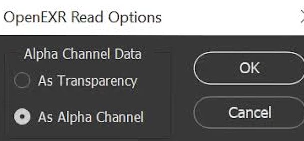
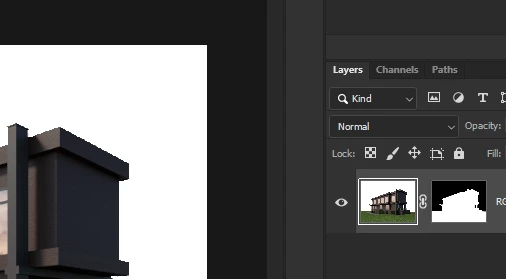
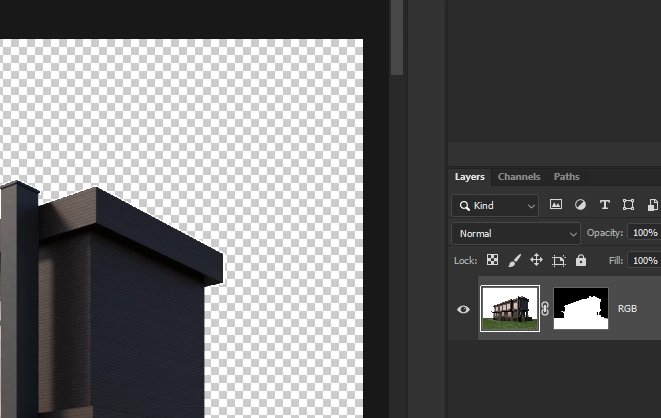
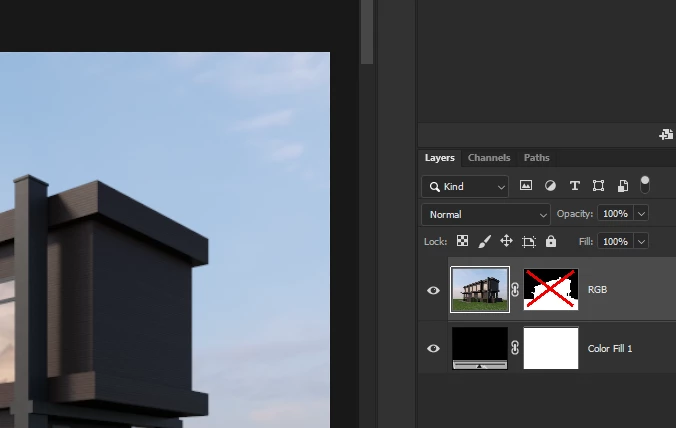
After this my files open as 1 layer with no mask and, most important, exactly as I see them in 3D software. In 27.5 open exr files was changed, now i cant open file with same color. Some screenshots - 
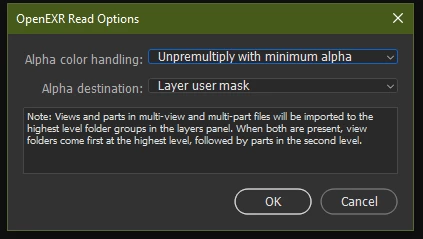
 

option 1


 I don’t see the sky, but it's there. Add black layer behind this
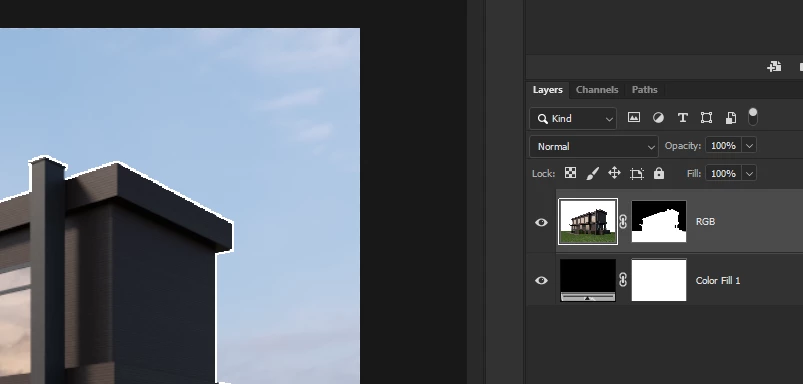
 Oh, i see my sky, but what's happening with building?

Ok, try another options 
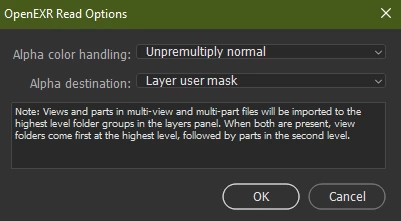
Wait, i say “layer user mask” but see transparency, ok it doesn't matter, add black and turn off mask.
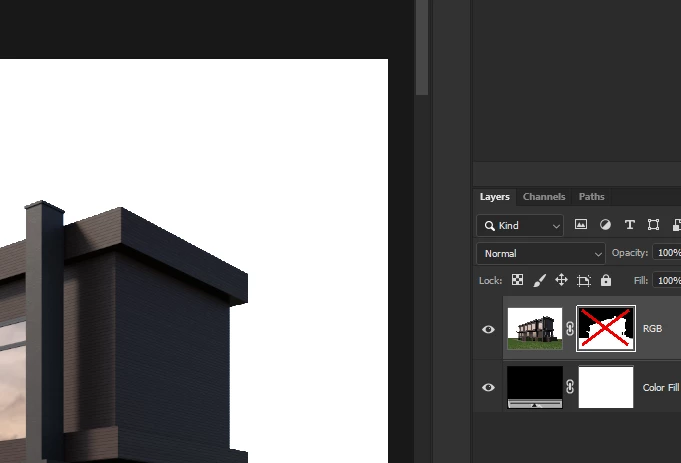
 No sky. 

Try last.
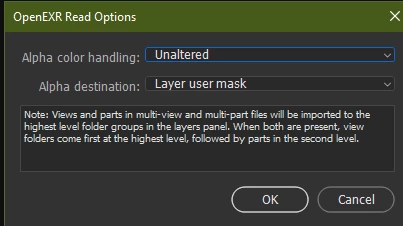
 

 Turn off the mask, and add black behind him. I see the sky. 

This is wrong. I want options “as alpha channel” like many years before. A don’t want to perform so many actions to just open file and work. You add something new? Ok, it’s fine, but why need broke old? 

Please, back this options. 

    4 replies

    Adobe Employee
    May 8, 2026

    Hi ​@AlePaxND, there’s an ongoing discussion over here about the new EXR plugin: 

    In the most recent Beta are some updates to improve the terminology around alpha handling, and we also included a new option ‘Ignore Alpha’, which should give you behavior similar to the old ‘as alpha channel’ option and will load the EXR with alpha disabled. Please have a look if it meets your needs.

    Adobe Employee
    April 15, 2026

    Thanks for the feedback — we understand that workflow changes can be frustrating, and we want to make the transition as smooth as possible for all users.


    These updates came from long-standing requests and collaboration with VFX studios who regularly work with multi-layer EXRs needing full EXR 2.0 spec support and non-destructive alpha handling. In order to align more closely with the EXR standard and support all EXR data, some changes to file opening behaviors were necessary.


    Since alpha must stay associated with the correct layer with multiple RGBA layers, the 'as alpha channel' was no longer an option, so 'as alpha channel' was no longer viable — layer transparency and alpha mask are now the two destinations to keep EXR files fully round-trippable.


    That said, you can replicate the old compositing behavior today: select **Unaltered** for alpha handling and **User Mask** for alpha placement, then disable the mask. That gives you the same result as the legacy "as alpha channel" option, while being able to preserve alpha on write.


    We're considering a **"disable alpha on load"** option so you can start from plain RGB just like the alpha mask legacy option with no transparency applied by default. Would that help your workflow?

    AlePaxND
    Participant
    April 16, 2026

    Fair enough, but not enough ;)

    I get your point, but nothing prevents you from treating single layer EXR’s with the legacy method (that is my case). I relied upon a script to auto-load multiple EXR into a single PSD with multiple layers AND a single alpha channel derived from the beauty pass. Now I made a standalone Python app to achieve the same result. Thanks anyway.

    Adobe Employee
    April 6, 2026

    Hello, thanks for the feedback. The reason this changed is we simply can’t just keep the old behavior and support all the modern EXR features. We had to change a few behaviors to be able to update our EXR reading/writing to support the full EXR spec. Take a look at my response to this other thread here: 

    I’ll summarize by pointing out that it appears you do not have a render/alpha in the typical sense of transparency for compositing. Rather, it appears your render is a pre-composited RGB image with a selection mask as alpha. Since this isn’t the typical meaning of transparency per the EXR spec, the default settings probably won’t produce what you’re looking for. The good news is with the updates we made, we now have options to support all use cases. The new EXR handling does not have an ‘as alpha channel’ option anymore since it would make it impossible to support multi-layer EXRs.

    The correct options for what you are doing should be ‘unaltered’ alpha handling and having Ps place them in a user mask, which is what you selected in your last example. This appears correct and you shouldn’t need the color fill behind since you have all opaque data on the ‘RGB’ layer with the mask disabled. Let me know if those settings work for you and what we can do to make it more streamlined for these workflows.

    Alexfmos2
    Alexfmos2Author
    Known Participant
    April 10, 2026

     This appears correct and you shouldn’t need the color fill behind since you have all opaque data on the ‘RGB’ layer with the mask disabled

    No, it’s not work for me. If i do not place black layer before exr layer, then colors wrong (white). I roll back PS to 27.4 but after this post i see - you won't add the "as it was" option. So, all that remains for me is to do is stay for all time in this version, or open exr and  always do some action to see right picture. 

    Adobe Employee
    May 8, 2026

    Hi ​@Alexfmos2, I’m not sure if you’re following the other discussion I linked to, but if you install the latest Beta, we have updated the terminology and added a new ‘ignore alpha’ option which will disable the alpha on load (it will still preserve it, just not contribute to the transparency). Let me know if that fixes your use case!

    AlePaxND
    Participant
    April 2, 2026

    In the latest update Adobe changed the way EXR files are loaded in Photoshop (nobody asked for that, but hey, they know what ther’re doing! NOT.) 

    Now you’re prompted to load the alpha as layer mask or transparency, but there’s no option to have it loaded as plain simple channel... (Adobe, do you know RGBA?)

    Can we have it back please? (And maybe do not break things in the future too?)