



Open for Voting
Applying default audio transitions to multiple cut points applies them single-sided fades instead of centered
When applying default audio transitions to multiple cuts or clips at once, Premiere Pro applies them off-center as single-sided fades (like a fade-in or fade-out) instead of centering them across the cuts.

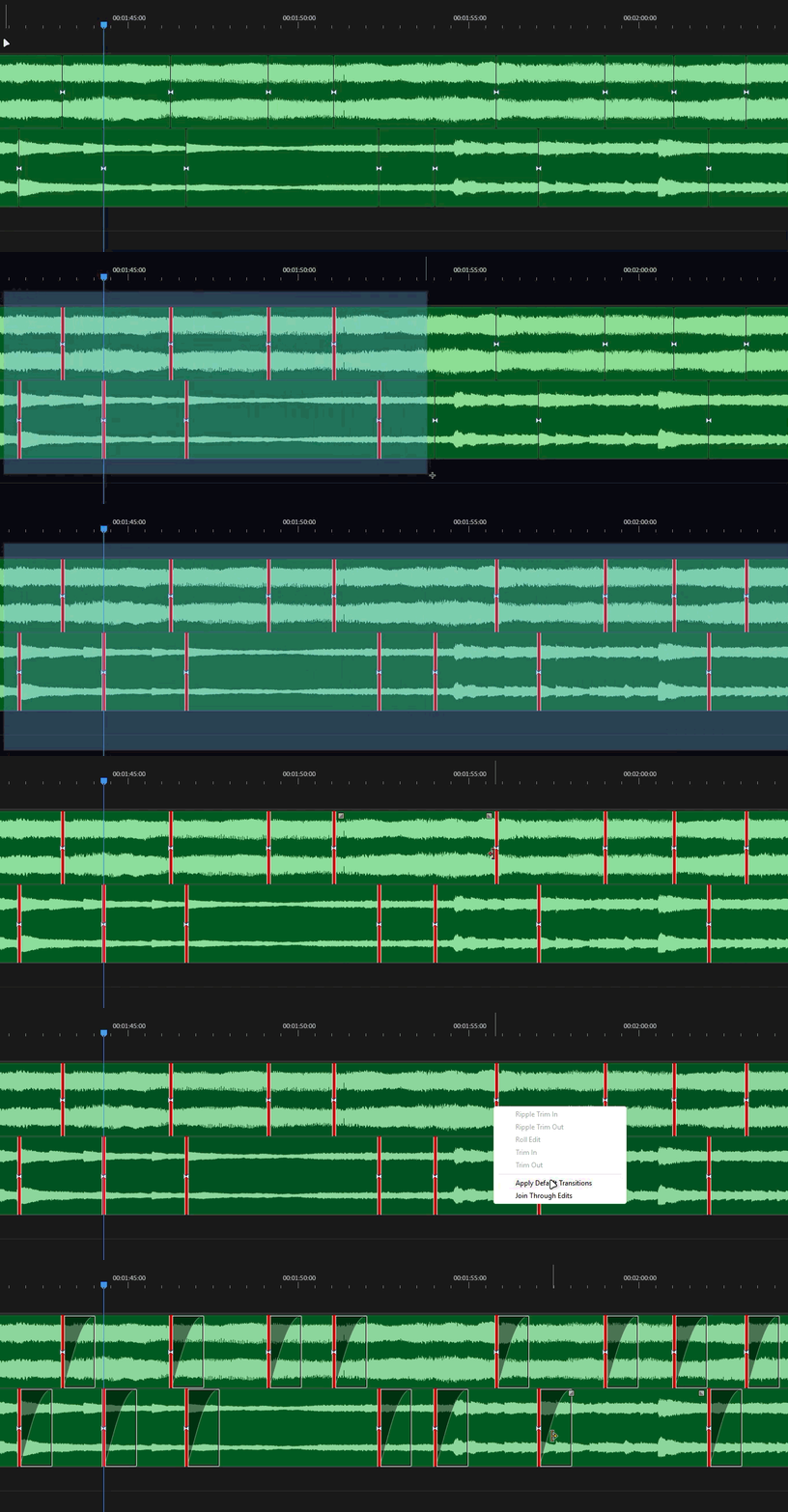
Steps to Reproduce:
- In an audio track with audio and cuts, select multiple cut points OR multiple clips.
- Apply default transitions using the right-click menu ("Apply Default Transitions") or the shortcut (Shift+D / Ctrl+Shift+D).
Furthermore, when I tried to workaround this bug by trying to copy a Centered Cross Fade and pasted. It still pasted the transition one sided. So there is no practical workaround if we want to batch apply audio transitions.
System info
Application: Premiere Pro (Beta) v27.1.0.41
OS: Windows v10.0.26200, RAM: 31.82 GB GB, CPUs (logical): 24
GPU: Rtx 3060 Ti Nvidia Studio Driver ver. 617.47
 AdChoices