



hellopaul4
Inspiring
April 17, 2026

Premiere's new Color tab: Controls are tiny!

  • April 17, 2026
  • 2 replies
  • 52 views

I have 3 monitors that I use; my main one is 4K. As you can see, the colour controls are so tiny as to be useless - I’m sure this is not “as designed”? There’s no obvious way of embiggening them...which brings me back to the whole “make the UI scalable” thing that billions of us have been requesting (to no avail) for years.
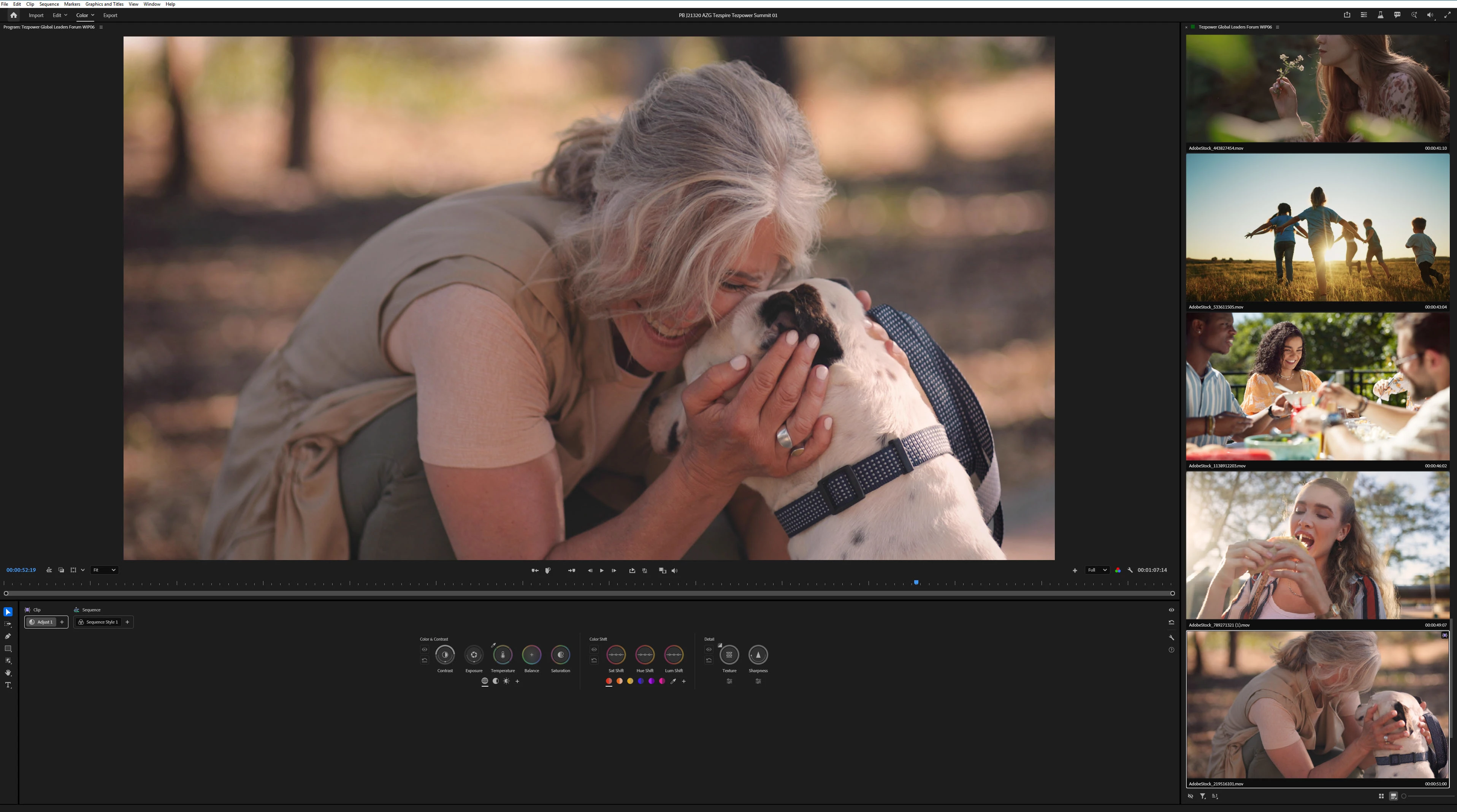
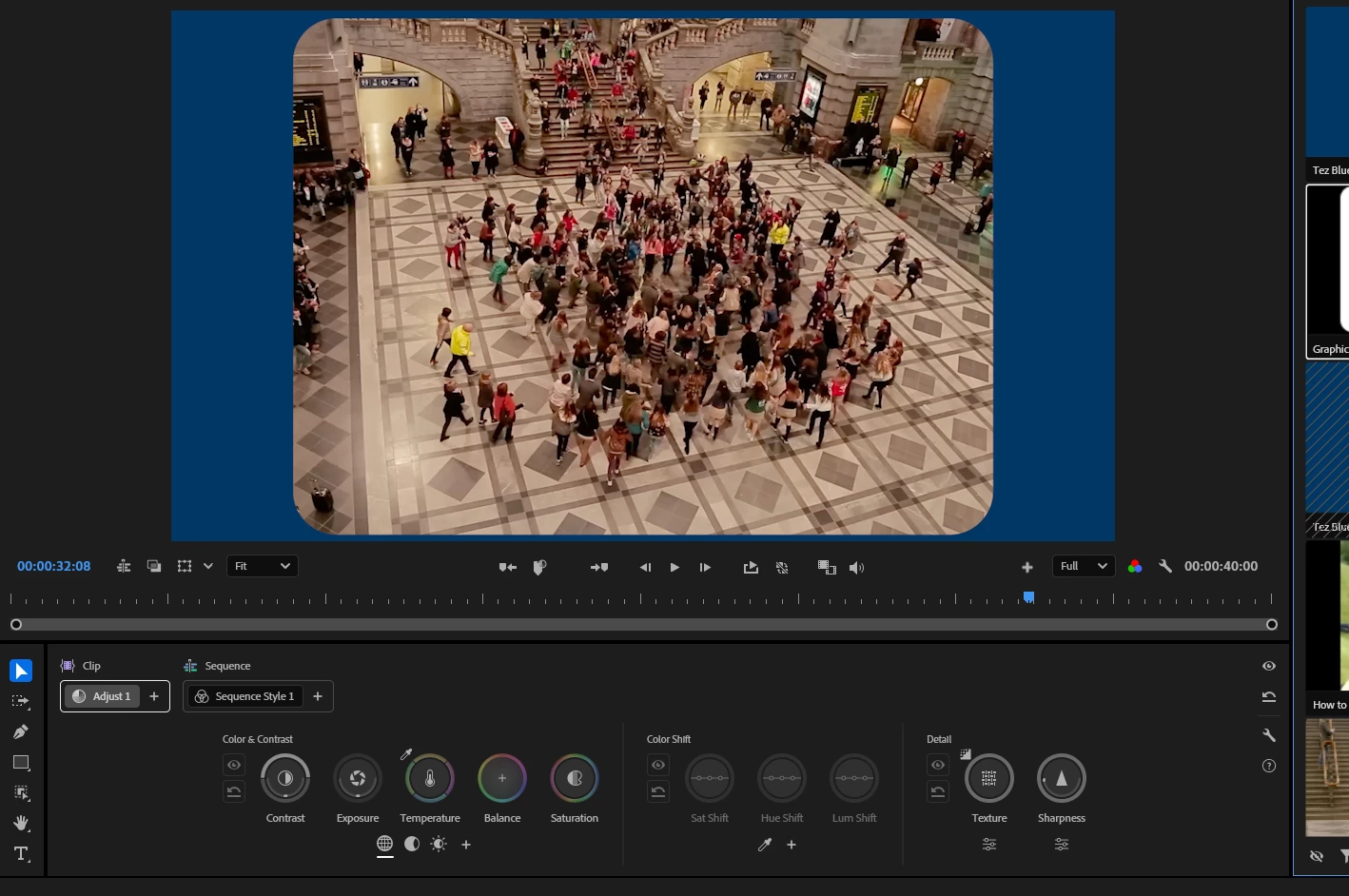
If I move the whole Premiere window to one of my other monitors, the controls remain the same size - i.e. they fill the available space more and become marginally more useful (this is on a relatively low res. 1680x1050 display):
System info
    Application: Premiere Pro (Beta) v26.3.0.45
    OS: Windows v10.0.26200, RAM: 127.91 GB GB, CPUs (logical): 32

    2 replies

    Participant
    April 17, 2026

    Hi,


    I agree with hellopaul about the tiny controls on a 4K monitor. Running Apple Silicon M1 MAX here connected to a native 4K display. On all the demos (youtube channel) things appear fine, but are likely being run on lower res monitors. At 4K there seems to be an awful lot of empty space on the controls panel. This is a bit of a shame for a new feature so heavily bent on the user interface. So I also believe this is going to need some work.


    Kind regards,

    Merlin

    mattchristensen1
    Adobe Employee
    Adobe Employee
    April 17, 2026

    Is your 4K monitor set to 100% scaling in the Windows Display settings? Setting the display scaling to 200% (or 150%) and restarting Premiere, you should see the color controls at a more usable size on the 4K display.

    hellopaul4
    Inspiring
    April 17, 2026

    Yes, it’s set to 100%, which is how I always like to use it. Setting it to 150% or 200%, as we all know, just scales up everything, including the footage I’m working on, so a 4K image appears 1.5x or 2x as large on my display - completely defeating the object of a 4K monitor. I want a 1:1 representation of my footage’s pixels. And obviously everything in the UI looks pixellated and awful when scaled up...but worst of all, the colour controls are still NOT filling the available space! This is the (still too small) colour controls when the display is set to 200% (marginally better than before, but still not good):

    The Windows UI is aware that I’ve scaled the display to 200%; text/icons in Windows Explorer’s folders appears crisp, large and lovely. But Premiere is unaware of this, and just doubles up the pixels to look very ugly.

    Scaling the display to 150% or 200% in the display settings is most definitely not the solution. Is there a reason why Adobe can’t use whatever excellent technology InDesign and Illustrator use for their fully scalable UIs and apply it to AE and Premiere’s UIs?

    Shebbe
    Community Expert
    Community Expert
    April 18, 2026

    I fully agree with your main point about the covered real-estate of the color controls. And scaling the display/UI is not a good argument because it severely reduces your operating space where it does matter, which is pretty much everywhere except the color controls panel…


    About scaling itself though, if you keep Premiere open while changing it, it ‘breaks’ the UI, at least on Windows that is. Premiere needs to be closed and reopened with the new scaling already applied. Then everything is redrawn according to the set scaling rather than blown up.