



sacb0y
Known Participant
July 11, 2023
Open for Voting

Textures with an Alpha Channel should not have a white matte (USD/GLTF Import)

  • July 11, 2023
  • 2 replies
  • 307 views

This is a very baffling thing I'm surprised is not complained about more.


Painter supports GLTF and USD import AWESOME! But god help you if any texture has an alpha channel.

 

Here's my use case, I have the character above who has tons of different equipment, outfits, etc, all kinds of things. And when I assign people to make textures for these assets they should be able to easily work on a preview of the model.


At first I figured I would include smart materials preconfigured on a library, this works well enough.


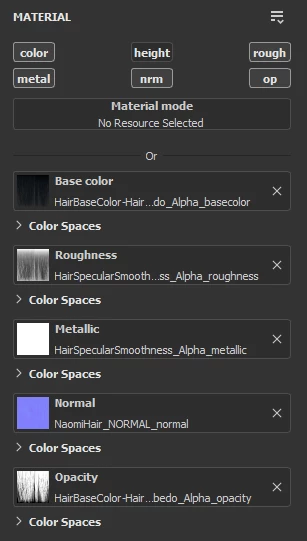
But then i realized GLTF2 properly exported the textures, and substance seemd to import them. Meaning my artists could easily just take an export, open it, maaaybe have to enable Opacity (which I really don't understand why there is no solution to have Opacity enabled on load automatically ESPECIALLY for Unity or game engines. Anyway...). And my artists can simply just begin texturing after receiving the files over the cloud server. And I don't need to make a TON of preconfigured sbar files so they can work comfortably.  


But there's a snag, for some reason the matte color for transparency is white, and even if I enable Opacity.

This does not make for a good preview, why is this like this? I can see that when the GLTF is imported, substance automatically creates an Opacity image so it's clear that the alpha channel of the base color is not used. But rather than just IDEALLY get rid of the alpha and leave the color underneath, or make it black it's the most obnoxious color.


This is not an issue with the texture file, the texture file has color under the alpha, this is a problem SPECIFICALLY in substance. This actively makes a useful solution unusable. 


As far as I can tell, I cannot create a GLTF (Or USD file) file that does not create this problem.
 

I'm officially out of solutions to make this seamless for my artists. 


Or is there something I'm missing somehow?

2 replies

sacb0y
sacb0yAuthor
Known Participant
August 3, 2023

As for the reason i'm not sharing the .SPP file it's merely a matter of time, it's like 70 items to be textured. It took a while to export from marvelous designer and clean up, i considered making SPP files too but i'm simply out of time and need to move on.


Thanks for the advice on templates tho! I will deffinitely try that! And try the fill layer fix for now.


I hope this issue gets resolved in the future!

Cyril Dellenbach
Community Manager
Community Manager
July 14, 2023

Hello @sacb0y,


Thanks for reporting.


I've made some tests on my own to see what's happening with the Opacity. When you export your work in Gltf and reimport it in a new project, we can clearly see this white "line" surrounding the parts with Opacity.


This part is due to the Dilation missing in the Base Color. As you can see in the bitmap file, the Dilation works as expected except for the part where the Opacity is Black.


At first I thought it was due to the Opacity being packed in the Base Color, but since the Opacity as its proper map (as you mentioned), I don't think it's related. To be honest, I don't know why the Dilation isn't working on these parts, so I've asked the rest of the team, but I don't think we'll have an answer until next week.


With that being said, the white line is white (grey in reality) only because it has no material applied to. Therefore, you'll simply have to add a Fill Layer at the bottom of the Stack to make it less visible.


On another note, why not directly share the .SPP file? Substance Painter create autonomous projects in this regard and you can use the Save and reduce file size option in order to keep a low footprint.


Also, for the Opacity at launch issue, it's perfectly possible to have it enabled natively. You'll need to set up a new project with the specificities you'd like and then save it as a Template.


Now, when creating a new project, you can select the newly created template, and if an opacity channel has been added, it should be available at launch.


Best regards,


Cyril Dellenbach (Micro) | QA Support Artist | Adobe