


alexskunz
Inspiring
June 20, 2023
Open for Voting

P: Add a red indicator dot to show WHICH masks/components need updating

  • June 20, 2023
  • 6 replies
  • 913 views

The new "red dot" to indicate that some AI-generated masks *may* need updating is helpful, and it is driving me nuts at the same time — when I have multiple masks, I'm clicking through all of them, just to find the one that may need updating.
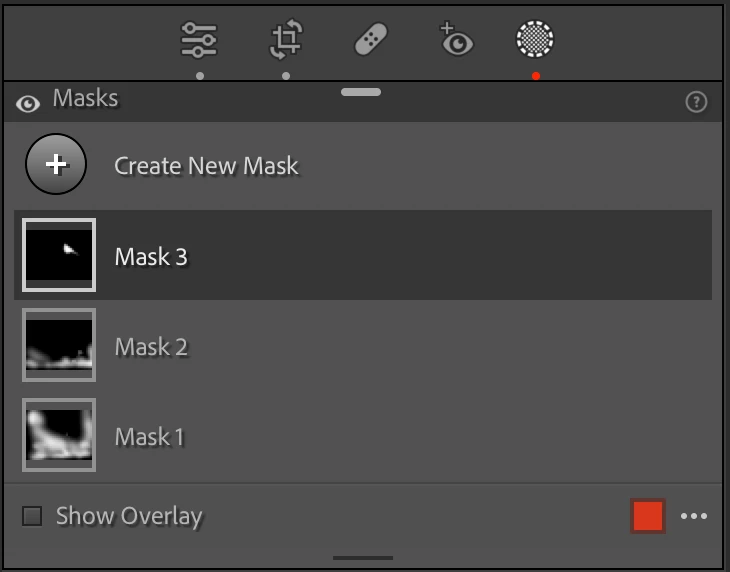


So which of the three masks in this screenshot needs updating? I don't know until I click. (it's Mask 3, because it's the only one with an AI component).


So an additional indicator dot for the mask AND for the component inside the mask would be helpful.


However... when I see this red dot, I feel like I should update the AI component anyway (after all, the color "red" means attention, alert, danger!) so an option to simply update those components, or a pop-up that one or more components need updating, would perhaps be even more helpful.


Thanks for considering it and for your upvotes. 🙂

Alex.

6 replies

alexskunz
alexskunzAuthor
Inspiring
June 21, 2023

I'm trying to get Opt-Cmd-U into my head now because I see that entry greyed out all the time and didn't realize that the keyboard shortcut DOES work nevertheless... *groan*


Thanks, John.

johnrellis
Legend
June 21, 2023

"The way it is now, I see the red dot, have to switch to Library, go to the menu to trigger the update, and then switch back to Develop. Not exactly a streamlined process."


For the current photo in Develop, you can do Settings > Update AI Settings (see the menu item for the keyboard shortcut).  But beware that it, at least in the past, it sometimes greys out even when there are masks to be updated (due to an unresolved bug), whereas the Library command is always available.

alexskunz
alexskunzAuthor
Inspiring
June 21, 2023

Thanks, John... and that feature should be a button in the Develop panel that shows when masks need updating, or a pop-up, or something that makes this EASY.


The way it is now, I see the red dot, have to switch to Library, go to the menu to trigger the update, and then switch back to Develop. Not exactly a streamlined process. 😛

johnrellis
Legend
June 21, 2023

In Library Grid view, select one or more photos and do Photo > Develop Settings > Update AI Settings. That will update all masks that need updating, quickly skipping over photos that don't have masks needing updating.


alexskunz
alexskunzAuthor
Inspiring
June 20, 2023

I appreciate your input Johan, but this is a routine programmed ONCE to do things. Spending human time repeatedly to build a crutch around the shortcomings of its implementation does absolutely not, sorry to be so nitpicky about the words you chose, "solve this."


Even if I name my masks, I'll still have to chase down which one needs updating. Is it the sky mask? Is it a subject mask? Is it an object mask? A people mask? Which component of which person's mask and of what of their features?

JohanElzenga
Community Expert
Community Expert
June 20, 2023

One way to solve this is to name your masks. That is always much more useful than 'Mask1', 'Mask2' etc. Because you do not want to have to do that for each image, use presets to create AI masks. Create an AI sky mask, rename the mask to 'Sky', and then save this as your preset for creating all your AI sky masks.


-- Johan W. Elzenga