


Roland_Rick
Known Participant
June 28, 2022
Open for Voting

P: Detect CF Express Cards as a Device in addition to a file location

  • June 28, 2022
  • 6 replies
  • 1298 views

CFexpress card (I can only check Type B) are not detected as (photo) devices like XQD and SD cards are. That results in those issues:

  • Card is not be ejected automatically after import (to me, the worst thing)
  • Add and Move can be used, where Add is a total no go, Move doesn't bother me personally


Please don't blame the OS for this.


Adobe can easily fix this by adding two lines of code checking if there is a DCIM folder in the root of the device or not. Of course that's only a workaround. But I'm pretty sure Adobe board has best contacts to Tim C®ook and this can be fixed in an instant teaming up with Apple, when blaming MacOS. I suppose Adobe will exactly do this, instead of working on a solution.


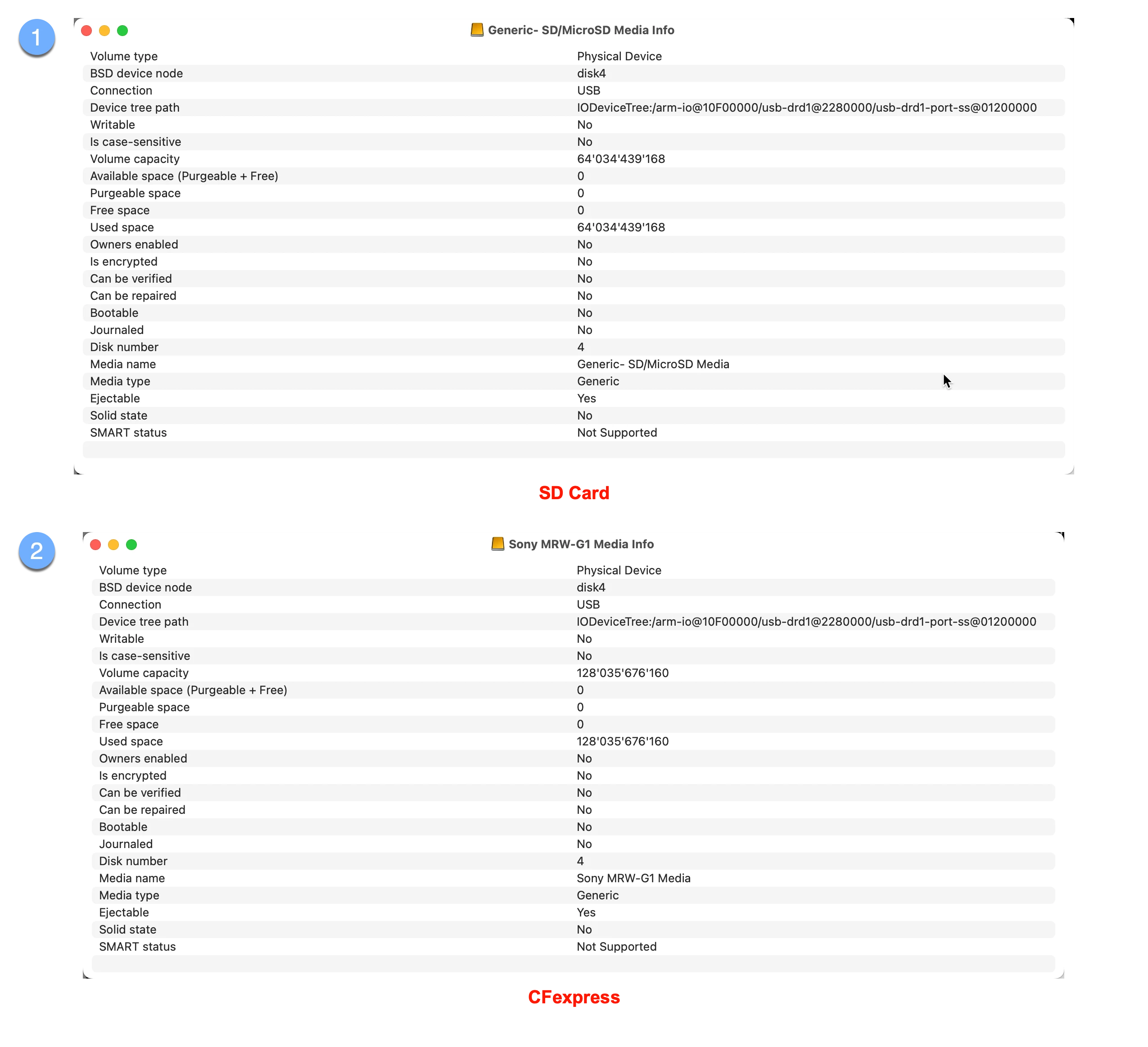
Honestly, there isn't much difference between SD and CFexpress shown by Disk Utility of Monterey 12.4, viewing the info for the Sony MRW-G1 (can read/write XQD and CFexpress Type B) and SATECHI for the SD Card. In the attached screenshot, I checked the info for the devices, not the volume partitions.

Geetings,
Roland
6 replies

johnrellis
Legend
October 1, 2024

@PropagandaPhoto: "a secondary window asking the user if they're sure and warning that images won't be copied or moved."


That could be helpful, but the warning would need a Do Not Show Again option, considering that LR isn't able to distinguish CF Express cards from external SSDs, and users with workflows importing from external disks may not want to see the warning repeatedly.

Known Participant
September 30, 2024

Add a Warning dialogue box when importing using the 'Add' command from external media


Occasionally I use the 'add' feature in the import window. However, 99% of the time I import from external media (SD, CF cards etc) using the 'Copy' feature. It's very easy to not notice that the 'Add' is still selected, then images are referenced from a card and that card can then be removed and formatted. My suggestion is that when using 'Add' from external media a secondary dialogue box comes up warning that the images will not be moved and only referenced. This would give the user a heads-up if they wanted to copy or move and not add images.

GoldingD
Legend
September 30, 2024

I would think that the lack of panels on the right side would be a clue.

JohanElzenga
Community Expert
Community Expert
July 9, 2022

Apple changed the security requirements in MacOS Monterey. Go to MacOS 'System Settings - Security & Privacy' and add Lightroom Classic and Photoshop to "Full Disk Access". Click on the lock icon to unlock the settings, then click on the plus icon to add Lightroom Classic and/or Photoshop if it isn't already listed. If it is listed, then just enable the checkbox. See also Quick Tips: How to give Full Disk Access to Lightroom Classic on macOS


-- Johan W. Elzenga
traveler2
Participant
July 7, 2022

I switched from a PC to a MacBook and now Lightroom Classic cannot see my CF Express card as a source card, and when I check include subfolders it shows nothing; no folders nor files.  It seems to think it is a hard drive but with no capabilities.  Bridge can see it, so why not LRC? Very frusstrating since I spent a lot to "upgrade" to CF Express cards from XQD. 

TheDigitalDog
Inspiring
June 28, 2022

Upvoted and yes, this needs a fix as many don't see this carefully, pick 'Move' and then wonder why the images no longer exist on the card. Kind of a big hurt me button. 

Author “Color Management for Photographers" & "Photoshop CC Color Management/pluralsight"
JohanElzenga
Community Expert
Community Expert
June 28, 2022

This has been discussed many times, including your suggestion. I move this to "ideas" because that makes more sense. Hopefully Adobe will finally listen.


-- Johan W. Elzenga